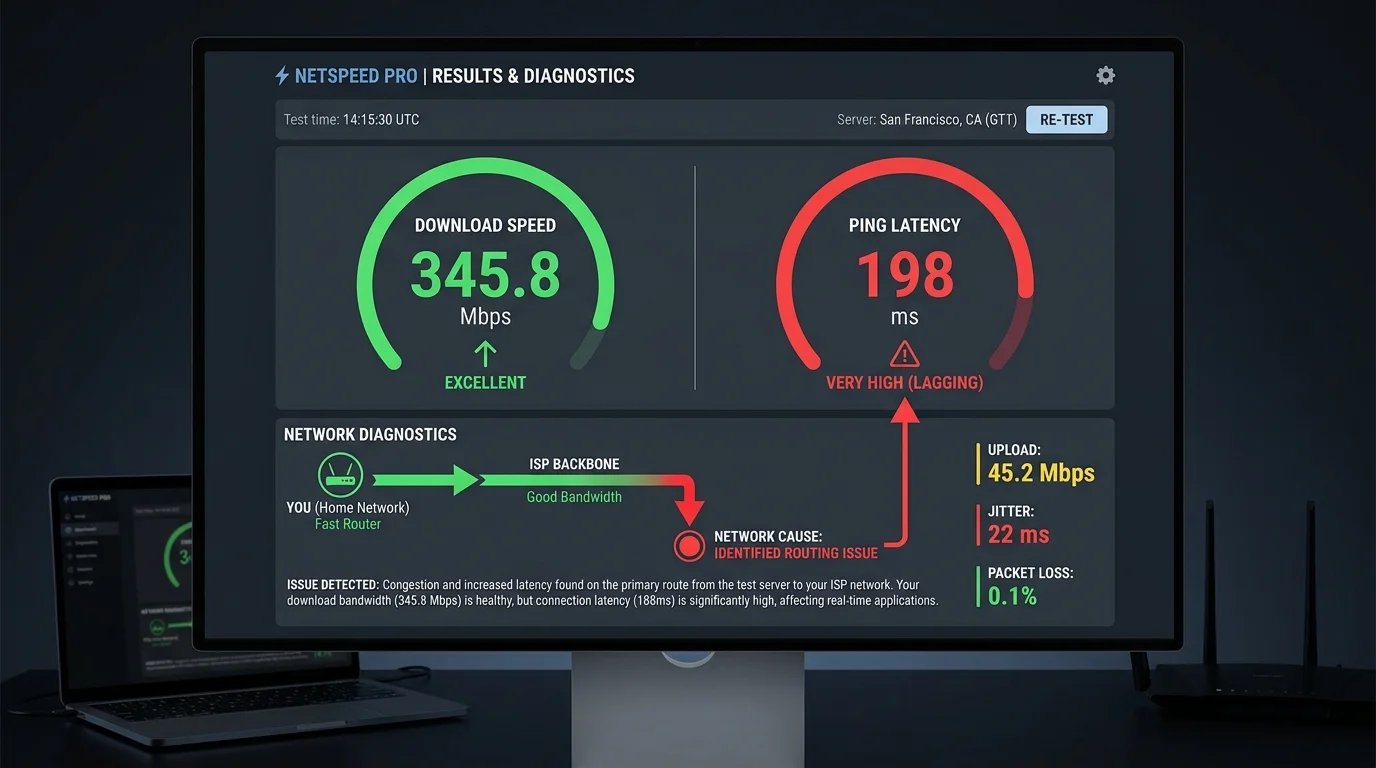
Why Download Speed and Ping Are Completely Different
Download speed measures throughput — how much data can be moved per second. Ping measures latency — how long a round trip takes. A highway analogy: download speed is how many lanes the highway has; ping is how long it takes one car to drive to the destination and back. A 10-lane highway doesn't help if there are traffic lights every mile.
Cause 1: Bufferbloat (Most Common — 52% of Cases)
Bufferbloat occurs when your router's buffer fills up during high download/upload activity, causing latency spikes even at good speeds. Test: run a DCSpeedTest while simultaneously streaming a large file. If your ping spikes from 15ms to 80ms during the download, you have bufferbloat. Fix: enable SQM (Smart Queue Management) with the CAKE algorithm on your router. Available on routers running OpenWrt, AsusWrt-Merlin, or some stock Asus firmwares.
Cause 2: WiFi Interference and Jitter (23% of Cases)
WiFi can deliver high throughput while having poor latency consistency due to channel congestion. A crowded 2.4 GHz channel gives you 200 Mbps average download but 15–80ms ping variation (jitter). Fix: switch to 5 GHz or 6 GHz. For gaming, use wired Ethernet — WiFi jitter is entirely eliminated with a cable.
Cause 3: Server Route Issues — High Latency to Game Server (12% of Cases)
Your ISP ping to a speed test server may be 15ms, but the route to a specific game server (Valorant, Fortnite, Apex) may cross inefficient peering points adding 40+ ms. Use tracert [game-server-ip] on Windows to trace the route. Long hops at specific routing points identify ISP peering issues, not home network problems.
Cause 4: Modem or Router CPU Saturation (8% of Cases)
Cheap routers with slow CPUs (sub-1GHz single-core) can move large amounts of data (explaining good download speed) while struggling to process small, latency-sensitive ping packets quickly. Test: check router CPU usage in the admin panel during load. Over 85% CPU = likely culprit. Upgrade to a router with a dual-core 1.5 GHz+ processor.
Cause 5: QoS Misconfiguration (5% of Cases)
Poorly configured QoS settings can accidentally prioritize bulk transfer traffic over real-time traffic. If you have QoS enabled, try disabling it temporarily and measure ping change. Some ISP-provided gateways have broken QoS implementations that increase latency rather than reducing it.
The Quick Diagnostic
- Run DCSpeedTest — note download speed and ping separately.
- Run DCSpeedTest again while downloading a large file — compare ping. A big increase = bufferbloat.
- Connect via Ethernet instead of WiFi — if ping drops significantly, WiFi jitter was the cause.
- Run
ping 8.8.8.8 -t(Windows) for 5 minutes — if ping varies wildly (+/- 30ms), jitter is the problem. - Run
tracert [game-server-ip]— identify the hop where latency jumps and whether it's external to your home network.
Using MTR Instead of a Simple Ping Test
An MTR (My TraceRoute) test combines traceroute and ping, showing latency and packet loss at every hop between you and the destination over time — far more diagnostic than a single ping value, since it reveals exactly which hop introduces the delay rather than just confirming that a delay exists somewhere.
Why This Matters More for Competitive Gaming Than Casual Play
A 30-50ms difference is barely noticeable in casual single-player or co-op games, but is the difference between landing and missing shots in competitive shooters — the diagnostic effort described here is worth it specifically for players in the competitive tier, less so for casual gaming where higher ping tolerances apply.
Console-Specific NAT Type Issues
On consoles specifically, a "Strict" or "Type 3" NAT setting can manifest as high effective ping in matchmaking even when raw network latency is fine, since it affects how directly your console can connect to other players — checking and improving NAT type (often via router port forwarding or UPnP) is a console-specific diagnostic step worth adding to this list.