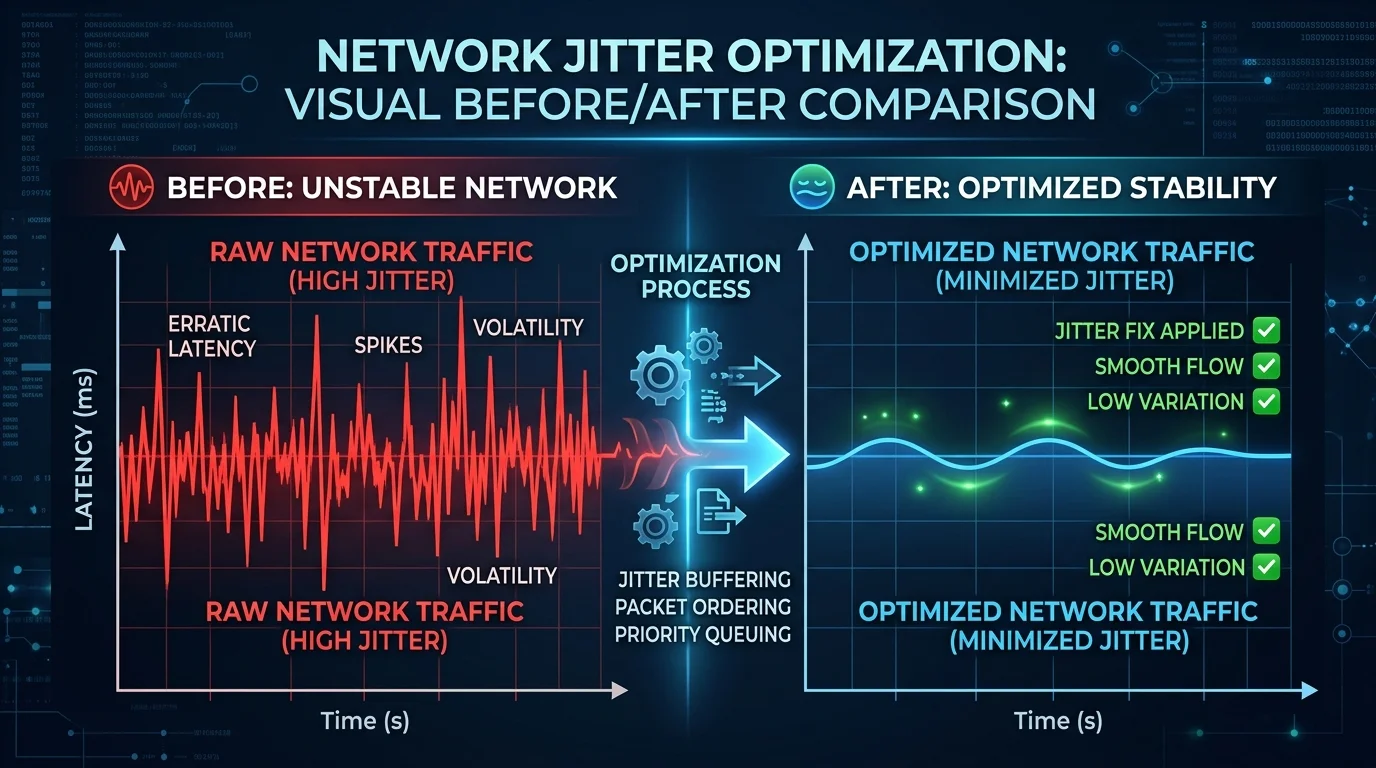
Why Jitter Matters More Than Average Ping
Games and video calls are designed around predictable latency. If every packet arrives in exactly 50ms, the game engine can compensate perfectly. If packets arrive randomly at 10ms, 20ms, 50ms, 80ms, 15ms — that 40ms variation (jitter) creates rubberbanding, audio dropouts, and erratic hit registration that an average ping number completely hides.
Step 1: Measure Your Baseline Jitter
Run DCSpeedTest and note the jitter reading. Under 5ms is excellent. 5–15ms is acceptable for gaming. Above 15ms causes perceptible instability. Above 30ms = severe, causing audible choppy voice calls and visible game instability. For a more detailed analysis, install PingPlotter Free — it graphs your ping and jitter over time to show patterns.
Cause 1: WiFi — The Primary Jitter Source (Fixes 65% of Cases)
WiFi jitter comes from: channel congestion (neighboring networks competing), 2.4 GHz interference (microwaves, baby monitors, Bluetooth), and packet retransmissions when RF conditions fluctuate. The fix hierarchy:
- Switch to Ethernet: Eliminates WiFi jitter entirely. Best fix, no cost.
- Switch to 5 GHz or 6 GHz: Reduces interference. Achieves 60–70% of wired stability at short range.
- Change WiFi channel manually: Use a WiFi analyzer to find the least congested channel and set it manually (disable "Auto").
Cause 2: Bufferbloat (Fixes 20% of Cases)
When your connection is saturated, the router buffer fills with packets waiting to be sent, creating unpredictable queuing delays — jitter. Fix: enable SQM with the CAKE algorithm on your router (OpenWrt, Asus Merlin). CAKE maintains near-zero bufferbloat by intelligently managing the queue, dramatically reducing jitter under load from 50ms+ to under 5ms in tested configurations.
Cause 3: ISP Line Quality Issues (10% of Cases)
Cable modem signal-to-noise ratio (SNR) degradation causes physical layer retransmissions that appear as jitter. Check your modem's admin page (192.168.100.1) for SNR levels. Downstream SNR below 30 dB indicates line quality issues requiring ISP technician visit. Common in older coaxial installations with corroded connectors or improperly terminated splitters.
Cause 4: ISP Routing Instability (5% of Cases)
Run PingPlotter to 8.8.8.8 for 30 minutes. If jitter appears at a specific hop number (e.g., hop 3 consistently shows 50ms variance while hops 1–2 are stable), the instability originates at that network equipment — your ISP's or their upstream provider's infrastructure. This cannot be fixed locally — report the PingPlotter result to your ISP support with the specific hop identified.