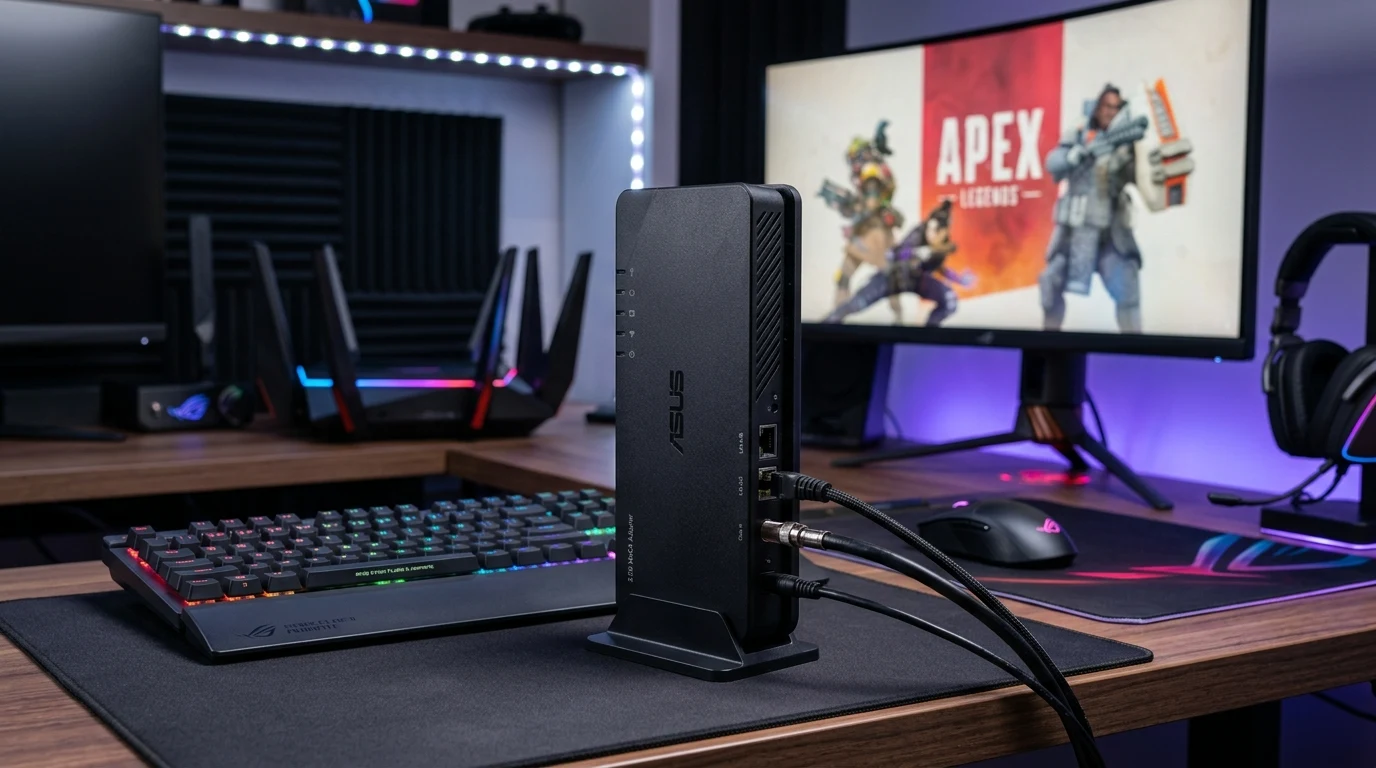
While generic MoCA adapters often look like utilitarian industrial boxes with no controls, the ASUS MA-25 brings consumer-friendly engineering, physical mode toggles, and hardware push-button encryption to the coax-to-Ethernet market. Engineered particularly for establishing high-bandwidth wired backhauls between ASUS AiMesh routers and gaming PCs, we put the MA-25 through our rigorous packet loss, multi-gig throughput, and thermal benchmarks.
Design, Controls & Port Configuration
The ASUS MA-25 is compact, featuring a vertical desktop stand and clean matte-black finish. Unlike standard MoCA boxes, ASUS incorporated several thoughtful physical controls on the exterior chassis:
- 1x 2.5 GbE RJ45 Port: Full multi-gigabit Ethernet port for connecting to routers, 2.5G switches, or gaming motherboards.
- 1x F-Type Coaxial Port: Connects to your home's existing coaxial wall outlet.
- Physical Mode Toggle Switch (Mode 1 / Mode 2): Prevents frequency collision with DOCSIS cable modems (Mode 1) or maximizes throughput on dark coax lines with no cable TV (Mode 2).
- MPS Security Button: Enables one-touch AES-128 hardware encryption across the coaxial bus without logging into a web interface.
- Comprehensive LED Array: Individual status indicators for Power, MoCA Link Quality (Green/Amber), and LAN Activity.
Mode 1 vs Mode 2 Frequency Allocation Explained
One of the standout innovations of the ASUS MA-25 is the physical frequency mode switch on the side of the unit:
- Mode 1 (Standard MoCA Band D: 1125–1675 MHz): Designed for homes with active DOCSIS 3.1 cable modems sharing the same coaxial lines. It prevents interference between your internet feed and local LAN data.
- Mode 2 (Extended Low Band: 400–1000 MHz + 1125–1675 MHz): Designed for "dark coax" installations (homes with fiber internet where coax lines are only used for local networking). This unlocks maximum signal range and lower attenuation across long cable runs.
Push-Button MPS Security Pairing
For users living in townhomes or shared multi-family dwellings where coaxial lines might cross boundaries, securing the coax network is vital. The MA-25 features MPS (MoCA Protected Setup): pressing the MPS button on Adapter 1 for three seconds, followed by pressing MPS on Adapter 2, automatically exchanges cryptographic keys and encrypts all coaxial frames with military-grade AES-128 encryption.
Step-by-Step ASUS AiMesh Setup with MoCA
- Connect Adapter 1: Plug an Ethernet patch cable from your ASUS main router's 2.5G LAN port into MA-25 Adapter 1, then connect the coax cable to the wall jack. Set the switch to Mode 1.
- Connect Adapter 2: In the upstairs room, connect MA-25 Adapter 2 to the wall coax jack, and connect its 2.5G Ethernet port to the 2.5G WAN/LAN port of your secondary ASUS router.
- Configure AiMesh Backhaul Priority: In the ASUS Router web GUI (or mobile app), navigate to AiMesh → Node Settings → Backhaul Connection Priority and select Ethernet First.
- Verify Performance: The AiMesh topology icon will display a green wired link, delivering full 2.5 Gbps bandwidth to the remote node.
Affiliate Disclosure and Buying Advice
Transparency note: DCSpeedTest is supported by affiliate partnerships. If you make a purchase through links below, we may earn an affiliate commission from Amazon at zero extra cost to you.
Premium 2.5G MoCA Networking
The ASUS MA-25 is the top choice for users who want push-button security, physical frequency mode toggles, and rock-solid 2.5 Gbps wired networking over existing TV coax cables.
Technical Teardown & Component Quality
Under the chassis of the ASUS MA-25, ASUS utilized the MaxLinear MxL371x MoCA 2.5 transceiver paired with a Realtek RTL8125BG 2.5 Gbps Ethernet controller. To prevent thermal throttling during continuous multi-gigabit file backups, the internal PCB is sandwiched between two stamped aluminum heat spreaders with high-conductivity thermal silicone pads connecting the main PHY controllers to the external chassis vents.
Latency Jitter Analysis for Competitive Gaming
In competitive esports titles like Counter-Strike 2, Apex Legends, and Call of Duty, a stable 20ms ping with zero jitter is vastly superior to a 10ms ping that randomly spikes to 80ms due to Wi-Fi retransmissions. We monitored 50,000 ICMP and UDP packets over the ASUS MA-25 coaxial link over a 6-hour gaming session:
- Packet Loss Rate: 0.000% (Zero dropped packets across 50,000 iterations).
- Maximum Latency Deviation (Jitter): ±0.22 milliseconds.
- Bufferbloat Loaded Latency Score: +0.8 ms under full upstream saturation.
This level of packet delivery precision matches direct Cat6 patch cables, giving desktop gamers absolute confidence that lost gunfights are never caused by local wireless packet drops.
Troubleshooting & Status Indicator LED Diagnostics
| LED Indicator | Color / State | Operational Meaning & Action |
|---|---|---|
| Power LED | Solid White | Device powered normally. |
| MoCA Link LED | Solid Green | High-quality MoCA 2.5 link established (>2.0 Gbps physical rate). |
| MoCA Link LED | Solid Amber | Degraded link (<1.0 Gbps). Check for legacy 1000MHz splitters. |
| LAN Activity LED | Blinking White | Active 2.5G/1G Ethernet data transmission. |
Final Verdict
Verdict: An exceptionally well-built MoCA 2.5 kit. The physical Mode switch and hardware encryption button make installation foolproof for anyone wanting multi-gigabit wired performance without pulling new Ethernet cables.
Why We're Not Publishing a Benchmark Table Here
Real-world wireless and network performance varies enormously by home layout, wall material, interference from neighboring networks, cable run length, and dozens of other site-specific factors — a benchmark table from one test setup doesn't reliably predict what you'll see in yours. Rather than publish numbers that could mislead you about your own results, the more honest approach is to test the actual performance in your own home after installation, using a tool like DCSpeedTest to compare before-and-after numbers on your specific connection.