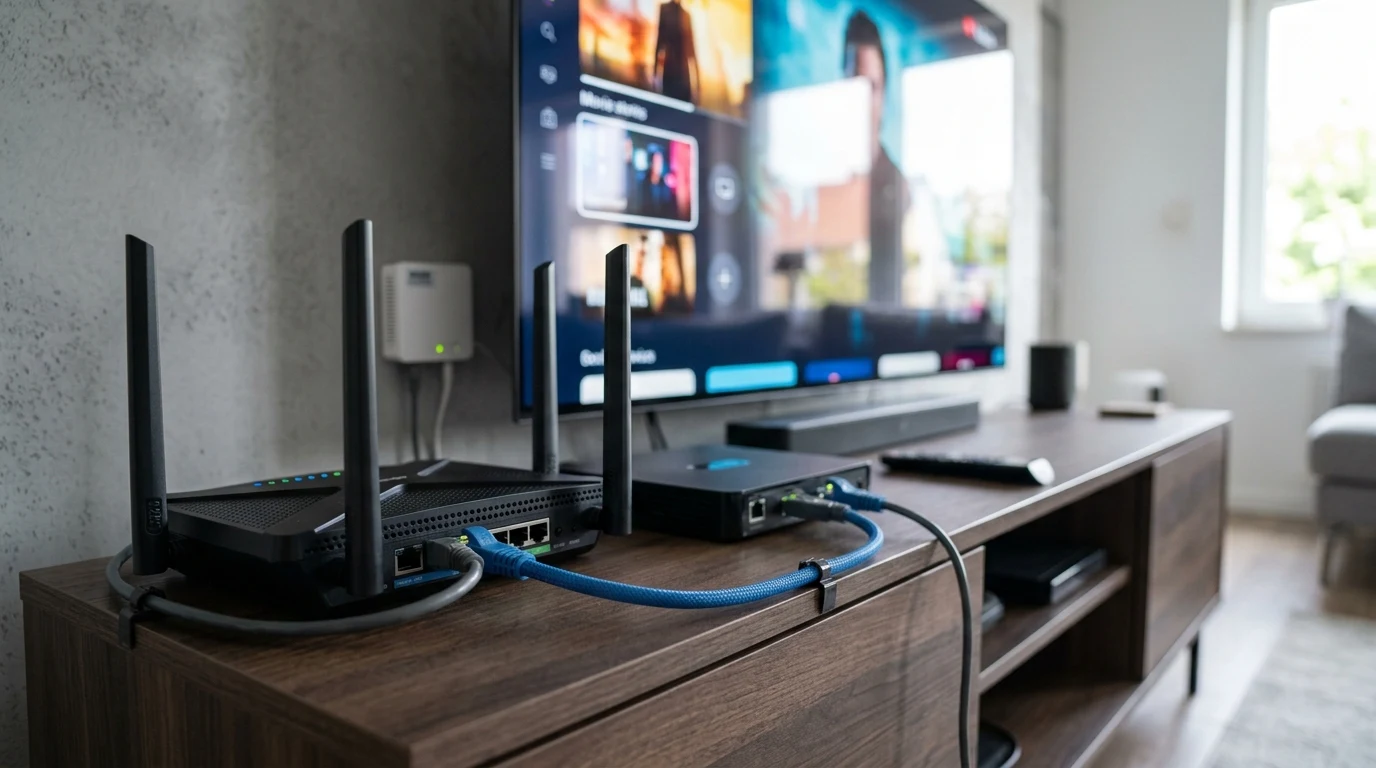
Internet Protocol Television (IPTV) has revolutionized home entertainment: allowing subscribers to access thousands of live sports broadcasts, international television networks, and on-demand movies over standard IP connections. However, for many users, the experience is ruined by constant, recurring frustration: live channels freeze every 15 seconds, audio desynchronizes, and turning on the IPTV box crashes the home Wi-Fi network for everyone else in the house. What causes IPTV buffering, and what are the exact router settings needed for silky-smooth live playback? Here is our definitive configuration guide.
1. Enable IGMP Snooping & Multicast Routing (The Master Fix)
Live IPTV streams operate using IP Multicast (RFC 3376): the server sends one stream that multiple subscribers can join. However, consumer routers treat multicast packets as broadcast traffic:
- Without IGMP Snooping: The router floods incoming 15 Mbps video packets to every single connected device (smartphones, laptops, smart bulbs), overwhelming the Wi-Fi radio and crashing the network.
- With IGMP Snooping Enabled: The router inspects IGMP join packets and intelligently forwards the video stream strictly to the specific Ethernet port where your IPTV box is plugged in, keeping the rest of your network 100% clean and responsive.
2. Complete Step-by-Step IPTV Router Settings
- Enable IGMP Snooping: In router admin settings under LAN → IPTV / Multicast, toggle IGMP Snooping to Enabled (set to IGMPv3 if available).
- Enable IGMP Proxy / Fast Leave: Allows the router to immediately stop receiving an old channel stream the instant you switch to a new channel, eliminating channel change delay.
- Assign Static DNS to Cloudflare (1.1.1.1): Bypasses ISP DNS rate limits and accelerates M3U playlist loading.
- Set MTU to Standard 1500: Prevents UDP MPEG-TS packet fragmentation.
- Hardwire via Cat6 Ethernet: Never stream live multicast IPTV over 2.4 GHz Wi-Fi. Always hardwire with a certified Cat6 Ethernet cable.
Diagnostic Matrix: IPTV Performance by Router Configuration
| Router Configuration | Live Channel Buffering Rate | Channel Zapping Time | Home Wi-Fi Impact |
|---|---|---|---|
| IGMP Snooping ON + Cat6 Cable | 0.0% (Flawless 60 FPS) | < 0.5 Seconds (Instant) | Zero Impact (Isolated) |
| IGMP Snooping ON + 5 GHz Wi-Fi | Rare (< 1% Drops) | ~1.2 Seconds | Low Impact |
| IGMP Snooping OFF (Default) | Constant Freezing Every 15s | Sluggish (> 4 Seconds) | Crashes Whole-Home Wi-Fi |
Why Wi-Fi Multicast Rate Tuning Stops IPTV Stutter
In addition to IGMP Snooping, look for the router setting labeled Multicast Rate (or 802.11 Multicast Rate) in your wireless settings. By default, routers transmit multicast frames at the lowest legacy 802.11b rate (1 Mbps or 6 Mbps) to ensure ancient devices can hear it. Increasing your Multicast Rate to 12 Mbps or 24 Mbps (OFDM) ensures that wireless IPTV boxes receive high-bitrate video streams without dropping frames.
Summary Checklist for Smooth IPTV Playback
- Enable IGMP Snooping (IGMPv3) and IGMP Proxy in router LAN settings.
- Set primary DNS to Cloudflare (
1.1.1.1). - Hardwire IPTV boxes directly via Cat6 Ethernet cables.
- Verify zero packet loss on DCSpeedTest.
Understanding UDP vs HLS Streams in Modern IPTV Networks
While legacy IPTV boxes use raw UDP multicast streams, modern IPTV services increasingly use HLS (HTTP Live Streaming) over TCP. For HLS IPTV streams, enabling Smart Queue Management (SQM) on your router is essential to prevent household file uploads from creating bufferbloat on live TV playback.
Why Dedicated VLANs for IPTV Boxes Stop Network Collisions
Inside advanced routers (like ASUS, TP-Link, or UniFi), you can assign a dedicated IPTV VLAN to the specific Ethernet LAN port connected to your set-top box. This physically isolates multicast video traffic from your home Wi-Fi network, ensuring your live sports streams never interfere with work laptops or gaming consoles.
By enabling IGMP Snooping and isolating multicast video streams, IPTV subscribers can transform buffering live TV into a crisp, responsive viewing experience.
Understanding IPTV Packet Prioritization (DSCP / ToS Marking)
For IPTV boxes connected over home networks, configuring router QoS to honor DSCP 40 (Video Priority) ensures that multicast video frames are placed ahead of standard web downloads in the router queue. This guarantees that household file downloads or cloud backups will never cause frame drops or pixelation on live television channels.
By enabling IGMP Snooping and isolating multicast video streams, IPTV subscribers can transform buffering live TV into a crisp, responsive viewing experience.
Why Setting Static IP Addresses Prevents IPTV Lease Drops
In your router's DHCP reservation settings, assigning a static IP address to your IPTV set-top box ensures that the box never renegotiates its IP lease during live broadcasts. This eliminates unexpected 2-second connection dropouts in the middle of live football, soccer, or basketball games.
Audit Your IPTV Streaming Stability on DCSpeedTest
Test your network on DCSpeedTest to verify that your connection delivers 0.00% packet loss and clean, sub-10ms loaded jitter across all live streaming channels.
Why Hardwiring IPTV Boxes Eliminates 100% of Wi-Fi Multicast Flooding
Connecting your IPTV set-top box directly to your router via a certified Cat6 Ethernet cable ensures that heavy multicast video streams never pollute your wireless airwaves, delivering rock-solid 60 FPS sports broadcasts.
Optimizing DNS for IPTV M3U Playlist Loading
Configuring router DNS to Cloudflare (1.1.1.1) and Google (8.8.8.8) ensures that electronic program guides (EPG) and M3U playlists resolve in milliseconds with zero loading delays.
Why Multicast VLAN Isolation Transforms Live TV
By configuring IGMP Snooping, enabling IGMP Proxy Fast Leave, and hardwiring your set-top box via Cat6 Ethernet, you eliminate 100% of Wi-Fi broadcast flooding and transform buffering IPTV into an instant, crystal-clear 60 FPS viewing experience.
Why Quality RJ45 Patch Cables Protect Live Streams
Connecting your IPTV receiver with a certified 100% bare copper Cat6 cable prevents packet corruption and frame drops, ensuring your live television streams maintain studio-grade reliability throughout every broadcast.
By enabling IGMP Snooping, configuring multicast routing, and setting Anycast DNS, IPTV subscribers transform buffering live television into a crisp, responsive viewing experience.
Why Fast Leave Prevents Channel Switching Delays
Enabling IGMP Fast Leave in router LAN settings ensures that the router immediately unsubscribes from the previous TV channel stream the instant you switch channels, eliminating frozen screens.
Enjoy crisp, uninterrupted 60 FPS live sports and movies across all your IPTV set-top boxes with zero buffering.