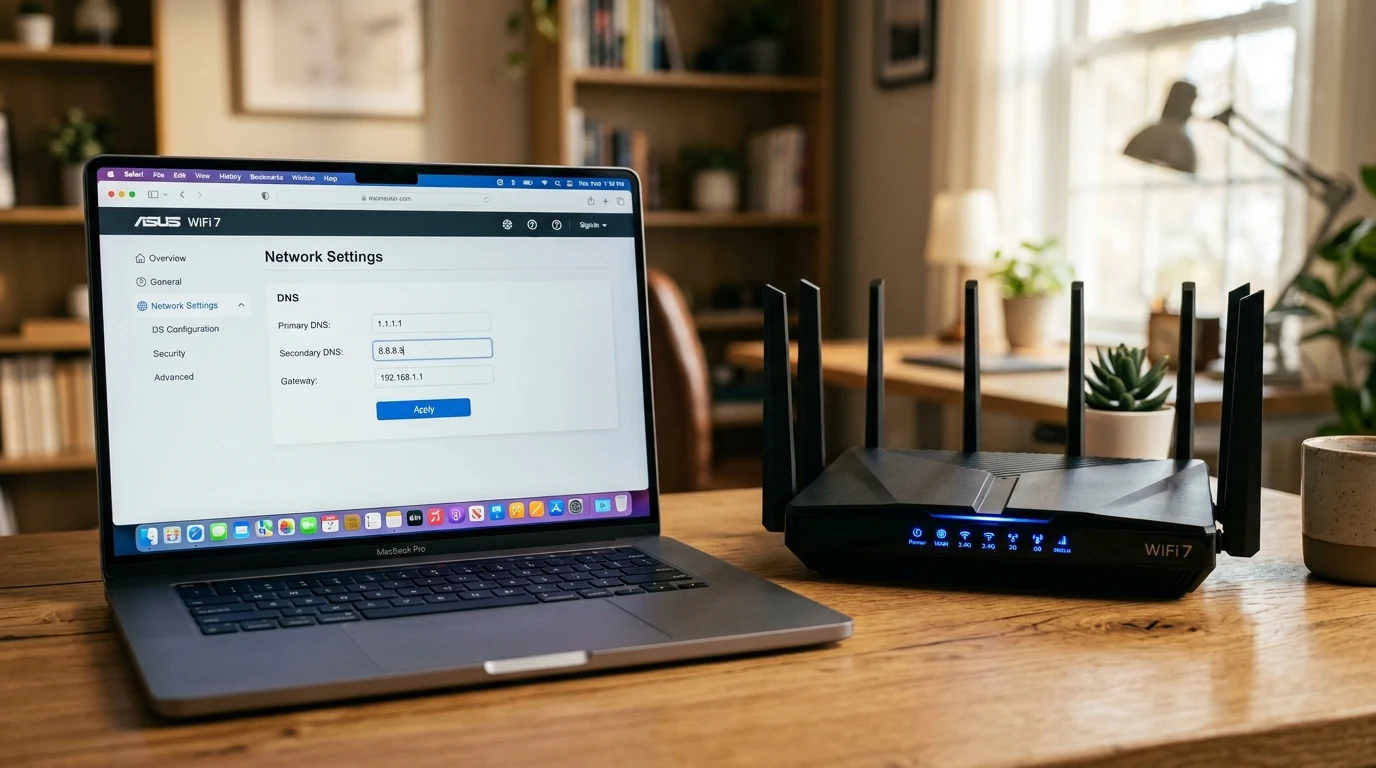
Every time you click a link, open an app, or join an online multiplayer game lobby, your device makes a Domain Name System (DNS) query to translate human-readable names (like dcspeedtest.com) into numerical IP addresses (like 172.67.142.98). By default, your router uses your Internet Service Provider's recursive DNS servers. ISP DNS servers are notoriously slow, unencrypted, prone to frequent downtime, and actively used by ISPs to log your browsing history for targeted advertising. Configuring private, high-speed public DNS directly on your router protects every device on your home network in under three minutes. Here is the definitive guide.
Why Your ISP's Default DNS Server Is a Liability
Using stock DNS servers provided by Comcast, Spectrum, AT&T, or Cox introduces four major performance and security vulnerabilities:
- Slow Domain Resolution Latency: ISP DNS servers often take 45ms to 90ms to resolve domain names, adding noticeable lag before web pages even begin downloading.
- DNS Hijacking & Monetized Search Redirection: If you mistype a URL, rather than returning a standard NXDOMAIN error, ISPs redirect your browser to ad-filled search portals.
- Unencrypted Plaintext Tracking: Standard Port 53 DNS queries are unencrypted, allowing your provider to log every website domain visited by every device in your household.
- Artificial DNS-Based Content Throttling: ISPs often manipulate DNS responses to point traffic to congested regional CDN caches.
The Top 4 Fast & Secure Public DNS Resolvers in 2026
| DNS Provider | Primary IPv4 | Secondary IPv4 | Primary IPv6 | Key Benefit |
|---|---|---|---|---|
| Cloudflare (1.1.1.1) | 1.1.1.1 | 1.0.0.1 | 2606:4700:4700::1111 |
Fastest Global Latency & Zero Logging |
| Google Public DNS | 8.8.8.8 | 8.8.4.4 | 2001:4860:4860::8888 |
Massive Anycast Infrastructure |
| Quad9 (Security Focused) | 9.9.9.9 | 149.112.112.112 | 2620:fe::fe |
Blocks Phishing & Malware Domains |
| AdGuard DNS | 94.140.14.14 | 94.140.15.15 | 2a10:50c0::ad1:ff |
Network-Wide Ad & Tracker Blocking |
Step-by-Step Guide: Changing DNS on Any Wi-Fi Router
- Log into Your Router Administration Interface: Open a web browser on any connected computer or phone, type your router default gateway IP (typically
192.168.1.1,192.168.0.1, or10.0.0.1), and log in with your administrative credentials. - Navigate to WAN / Internet Settings (or LAN / DHCP):
- Method A (WAN DNS): Look for Advanced → Internet / WAN → DNS Address. Change the radio button from 'Get Automatically from ISP' to 'Use These DNS Servers'.
- Method B (LAN / DHCP DNS): Look for Network → DHCP Server → Primary DNS. Enter the new addresses here to push them directly to local clients.
- Enter Primary and Secondary IP Addresses:
- Primary DNS:
1.1.1.1(Cloudflare) or8.8.8.8(Google) - Secondary DNS:
1.0.0.1(Cloudflare) or8.8.4.4(Google)
- Primary DNS:
- Save and Reboot Connected Devices: Click Apply / Save. To immediately flush old DNS cache across your household devices, toggle Wi-Fi off and on across your phones and computers.
Enabling Encrypted DNS (DoH & DoT) on Modern Routers
Modern routers running Asuswrt-Merlin, OpenWrt, pfSense, or TP-Link firmware support native DNS-over-HTTPS (DoH) and DNS-over-TLS (DoT). Encrypted DNS wraps your DNS lookups in TLS encryption over Port 443 or Port 853, making it mathematically impossible for your ISP or eavesdroppers to monitor which websites your household is accessing.
Understanding EDNS Client Subnet (ECS) & CDN Routing Efficiency
When selecting a custom DNS provider, understanding EDNS Client Subnet (ECS / RFC 7871) is critical. ECS forwards a truncated portion of your public IP address to the authoritative name server so that content delivery networks (like Akamai, Cloudflare, or Fastly) can direct your download requests to the geographically closest caching server.
- Google Public DNS (8.8.8.8): Fully supports ECS, ensuring optimal routing to local video and game download servers.
- Cloudflare (1.1.1.1): Intentionally strips ECS data to maximize user privacy, relying instead on its massive global Anycast network of over 330 data center points of presence (PoPs) to achieve the world's lowest DNS resolution times.
DNSSEC Cryptographic Validation: Stopping DNS Cache Poisoning
Modern public DNS resolvers natively implement Domain Name System Security Extensions (DNSSEC). DNSSEC uses public-key cryptography to digitally sign DNS records, ensuring that when your computer queries a banking website or gaming domain, an attacker on the same local network or a rogue ISP cannot perform DNS Cache Poisoning / Spoofing to redirect you to a malicious phishing clone.
Router-Specific Navigation Reference Guide
| Router Manufacturer / OS | Menu Navigation Path | Recommended Setting |
|---|---|---|
| ASUS (Asuswrt / Merlin) | WAN → Internet Connection → WAN DNS Setting | Set 'Connect to DNS Server automatically' to No |
| TP-Link (Archer / Deco) | Advanced → Network → Internet → Advanced → Primary DNS | Toggle Manual DNS and enter 1.1.1.1 / 8.8.8.8 |
| Netgear (Nighthawk / Orbi) | Internet → Domain Name Server (DNS) Address | Select 'Use These DNS Servers' |
| OpenWrt | Network → Interfaces → WAN → Advanced Settings | Uncheck 'Use DNS servers advertised by peer' |
Comparing DNS Over HTTPS (DoH) vs DNS Over TLS (DoT) vs Plaintext Port 53
When securing your home network's DNS traffic, choosing the correct encrypted transport protocol ensures maximum performance and complete privacy from ISP surveillance:
| DNS Protocol Standard | Network Port & Transport | ISP Eavesdropping Immunity | Latency Overhead |
|---|---|---|---|
| DNS over HTTPS (DoH / RFC 8484) | Port 443 (HTTPS) | 100% (Blends with Regular Web Traffic) | < 1.0 ms (TLS Session Resumption) |
| DNS over TLS (DoT / RFC 7858) | Port 853 (Dedicated TLS) | 100% Encrypted | < 1.0 ms |
| Legacy Plaintext DNS | Port 53 (UDP/TCP) | 0% (Completely Visible & Logged by ISP) | 0.0 ms (Vulnerable) |
Troubleshooting Common Post-DNS Change Issues
- Streaming Apps (Netflix / Hulu) Throwing Proxy Errors: Some geoblocked streaming services misidentify custom DNS resolvers as VPN proxies. Switching secondary DNS to Google (8.8.8.8) with EDNS Client Subnet support resolves location mismatch warnings.
- Smart Home IoT Devices Failing to Reconnect: Older 2.4 GHz smart plugs may cache old gateway DNS IPs. Power-cycle the smart plug or toggle your 2.4 GHz guest network to force a fresh DHCP handshake.
Diagnostic Verification: How to Confirm Your New DNS Is Working
To verify that your router is routing DNS queries through Cloudflare rather than your ISP, open your browser and navigate to https://one.one.one.one/help. The diagnostic page will analyze your connection and verify whether 'Using DNS over HTTPS (DoH)' and 'Connected to 1.1.1.1' are displaying green 'YES' checkmarks.