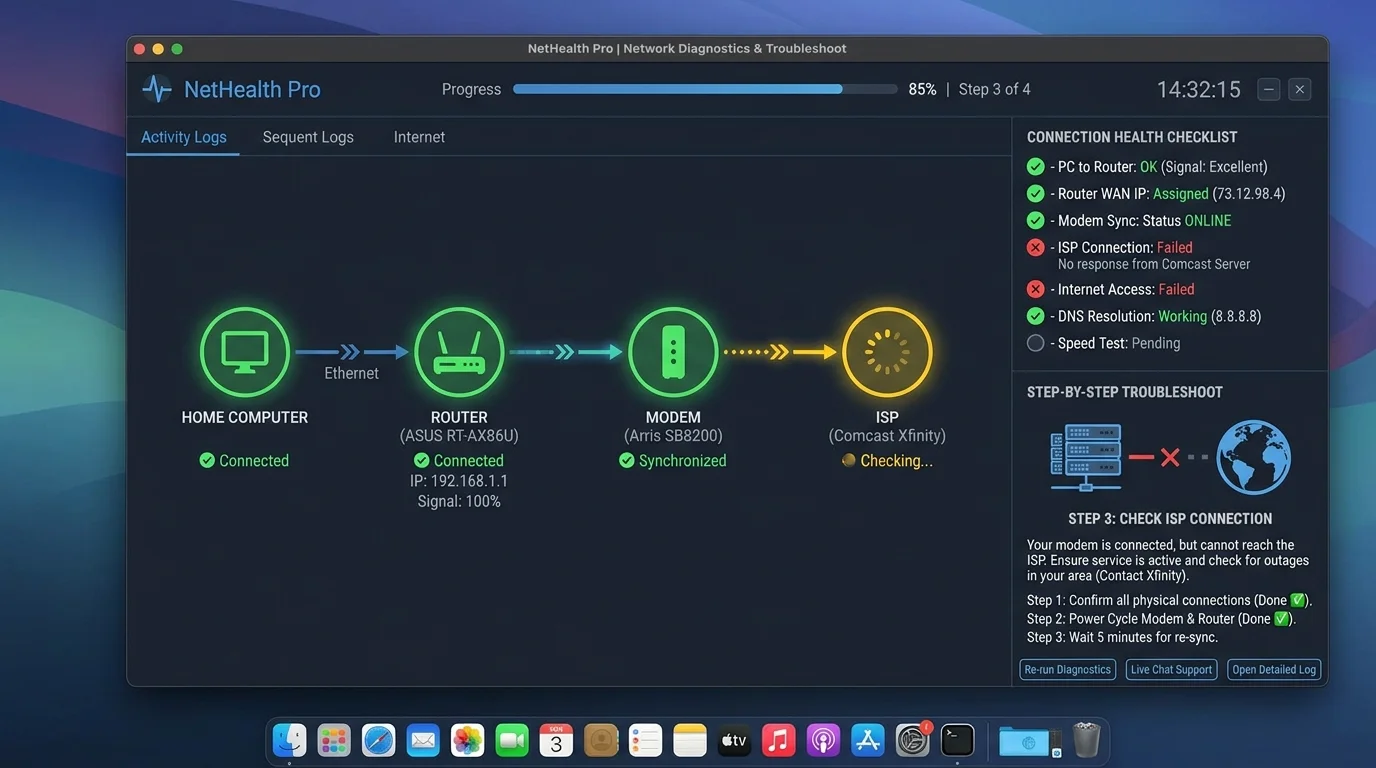
What Does "Check Your Connection" Mean?
"Check your connection" is an error message displayed by browsers, apps, and operating systems when they're unable to successfully communicate with the internet or a specific server. The exact wording varies by platform:
- Chrome: "Check your internet connection" / "ERR_INTERNET_DISCONNECTED" / "ERR_NAME_NOT_RESOLVED"
- Safari: "Safari Can't Open the Page — Safari can't open the page because it's not connected to the Internet"
- Windows: "Check your network cables, modem, and router" / "You're not connected to any networks"
- Google apps: "Check your connection. Retry." (YouTube, Google Docs, Gmail)
- Netflix: "Please check your internet connection and try again" (Error codes UI-800-3, NW-2-5, etc.)
- iPhone/iOS: "Cannot Connect to Server" / "The network connection was lost"
- Android: "You are offline" / "No internet connection" / "Network error"
All of these mean the same thing: your device tried to reach the internet (or a specific website/server) and failed. The cause can range from a momentary blip that resolves in seconds to a full ISP outage lasting hours — this guide walks through every cause in order of likelihood.
Quick Check: Is Your Internet Actually Down?
Before diving into troubleshooting, do this 60-second check to understand whether the problem is your device, your network, or the internet:
- On another device: Pick up a different phone or laptop and open a website. If it loads, the problem is specific to your original device — skip to the device troubleshooting section below.
- Check a different website: If Google is failing, try opening another site (cnn.com, youtube.com, amazon.com). If some sites work but not others, one specific site may be down.
- Check if it's just one app: If Netflix says "check your connection" but your browser loads websites, the app itself may have a problem — try reinstalling the app or clearing its cache.
- Open DCSpeedTest.com: If DCSpeedTest.com loads and shows your internet speed, your connection is working — the original app or site may be down on their end.
The 10 Most Common Causes of "Check Your Connection"
1. WiFi Connected But No Internet ("Connected, No Internet")
This is the most common cause. Your device shows a WiFi signal (or bars) but the router itself has lost its connection to the ISP. Your device IS connected to the router — but the router has no internet.
How to identify: You see WiFi bars on your phone/laptop, but no websites load. Other devices in your home are also affected.
Fix:
- Look at your router — check if the WAN/Internet LED is solid (good) or blinking/off (no internet)
- Restart your router AND modem: unplug modem first, wait 30 seconds, plug back in; then unplug router, wait 30 seconds, plug back in. Wait 2 minutes for both to fully restart.
- If restarting doesn't help, check your ISP's status page or down detector app for outages in your area
2. DNS Resolution Failure
Your device is connected to the internet but cannot resolve domain names to IP addresses — it knows how to get to the internet but can't look up where websites are located. This causes "check your connection" errors even when the connection itself is functional.
How to identify: Websites don't load, but pinging an IP address directly works. Often affects all websites simultaneously.
Fix:
- Windows: Open Command Prompt as Administrator → type
ipconfig /flushdns→ press Enter → restart browser - Mac: Terminal →
sudo dscacheutil -flushcache; sudo killall -HUP mDNSResponder - All devices: Change DNS server to Google (8.8.8.8 / 8.8.4.4) or Cloudflare (1.1.1.1 / 1.0.0.1)
- Router: Access router settings (192.168.1.1) → set DNS to 1.1.1.1 and 1.0.0.1 for all devices on your network
3. Disconnected from WiFi Network
Your device dropped the WiFi connection entirely — it's no longer connected to any network. Common on phones with poor signal or laptops waking from sleep.
Fix:
- Toggle WiFi off and back on in your device settings
- Forget the network and reconnect: Settings → WiFi → [network name] → Forget → reconnect with password
- If connection drops repeatedly, your device may be out of range — move closer to the router
4. Router Needs Restart (Memory Overflow)
Consumer routers have limited RAM and can develop memory leak issues after weeks or months of continuous operation. When the router's memory is full, it begins dropping connections and new requests — causing "check your connection" errors across all devices.
How to identify: The problem started gradually and affects all devices. The router has not been restarted in weeks or months.
Fix: Power cycle the router (unplug for 30 seconds, plug back in). If this works, set a weekly scheduled reboot in your router's admin panel. Most modern routers support this feature.
5. VPN Blocking or Disconnecting
VPNs route all your traffic through a remote server. If the VPN connection drops while still active (a "VPN leak"), your device may be unable to reach the internet — showing "check your connection" errors despite having WiFi/cellular signal.
Fix: Disable your VPN entirely → test if internet works → if yes, the VPN is the issue. Switch VPN server or reinstall the VPN app. Check if your VPN's kill switch is blocking traffic.
6. ISP Outage
Your ISP's network is experiencing technical issues that affect service to your area. This is outside your control.
How to identify: All devices on your network fail. Router shows normal but WAN light is off or blinking. Restarting doesn't help.
Fix:
- Check your ISP's official status page or Twitter/X account for outage announcements
- Check Downdetector.com for real-time outage reports at your ISP
- Use your phone's cellular data (turn off WiFi) as a temporary workaround during the outage
- Contact your ISP to report the outage and get an ETA — if the outage persists more than 4 hours, request a service credit
7. Firewall or Security Software Blocking Connection
Antivirus software, firewall applications, or parental control tools can block internet access for specific apps or globally when they detect suspicious activity. Windows Defender Firewall occasionally blocks legitimate connections after system updates.
Fix: Temporarily disable your firewall/antivirus and test if internet works. If yes, the security software is the cause — add the affected app to the exception list, or update the security software. Re-enable the firewall immediately after testing.
8. Browser Cache or Cookie Corruption
Corrupted cache or cookies can prevent your browser from successfully establishing HTTPS connections, triggering "check your connection" errors on specific sites even when the internet works fine.
Fix:
- Open your browser in incognito/private mode and try the site — if it loads, your cache/cookies are the issue
- Clear browser cache: Chrome → Settings → Privacy and Security → Clear browsing data → check "Cached images and files" and "Cookies" → Clear data
- After clearing, restart the browser and retry
9. IP Address Conflict
Two devices on your network have received the same IP address — this causes network communication to fail for one or both devices and can produce "check your connection" errors.
Fix:
- Windows: Command Prompt →
ipconfig /release→ wait →ipconfig /renew - Mac: System Preferences → Network → Advanced → TCP/IP → Renew DHCP Lease
- Or simply restart your router to clear all IP assignments and re-issue addresses cleanly
10. The Website or Service Is Down (Not You)
Sometimes "check your connection" errors are generated by apps when the app's server is down — even though your internet is fine. Netflix Error NW-2-5 and Google's "check your connection" in Docs can appear when their servers are experiencing issues.
Fix:
- Open DCSpeedTest.com — if your speed test works, your internet is fine
- Check the service's status page (status.netflix.com, workspace.google.com/status)
- Check Downdetector.com for the affected service
- Wait 10-20 minutes and retry — service outages are usually brief
"Check Your Connection" Fix: Step-by-Step Diagnostic
Follow these steps in order — most "check your connection" errors are resolved within the first three steps:
- Test another device — Is only one device affected? → Device problem (skip to Step 5). All devices affected? → Network problem (continue to Step 2).
- Restart router and modem — Unplug modem first, wait 30 seconds. Unplug router, wait 30 seconds. Plug modem back in, wait 2 minutes. Plug router back in, wait 2 minutes. Test internet.
- Check ISP outage status — If restart didn't help, check Downdetector.com or your ISP's status page. If there's an outage, wait it out — nothing on your end will fix an ISP-side outage.
- Flush DNS cache — On Windows:
ipconfig /flushdns. On Mac: flush mDNSResponder. On Android/iOS: toggle airplane mode on/off to force a new DNS lookup. - Toggle airplane mode (mobile) — On phones, toggling airplane mode on then off forces a complete reconnection to the cellular or WiFi network and resolves the majority of phone-specific "check your connection" errors.
- Forget WiFi and reconnect — Go to Settings → WiFi → [network] → Forget. Reconnect with your password. Forces a fresh authentication and IP assignment.
- Change DNS to 1.1.1.1 — Go to Settings → WiFi → [network] → DNS (iOS) or Settings → WiFi → [network] → Advanced → DNS (Android). Add 1.1.1.1 and 1.0.0.1. Retry.
- Disable VPN — If you have a VPN app installed, disable it. Test internet. If it works, the VPN was the cause.
- Clear browser cache — Chrome → Settings → Clear browsing data (Cached images + Cookies). Restart browser. Test.
- Run DCSpeedTest.com — This is your diagnostic verdict. If DCSpeedTest loads and shows your speed, your internet is working — the issue was app-specific or the target site was down.
Check Your Connection: Specific App Fixes
Google Chrome: ERR_INTERNET_DISCONNECTED
- Disable Chrome extensions temporarily (Settings → Extensions → disable all)
- Reset Chrome network settings: chrome://net-internals/#sockets → Flush socket pools
- Check if a proxy is configured: Settings → Advanced → System → Open your computer's proxy settings
Netflix: "Check Your Internet Connection"
- The Netflix app uses its own network connection — clearing Netflix app cache (Android: Settings → Apps → Netflix → Storage → Clear Cache) resolves most Netflix-specific errors
- Netflix requires minimum 1.5 Mbps — run DCSpeedTest to confirm connection speed
- Try loading Netflix in a browser instead of the app — if it works, the app needs reinstalling
iPhone / iOS: "Cannot Connect to Server"
- Toggle airplane mode on → wait 10 seconds → off
- Settings → General → Transfer or Reset iPhone → Reset → Reset Network Settings (CAUTION: this forgets all saved WiFi passwords)
- Update iOS — many connection bugs are resolved in iOS point releases
Android: "No Internet Connection"
- Settings → Network & Internet → WiFi → [connected network] → Forget → reconnect
- Settings → Apps → [affected app] → Storage → Clear Cache and Clear Data
- Check if Data Saver mode is restricting background data: Settings → Network → Data Saver → Off
Windows 11/10: Network Troubleshooter
- Settings → System → Troubleshoot → Other troubleshooters → Internet Connections → Run
- Command Prompt (Admin):
netsh winsock reset→ restart →netsh int ip reset→ restart - Check if Windows Update is running in the background consuming bandwidth — this can cause browser timeouts that appear as "check your connection"
How to Check Your Connection Speed After Fixing the Issue
Once you've resolved the "check your connection" error, run a full speed test to verify your connection is performing correctly — not just connected, but actually fast enough for your needs:
- Open DCSpeedTest.com in your browser
- Click Start Test
- Within 15 seconds you'll see your download speed, upload speed, ping, and jitter
- Compare your result to your ISP's advertised speed:
- Above 80% of your plan speed on Ethernet = connection healthy
- Below 50% of plan speed consistently = investigate further or contact ISP
- High ping (above 100ms on fiber/cable) = latency issue to investigate
Frequently Asked Questions: Check Your Connection
What does "check your connection" mean?
"Check your connection" is an error message displayed when your device, browser, or app was unable to reach the internet or a specific server. It can mean: your WiFi is connected to the router but the router has no internet, your DNS service is failing (can't resolve hostnames), your ISP is experiencing an outage, or a specific website's server is temporarily down. The error does not always mean your internet is fully disconnected — sometimes only one service or website is unreachable.
How do I fix "check your connection"?
In order: (1) Test another device to determine if only one device is affected. (2) Restart your router and modem. (3) Check if your ISP has a reported outage at Downdetector.com. (4) Flush DNS cache on your device. (5) Toggle WiFi or airplane mode off and on. (6) Change DNS server to 1.1.1.1. (7) Disable VPN if installed. Most "check your connection" errors resolve after steps 1-3.
Why does it say "check your connection" when I have WiFi?
WiFi bars or signal strength only indicate that your device is connected to your router — not that the router has internet access. The most common cause of this scenario is that your router itself lost its connection to the ISP (WAN disconnect) while your device remains connected to the router's local WiFi. Restarting your router resolves this in most cases. If it doesn't, check for an ISP outage in your area.
How do I check if my internet connection is working?
Open DCSpeedTest.com in a browser: if it loads and shows a speed result, your internet connection is working. You can also ping a known IP address: on Windows, open Command Prompt and type ping 8.8.8.8 — if you get replies, your internet is connected. If the ping works but websites don't load, your DNS service is failing.
Why does Netflix say "check your connection" but YouTube works?
Netflix and YouTube use different server infrastructure. Netflix may show "check your connection" if: (1) Netflix's servers are experiencing an outage (check status.netflix.com), (2) Your ISP is throttling Netflix traffic specifically, or (3) The Netflix app on your device has a corrupted cache. Since YouTube loads, your internet connection is working — the issue is Netflix-specific. Clear the Netflix app cache or try Netflix in a browser.
What is the fastest way to check my internet connection?
Open DCSpeedTest.com — it loads in under 3 seconds and shows your download speed, upload speed, ping, and jitter within 15 seconds. This confirms both that your internet is working AND how fast it's performing. It's the quickest way to go from "my internet seems slow" to "here is exactly what my connection is delivering right now."
Connection Fixed? Verify With a Speed Test
After resolving a "check your connection" error, confirm your internet is not just connected but actually performing at full speed. Run a complete test at DCSpeedTest.com — the result shows your download and upload speed, ping latency, and jitter in 15 seconds. If your speed matches your plan, you're fully back online. If speeds are significantly below your plan even after fixing the connection, you may have a performance issue worth investigating separately.