How to Check Internet Speed Online: The Fastest Method
Checking your internet speed online takes 15 seconds and requires no app download or account signup. Here's the fastest method:
- Open your browser (Chrome, Safari, Firefox, Edge — any browser works)
- Go to DCSpeedTest.com
- Click the Start Test button — the test begins immediately
- Watch your download speed appear live on the gauge (10-12 seconds)
- The upload speed and ping test follow automatically (another 5 seconds)
- Read your full results: download Mbps, upload Mbps, ping ms, and jitter ms
That's it. No login. No download. No app installation. The entire check runs in your browser using Cloudflare's global network — giving you an accurate measurement of your internet speed to a neutral server in 15 seconds or less.
Why Check Internet Speed Online (Not With an App)?
Browser-based online internet speed checks have clear advantages over dedicated speed test apps:
| Feature | Online Speed Check (Browser) | Dedicated App |
|---|---|---|
| Installation required | ❌ None — runs in browser | ✅ Requires download and install |
| Works on any device | ✅ PC, Mac, iPhone, Android, tablet, smart TV | ⚠️ App availability varies by OS |
| No account required | ✅ Completely anonymous | ⚠️ Many apps require signup |
| Always up to date | ✅ No updates needed — always current | ⚠️ Manual updates required |
| Background data usage | ❌ None outside of test | ⚠️ Some apps run background tests |
| Privacy | ✅ No persistent data collection | ⚠️ Apps may collect device data |
| Accuracy | ✅ Identical methodology | ✅ Same or slightly higher (no browser overhead) |
For most users checking internet speed occasionally, an online browser-based check is faster, easier, and more private than installing an app. Apps become useful for users who want to run scheduled automated tests or need advanced network diagnostic features beyond what browsers support.
How to Check Internet Speed Online on Every Device
Check Internet Speed Online on PC or Mac (Laptop/Desktop)
- For the most accurate check: plug in an Ethernet cable from your router to your PC if possible
- Open Chrome, Safari, Firefox, or Edge
- Navigate to DCSpeedTest.com
- Click Start Test and wait 15 seconds
- Your download speed, upload speed, ping, and jitter appear in the results panel
PC/Mac speed check tips: Close other browser tabs and background applications (especially anything streaming video or downloading files) before clicking Start Test. This ensures your full bandwidth is available for the speed measurement, not split with competing traffic.
Check Internet Speed Online on iPhone or iPad (iOS)
- Open Safari on your iPhone or iPad
- Type DCSpeedTest.com in the address bar and tap Go
- Tap Start Test — the test works identically in Safari mobile
- Results show your current WiFi or cellular speed (whichever connection your iPhone is using)
To check WiFi speed: Make sure WiFi is enabled in Settings and your phone is connected to your home WiFi network before opening DCSpeedTest.com.
To check cellular/5G speed: Go to Settings → WiFi → Off. Then open DCSpeedTest.com — the test will run over your cellular data connection only, showing your 5G or 4G LTE speed.
Check Internet Speed Online on Android Phone or Tablet
- Open Chrome (or your default browser) on your Android device
- Navigate to DCSpeedTest.com
- Tap Start Test — the browser-based speed check works fully on Android
- Your WiFi or cellular internet speed appears within 15 seconds
Android tips: Android shows a data usage notification during the test (usually 3-8 MB of data used). If you're on a limited data plan, be aware that each speed check uses a small amount of mobile data. To check cellular speed separately from WiFi: Settings → WiFi → Off before testing.
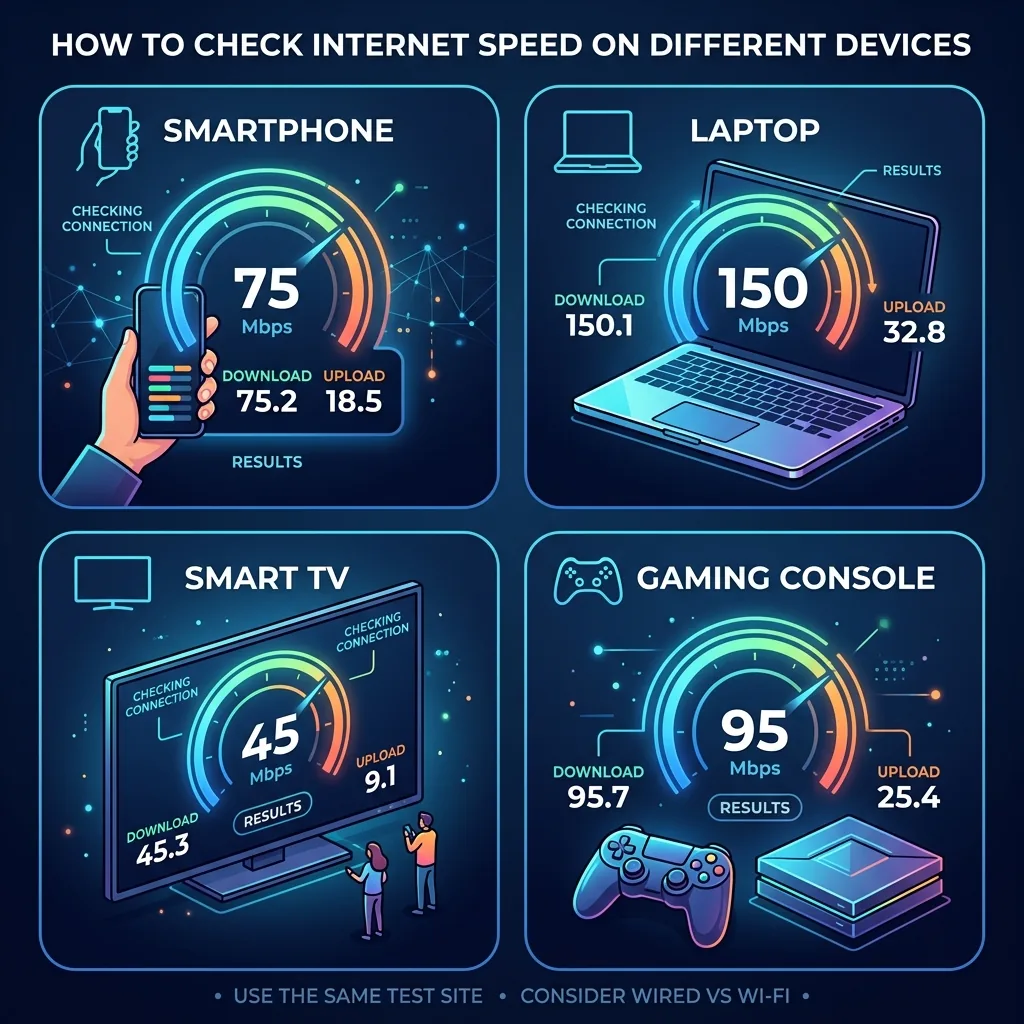
Check Internet Speed Online on Smart TV
- Open the built-in browser on your Smart TV (Samsung, LG, Sony, Hisense TVs all have browsers)
- Navigate to DCSpeedTest.com using your TV remote or voice search
- Select Start Test and wait — the test runs in the browser even at TV resolution
Why check speed on your smart TV? Your smart TV's internet speed is what actually determines Netflix and YouTube streaming quality — not your laptop's speed. A laptop showing 800 Mbps while your TV shows 45 Mbps explains buffering issues. Most smart TVs connect via WiFi, and their WiFi chipsets are often older and slower than phone or laptop WiFi.
Check Internet Speed Online on Chromebook
- Open Chrome browser (built-in)
- Go to DCSpeedTest.com
- Click Start Test — Chromebooks run Chrome natively and the test works perfectly
Chromebooks: check for network adapter type. Most Chromebooks have WiFi only (no Ethernet port). For accurate checking, use a USB-C to Ethernet adapter for a wired connection on plans above 200 Mbps.
What Your Online Internet Speed Check Results Mean
Download Speed
The speed at which data travels from the internet to your device — measured in Mbps (megabits per second). This is what you use when: browsing websites, streaming Netflix/YouTube, downloading files, loading app updates, receiving emails.
Good download speeds in 2026:
- 25+ Mbps — adequate for 1 person (HD streaming, browsing)
- 100+ Mbps — comfortable household of 2-3 people (4K streaming + work)
- 300+ Mbps — excellent for 4-6 people (multiple 4K streams simultaneously)
- 500+ Mbps — power users and large households
Upload Speed
The speed at which your device sends data to the internet. This determines quality for: video calls (Zoom, FaceTime, Teams), live streaming (Twitch, YouTube Live), cloud backups (Google Drive, iCloud, Dropbox), sending large email attachments.
Good upload speeds:
- 5+ Mbps — adequate for solo video calls (HD 1:1)
- 20+ Mbps — comfortable remote work with video calls and cloud sync
- 50+ Mbps — live streaming + cloud backup without interrupting other users
Note: If you have cable internet (Xfinity, Spectrum, Rogers, Shaw, Virgin Media), your upload speed will be much lower than your download speed — this is normal for DOCSIS technology and not a fault.
Ping (Latency)
The time it takes for a data packet to travel from your device to a server and back — measured in milliseconds (ms). Lower is better. Ping matters most for: online gaming, video calls, VoIP phone calls, real-time multiplayer interactions.
Good ping results:
- Under 20ms — excellent (fiber, wired)
- 20-50ms — very good (cable, 5G)
- 50-100ms — acceptable (4G, some WiFi)
- Over 100ms — noticeable lag (satellite, far from server)
Jitter
The variation in ping between consecutive measurements — measured in milliseconds. High jitter causes choppy video calls and unstable gaming connections even when average ping is acceptable. Good jitter: under 10ms. Concerning jitter: over 20ms consistently.
The Best Free Online Internet Speed Check Tools Compared
| Tool | URL | What It Measures | Network Used | Best For |
|---|---|---|---|---|
| DCSpeedTest | dcspeedtest.com | Download + Upload + Ping + Jitter | Cloudflare (neutral) | Most accurate all-around check |
| Speedtest.net (Ookla) | speedtest.net | Download + Upload + Ping + Jitter | ISP-hosted servers | ISP comparison, widespread coverage |
| Fast.com | fast.com | Download only (Upload/Ping hidden) | Netflix CDN | Quick Netflix streaming check |
| Google Speed Test | google.com → "speed test" | Download + Upload + Ping | Google M-Lab | Very quick check in Google search |
| Cloudflare Speed | speed.cloudflare.com | Download + Upload + Latency + Jitter | Cloudflare global | Technical users, detailed metrics |
| nPerf | nperf.com | Download + Upload + Ping + Map | nPerf servers | Geographic coverage maps |
When Should You Check Internet Speed Online?
Most people only think to check their internet speed when something is wrong. Here's a smarter schedule:
| Situation | Why to Check | Frequency |
|---|---|---|
| Netflix buffering or quality drop | Confirm if internet is the cause or Netflix's servers | When it happens |
| Zoom/video call choppy | Check upload speed and jitter specifically | Before important calls |
| Online gaming lag spikes | Check ping and jitter | When lag occurs |
| Monthly verification | Compare to your ISP plan — catch under-delivery early | Once a month |
| After ISP service change | Verify new plan is actually delivering | After upgrade/downgrade |
| New router or modem installed | Confirm hardware is not bottlenecking your speed | After installation |
| ISP complaint documentation | Build evidence over days showing consistent under-delivery | 3 times/day for 3-5 days |
Online Internet Speed Check: How to Get Accurate Results
A few simple steps dramatically improve the accuracy of your online internet speed check:
- Use Ethernet when possible: Connect your PC or Mac to your router with an Ethernet cable for the most accurate check. WiFi adds its own speed limitations that aren't related to your internet service.
- Check at different times of day: Check once at 8 AM and once at 8 PM on the same day. A significant difference (30%+) indicates peak-hour congestion on your ISP's network.
- Close other browser tabs: Other tabs streaming video or loading content compete with the speed check for bandwidth, reducing your measured result.
- Pause downloads and updates: Before clicking Start Test, pause any file downloads, OS updates, and cloud syncs running in the background.
- Run 3 checks: The first check may show lower results due to TCP warm-up. Run 3 checks and compare — the median is your reliable internet speed measurement.
Frequently Asked Questions: Check Internet Speed Online
How do I check my internet speed online for free?
Open DCSpeedTest.com in any browser on any device and click Start Test. The online internet speed check completes in 15 seconds and shows your download speed, upload speed, ping, and jitter — completely free, with no account signup or app download. It works on PC, Mac, iPhone, Android, tablet, and smart TV browsers.
Can I check internet speed online without downloading anything?
Yes — DCSpeedTest.com, Speedtest.net, Fast.com, and Google's speed test all run entirely in your web browser with zero downloads required. These are browser-based tools that transfer data between your browser and a remote server to measure speed. No software installation, no app, no account needed.
How do I check internet speed on my phone online?
Open Safari (iPhone) or Chrome (Android) and go to DCSpeedTest.com. Tap Start Test. The speed check works identically in mobile browsers. To check WiFi speed: keep WiFi enabled. To check 5G/LTE cellular speed: go to Settings → disable WiFi before opening the site, then run the test.
What is a good result when I check internet speed online?
For a single user: 25-100 Mbps download is comfortable for all standard uses. For a household of 3-4 people with 4K streaming: 100-300 Mbps. For 5+ people: 300+ Mbps. For gaming: under 50ms ping matters more than high download speed. For video calls: 5+ Mbps upload and under 20ms jitter ensure stable call quality.
How accurate is an online internet speed check?
Browser-based online speed checks are accurate to within 5-10% of your true available bandwidth, which is sufficient for verifying ISP plan delivery and diagnosing performance issues. The main factors affecting accuracy are: (1) other devices or apps using bandwidth during the test, (2) WiFi vs Ethernet (WiFi is slower and less consistent), and (3) which server network the tool uses — Cloudflare-based tools like DCSpeedTest give the most neutral results since Cloudflare servers are not owned by ISPs.
Why does my online internet speed check show different results on different tools?
Different online speed check tools use different server networks and measurement methodologies. Fast.com uses Netflix's servers; Ookla uses ISP-hosted servers; DCSpeedTest uses Cloudflare's neutral network. Your ISP may route traffic differently to each of these networks — which is why speeds can vary between tools on the same connection. The most neutral check for your overall internet performance uses a tool NOT hosted on your ISP's own servers.
Check Your Internet Speed Online Right Now — It Takes 15 Seconds
Open DCSpeedTest.com in any browser on any device. Click Start Test. In 15 seconds you'll see exactly how fast your internet connection is: download speed (for streaming and browsing), upload speed (for video calls and cloud backup), ping (for gaming and latency), and jitter (for video call stability). Free, no download required, works on every device.