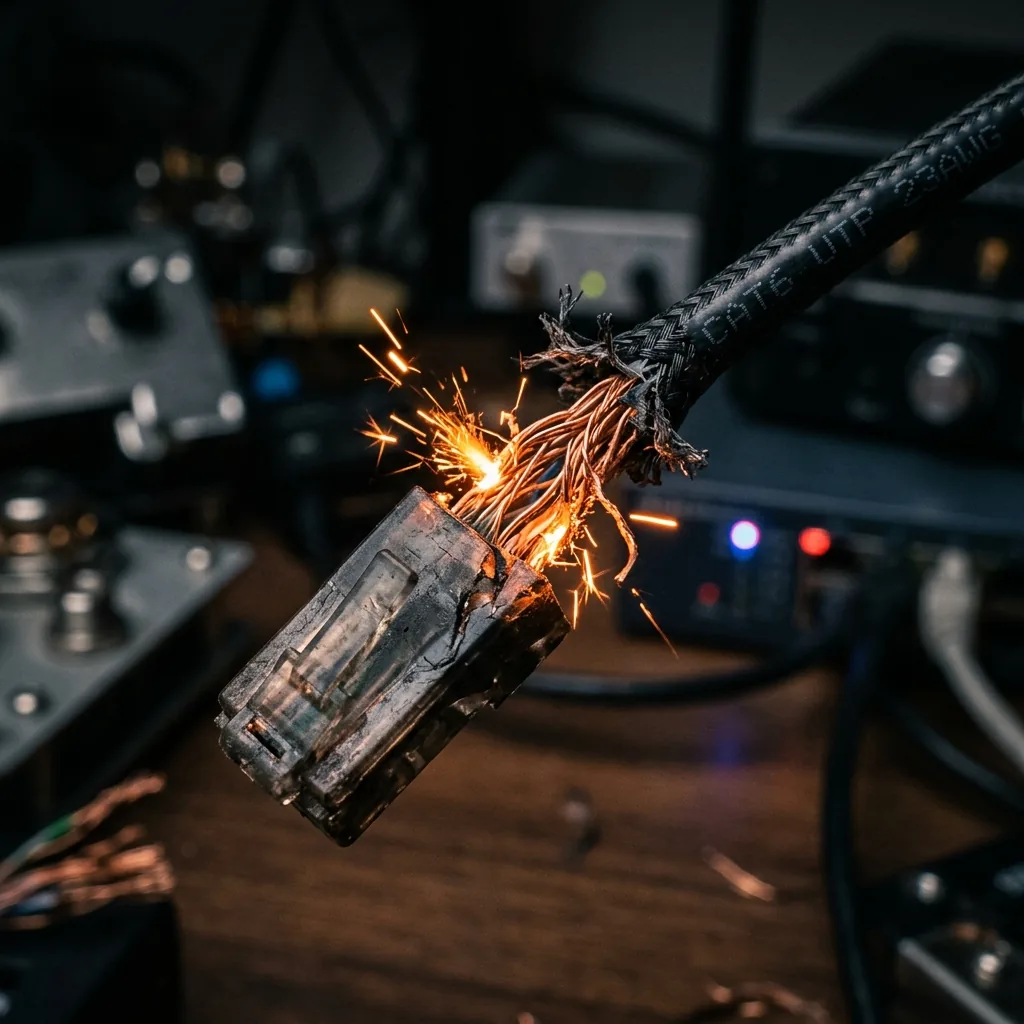
You invest in gigabit internet speeds, high-performance routers, and fast gaming PCs, yet you still experience random disconnection spikes and slow local server transfers. The culprit is often a damaged, low-quality, or bad ethernet cable. Let's outline how to physically inspect and run diagnostics to spot a bad network cable.
1. The Symptoms of a Bad Ethernet Cable
Ethernet cables carry high-frequency electrical signals over eight tiny copper wires twisted into pairs. If a single wire breaks or a pin suffers from physical corrosion, your network adapter will experience severe signal degradation. Common symptoms of a failing cable include: random dropping to 100 Mbps (negotiation failure), high packet loss rates, and complete local connection dropouts during high-bandwidth transfers.
2. 🔬 Try the Ethernet Cable Telemetry Tester
Select a cable standard and its physical health status below to dynamically compute real-world signal attenuation, bandwidth capability, and expected packet loss!
🔌 Ethernet Cable Diagnostic Telemetry
3. The 3 Steps to Diagnose a Failing Ethernet Cable
Step 1: Check Your Local Link Speed Negotiation
Open your operating system's network status panel. If you have Gigabit internet but your connection status lists **"Link Speed: 100/100 (Mbps)"**, your router has downgraded your port speed because it detected damaged wiring or a broken twisted pair inside the cable.
Step 2: Inspect RJ45 Connectors for Broken Clips
The tiny plastic clip on the RJ45 ethernet plug holds the connector tight against the port pins. If this clip is broken, the plug will sag, causing micro-disconnects under minor vibrations.
🛒 Available on Amazon
This is an affiliate link — if you buy through it, DCSpeedTest may earn a small commission at no extra cost to you. Price, stock, and any discount shown are set by Amazon directly and can change at any time.
🛒 Click & Add Premium Shielded Ethernet Cables to Amazon CartStep 3: Run local ping tests to your gateway
Test your local cable integrity by pinging your home router gateway. Run 'ping -t 192.168.1.1' (or your gateway IP address). If you see response times spike above 1ms or encounter random 'Request timed out' errors while wired, your ethernet cable is failing to deliver a clean signal and needs to be replaced immediately.