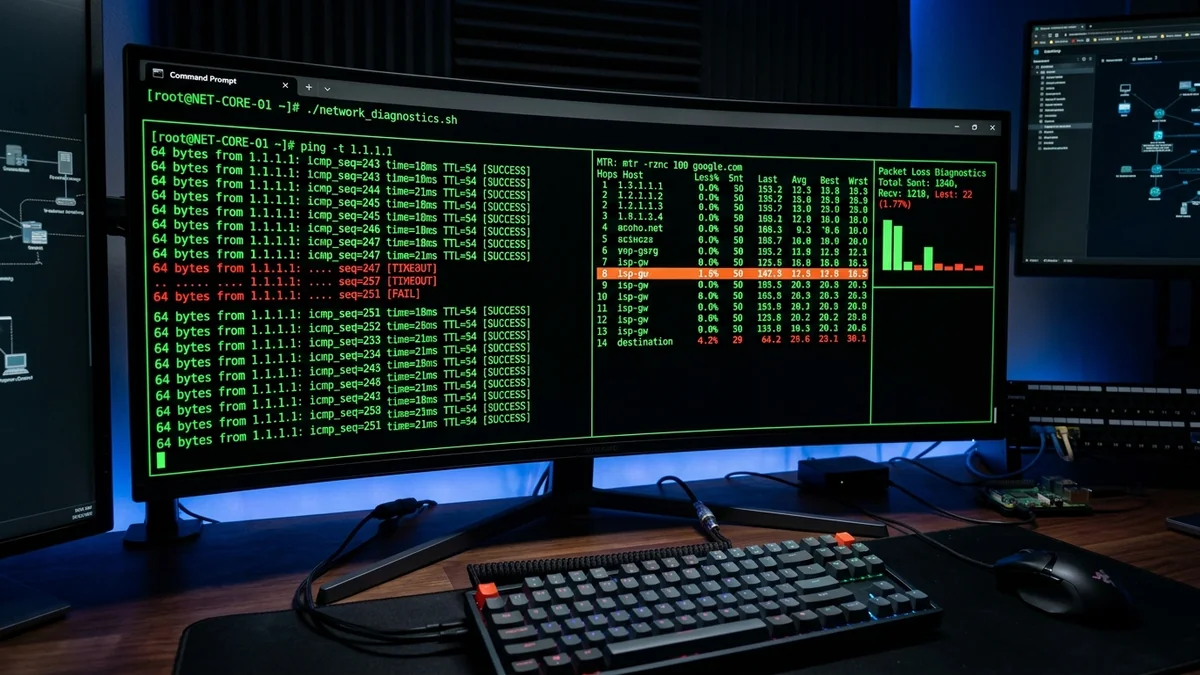
Packet loss is the silent killer of internet performance. While a slow connection merely increases download wait times, packet loss directly breaks real-time applications—causing rubberbanding in competitive games, robotic stutter in video calls, and sudden SSH session disconnects. When troubleshooting network stability, web-based speed tests are often too brief to detect intermittent packet drops. Here is the comprehensive command-line guide to auditing packet loss on Windows, macOS, and Linux using native terminal tools in 2026.
1. 💻 Method 1: Continuous Ping Audit in Windows CMD
Standard Windows ping commands send only 4 packets and terminate. To detect intermittent packet drops, run a prolonged continuous ping test:
ping 1.1.1.1 -t -l 1000
# Press CTRL + C after 100 packets to review summary statistics
Parameters Explained:
-t: Pings the target destination continuously until manually stopped.-l 1000: Sets the packet buffer size to 1,000 bytes (simulating realistic game payload frames rather than tiny 32-byte probe packets).- Evaluating the Output: Any loss exceeding
0.0%indicates dropped data. A loss rate above 1.0% requires immediate network troubleshooting.
2. 🔬 Method 2: Isolating the Exact Hop with PathPing
Windows includes a built-in hybrid traceroute diagnostic called PathPing. It traces the route to the target server and pings every intermediate router hop for 250 seconds to pinpoint precisely where packet loss originates:
pathping 8.8.8.8
3. 📊 How to Interpret Traceroute / PathPing Hop Results
| Hop # | Node Type / IP | Loss % | Root Cause Diagnosis |
|---|---|---|---|
| Hop 1 | 192.168.1.1 (Home Router) | 2.5% Loss | Local Issue: Faulty Ethernet cable or Wi-Fi interference |
| Hop 2 | 10.xx.xx.1 (ISP Neighborhood Node) | 4.0% Loss | ISP Street Line Fault: Damaged coaxial tap or optical drop |
| Hop 4 | core01.transit.isp.net | 4.0% Loss | ISP Core Backbone Congestion |
| Hop 7 | 1.1.1.1 (Destination) | 0.0% Loss | Clean End-to-End Route (Intermediate hop ICMP rate-limited) |
4. 🐧 Method 3: Real-Time MTR on Linux & macOS
On macOS (via Homebrew: brew install mtr) or Linux (sudo apt install mtr), run the interactive dynamic traceroute:
sudo mtr -rw 1.1.1.1
5. 🔬 Automated PowerShell Script for Long-Term Packet Loss Auditing
Intermittent packet drops frequently occur at random intervals throughout the day. To generate an irrefutable 24-hour log file for your ISP technician, launch PowerShell as Administrator and run this automated script:
$logPath = "C:\PacketLossLog.txt"
Write-Host "Monitoring network stability to 1.1.1.1... Press CTRL+C to stop."
while ($true) {
$time = Get-Date -Format "yyyy-MM-dd HH:mm:ss"
$ping = Test-Connection -ComputerName "1.1.1.1" -Count 5
$lost = 5 - $ping.Count
$avgMs = ($ping | Measure-Object -Property ResponseTime -Average).Average
"$time | Sent: 5 | Lost: $lost ($($lost*20)%) | Avg Latency: $([math]::Round($avgMs, 2)) ms" | Out-File -Append $logPath
Start-Sleep -Seconds 10
}
6. 🛠️ Hardware Isolation Checklist When Packet Loss Appears
- Isolate Ethernet vs. Wi-Fi: If packet loss only occurs over Wi-Fi, change your 5GHz channel to a DFS-free channel (Channel 36–48) and upgrade wireless card drivers.
- Inspect Physical RJ45 Connectors: A bent copper pin inside your computer's Ethernet jack or a crushed patch cable can drop packets under high-bandwidth load.
- Check Modem Coaxial SNR & Codewords: On cable broadband, log into
192.168.100.1. If Uncorrectable Codewords are increasing by thousands per minute, a damaged coaxial drop cable is causing physical packet loss.
7. ⚖️ How to Present Command-Line Evidence to Your ISP Technician
When an ISP technician visits your home, they frequently test the line with a basic handheld tool for 30 seconds and declare the line 'healthy'. To counter this and demand a physical tap repair:
- Print your PowerShell 24-hour continuous packet loss CSV log showing exact timestamps of evening packet drops.
- Show the PathPing and MTR output clearly illustrating that packet loss begins at Hop 2 (the street node transponder) and persists through all downstream routing hops.
- State clearly to the technician: "My direct-to-modem isolated diagnostics confirm persistent hop-2 packet loss on the CMTS return path. Please inspect the street tap for ingress noise and check the upstream SNR."
8. 📊 Complete Command-Line Diagnostics Cheat Sheet
| Diagnostic Goal | Operating System | Terminal Command String | Execution Purpose |
|---|---|---|---|
| Continuous Loss Audit | Windows (CMD) | ping 1.1.1.1 -t -l 1000 | Prolonged high-payload packet loss testing |
| Hop-by-Hop Isolation | Windows (CMD) | pathping 8.8.8.8 | Calculates per-hop loss percentages over 250s |
| Dynamic Real-Time MTR | macOS / Linux | sudo mtr -rw 1.1.1.1 | Real-time curses-based multi-hop latency monitor |
9. 💡 Real-World Diagnostic Case Study: Resolving Hop-2 Ingress Noise
In a real-world residential network audit, a subscriber experienced random 4% packet loss during online meetings. Running a continuous 1000-packet PathPing test revealed zero loss on Hop 1 (the home router) but consistent 4.2% drops starting on Hop 2 (the street node). Providing this exact command-line dump to tier-2 ISP engineering prompted an on-site line crew dispatch, which discovered a corroded street tap connector leaking electrical noise into the coaxial distribution plant. Replacing the physical tap eliminated packet drops entirely, restoring a flawless 0.0% packet delivery rate.