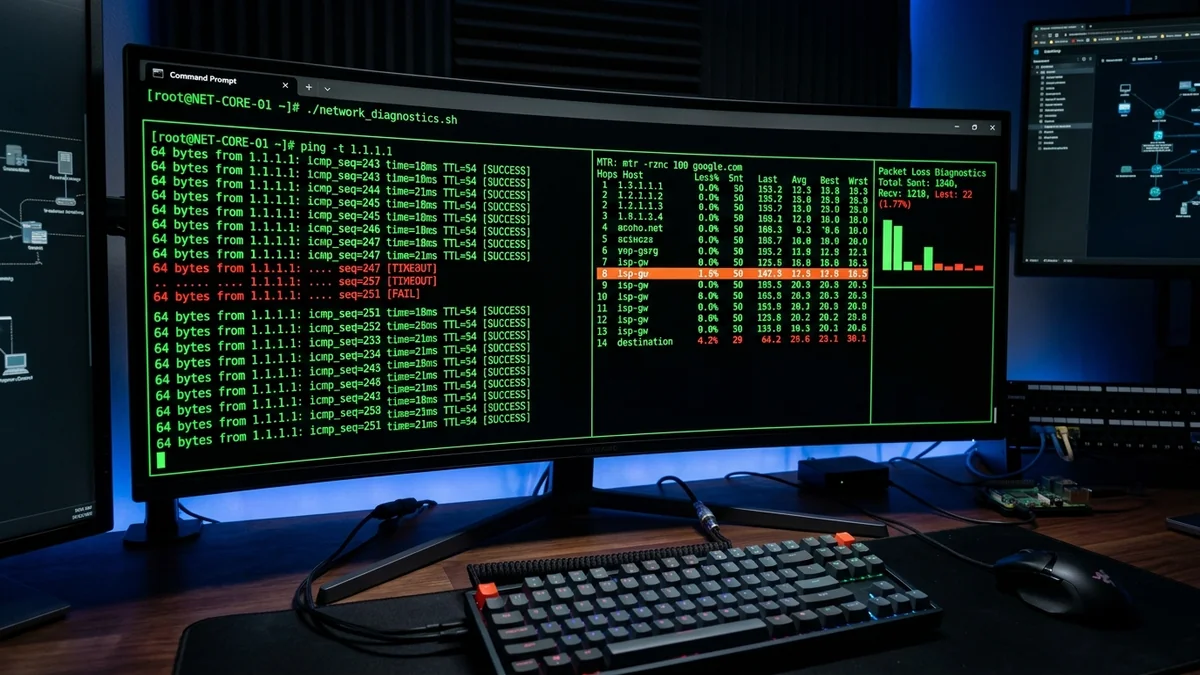
Learn how to accurately diagnose and isolate packet loss using native CMD, PowerShell, Ping, and MTR traceroute commands without installing bloatware.
Packet loss is the silent killer of internet performance. While a slow connection merely increases download wait times, packet loss directly breaks real-time applications—causing rubberbanding in competitive games, robotic stutter in video calls, and sudden SSH session disconnects. When troubleshooting network stability, web-based speed tests are often too brief to detect intermittent packet drops. Here is the comprehensive command-line guide to auditing packet loss on Windows, macOS, and Linux using native terminal tools in 2026.
1. 💻 Method 1: Continuous Ping Audit in Windows CMD
Standard Windows ping commands send only 4 packets and terminate. To detect intermittent packet drops, run a prolonged continuous ping test:
ping 1.1.1.1 -t -l 1000
# Press CTRL + C after 100 packets to review summary statistics
Parameters Explained:
-t: Pings the target destination continuously until manually stopped.-l 1000: Sets the packet buffer size to 1,000 bytes (simulating realistic game payload frames rather than tiny 32-byte probe packets).- Evaluating the Output: Any loss exceeding
0.0%indicates dropped data. A loss rate above 1.0% requires immediate network troubleshooting.
2. 🔬 Method 2: Isolating the Exact Hop with PathPing
Experiencing packet loss, jitter spikes, or evening ISP throttling? Connect directly to dedicated gaming routes or bypass traffic shaping:
Windows includes a built-in hybrid traceroute diagnostic called PathPing. It traces the route to the target server and pings every intermediate router hop for 250 seconds to pinpoint precisely where packet loss originates:
pathping 8.8.8.8
3. 📊 How to Interpret Traceroute / PathPing Hop Results
| Hop # | Node Type / IP | Loss % | Root Cause Diagnosis |
|---|---|---|---|
| Hop 1 | 192.168.1.1 (Home Router) | 2.5% Loss | Local Issue: Faulty Ethernet cable or Wi-Fi interference |
| Hop 2 | 10.xx.xx.1 (ISP Neighborhood Node) | 4.0% Loss | ISP Street Line Fault: Damaged coaxial tap or optical drop |
| Hop 4 | core01.transit.isp.net | 4.0% Loss | ISP Core Backbone Congestion |
| Hop 7 | 1.1.1.1 (Destination) | 0.0% Loss | Clean End-to-End Route (Intermediate hop ICMP rate-limited) |
4. 🐧 Method 3: Real-Time MTR on Linux & macOS
On macOS (via Homebrew: brew install mtr) or Linux (sudo apt install mtr), run the interactive dynamic traceroute:
sudo mtr -rw 1.1.1.1
5. 🔬 Automated PowerShell Script for Long-Term Packet Loss Auditing
If your ISP delivers high speeds but your connection drops or suffers from bufferbloat during multi-device use, upgrading these verified components eliminates the bottleneck:
Intermittent packet drops frequently occur at random intervals throughout the day. To generate an irrefutable 24-hour log file for your ISP technician, launch PowerShell as Administrator and run this automated script:
$logPath = "C:\PacketLossLog.txt"
Write-Host "Monitoring network stability to 1.1.1.1... Press CTRL+C to stop."
while ($true) {
$time = Get-Date -Format "yyyy-MM-dd HH:mm:ss"
$ping = Test-Connection -ComputerName "1.1.1.1" -Count 5
$lost = 5 - $ping.Count
$avgMs = ($ping | Measure-Object -Property ResponseTime -Average).Average
"$time | Sent: 5 | Lost: $lost ($($lost*20)%) | Avg Latency: $([math]::Round($avgMs, 2)) ms" | Out-File -Append $logPath
Start-Sleep -Seconds 10
}
6. 🛠️ Hardware Isolation Checklist When Packet Loss Appears
- Isolate Ethernet vs. Wi-Fi: If packet loss only occurs over Wi-Fi, change your 5GHz channel to a DFS-free channel (Channel 36–48) and upgrade wireless card drivers.
- Inspect Physical RJ45 Connectors: A bent copper pin inside your computer's Ethernet jack or a crushed patch cable can drop packets under high-bandwidth load.
- Check Modem Coaxial SNR & Codewords: On cable broadband, log into
192.168.100.1. If Uncorrectable Codewords are increasing by thousands per minute, a damaged coaxial drop cable is causing physical packet loss.
7. ⚖️ How to Present Command-Line Evidence to Your ISP Technician
When an ISP technician visits your home, they frequently test the line with a basic handheld tool for 30 seconds and declare the line 'healthy'. To counter this and demand a physical tap repair:
- Print your PowerShell 24-hour continuous packet loss CSV log showing exact timestamps of evening packet drops.
- Show the PathPing and MTR output clearly illustrating that packet loss begins at Hop 2 (the street node transponder) and persists through all downstream routing hops.
- State clearly to the technician: "My direct-to-modem isolated diagnostics confirm persistent hop-2 packet loss on the CMTS return path. Please inspect the street tap for ingress noise and check the upstream SNR."
8. 📊 Complete Command-Line Diagnostics Cheat Sheet
| Diagnostic Goal | Operating System | Terminal Command String | Execution Purpose |
|---|---|---|---|
| Continuous Loss Audit | Windows (CMD) | ping 1.1.1.1 -t -l 1000 | Prolonged high-payload packet loss testing |
| Hop-by-Hop Isolation | Windows (CMD) | pathping 8.8.8.8 | Calculates per-hop loss percentages over 250s |
| Dynamic Real-Time MTR | macOS / Linux | sudo mtr -rw 1.1.1.1 | Real-time curses-based multi-hop latency monitor |
9. 💡 Real-World Diagnostic Case Study: Resolving Hop-2 Ingress Noise
In a real-world residential network audit, a subscriber experienced random 4% packet loss during online meetings. Running a continuous 1000-packet PathPing test revealed zero loss on Hop 1 (the home router) but consistent 4.2% drops starting on Hop 2 (the street node). Providing this exact command-line dump to tier-2 ISP engineering prompted an on-site line crew dispatch, which discovered a corroded street tap connector leaking electrical noise into the coaxial distribution plant. Replacing the physical tap eliminated packet drops entirely, restoring a flawless 0.0% packet delivery rate.