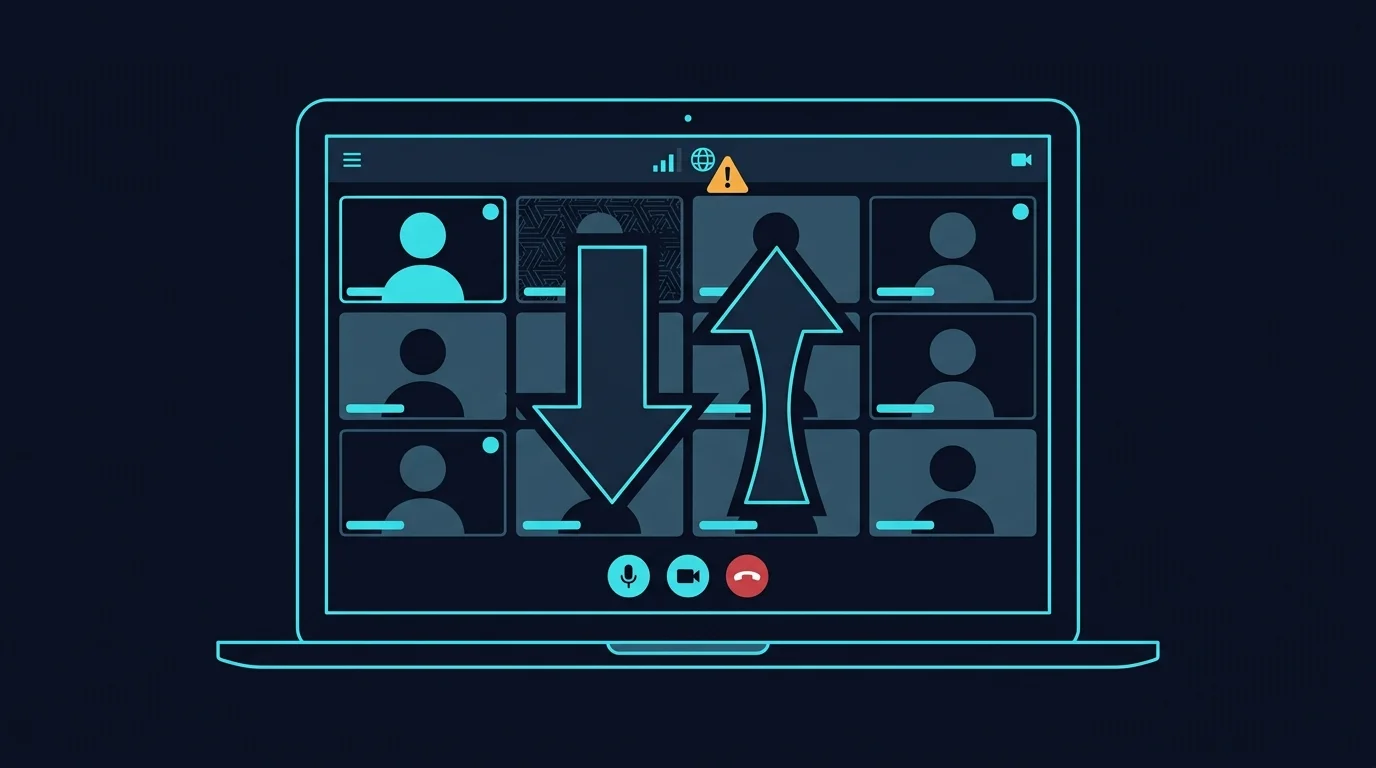
A "poor connection" warning during a Zoom call, right after running a speed test that showed 300 Mbps download, feels contradictory. It isn't — video calling software cares about a completely different set of metrics than a standard speed test headline number, and understanding the actual mismatch explains why a "fast" connection can still trigger the warning.
What Zoom's Connection Warning Actually Tracks
Video calling is real-time, bidirectional, and continuous — unlike a download, which can buffer ahead and tolerate momentary slowdowns invisibly, a live call has no buffer to fall back on. Zoom's quality indicators are driven primarily by upload speed (since you're constantly sending your own video and audio out), packet loss, and jitter — not download speed, which is the number most speed tests lead with and most people mentally associate with "fast internet."
Why Upload Is the Real Bottleneck for Calls
Most home internet plans are heavily asymmetrical — a 300 Mbps download plan might only offer 10-20 Mbps upload. A Zoom call in HD typically needs somewhere in the range of 3-8 Mbps of stable upload for a single participant sending video, more if you're sharing your screen simultaneously. On a household where multiple people are on separate calls at once, or someone else is uploading a large file in the background, that modest upload ceiling gets divided and strained in a way the huge download number never reflects at all.
Why the Warning Can Appear Even With "Enough" Bandwidth on Paper
Having technically enough average upload bandwidth doesn't guarantee it every moment. Jitter — inconsistent packet timing, the same underlying issue covered in this breakdown of loaded vs unloaded ping — can cause video frames to arrive out of order or late even when the average throughput looks sufficient. And any packet loss at all is disruptive for real-time audio/video, since there's no time to wait for a retransmission mid-sentence the way a downloading file can simply wait for one.
What Actually Causes This in a Typical Home Setup
- Bufferbloat from shared household usage — someone else streaming or downloading heavily during your call queues up the shared connection and adds the exact kind of latency/jitter spike that degrades call quality.
- WiFi instead of Ethernet — WiFi's inherent timing variance (covered in detail in the WiFi vs Ethernet breakdown) affects calls the same way it affects competitive games, just less dramatically noticeable most of the time.
- An underpowered or overloaded router processing many simultaneous connections and video streams.
- Genuine upload-plan limitations — a plan with a low upload ceiling simply doesn't have the headroom for HD video plus screen share plus background usage at the same time.
How to Actually Fix It
- Use Ethernet for important calls whenever possible — the single highest-impact fix, same as for gaming.
- Enable SQM/CAKE on your router if it supports it, to prevent household bufferbloat from spiking latency during a call.
- Lower your own video quality manually if bandwidth is genuinely tight — most call software lets you cap your own outgoing resolution, freeing upload headroom for stability over resolution.
- Check your plan's actual upload number, not just download, if this happens consistently — a genuinely upload-constrained plan is a real, checkable cause worth confirming before assuming it's a router or WiFi issue.
Frequently Asked Questions
Does closing other apps help call quality?
It can, if those apps are actively using significant upload bandwidth (cloud backup, file sync) — apps that are just open but idle in the background typically use negligible bandwidth and won't meaningfully affect a call.
Is a "poor connection" warning ever wrong or a false alarm?
It reflects real, measured conditions on the call's actual data path at that moment — brief, one-off spikes can happen even on generally solid connections, but a warning that appears repeatedly across multiple calls reflects a real, recurring pattern worth investigating.
Does screen sharing use more bandwidth than video?
Often comparable to or more than a standard video feed, especially screen-sharing motion-heavy content like video playback — it adds directly to the same upload budget your camera feed is already using.
A Quick Diagnostic You Can Run Before Your Next Important Call
Run a full speed test — including jitter and packet loss, not just download and upload — about fifteen minutes before an important call, under the same conditions you expect during the call itself (same devices active, same time of day). If jitter or packet loss show up even without an active call running, that's a genuine, actionable warning sign worth addressing beforehand rather than discovering mid-meeting.
If the issue only ever shows up during specific times of day, it's also worth checking whether your ISP's peak-hour congestion window lines up with when your important calls tend to happen — some providers show measurably different real-world performance during evening peak usage even when their off-peak numbers look completely clean.