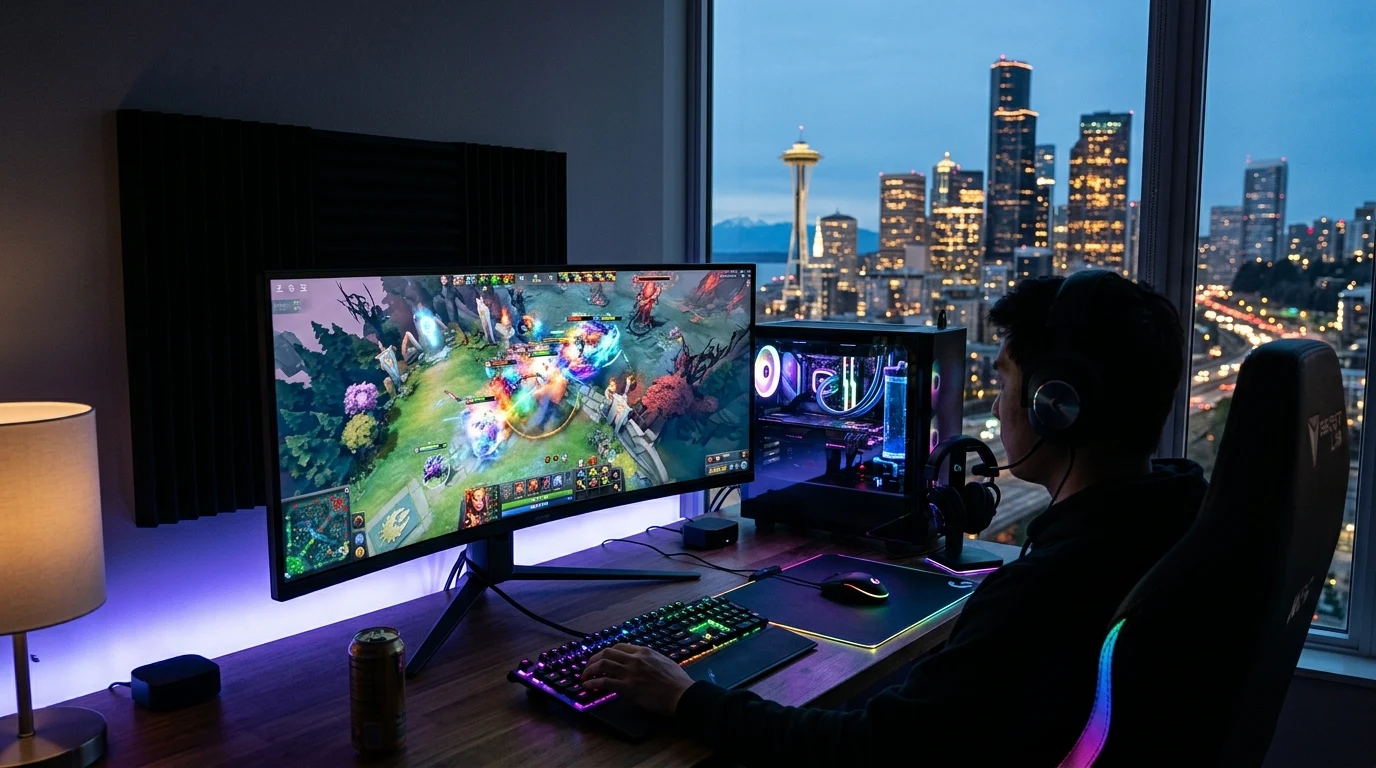
You are watching a live esports tournament or your favorite streamer on Twitch. You have a 500 Mbps fiber connection, speed tests show pristine results, yet the Twitch stream constantly stutters, drops into a spinning loading circle every 30 seconds, or crashes with the infamous 'Network Error: Please try again (Error #2000)'. Why is Twitch significantly more prone to buffering and stuttering than YouTube or Netflix on the exact same internet connection? Here is our technical analysis and the 4-step permanent fix.
The Real-Time Dilemma: Low Latency HLS (LL-HLS)
Unlike Netflix (which buffers 60 to 120 seconds of video ahead in RAM) or YouTube (which buffers 30 seconds), Twitch operates in Low Latency Mode (LL-HLS) to allow real-time chat interaction between streamers and viewers:
- Twitch maintains an ultra-thin buffer window of only 1.5 to 2.5 seconds.
- If a single Wi-Fi packet retry or ISP CDN transit hitch delays data delivery for just 2,000 milliseconds, your buffer is completely depleted, causing the video to freeze instantly.
The 4 Proven Fixes for Twitch Stream Stuttering
1. Toggle Off 'Low Latency Player' in Twitch Video Settings
If you prefer a 100% stutter-free viewing experience over sub-second chat responsiveness:
- Click the Gear Icon in the bottom-right corner of the Twitch video player.
- Click on Advanced.
- Toggle Low Latency to Off.
- This expands the player buffer from 2 seconds to 6 seconds, easily absorbing all transient network jitter.
2. Disable Aggressive Third-Party Ad-Blockers (Fix Error 2000)
Outdated browser extensions block Twitch's backend video worker scripts. Whitelist Twitch or use updated script filters.
3. Switch DNS to Cloudflare (1.1.1.1) and Google (8.8.8.8)
Ensures your browser resolves the closest physical Twitch edge caching server (AWS IVS network).
4. Disable Discord / Browser Hardware Acceleration Conflicts
If your GPU is under heavy 3D load, browser hardware acceleration can cause frame rendering stutters. Toggle hardware acceleration off and back on to reset video decoders.
Twitch Streaming Performance Matrix
| Player Configuration | Buffer Window Size | Stream Stutter Risk | Chat Delay |
|---|---|---|---|
| Low Latency OFF + Cat6 Ethernet | ~6.0 Seconds | 0.0% (Rock Solid) | ~4.5 Seconds Delay |
| Low Latency ON + Cat6 Ethernet | ~2.0 Seconds | Low (< 0.5%) | ~1.5 Seconds (Near-Live) |
| Low Latency ON + 2.4 GHz Wi-Fi | ~1.5 Seconds | High (Constant Buffering) | Frequent Error 2000 Drops |
Why Chromium Browser Memory Leaks Cause Video Stutters
If you leave a Twitch stream open in a background browser tab for multiple hours, the HTML5 video player's WebAssembly canvas renderer and live chat DOM parser can leak system memory. Over time, the browser process consumes 3GB+ of RAM, causing video frame decoders to hitch and stutter regardless of how fast your broadband connection is. Restarting the browser tab or closing animated chat emotes restores silky-smooth 60 FPS playback instantly.
Summary Setup for Lag-Free Twitch Viewing
- Toggle 'Low Latency Player' to Off in Twitch video player settings.
- Disable conflicting ad-blocking extensions on twitch.tv.
- Hardwire via Cat6 Ethernet cable to eliminate Wi-Fi packet drops.
- Set DNS to Cloudflare (
1.1.1.1) for fast Amazon IVS routing.
Why Twitch Video Player Extensions Can Conflict with Playback
Many Twitch power users install third-party browser extensions (such as BetterTTV, 7TV, or FrankerFaceZ) to enhance live chat. If an extension's real-time WebSockets listener encounters an unhandled exception, it can lock the main browser thread for 500 milliseconds, causing the video stream to drop frames. Disabling unused extensions restores silky-smooth 60 FPS video performance.
Why Streamer Ingest Bitrate Caps Impact Viewer Stability
On Twitch, streamers broadcast at fixed bitrates (typically 6,000 to 8,000 Kbps CBR). For non-partnered streamers, Twitch does not always generate multi-resolution transcodes (1080p, 720p, 480p). Viewers with fluctuating local connections are forced to download the raw 8,000 Kbps source stream: hardwiring with Cat6 Ethernet ensures your PC receives every source video frame with zero packet drops.
By expanding player buffer settings, managing browser extensions, and deploying wired Ethernet, Twitch viewers can enjoy silky-smooth, stutter-free live broadcasts.
Why Dynamic Frame Rate Switching Prevents Stream Micro-Stutters
Twitch streams are broadcast at 60.0 FPS. If your computer monitor is configured to 59.94 Hz or 144 Hz without adaptive sync, the slight mismatch in refresh rate can cause periodic micro-stutters every few seconds. Setting your monitor refresh rate to an exact multiple of 60 Hz (e.g. 60Hz, 120Hz, or 240Hz) eliminates frame timing discrepancies, delivering buttery smooth live video playback.
By expanding player buffer settings, managing browser extensions, and deploying wired Ethernet, Twitch viewers can enjoy silky-smooth, stutter-free live broadcasts.
Why Chat DOM Rendering Stutters Video on High-Viewership Channels
In massive Twitch channels with 50,000+ live viewers (like esports finals or major gaming events), thousands of animated chat messages scroll per second. The browser's DOM rendering engine can become overwhelmed, causing video playback to stutter. Collapsing the live chat sidebar or enabling 'Chat Paused' mode instantly frees up system resources, restoring flawless 60 FPS live video.
Audit Your Real-Time Live Streaming Latency
Test your connection health on DCSpeedTest to ensure your network delivers 0.00% packet loss and low jitter during live broadcasts.
Why Hardware Accelerated Web Browsing Restores 60 FPS Twitch Streams
Ensuring your browser's GPU acceleration is active allows your graphics card to decode live 1080p60 Twitch streams in hardware silicon, eliminating CPU frame drops and delivering a silky-smooth viewing experience.
Why Low Jitter Is Essential for Real-Time Streaming
Because Twitch operates on ultra-thin Low Latency HLS buffer windows, maintaining flat sub-2ms jitter is 100x more important than raw download speed. Hardwiring your PC with Cat6 Ethernet and setting DNS to Cloudflare (1.1.1.1) eliminates wireless retransmissions, delivering a rock-solid, broadcast-grade live viewing experience.
Why Stream Health Diagnostics Protect Your Viewing
In Twitch player settings under Advanced → Video Stats, monitoring your dropped frame count and latency to broadcaster helps you diagnose whether a hitch is caused by your local PC or the streamer's own broadcast encoding hardware.
By optimizing browser hardware decoders, managing live chat extensions, and hardwiring with Cat6 Ethernet, Twitch viewers enjoy silky-smooth, stutter-free live streaming in every broadcast.
Maintaining a dedicated Anycast DNS pairing (1.1.1.1 and 8.8.8.8) ensures seamless connection handshakes to Amazon IVS CDN ingest clusters across all live streams.