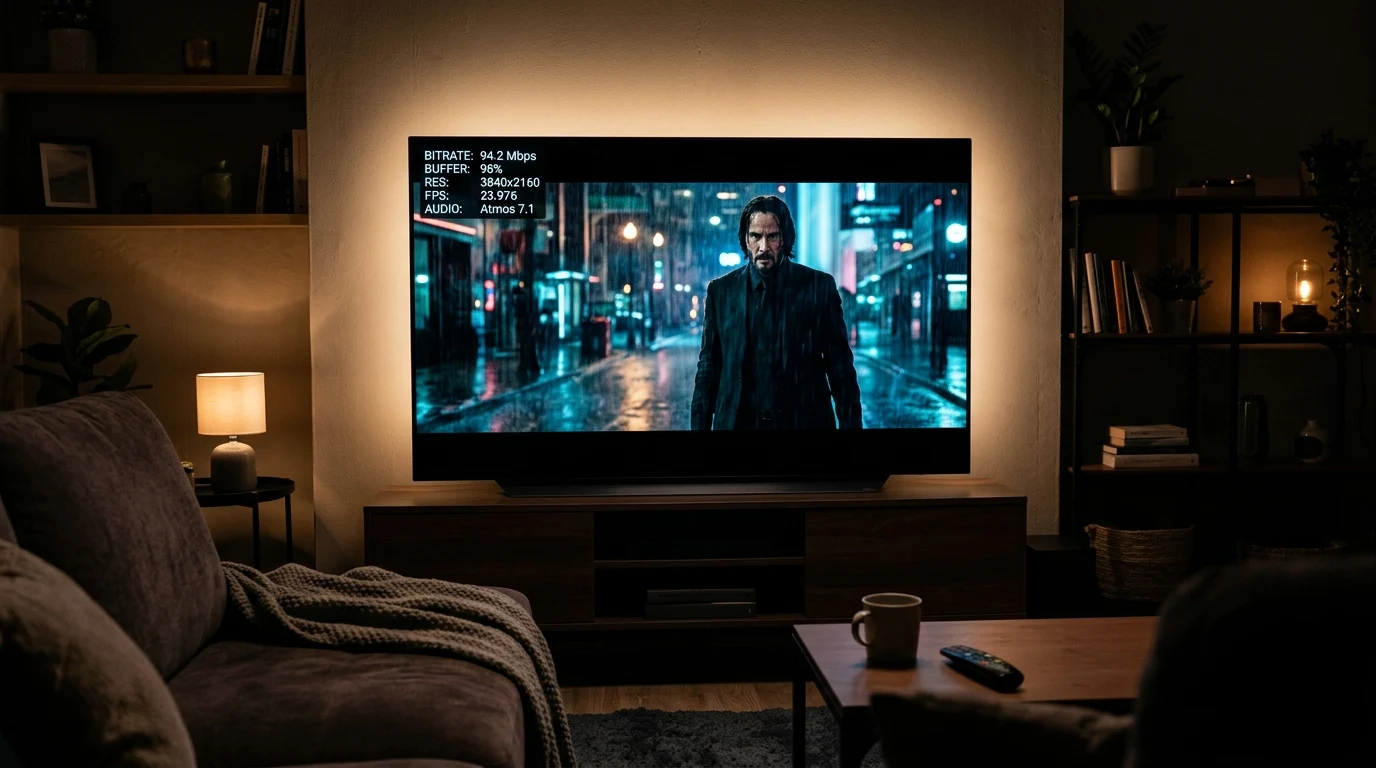
Whether you are paying for Netflix's Premium 4K plan or standard 1080p tier, streaming apps rarely tell you what is happening behind the scenes: video resolution silently scales up and down based on network congestion, compression bitrates fluctuate, and audio buffers shrink. Did you know that Netflix built a powerful, hidden diagnostic telemetry HUD directly into its HTML5 video player? By pressing a secret keyboard combination, you can unlock real-time streaming stats. Here is how to access it on every device.
The Secret Netflix Keyboard Shortcuts
1. Windows PC (Chrome, Edge, Firefox, Netflix App)
Ctrl + Alt + Shift + DPressing this shortcut brings up an extensive translucent diagnostic overlay in the top-left corner of your screen showing real-time video stream metrics.
2. macOS (Safari, Chrome, Firefox)
Control + Option + Shift + D3. Advanced Streaming Log HUD
Ctrl + Alt + Shift + LThis opens the deep network event log, displaying TLS connection handshakes, CDN manifest requests, and buffer segment retrieval timestamps.
How to Read the Netflix Diagnostic Overlay
- Playing bitrate (a/v): Displays your active audio and video bitrate. For crisp 1080p, you should see at least
4000 to 5800 Kbps. For true 4K HDR, it should read11000 to 16000 Kbps. - Playing resolution: Shows your exact pixel dimensions (e.g.
1920x1080or3840x2160). - Buffer size (a/v): Indicates how many seconds of video are cached ahead in RAM (typically 20.0s to 120.0s). If this drops below 5.0s, your stream is on the verge of buffering.
- Framerate & Dropped frames: Shows if your GPU is dropping display frames during playback.
- CDN Server ID: Identifies the exact Netflix Open Connect appliance hosting your video chunks.
Diagnostic Benchmark: Typical Netflix Bitrates by Resolution
| Resolution Tier | Standard Bitrate Range | Ideal Buffer Health |
|---|---|---|
| 4K Ultra HD (3840x2160 HDR) | 11,500 – 16,000 Kbps | > 60.0 Seconds |
| 1080p Full HD (1920x1080) | 4,200 – 5,800 Kbps | > 45.0 Seconds |
| 720p HD (1280x720) | 1,500 – 2,500 Kbps | > 30.0 Seconds |
| 480p SD (854x480) | 500 – 800 Kbps | < 15.0 Seconds (Degraded) |
Understanding Netflix Video Codecs: AVC vs HEVC vs AV01
Inside the diagnostic overlay, look at the Video Track Codec line:
- AVC (H.264): Legacy codec used for standard 1080p SDR streams. Requires higher bitrates (up to 5,800 Kbps) for crisp images.
- HEVC (H.265): Modern high-efficiency codec used for 4K HDR and Dolby Vision. Delivers stunning detail at 11,500 to 16,000 Kbps.
- AV01 (AV1): Next-generation royalty-free open codec deployed by Netflix for supported Smart TVs and mobile devices, providing 30% higher compression efficiency with zero loss in visual clarity.
Troubleshooting Low Bitrates on Netflix
If your diagnostic overlay shows a bitrate stuck below 2,000 Kbps on a 4K title:
- Check your Netflix Account Settings → Playback Settings and ensure Data Usage is set to High (Best Quality).
- Hardwire your streaming device directly via a Cat6 Ethernet cable.
- Configure router DNS to Cloudflare (
1.1.1.1) to connect to the fastest local Netflix Open Connect CDN cache.
Why Netflix Open Connect Edge Appliances Eliminate CDN Stalls
Netflix operates its own custom Content Delivery Network called Netflix Open Connect: placing high-capacity caching appliances directly inside regional ISP networks. When your diagnostic overlay displays a local Open Connect server ID, your video streams travel just a few miles over local fiber rather than traversing the global internet, delivering instant 4K HDR playback with zero buffering.
Summary Setup Checklist for the Highest Netflix Bitrate
- Use Microsoft Edge on Windows or Safari on macOS for hardware PlayReady/FairPlay DRM.
- Install the HEVC Video Extensions from the Microsoft Store.
- Set Netflix Account Data Usage to 'High (Best Quality)'.
- Hardwire via Cat6 Ethernet cable and verify resolution with
Ctrl + Alt + Shift + D.
Why Netflix's Dynamic Bitrate Profiles Prevent Buffering Halts
Netflix's dynamic streaming engine encodes every movie into dozens of discrete bitrate ladders (e.g. 560 Kbps, 1,200 Kbps, 2,800 Kbps, 5,800 Kbps, 11,500 Kbps, 16,000 Kbps). When network congestion occurs, the player steps down seamlessly to the next lower profile rather than freezing playback, allowing you to monitor real-time bitrate adjustments directly in the telemetry HUD.
Verifying 4K HDR Stream Health on DCSpeedTest
Before starting an evening movie marathon, test your broadband connection on the free DCSpeedTest Live Testing Engine to verify that your connection delivers flat loaded latency and unthrottled streaming speeds.
By unlocking secret Netflix diagnostic shortcuts and hardwiring via Cat6, viewers can enjoy movies and series in true high-definition clarity and rich surround sound.
Why Screen Refresh Rates Matter for 24 FPS Netflix Movies
Most Hollywood films and cinematic TV shows on Netflix are filmed at 23.976 frames per second (24p). On standard 60Hz computer monitors, the video player must apply a 3:2 pulldown cadence to fit 24 frames into 60 display cycles, introducing subtle motion judder. Streaming via a 120Hz monitor or a Smart TV with 24p True Cinema mode allows frames to repeat evenly (5:5 cadence), delivering judder-free cinematic perfection.
By utilizing secret diagnostic HUD shortcuts and verifying bitrates on DCSpeedTest, viewers can unlock the highest 4K HDR picture quality on every streaming device.
Understanding Audio Codec Bitrates in the Telemetry HUD
Inside the diagnostic overlay, inspect the Audio Track Codec line: standard stereo AAC audio streams at 128 Kbps, while high-fidelity Dolby Digital Plus 5.1 streams at 640 Kbps, and Dolby Atmos streams at 768 Kbps. Verifying that your audio track is receiving full-bitrate multi-channel sound ensures your soundbar or home theater AV receiver delivers studio-grade surround sound.
Testing Your Home Streaming Line Health
Before hosting a family movie night, test your internet connection on our free DCSpeedTest Live Testing Engine to verify that your broadband delivers unthrottled streaming bandwidth and flat loaded latency across all screens.
Why Anycast DNS Accelerates Netflix Playback Start Times
Setting your router DNS to Cloudflare (1.1.1.1) cuts initial TLS connection handshakes down to 3 milliseconds, allowing the Netflix video player to fetch video manifests and start playback with zero startup lag.
By pairing certified Cat6 cabling with high-speed Anycast DNS, Netflix viewers enjoy instant streaming handshakes and flawless 4K HDR playback on every device.