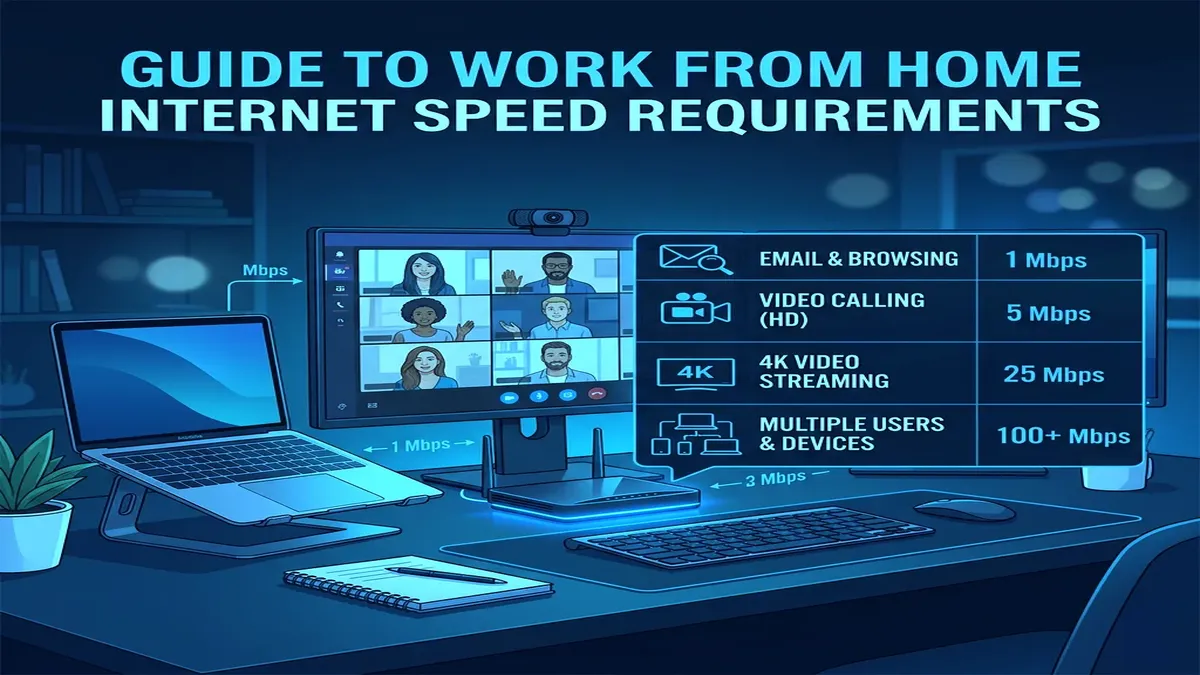
With millions of professionals working remotely or in hybrid arrangements, one of the most common broadband questions is: "Is 100 Mbps fast enough for working from home?" Internet Service Providers constantly push expensive 500 Mbps and 1,000 Mbps (Gigabit) upgrades, claiming lower tiers are insufficient for modern remote work. But what does the data actually show? Here is the complete technical breakdown of real-world remote work bandwidth consumption.
1. The Real Bandwidth Requirements of Common Remote Work Applications
Most everyday productivity tools consume surprisingly little bandwidth. Here is the actual data consumption of common remote work software during active use:
| Work Application | Download Speed | Upload Speed | Latency Sensitivity |
|---|---|---|---|
| Zoom / Teams 1080p HD Video Call | 2.5 – 3.8 Mbps | 2.5 – 3.8 Mbps | High (<50ms ping) |
| Slack / Discord Screen Sharing | 3.0 – 5.0 Mbps | 3.0 – 5.0 Mbps | Moderate |
| Corporate VPN (Encrypted Tunnel) | 1.0 – 3.0 Mbps | 1.0 – 3.0 Mbps | High (Jitter sensitive) |
| Google Docs / Office 365 / Notion | 0.2 – 0.5 Mbps | 0.1 – 0.3 Mbps | Very Low |
| Cloud Backup (OneDrive / Google Drive Sync) | 15.0 – 50.0 Mbps | 10.0 – 30.0 Mbps | Low (Background burst) |
For a single remote worker, active video calls, Slack messaging, email, and cloud document editing collectively consume only 8 to 15 Mbps of bandwidth. On a 100 Mbps connection, you are utilizing less than 15% of your available download capacity.
2. 👥 Household Scenarios: When 100 Mbps Is Enough vs. When to Upgrade
Whether 100 Mbps is sufficient depends on how many simultaneous users and connected devices share your network:
| Household Profile | Simultaneous Online Activities | Is 100 Mbps Enough? | Recommendation |
|---|---|---|---|
| 1 Remote Worker | Zoom call + VPN + music streaming + smartphone | 100% Sufficient | 100 Mbps plan is optimal; save money |
| 2 Remote Workers | Two simultaneous Zoom calls + VPNs + cloud sync | Sufficient | Ensure upload speed is at least 15 Mbps |
| Family / Multi-User (3-4 People) | Remote work + 4K Netflix + gaming + smart home | Borderline | Upgrade to 300 Mbps or enable router SQM QoS |
| Heavy Creative Professionals | 4K video editing, CAD rendering, GitHub large repos | Not Enough | Upgrade to 500+ Mbps Symmetric Fiber |
3. ⚠️ The Asymmetric Cable Internet Trap (Upload Speed Bottlenecks)
The biggest pitfall with "100 Mbps" broadband plans is **asymmetric upload speeds** on traditional coaxial cable networks (Xfinity, Spectrum, Cox). While the plan delivers 100 Mbps download, the upload speed is often capped at a meager 5 Mbps or 10 Mbps.
When you are in a high-definition Zoom call (requiring 3.5 Mbps upload) and your computer starts syncing large PDFs or Dropbox folders in the background, your 5 Mbps upload channel saturates completely. This triggers severe **Bufferbloat**, causing your audio to cut out and Zoom to display "Your network connection is unstable".
4. ⚡ 4 Tips to Make 100 Mbps Feel Like Gigabit for Remote Work
- Use a Wired Ethernet Cable: Eliminates Wi-Fi signal drops, radio interference, and channel congestion, ensuring 100% of your 100 Mbps bandwidth reaches your work laptop.
- Enable Smart Queue Management (SQM) on Your Router: FQ_CoDel or Cake SQM eliminates bufferbloat by preventing background cloud backups from hogging your upload bandwidth during video meetings.
- Throttle Background Cloud Sync: In Google Drive, Dropbox, or OneDrive settings, limit upload bandwidth to 50% of your tested line speed.
- Switch to Cloudflare DNS (1.1.1.1): Decreases web domain lookup latency, making web pages, SaaS dashboards, and Jira tickets load noticeably faster.
5. 🌐 Symmetric Fiber (100/100) vs. Asymmetric Coaxial (100/10)
When evaluating whether 100 Mbps is fast enough, the transmission medium matters as much as the headline download speed. On a 100 Mbps Symmetric Fiber line (FTTH), you receive 100 Mbps download and 100 Mbps upload with 2ms idle latency. This easily handles three simultaneous HD video conferences, multiple cloud file uploads, and background streaming without a hitch.
However, on traditional coaxial cable (DOCSIS 3.1) or legacy copper DSL, 100 Mbps download is paired with only 5 to 10 Mbps upload. If your work involves pushing code to GitHub, uploading graphic assets to Figma, or syncing large CAD files, an asymmetric 10 Mbps upload channel quickly becomes a severe productivity bottleneck.
6. 📱 Smart Home IoT Background Polling Overhead
Modern households often have 25 to 50 connected devices (smart lightbulbs, smart plugs, robot vacuums, Ring doorbells, Nest thermostats). While these devices use tiny amounts of individual bandwidth, cloud security cameras uploading continuous 1080p surveillance video consume 2.0 to 4.0 Mbps of upload bandwidth each. If you have two cloud security cameras, they can consume 80% of your upload channel on an asymmetric 100 Mbps cable plan, starving your work laptop.
7. 📶 Wi-Fi 6 vs. Ethernet for 100 Mbps WFH Reliability
Even on a modest 100 Mbps broadband plan, using a modern Wi-Fi 6 (802.11ax) or Wi-Fi 7 router with OFDMA (Orthogonal Frequency-Division Multiple Access) dramatically improves performance. OFDMA subdivides radio channels into smaller resource units, allowing your router to communicate with your work laptop and smart home devices simultaneously without queuing delays.
However, for critical client presentations or executive interviews, a physical Cat 6 Ethernet cable remains the gold standard, delivering zero packet loss and eliminating ambient radio interference.
⚡ Benchmark Your Work From Home Connection
Run an instant, ad-free speed and bufferbloat test to see if your line is ready for remote work:
🚀 Test Your WFH Speed Now →