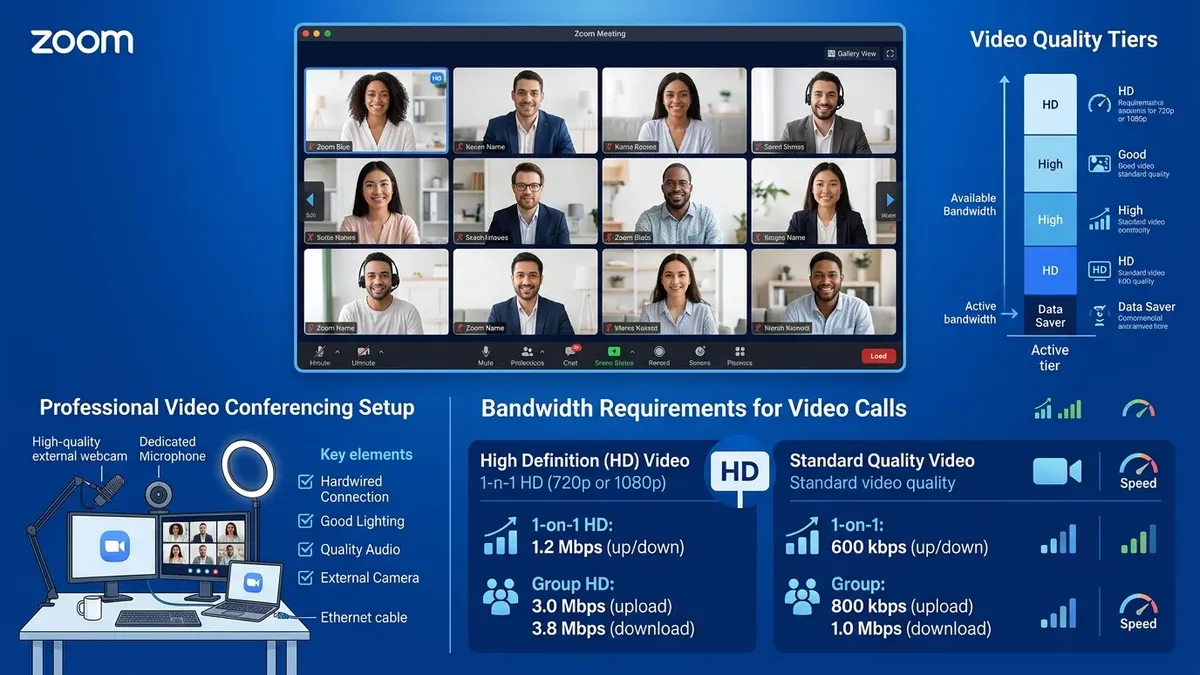
Whether you are presenting a keynote pitch deck, demoing live software to prospective clients, or sharing a high-definition video clip in a company-wide all-hands meeting, nothing damages professional credibility faster than blurry presentation slides, audio desync, or a frozen screen share. What are the exact **internet speed, packet loss, and jitter requirements for Zoom screen sharing in 2026**, and how do you optimize your client settings for flawless streaming?
1. Official Zoom Bandwidth Requirements by Screen Sharing Mode
Zoom handles screen sharing differently depending on whether you are displaying static slides (PowerPoint, PDF) or high-motion video content (video player, animations):
| Zoom Screen Sharing Mode | Frame Rate (FPS) | Required Upload Speed | Required Download Speed |
|---|---|---|---|
| Static Screen Share (Slides, Spreadsheets, Docs) | 1.0 – 5.0 FPS | 0.3 – 0.5 Mbps | 0.3 – 0.5 Mbps |
| Standard 720p HD Screen Share + Webcam | 15.0 – 30.0 FPS | 1.5 – 2.5 Mbps | 1.5 – 2.5 Mbps |
| 1080p Full HD Group Screen Share + Video | 30.0 FPS | 3.8 – 5.0 Mbps | 3.8 – 5.0 Mbps |
| Full Screen Video Clip Optimization (High Motion) | 30.0 – 60.0 FPS | 6.0 – 8.5 Mbps | 6.0 – 8.5 Mbps |
2. The Hidden Culprits: Jitter and Packet Loss vs. Raw Bandwidth
Zoom utilizes the **Real-time Transport Protocol (RTP) over UDP** for screen sharing and audio. Because UDP is connectionless and does not retransmit lost packets, network stability is far more critical than raw megabits per second:
- Packet Loss > 1.0%: Causes immediate pixelation, blocky artifacting, and robotic "underwater" audio distortion.
- Jitter > 15ms: Triggers packet arrival timing variance, forcing Zoom's jitter buffer to drop frames and freeze screen sharing.
- Latency > 150ms: Creates noticeable conversation delay, causing participants to constantly talk over one another.
3. ⚙️ 5 Critical Zoom Client Settings to Prevent Screen Share Lag
- Enable Hardware Acceleration for Screen Sharing: Go to Zoom Settings → Share Screen → Advanced → check "Use hardware acceleration for screen sharing". This offloads video capture and encoding to your dedicated GPU, preventing 100% CPU spikes.
- Toggle "Optimize for video clip" Correctly:
- For Presentations & Text: Leave UNCHECKED. This forces Zoom to prioritize crisp 1080p/4K resolution at lower frame rates (5 FPS), ensuring small text is razor-sharp.
- For Video / Animations: Check "Optimize for video clip". This lowers resolution slightly to maintain a smooth 30 FPS playback.
- Check In-Meeting Network Statistics: During a live meeting, go to Settings → Statistics → Screen Sharing. Monitor your live resolution, FPS, packet loss, and jitter in real time.
4. 🛡️ Router Quality of Service (QoS) DSCP Tagging for Zoom
To ensure other devices in your home (smart TVs, gaming consoles) never interrupt an important business presentation, configure your router's QoS to prioritize Zoom UDP traffic tagged with **DSCP 46 (Audio)** and **DSCP 34 (Video/Sharing)** on port range UDP 8801 - 8810.
5. 🖥️ Dynamic Resolution Scaling (DRS) & Zoom Cloud Media Routers
Zoom utilizes proprietary Dynamic Resolution Scaling (DRS) algorithms. When Zoom's cloud media routers detect that a meeting participant's connection has increased jitter or packet loss, the server automatically downscales the incoming video stream from 1080p to 360p or drops frame rates from 30 FPS to 5 FPS to preserve audio clarity.
If you notice that your shared screen looks sharp for 5 seconds and then becomes blurry, Zoom is reacting to momentary bufferbloat or Wi-Fi packet retransmissions. Locking your laptop to a wired 5GHz/6GHz Wi-Fi band or Ethernet prevents DRS from repeatedly downgrading your presentation visual quality.
6. 🎮 Dual-Monitor Screen Sharing & GPU VRAM Allocation
Sharing a high-resolution 4K or ultrawide (3440x1440) monitor requires substantial GPU memory bandwidth for real-time desktop frame capture (Desktop Duplication API). On laptops with integrated graphics sharing system RAM, sharing a 4K screen while running heavy spreadsheets can cause severe UI stuttering.
Pro Tip: Before starting your presentation, lower your secondary display resolution to 1920x1080 (1080p). This reduces video encoding overhead by 75%, allowing Zoom to maintain a crystal-clear, lag-free 30 FPS stream on standard broadband connections.
7. 🧪 Testing Your Screen Share Latency in Zoom Test Meetings
Before an important client presentation or company webinar, you can benchmark your real-time media encoding and screen sharing latency using Zoom's official self-diagnostic room at zoom.us/test.
While inside the test meeting, start a screen share and open Settings → Statistics. Verify that your Frame Rate maintains a solid 30 FPS, your Resolution locks at 1920x1080, and that Packet Loss remains at 0.0% throughout the test.
8. 🎙️ Advanced Audio Engine Sample Rates (48kHz vs. 44.1kHz)
In high-stakes presentations, audio desync often accompanies screen share stutter. Ensure your computer's default microphone and speaker sample rates in Windows Sound Control Panel or macOS Audio MIDI Setup are set to 2-channel, 16-bit, 48,000 Hz (DVD Quality). Matching Zoom's native 48kHz audio processing engine eliminates real-time software resampling latency.
⚡ Test Your Line for Video Conferencing Readiness
Benchmark your upload bandwidth, jitter, and packet loss to see if your connection meets Zoom enterprise standards:
🚀 Run Video Conferencing Test →