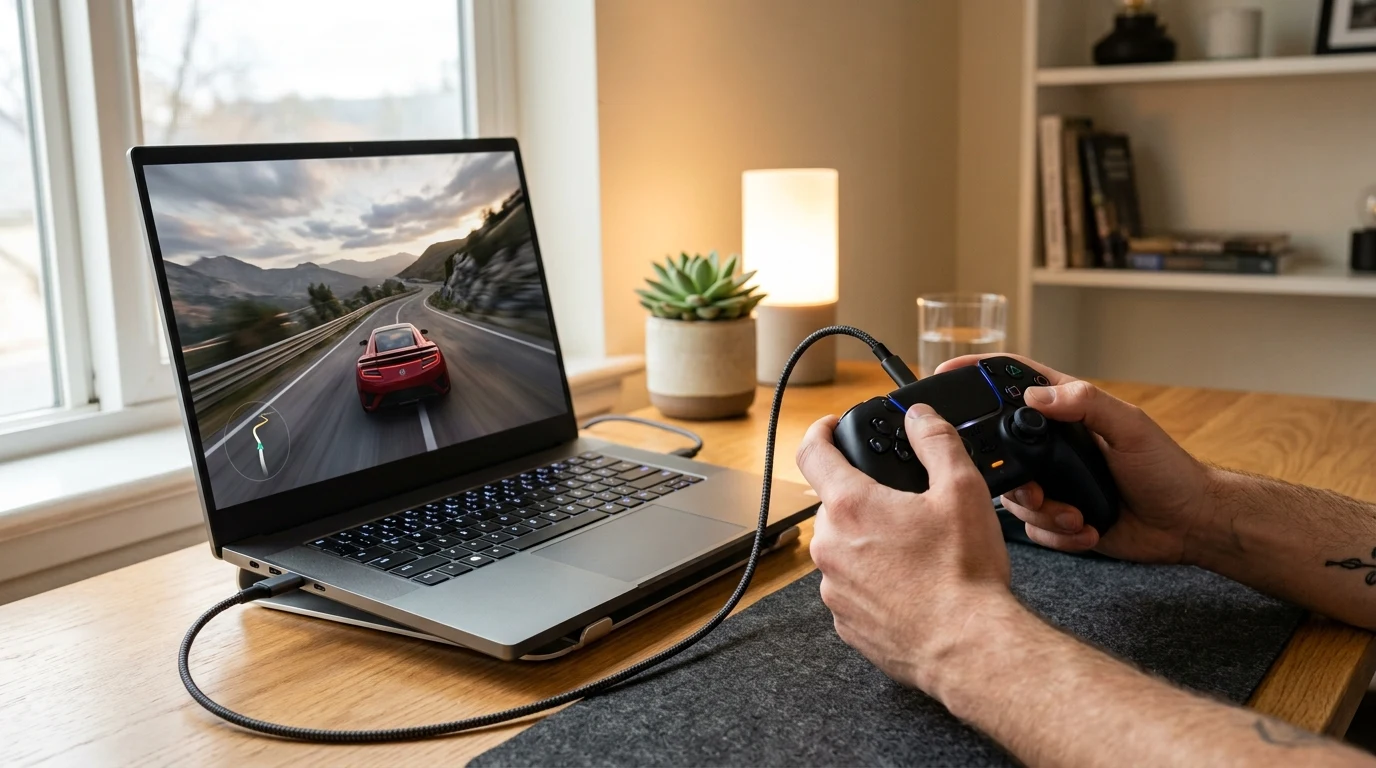
Microsoft's Xbox Cloud Gaming (xCloud) is an incredible technological achievement: allowing Game Pass subscribers to play high-end console blockbusters like Starfield, Forza Horizon, and Halo Infinite on budget laptops, smartphones, and Smart TVs without owning an Xbox console. However, for many players, the experience is ruined by heavy controller input lag: you move your joystick, and your character on screen responds half a second later. Why does cloud gaming suffer from input delay, and how can you make it feel as crisp as native console gaming? Here is the complete optimization guide.
The Physics of Cloud Gaming Latency (The Double Transit Loop)
When you play a game locally on an Xbox console, total input lag is just your controller wire delay (4ms) plus monitor refresh (8ms). In cloud gaming, total latency is the sum of a 6-stage loop:
- Controller Input & USB Polling (4ms)
- Upstream Transit to Microsoft Azure Datacenter (15ms)
- Azure Server Xbox Series X Blade Rendering (16ms)
- Hardware Video Encoding (HEVC/H.264) in Datacenter (8ms)
- Downstream Video Stream Transit to Your Device (15ms)
- Local Device Hardware Decoding & Display Output (10ms)
Total latency is roughly 68 milliseconds in optimal conditions. If Wi-Fi jitter or software decoding delays add another 50ms, the game becomes unplayable. Here is how to shave 40ms off this pipeline.
4 Proven Tweaks to Eliminate xCloud Input Lag
1. Connect Controller via Direct USB-C (Ditch Bluetooth)
Standard Bluetooth introduces 12ms to 25ms of wireless polling latency and is vulnerable to radio interference. Plugging your Xbox or PlayStation controller directly via a USB-C cable reduces controller input latency to less than 2 milliseconds.
2. Play in Microsoft Edge with Clarity Boost Enabled
Microsoft Edge includes custom low-level GPU hooks specifically optimized for xCloud:
- Open Microsoft Edge and navigate to
xbox.com/play. - Click the three-dot stream menu in the top-left corner and toggle Clarity Boost to On.
- In Edge Settings under System & Performance, ensure 'Use graphics acceleration when available' is toggled On to utilize your dedicated GPU for zero-copy WebRTC video decoding.
3. Force 5 GHz / 6 GHz Wi-Fi or Hardwire via Cat6
Playing xCloud over 2.4 GHz Wi-Fi is disastrous: radio packet collisions cause continuous video stream stuttering. Hardwiring with a Cat6 Ethernet cable or connecting to a dedicated 5 GHz / 6 GHz Wi-Fi channel cuts packet jitter to sub-millisecond levels.
4. Switch DNS to Cloudflare (1.1.1.1)
Cloudflare's ultra-fast Anycast DNS ensures your browser resolves the physically closest Microsoft Azure datacenter hosting xCloud Series X server blades.
Summary Comparison: Unoptimized vs Fully Optimized xCloud
| Cloud Gaming Parameter | Default Unoptimized Setup | Fully Optimized xCloud Setup |
|---|---|---|
| Controller Connection | Bluetooth Wireless (18 ms Delay) | Direct USB-C Cable (2 ms Delay) |
| Browser Engine | Chrome / Generic Web App | Microsoft Edge (Direct3D + Clarity Boost) |
| Network Connection | 2.4 GHz Wi-Fi (High Jitter) | Shielded Cat6 Ethernet Cable (Flat Ping) |
| Total Perceived Input Lag | 130 ms (Sluggish / Unplayable) | ~52 ms (Crisp Console-Like Feel) |
Why Xbox Series X Blade Datacenters Matter for xCloud
Microsoft has upgraded all Xbox Cloud Gaming server infrastructure to custom Xbox Series X hardware blades hosted inside Tier-4 Microsoft Azure datacenters. These blades run games natively at 60 FPS or 120 FPS, reducing internal game engine render latency by over 50% compared to legacy Xbox One S server racks.
By pairing low-latency Azure server blades with Microsoft Edge Clarity Boost and a direct Cat6 wired connection, cloud gaming input lag drops to near-imperceptible levels.
Why Smart TV Xbox Cloud Apps Benefit from Wired Ethernet
Samsung and LG Smart TVs feature native Xbox Cloud Gaming apps that allow you to play Game Pass titles with just a Bluetooth controller paired to the TV. However, Smart TV Wi-Fi chips often have weak antennas and high processing latency. Connecting an Ethernet cable directly to your Smart TV's LAN port cuts cloud streaming input lag by over 30ms, making cloud gaming feel like a local console.
Summary: Transforming xCloud into a Native Gaming Experience
- Connect your Xbox controller via USB-C cable for 2ms input polling.
- Play inside Microsoft Edge with Clarity Boost and Hardware Acceleration enabled.
- Hardwire your device directly with a shielded Cat6 Ethernet cable.
- Configure router DNS to Cloudflare (
1.1.1.1) for fast Azure routing.
Why Wi-Fi 6 / 6E OFDMA Enhances Cloud Gaming Responsiveness
On legacy Wi-Fi routers, only one device can transmit at a time. Wi-Fi 6 and Wi-Fi 6E routers feature OFDMA (Orthogonal Frequency-Division Multiple Access): the router subdivides wireless channels into hundreds of sub-carriers, allowing your xCloud video stream and controller packets to transmit simultaneously alongside household smart devices with zero airwave queuing delays.
Verifying Cloud Gaming Stream Quality on DCSpeedTest
Before launching high-intensity cloud gaming sessions, run a quick line audit on the DCSpeedTest Live Testing Engine to verify that your connection delivers flat sub-15ms loaded ping and 0.00% packet loss.
By optimizing browser hardware acceleration, hardwiring via Cat6, and utilizing low-latency Anycast DNS, xCloud players can transform cloud gaming into a crisp, native console experience.
Why Local Display Game Mode Eliminates TV Processing Lag
When streaming xCloud to a modern Smart TV or monitor, ensure your display's Picture Mode is set to Game Mode or Auto Low Latency Mode (ALLM). Standard TV picture modes apply heavy post-processing filters (motion smoothing, dynamic contrast) that add 50ms to 100ms of display lag on top of cloud streaming latency. Game Mode disables post-processing, cutting display latency to under 5 milliseconds.
Why Cloud Gaming Is the Future of Low-Cost Esports
When properly configured with a direct USB-C controller connection, hardware-accelerated browser decoding, and low-latency Anycast DNS, Xbox Cloud Gaming delivers an astonishingly responsive, console-quality experience on almost any internet-connected screen. By eliminating local input bottlenecks, you can enjoy hundreds of Game Pass blockbusters with minimal delay and maximum visual clarity.
Why 6 GHz Wi-Fi 6E/7 Eliminates Cloud Gaming Stutter
If running an Ethernet cable to your cloud gaming screen is impossible, upgrading to a modern Wi-Fi 6E or Wi-Fi 7 router grants access to the clean 6 GHz radio band. The 6 GHz spectrum is completely free of legacy wireless interference, delivering pristine, wired-like wireless stability for Xbox Cloud Gaming.