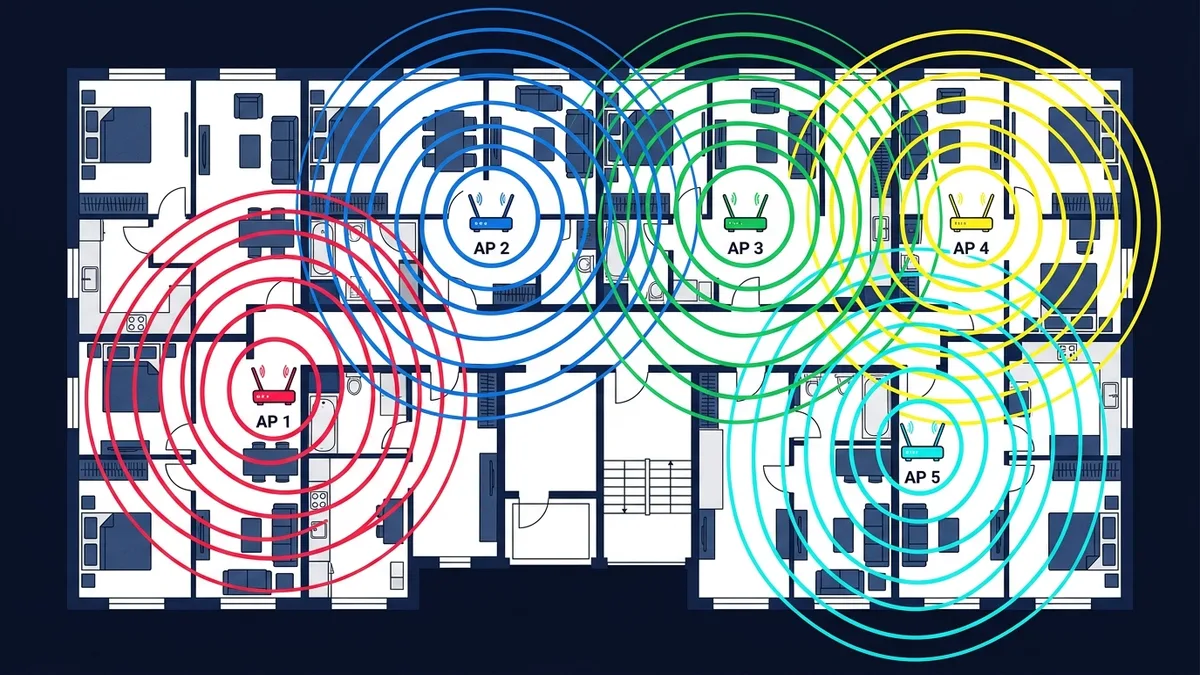
BSS Coloring is one of WiFi 6's quieter features, but it's specifically designed for the exact problem that ruins WiFi in apartment buildings: overlapping networks stepping on each other.
If you live in an apartment building and can see fifteen WiFi networks in your phone's settings, you've already met the problem BSS Coloring was built to solve. It's not a headline feature the way "WiFi 6" or "6GHz band" are, but for anyone in a dense, congested environment, it quietly matters more than most of the numbers on the router's box.
The Problem: WiFi Was Built to Be Overly Polite
Before WiFi 6, when a device detected any signal on its channel — even from a completely unrelated network next door — it would wait, assuming the channel was busy, before transmitting. This is called Clear Channel Assessment (CCA), and it's a reasonable rule when the interfering signal is actually part of your network. The problem: it applies the same caution even when the signal is your neighbor's network three walls away, using the same channel but posing zero actual interference risk to your specific connection. In a dense apartment building with a dozen overlapping networks, every device ends up needlessly waiting its turn for traffic that isn't even really competing with it, and throughput drops accordingly.
What BSS Coloring Actually Does
If your ISP delivers high speeds but your connection drops or suffers from bufferbloat during multi-device use, upgrading these verified components eliminates the bottleneck:
BSS Coloring (Basic Service Set Coloring) tags every WiFi 6 network's transmissions with a small identifying "color" code. When a WiFi 6 device detects a transmission on its channel, it checks the color first: if the color belongs to a different network (a different "BSS" — basically, someone else's router), the device can treat that signal as lower-priority background noise instead of automatically waiting for it to clear, as long as the signal is weak enough to not be a genuine interference risk. The practical result is more efficient channel sharing specifically in the exact scenario BSS Coloring was designed for — dense environments where many independent networks overlap on the same channels.
Why This Specifically Matters in Apartments
A single-family home with one router and no nearby networks gets almost no benefit from BSS Coloring — there's nothing to differentiate from. The feature exists specifically for the opposite scenario: apartment buildings, condos, dense urban blocks, dorms — anywhere multiple independent WiFi networks are packed into overlapping physical space and overlapping channels. This is also the exact environment where WiFi 7's Multi-Link Operation provides its biggest real-world benefit, for a related reason — both features are aimed at making dense, congested wireless environments behave better, rather than raising theoretical top speed.
What You Need for BSS Coloring to Actually Work
Like most WiFi 6 features, BSS Coloring only helps when it's actually active on both ends of the connection — your router and your specific device both need to support WiFi 6 (802.11ax) and have the feature enabled, which it typically is by default on WiFi 6 certified hardware. It provides no benefit at all on WiFi 5 or older connections, since the color-tagging mechanism doesn't exist in those standards.
What to Check If You're in a Congested Building
Experiencing packet loss, jitter spikes, or evening ISP throttling? Connect directly to dedicated gaming routes or bypass traffic shaping:
- Confirm your router is genuinely WiFi 6 certified, not just marketed with "6" somewhere in the product name — check the Wi-Fi Alliance certification or the box's 802.11ax listing specifically.
- Use a WiFi analyzer app to see how many networks are actually sharing your channel before assuming BSS Coloring alone will solve a bad-WiFi problem — sometimes simply switching to a less congested channel manually helps more.
- Don't expect it to fix everything — BSS Coloring reduces unnecessary waiting, it doesn't add bandwidth. In a genuinely oversaturated environment, a 6GHz-capable router (which uses a largely uncongested band in most buildings today) often helps more directly.
Frequently Asked Questions
Do I need to turn on BSS Coloring manually?
Usually not — it's part of the WiFi 6 standard and active by default on certified hardware, without a separate toggle in most consumer router interfaces.
Does BSS Coloring help with interference from non-WiFi devices, like microwaves?
No — it only helps differentiate between different WiFi networks. Non-WiFi interference sources aren't part of the BSS coloring scheme at all.
Is BSS Coloring the same as channel selection?
No — channel selection is about which frequency you use; BSS Coloring is about how efficiently your device shares a channel it's already on with other unrelated networks using that same channel.
How BSS Coloring Relates to the Bigger WiFi 6 Picture
BSS Coloring is one of several WiFi 6 features aimed specifically at efficiency in crowded conditions rather than raw top speed — alongside OFDMA (which lets a single transmission serve multiple devices simultaneously instead of one at a time) and Target Wake Time (which improves battery life for connected devices by scheduling when they need to check in). None of these show up as a bigger number on a router's box the way "6 Gbps" does, but for anyone actually living in a congested wireless environment, they matter more day-to-day than the theoretical peak speed most marketing emphasizes.
Command-Line (CLI) Verification & Advanced Router Tuning for What Is BSS Coloring in WiFi 6? The Feature That Fixes Apartment WiFi Congestion
When browser-level telemetry reveals elevated loaded latency or inconsistent throughput during What Is BSS Coloring in WiFi 6? The Feature That Fixes Apartment WiFi Congestion evaluations, network engineers validate the transport path directly from the operating system kernel. Running native command-line diagnostics bypasses browser extensions, hardware acceleration bugs, and antivirus TLS proxies that occasionally distort multi-gigabit benchmarks for bss coloring.
- Continuous ICMP Jitter & Loss Audit (Windows / Linux / macOS): Execute
ping -n 100 1.1.1.1(Windows) orping -c 100 -i 0.2 1.1.1.1(macOS/Linux) while running a simultaneous speed test. Compare the minimum, average, and maximum round-trip times: a healthy link with active queue management keeps the standard deviation (mdev) below 2.0 ms with 0% packet loss. - Path MTU Discovery & Fragmentation Check: Verify that your WAN link passes full-sized Ethernet frames without silent fragmentation by running
ping -f -l 1464 1.1.1.1. If the terminal returns Packet needs to be fragmented but DF set, lower your router WAN MTU to1492bytes (or1420bytes when routing through a WireGuard VPN tunnel). - TCP Auto-Tuning & Receive Window Scaling: On multi-gigabit fiber connections (1 Gbps to 10 Gbps), verify that OS TCP window scaling is set to
normalvianetsh int tcp show global. Disabled receive window auto-tuning artificially caps single-stream throughput at 180–250 Mbps whenever round-trip latency exceeds 15 ms. - Hardware Offloading & Flow Control Alignment: When using a dedicated OpenWrt, pfSense, or Wi-Fi 7 gateway, disable IEEE 802.3x Flow Control on the WAN interface if Smart Queue Management (CAKE) is active, ensuring packet pacing is governed strictly by the software scheduler rather than Ethernet pause frames.