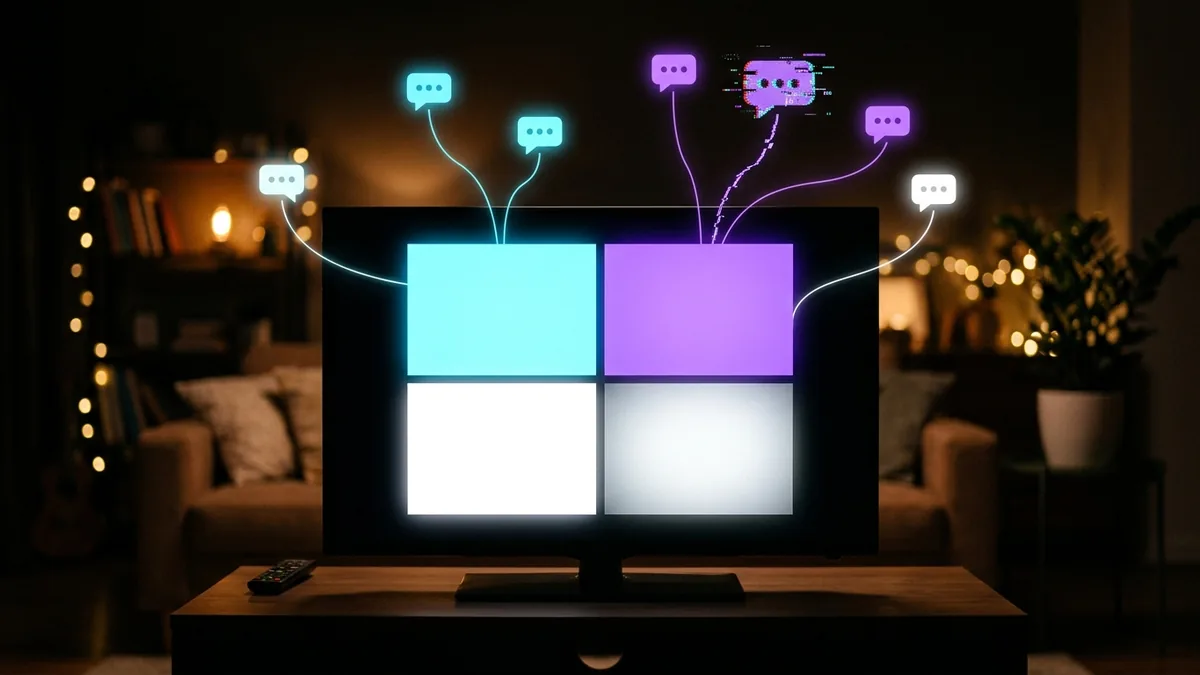
Split-screen local multiplayer combined with online party chat puts a unique strain on a home network — multiple players' game traffic plus a real-time voice stream, often all going through the same router at once. When this setup lags, the fixes are usually different from troubleshooting a single player's connection.
Why This Combination Stresses a Network More Than Solo Play
Split-screen local multiplayer over an online service still sends each player's individual game data separately to the game's servers, effectively multiplying your household's outbound traffic by the number of players compared to a single-player session. Add a simultaneous voice party chat, and you have several real-time data streams competing for the same connection at once.
Step 1: Check Your Router's QoS Settings
Setting your gaming console or PC as a high-priority device in your router's QoS settings ensures the combined game and voice traffic gets preferential treatment over other household devices, which matters more here than in single-player scenarios given the higher combined bandwidth and priority needs.
Step 2: Use Wired Ethernet for the Console/PC Running Split-Screen
A wired connection provides more headroom and consistency for the combined load of multiple players' game traffic plus voice chat than WiFi, which has to divide its available bandwidth and airtime across everything simultaneously.
Step 3: Consider Separating Voice Chat From Game Traffic
If party chat is built into the game itself, switching to an external app like Discord on a separate device (a phone, for instance) can sometimes reduce strain on the console's own network connection, since the voice traffic then travels a different path rather than competing directly with game data on the same device's connection.
Step 4: Check for Background Household Activity
Other devices streaming, downloading, or video calling elsewhere in the house compete for the same total bandwidth your split-screen session needs. Pausing unrelated heavy usage during your session, or ensuring QoS properly deprioritizes it, addresses this directly.
Diagnostic Table
| Symptom | Likely Cause | Fix |
|---|---|---|
| Lag increases specifically when party chat is active | Combined traffic straining connection | Move voice chat to a separate device/app |
| Lag only during split-screen, not solo play | Multiplied game traffic | Switch to wired, set QoS priority |
| Lag correlates with other household device usage | Bandwidth contention | Pause other devices, confirm QoS settings |
| Voice chat cutting out specifically | Upload bandwidth strain | Check upload speed, reduce concurrent uploads |
Does Upload Speed Matter More Here Than Usual?
Yes — voice chat is an upload-heavy activity (you're continuously sending audio data), and combining that with multiple players' game data being sent out simultaneously can strain a connection's upload capacity more than its download capacity, which is the opposite of what most home internet plans are optimized for.
Is It Worth Upgrading Your Router for This Specific Use Case?
If your household regularly does split-screen local co-op with voice chat and experiences persistent issues even after the fixes above, a router with better simultaneous connection handling (a modern WiFi 6/6E router, or ensuring wired ports are available for all gaming devices) can resolve capacity issues that basic QoS tweaking on older hardware can't fully address.
A Realistic Expectation for Shared Connections
Households with multiple gamers regularly playing together simultaneously benefit disproportionately from a higher-tier internet plan compared to a single-player household, since the combined bandwidth and priority needs scale with the number of active players and voice participants rather than staying constant.
Does Console-Specific Networking Play a Role?
Some consoles handle simultaneous split-screen network sessions more efficiently than others at a system level, and checking your specific console's network settings menu for any built-in bandwidth management options, separate from your router's own QoS, is worth doing before assuming the router alone is responsible for every symptom you're seeing.
Testing Your Setup Properly
After making changes — wired connection, QoS setup, or moving voice chat to a separate device — test across a full session with all players active rather than judging from a quick check, since split-screen network strain often builds gradually rather than appearing immediately at the start of a session.
A Final Practical Tip
If your household regularly hosts split-screen sessions with friends, keeping a simple checklist — confirm wired connection, verify QoS priority, agree on one voice chat method — before starting saves troubleshooting time once everyone's already settled in and ready to play.
Long-Term Solutions for Frequent Split-Screen Households
If your household regularly hosts multiple players and party chat sessions, investing in a router genuinely built for higher device counts and simultaneous connections, rather than an entry-level model, pays off more here than in a typical single-player household, since the combined demands are structurally higher every time you play together.
Wrapping Up
Split-screen sessions with party chat are one of the more demanding everyday scenarios a home network handles, and treating it that way — with a wired connection, proper QoS, and a deliberate voice chat strategy — turns a frustrating lag-filled evening into the smooth co-op experience it's meant to be.