Speed Test Online: Run It Right Now at DCSpeedTest.com
Open DCSpeedTest.com in any browser and click Start Test. The speed test online begins immediately — no account, no download, no app. In the next 15 seconds, you'll have a complete picture of your internet connection: download speed, upload speed, ping, and jitter. While you wait for those results, here's exactly what's happening.
What Happens Second-by-Second During a Speed Test Online
Those 15 seconds of the speed test feel simple — a gauge climbs, numbers appear. But the underlying process is a precisely engineered network measurement sequence. Here's what's actually happening in real-time:
Seconds 0-1: DNS Resolution + Server Selection
The moment you click Start Test, your browser makes a DNS query to find DCSpeedTest's speed test server. This resolution takes 10-200ms depending on your DNS resolver performance (Cloudflare 1.1.1.1: ~12ms; ISP default resolver: often 80-180ms).
Simultaneously, DCSpeedTest's server selection logic uses Cloudflare's anycast routing — your connection is automatically directed to the nearest Cloudflare edge node (typically in your metropolitan area) without any manual server selection on your part. This ensures the measurement reflects the shortest possible network path.
Seconds 1-3: Latency Measurement (Ping + Jitter)
Before a single byte of speed test data is transferred, DCSpeedTest sends a series of small ICMP-like HTTP ping packets to the Cloudflare server and times the round-trips. This produces:
- Ping: The average round-trip time in milliseconds — your connection's "reaction time"
- Jitter: The standard deviation of those ping measurements — how consistent your connection is
Why ping is measured first (before download): latency is not affected by the download test, but if download were measured first, congestion during the test could artificially inflate ping. Measuring ping on a clean, empty connection gives the true idle latency.
Seconds 3-12: Download Speed Test (The Main Event)
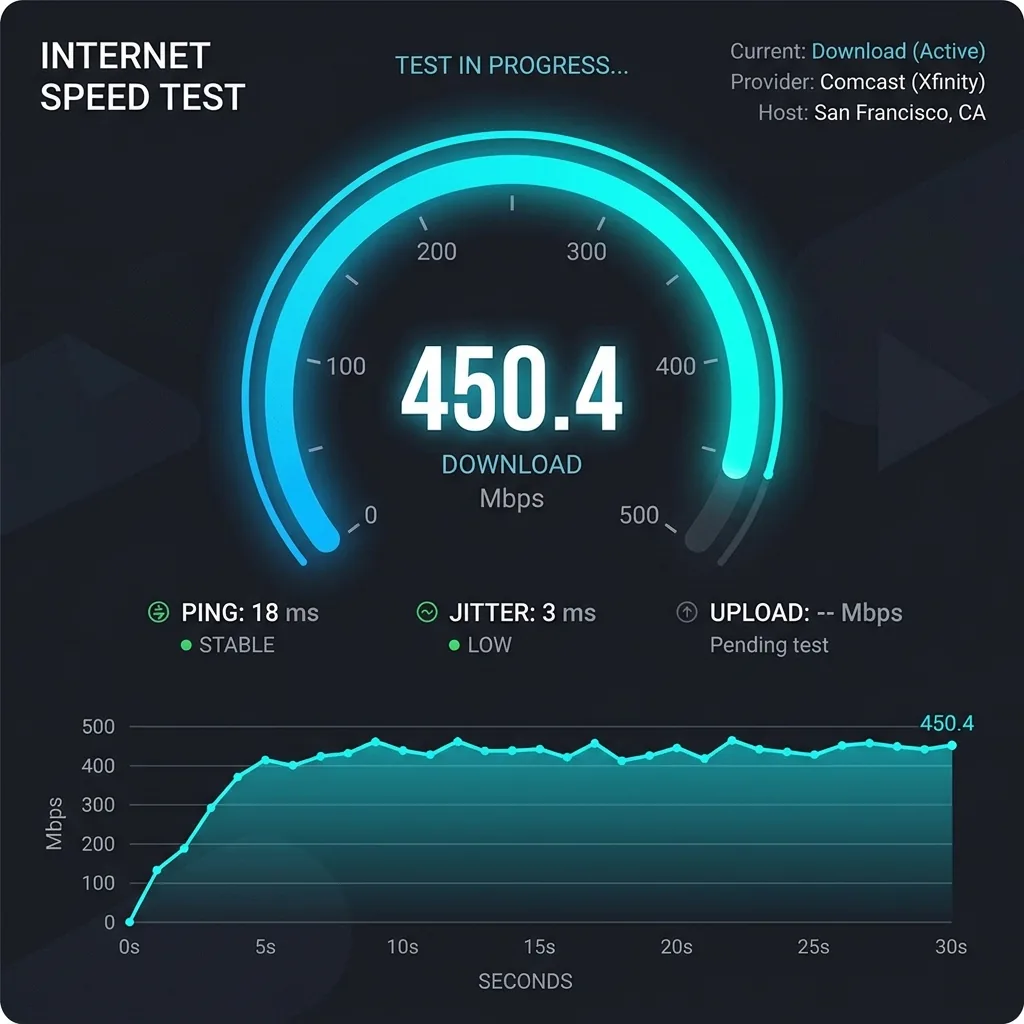
This is where the speed gauge climbs and the live Mbps number appears. DCSpeedTest simultaneously downloads multiple test files from the Cloudflare edge server. This "parallel stream" approach is critical — a single HTTP connection cannot fully utilize high-speed connections because TCP slow-start (a built-in congestion control mechanism) limits early throughput. Multiple parallel streams bypass this limitation, saturating your full available bandwidth.
Throughout the download phase:
- The displayed Mbps number is a live rolling average — it ramps up as TCP connections warm up, then stabilizes
- The final result uses the 90th percentile speed across all measurements — not the peak — which is more representative of real-world sustained performance
- Test file sizes range from small (for lower-speed connections) to very large (for gigabit connections) — the tool auto-selects appropriate sizes
Why the gauge starts slow and accelerates: TCP slow-start is not a bug — it's a feature of TCP designed to prevent network congestion. Every new TCP connection begins at a low transfer rate and exponentially increases until it either reaches capacity or detects congestion. This is why speed tests often show a lower number in the first 2-3 seconds of the gauge's climb before reaching the true speed.
Seconds 12-14: Upload Speed Test
After download completes, DCSpeedTest reverses the flow — your browser sends data to the Cloudflare server to measure upload speed. Upload testing is technically more complex than download because:
- Browser-based upload has inherent JavaScript overhead that doesn't exist for download
- Background browser processes (not just the test) compete for upload bandwidth
- Most ISP connections are asymmetric (much lower upload than download) so the test runs faster
For cable internet users (Xfinity, Spectrum, Rogers, Virgin Media): your upload result will be dramatically lower than your download — this is normal DOCSIS cable behavior, not an error. For fiber internet users (AT&T Fiber, Google Fiber, Verizon Fios): upload and download should be similar or equal.
Second 15: Results Display
All four measurements are presented simultaneously: Download Mbps, Upload Mbps, Ping ms, Jitter ms. These numbers are your complete internet performance snapshot for this moment in time on this connection.
How to Read Your Speed Test Online Results — Instantly
You just got your results. Here's the decision tree to interpret them in under 30 seconds:
| Download Result | Verdict | Instant Action |
|---|---|---|
| Above 90% of your plan's speed (via Ethernet) | ✅ Excellent — ISP delivering correctly | No action needed |
| 70-90% of plan (via Ethernet) | ✅ Good — normal variation | No action needed |
| 50-70% of plan (via Ethernet) | ⚠️ Low — investigate | Reboot modem + router; test again |
| Below 50% of plan (via Ethernet) | ❌ Problem — call ISP | Document: run test 3x/day for 3 days |
| WiFi result is 30-60% lower than Ethernet | ✅ Normal WiFi overhead | Move closer to router; use 5 GHz band |
| WiFi result under 30% of plan | ⚠️ Poor WiFi performance | Router position; WiFi channel; upgrade router |
| Ping Result | Verdict | Impact on Activities |
|---|---|---|
| Under 15ms | ⭐ Fiber-grade excellence | Competitive gaming, 4K streaming, instant browsing |
| 15-35ms | ✅ Cable/wireless quality | All activities smooth; some gaming acceptable |
| 35-80ms | ⚠️ Above average latency | Casual gaming acceptable; competitive gaming affected |
| 80-150ms | ❌ High latency | Gaming difficult; video calls may sound echoey |
| Over 150ms | 🚨 Very high latency | Gaming unplayable; calls degraded; satellite or VPN likely |
| Jitter Result | Verdict | Video Call Impact |
|---|---|---|
| Under 5ms | ⭐ Rock stable | Studio-quality video calls |
| 5-10ms | ✅ Stable | High quality calls with no artifacts |
| 10-20ms | ⚠️ Moderate jitter | Occasional minor audio glitch |
| Over 20ms | ❌ High jitter | Choppy audio/video; investigate WiFi interference |
Speed Test Online for Specific Use Cases: What Results You Need
Netflix 4K Streaming Speed Test Online
Netflix requires 25 Mbps for 4K Ultra HD streaming. But speed alone doesn't guarantee quality. Your speed test online must show: Download ≥ 25 Mbps AND Ping under 150ms AND Jitter under 30ms. Netflix built Fast.com to test its specific CDN path — if Fast.com shows lower than DCSpeedTest, your ISP may be throttling Netflix traffic. If both show similar speed but Netflix still buffers, the issue is Netflix's server load, not your connection.
YouTube 4K Speed Test Online
YouTube 4K requires 20 Mbps. However, YouTube uses adaptive bitrate streaming — it automatically adjusts quality based on available bandwidth. A speed test showing 20+ Mbps download and under 100ms ping ensures YouTube will auto-select 4K without buffering. If YouTube shows 1080p when your speed test shows 100+ Mbps, YouTube's adaptive algorithm is being conservative — this is a YouTube client decision, not an internet speed problem.
Zoom Video Call Speed Test Online
For HD 1:1 Zoom calls: 3 Mbps upload + 3 Mbps download minimum. For group video (3+ participants): 5 Mbps upload + 5 Mbps download. But the critical metric your speed test online must show for good Zoom quality is jitter under 15ms and packet loss 0%. A connection with 100 Mbps download but 30ms jitter will have choppy Zoom audio. A connection with 10 Mbps and 2ms jitter will have crystal-clear audio. Upload speed and jitter are Zoom's most important metrics — not download.
Online Gaming Speed Test
Contrary to popular belief, gaming uses very little bandwidth (1-25 Mbps). Your speed test online download result is the least important metric for gaming performance. What matters: Ping under 40ms for competitive gaming (under 20ms for FPS); Jitter under 5ms; Packet loss 0.0% (even 0.1% degrades competitive gaming). If your speed test shows 1 Gbps download but 60ms ping and 8ms jitter, gaming will perform worse than a 50 Mbps connection with 12ms ping and 1ms jitter.
Remote Work / Work-From-Home Speed Test Online
Work-from-home requirements depend on your role: Video calls (Zoom/Teams/Meet): 5+ Mbps upload, 5+ Mbps download, under 20ms jitter. Cloud apps (Google Workspace, Microsoft 365): 5+ Mbps download, 1+ Mbps upload, any reasonable ping. VPN connections: 10+ Mbps (VPN encryption overhead); ping under 50ms (VPN adds latency). Large file transfers/cloud storage: 20+ Mbps download, 10+ Mbps upload. For most remote workers, 50 Mbps download / 20 Mbps upload with under 15ms jitter covers all work needs comfortably.
Speed Test Online: Morning vs Evening — Why Results Differ
Run your speed test online at 8 AM and again at 8 PM. If you see a significant speed difference, this is valuable diagnostic information:
| Time | Expected Speed | Why | If Significantly Lower at 8 PM |
|---|---|---|---|
| 8 AM (off-peak) | 85-95% of plan speed | ISP network least congested; fewer simultaneous users | Baseline — should represent ISP's best delivery |
| 12 PM (midday) | 70-85% of plan speed | Some business and remote worker activity | Normal variation |
| 7-10 PM (peak) | 50-80% of plan speed for cable | Peak streaming hours — most users consuming bandwidth simultaneously on shared cable nodes | Gap > 20% is ISP congestion, not your equipment |
| Weekend 2-5 PM | Can be similar to peak hours | Weekend streaming patterns | Document if consistently much lower than weekday morning |
When to file an ISP complaint: If your 8 AM speed test online shows 85%+ of plan speed but your 8 PM test consistently shows below 50%, your ISP has a network congestion problem. Document timestamps and Mbps results for 5 weekdays, then contact ISP support with this evidence.
Frequently Asked Questions: Speed Test Online
How do I run a speed test online?
Open DCSpeedTest.com in any browser — Chrome, Safari, Firefox, or Edge on any device — and click Start Test. The online speed test completes in 15 seconds and shows your download speed (Mbps), upload speed (Mbps), ping (ms), and jitter (ms). No account, no app download, no registration. Works on PC, Mac, iPhone, Android, tablet, and smart TV browsers.
What is a good result on a speed test online?
Via Ethernet: 85%+ of your plan's advertised download speed. For example, on a 500 Mbps plan: 425+ Mbps is good. Via WiFi: 50-80% of plan speed is normal (WiFi adds overhead). Good ping: under 35ms for cable/5G, under 15ms for fiber. Good jitter: under 10ms. Good upload: check your plan — fiber plans have symmetric upload; cable plans have much lower upload by design.
Why does my speed test online show different speeds at different times?
Your speed test online will show lower speeds during evening peak hours (7-10 PM) vs morning off-peak (7-9 AM). This is because cable and wireless internet runs on shared infrastructure — you share bandwidth with neighbors. During peak streaming hours, ISP network nodes become congested. If the gap between your morning and evening speed test results exceeds 30%, your ISP has a congestion issue worth reporting.
Is a speed test online accurate on WiFi?
A speed test online on WiFi measures your WiFi speed, not your full internet speed — and these are different. WiFi speed is limited by your router's radio capabilities, the distance from the router, and interference from other networks. A speed test online via WiFi will typically show 30-60% lower results than the same test via Ethernet — this is expected and not a problem with your ISP. Always compare your ISP's service to an Ethernet speed test result, not a WiFi result.
How long does a speed test online take?
A standard speed test online at DCSpeedTest.com takes 15 seconds: approximately 2 seconds for ping measurement, 9 seconds for the download test, and 4 seconds for the upload test. Higher-speed connections (1 Gbps+) may take slightly longer as the upload component requires more data for accurate high-speed upload measurement. The entire process is automatic — click Start Test and wait; no interaction required.
Run Your Speed Test Online Right Now
Open DCSpeedTest.com, click Start Test, and in 15 seconds you'll know exactly where your internet connection stands. Check your download against your plan. Look at your ping for gaming and call quality. Check jitter for video stability. Compare morning vs evening results if something feels slow. Everything you need to diagnose and optimize your internet connection — in 15 seconds, free, no download, any device.