Your Internet Can Be Fast AND Unstable — Here's Why This Matters
Most people check internet speed and stop there. But speed alone does not tell you whether your connection is stable. You can have a 500 Mbps connection that makes Zoom calls choppy and games unplayable — while a 50 Mbps connection on a different ISP provides a perfectly stable video call experience.
Internet stability is entirely separate from internet speed. A fast, unstable connection delivers high data throughput in bursts — but the variation between those bursts causes real-world problems:
- 🎮 Gaming: rubber-banding, teleporting enemies, delayed hit registration — caused by jitter, not low speed
- 📹 Zoom/Teams/Meet calls: audio choppy, video pixelating, "you froze" — caused by jitter and packet loss
- 📺 Live streaming (Twitch/YouTube Live): stream drops, encoding errors — caused by upload instability
- ☁️ Cloud apps (Google Docs, Salesforce): random "connection lost" errors — caused by brief connection interruptions
- 🎵 VoIP calls: robotic voice, audio cutting in and out — caused by high jitter even at low severity
An internet stability test online measures the dimensions of your connection that a standard speed test ignores: jitter, packet loss, and ping variance over time.
The 4 Metrics That Define Internet Stability
1. Jitter: The #1 Cause of Video Call Problems
Jitter is the variation in ping (latency) between consecutive measurements. Where ping measures the average round-trip time, jitter measures how much that time fluctuates from packet to packet.
Example: Three consecutive pings of 12ms, 48ms, 9ms, 67ms = high jitter (large variation). Three pings of 11ms, 12ms, 11ms, 13ms = low jitter (stable).
Why jitter destroys audio and video: real-time audio and video streams rely on arriving packets at predictable intervals. When packets arrive unevenly (high jitter), the receiving device either waits for late packets (causing lag spikes) or plays without them (causing choppy/missing audio-video frames). Even 20ms of average jitter is above the threshold for perceptible voice degradation.
| Jitter Level | Value | Effect on Video Calls | Effect on Gaming |
|---|---|---|---|
| Excellent | Under 5ms | Crystal clear audio and video | Perfectly smooth, frame-perfect inputs |
| Good | 5-10ms | Clear with very occasional minor artifact | Smooth with rare minor desync |
| Acceptable | 10-20ms | Occasional audio blip, rare video artifact | Noticeable in competitive play |
| Problematic | 20-40ms | Choppy audio, frequent video pixelation | Rubber-banding, inconsistent hit reg |
| Severe | Over 40ms | Calls regularly sound robotic or drop | Unplayable in competitive games |
2. Packet Loss: The Silent Performance Killer
Packet loss occurs when data packets traveling from your device to a server (or back) fail to arrive. TCP connections automatically retransmit lost packets — but this causes delay. In real-time streams (voice, video, gaming), lost packets cannot wait for retransmission — they simply result in missing audio frames or missing game state updates.
| Packet Loss Level | Impact on Real-Time Apps | Impact on Downloads/Browsing |
|---|---|---|
| 0.0% (Ideal) | No impact — all packets arrive | Full throughput |
| 0.1-0.5% | Occasional minor audio artifact; gaming input delays | Barely perceptible slowdown via TCP retransmission |
| 0.5-1% | Noticeable voice quality degradation; gaming hit registration issues | 10-20% throughput reduction |
| 1-3% | Significant call quality problems; video calls frequently freeze | Up to 50% effective bandwidth reduction |
| Over 3% | Calls nearly unusable; gaming unplayable | Severely degraded — feels like 1990s dial-up even on fast connections |
Critical insight: Even 1% packet loss can reduce your effective TCP download speed by 50% due to the retransmission overhead it triggers. This is why some users with "fast" connections experience what feels like slow internet — a few percent packet loss transforms a 500 Mbps connection into what performs like a 50 Mbps connection for actual data transfer.
3. Ping Consistency (Latency Variance)
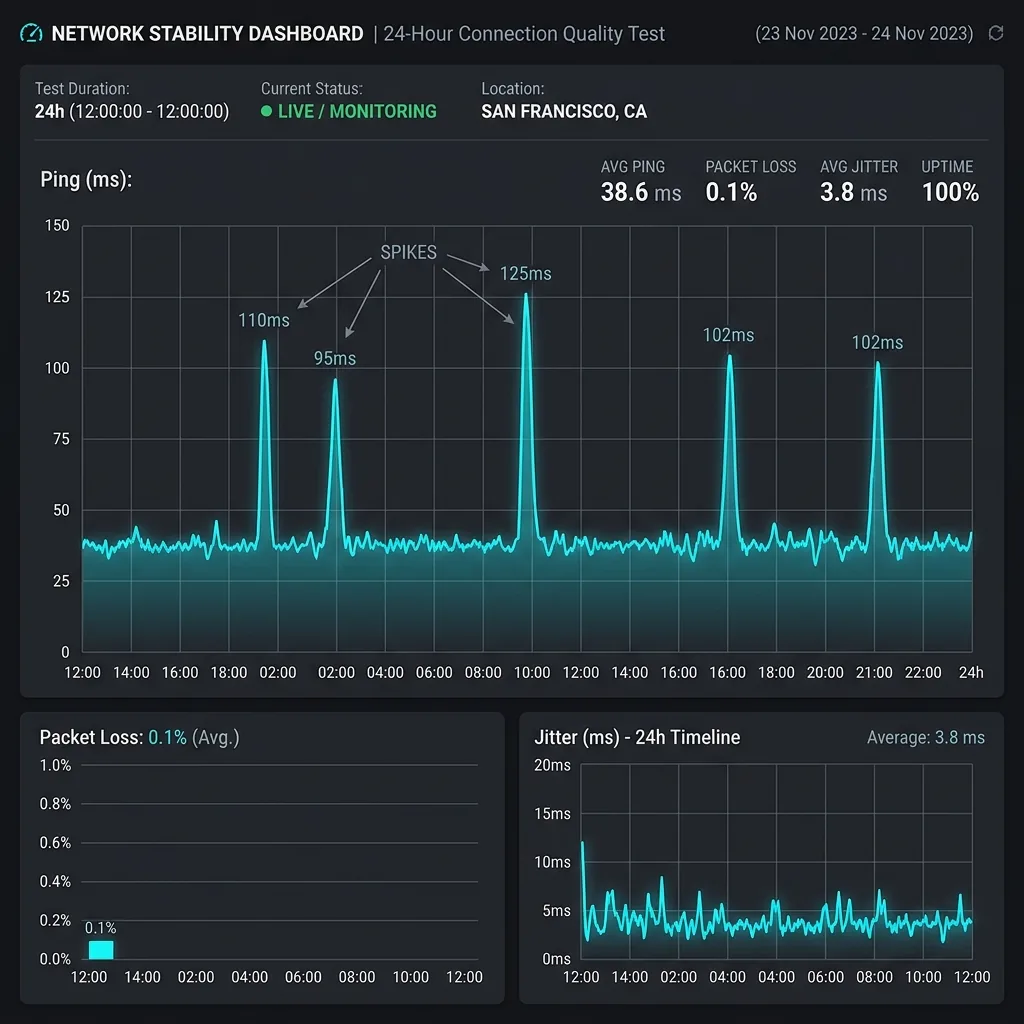
Beyond average ping and jitter, sustained ping consistency over time reveals whether your internet has periodic instability that doesn't show up in a single 15-second test. A connection might show excellent results for 30 seconds, then spike to 300ms for 2 seconds, then recover — a pattern that causes intermittent gaming lag and Zoom freezes that feel random but are actually periodic.
To measure ping consistency, you need an extended stability test — running ping measurements for several minutes and examining the consistency of results, not just the average.
4. Connection Drops (Disconnects)
The most severe form of instability is a complete momentary disconnect — where your device briefly loses internet access before reconnecting. Even 1-2 second drops that your ISP doesn't register as an outage can terminate active gaming sessions, fail file uploads, and disconnect VoIP calls. These are impossible to catch in a 15-second speed test but are detectable with an extended stability test running over hours.
How to Run an Internet Stability Test Online
Method 1: Quick Stability Check (DCSpeedTest.com — 15 Seconds)
DCSpeedTest.com's standard test measures jitter as part of its results. After running the test:
- Look at the Jitter result (ms) — under 10ms is stable; over 20ms indicates instability
- Compare your Ping to expected values for your connection type
- Run the test 3 times in a row — if ping and jitter vary significantly between runs, your connection has consistency issues
This quick method catches obvious stability problems but misses periodic instability that occurs over minutes or hours.
Method 2: Extended Ping Stability Test (Windows — Command Line)
For a more comprehensive internet stability test, use the built-in ping command for an extended duration:
- Open Command Prompt (Windows: search "cmd" → Enter)
- Type:
ping -t 1.1.1.1and press Enter - Let it run for 5-10 minutes — watch for:
- Consistent times (5-15ms each): stable connection ✅
- Occasional spikes (200-500ms): intermittent instability ⚠️
- "Request timed out" lines: packet loss = connection drops ❌
- Large swings (5ms → 300ms → 8ms): severe jitter ❌
- Press Ctrl+C to stop — the summary shows average, minimum, maximum ping and packet loss %
Method 3: Extended Stability Test (Mac/Linux — Terminal)
- Open Terminal
- Type:
ping -c 100 1.1.1.1(runs 100 pings) orping 1.1.1.1(runs until stopped with Ctrl+C) - Analyze the output for timeout lines and ping variance
- The final summary shows: min/avg/max/stddev — standard deviation above 10ms indicates poor stability
Method 4: Packet Loss Test (All Platforms — Browser)
- Open speed.cloudflare.com
- Run the extended Cloudflare speed test — it includes a packet loss measurement at the bottom of the results
- Any packet loss above 0.5% warrants investigation
What Causes Unstable Internet?
| Cause | Symptoms | How to Confirm | Fix |
|---|---|---|---|
| WiFi interference | Jitter spikes when neighbors use WiFi; microwave causes audio drops | Test via Ethernet — if stable, WiFi is the cause | Switch to 5 GHz or 6 GHz band; change WiFi channel; use Ethernet |
| Router memory overflow | Gradual instability increasing over days; full restart clears it temporarily | Check router uptime in admin panel — restart if weeks old | Monthly router restart; schedule auto-reboot in router settings |
| ISP line degradation | Instability at random times; unaffected by WiFi vs Ethernet | Ethernet test still shows packet loss and jitter spikes | Request ISP technician visit; document evidence first |
| DOCSIS cable node congestion | Jitter increases during peak hours (7-10 PM); consistent off-peak | Extended ping test at 8 AM vs 8 PM — compare jitter | ISP must upgrade node capacity; file FCC complaint if chronic |
| Modem overheating | Instability in afternoon/evening (thermal); better in morning | Touch modem — hot? Move to ventilated location | Elevate modem for airflow; replace aging modem |
| Faulty Ethernet cable | Random brief disconnects on wired connection | Swap Ethernet cable — if problem resolves, cable was faulty | Replace Cat5e/Cat6 cable; avoid sharp bends and crimps |
| DNS instability | Websites randomly "fail to load" but reload successfully | ping -t 1.1.1.1 stable but browser fails intermittently | Switch DNS to 1.1.1.1 — ISP DNS servers sometimes have instability |
| WiFi driver (laptop) | Instability only on specific laptop; other devices stable | Compare ping test on laptop vs phone on same WiFi | Update or reinstall WiFi driver; disable power saving in adapter settings |
Internet Stability Requirements by Use Case
| Use Case | Speed Needed | Max Jitter | Max Packet Loss | Max Ping | Priority |
|---|---|---|---|---|---|
| Zoom/Google Meet (HD) | 3-8 Mbps up | 15ms | 0.5% | 150ms | Stability > Speed |
| Competitive gaming (FPS) | 3-25 Mbps | 5ms | 0.1% | 40ms | Stability > Speed |
| Live streaming (1080p60) | 6-8 Mbps up | 5ms | 0.0% | 80ms | Upload stability critical |
| VoIP phone calls | 0.1 Mbps | 10ms | 0.3% | 150ms | Stability only |
| 4K Netflix streaming | 25 Mbps | 50ms | 2% | Any | Speed > Stability |
| File downloads | Maximum available | Any | 5% | Any | Speed only |
| Web browsing | 5 Mbps | 50ms | 2% | 100ms | Both moderate |
How to Fix Unstable Internet: Priority Checklist
- ✅ Switch from WiFi to Ethernet — Eliminates wireless interference as a variable immediately. If Ethernet is stable and WiFi is not, the issue is your wireless setup.
- ✅ Restart router and modem (unplug 30 seconds each, modem first). Resolves memory overflow and stale route tables.
- ✅ Move to 5 GHz or 6 GHz WiFi band — 2.4 GHz is heavily congested in apartments. 5/6 GHz provides much lower jitter despite shorter range.
- ✅ Change WiFi channel — In router admin panel, switch from "Auto" to a manual channel (1, 6, or 11 on 2.4 GHz; any uncongested channel on 5 GHz). Avoid channels overlapping with neighbors.
- ✅ Change DNS to 1.1.1.1 — Fixes DNS instability causing intermittent "site not loading" without hardware issues.
- ✅ Enable QoS/SQM on router — Reduces buffer bloat that converts to jitter under network load. Critical for gaming and calls during simultaneous downloads.
- ✅ Update router firmware — Router manufacturers release stability patches. Outdated firmware often causes intermittent jitter and packet loss.
- ✅ Document and contact ISP — If all above fail, run extended ping tests over 24-48 hours, export the results (copy from Command Prompt), and contact your ISP with timestamped evidence of packet loss and jitter spikes.
Frequently Asked Questions: Internet Stability Test
What is an internet stability test?
An internet stability test measures how consistent your internet connection is over time — specifically jitter (variation in ping), packet loss (percentage of data packets that fail to arrive), and ping variance. Unlike a speed test that measures peak throughput, a stability test reveals whether your connection delivers data at a consistent, predictable rate. Unstable internet causes video call freezing and gaming lag even when the connection is fast.
How do I test my internet stability online for free?
Three methods: (1) Run DCSpeedTest.com three times in a row — if jitter exceeds 15ms or varies dramatically between runs, your connection is unstable. (2) On Windows, open Command Prompt and run ping -t 1.1.1.1 for 5-10 minutes — look for timeout lines (packet loss) and large ping spikes. (3) Open speed.cloudflare.com for a packet loss measurement included in their extended test. All three methods are free and require no software download.
What causes unstable internet?
The most common causes of unstable internet are: (1) WiFi interference from neighboring networks, microwaves, or Bluetooth — test via Ethernet to eliminate WiFi, (2) ISP network congestion during peak hours (7-10 PM) causing jitter spikes and packet loss on cable or wireless internet, (3) Router memory overflow from weeks of uptime — a restart fixes this temporarily, (4) Degraded physical line (for cable or DSL) causing signal quality issues that appear as random packet loss, (5) Overheating modem/router reducing processing capacity.
What jitter is acceptable for video calls?
For Zoom, Google Meet, and Teams: jitter under 15ms is excellent; under 20ms is acceptable for most users; 20-40ms causes occasional audio artifacts; over 40ms causes consistently choppy audio and video drops. Zoom's own technical documentation recommends under 40ms jitter as the maximum for adequate call quality. For the best video call experience, aim for under 10ms jitter — achievable on fiber or wired cable connections.
How much packet loss is acceptable?
For real-time applications: any packet loss above 0.5% is noticeable in gaming and video calls. Above 1% causes significant voice quality degradation. Above 3% makes calls nearly unusable. For file downloads and streaming: up to 2-3% packet loss is tolerable (TCP retransmission handles it with some speed reduction). Ideal packet loss is 0.0% — most healthy wired connections achieve this consistently.
Is my internet stable enough for gaming?
For casual gaming: under 80ms ping, under 20ms jitter, and under 0.5% packet loss is adequate. For competitive gaming (FPS, battle royale): you want under 40ms ping, under 5ms jitter, and 0.0% packet loss. Run DCSpeedTest.com and check jitter specifically — if it's above 10ms, investigate WiFi interference or switch to Ethernet before blaming your ISP or game servers.
Test Your Internet Stability Right Now
Open DCSpeedTest.com and run the test three times consecutively. Look at your jitter result — this is your primary stability indicator. Under 5ms means your connection is rock-solid stable. 10-20ms means occasional instability that could affect video calls. Over 20ms means your connection needs diagnosis before relying on it for real-time applications. For a deeper stability check, run the extended ping test in Command Prompt alongside your DCSpeedTest results.