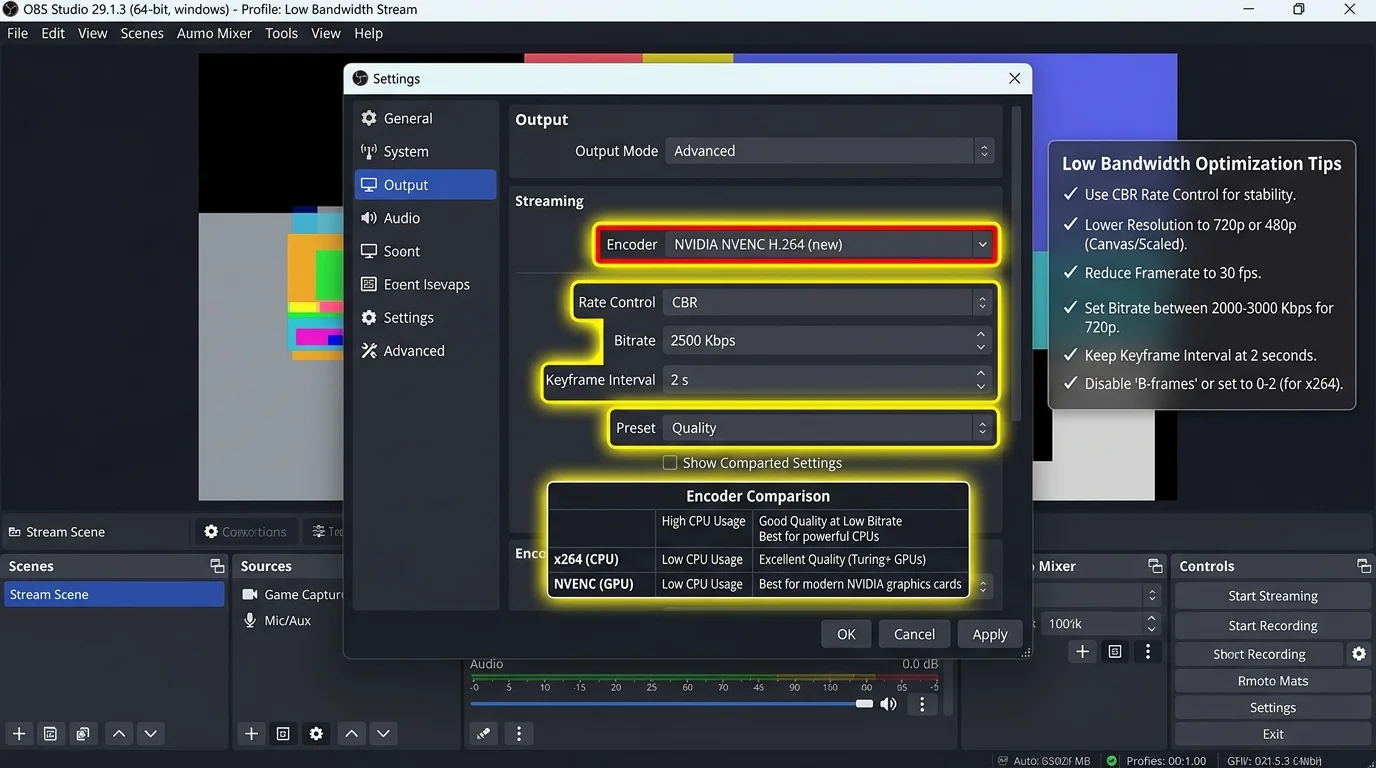
🔬 Methodology: OBS settings optimization tested at constrained upload speeds (2, 3, and 5 Mbps) using a hardware traffic shaper to simulate DSL and congested cable. Stream quality evaluated via VMAF score and viewer feedback.
The Low-Upload Streaming Strategy
At under 5 Mbps upload, every kilobit matters. The goal is maximum visual quality within your bandwidth envelope. This requires making trade-offs: resolution, framerate, and encoder complexity must be balanced against what your connection can reliably push.
Recommended OBS Configuration for Under 5 Mbps
- Resolution: 720p (1280×720): Do not attempt 1080p under 5 Mbps — the bitrate is too low to avoid visible blocking artifacts at 1080p. 720p at adequate bitrate looks significantly better than 1080p starved of data.
- Framerate: 30fps: Each frame at 30fps gets twice the data budget of 60fps for the same bitrate. For talking/gaming streams, 30fps is acceptable. Only use 60fps if gameplay demands it and you have at least 4 Mbps to spare after audio.
- Video Bitrate: 2,500 kbps (at 2 Mbps upload) / 4,000 kbps (at 5 Mbps): Leave at least 20% upload headroom for audio, protocol overhead, and headroom against congestion spikes.
- Audio Bitrate: 96 kbps: Reduce from the standard 160 kbps. At 96 kbps, voice quality is fully preserved while freeing 64 kbps for video. Viewers notice video pixelation far more than slight audio compression.
- Encoder: NVENC (if NVIDIA GPU) or AMF (AMD), NOT x264: Hardware encoders produce 15–25% better quality/bitrate ratio than x264. At 4,000 kbps, the NVENC output looks comparable to 5,000 kbps x264.
- x264 Preset (if no GPU encoder): veryfast or superfast: Slower presets (medium, slow) improve quality but require more CPU and produce higher-variance bitrate output. At low upload speeds, bitrate stability matters more than peak quality — use fast presets.
- Keyframe Interval: 2 seconds: Required by Twitch and recommended by YouTube Live. Non-standard intervals cause seek issues in VODs.
Bandwidth Management: Stop Competing With Yourself
During a stream on under 5 Mbps, your streaming encoder is the only process that should consume upload. Close: all game update clients (Steam, Epic, Battle.net), cloud backup (OneDrive, Google Drive), browsers with background sync, and any download managers. Enable Windows QoS to prioritize OBS's network traffic: search "Set Network Bandwidth" in Windows Settings and allocate a reserved bandwidth for streaming applications.