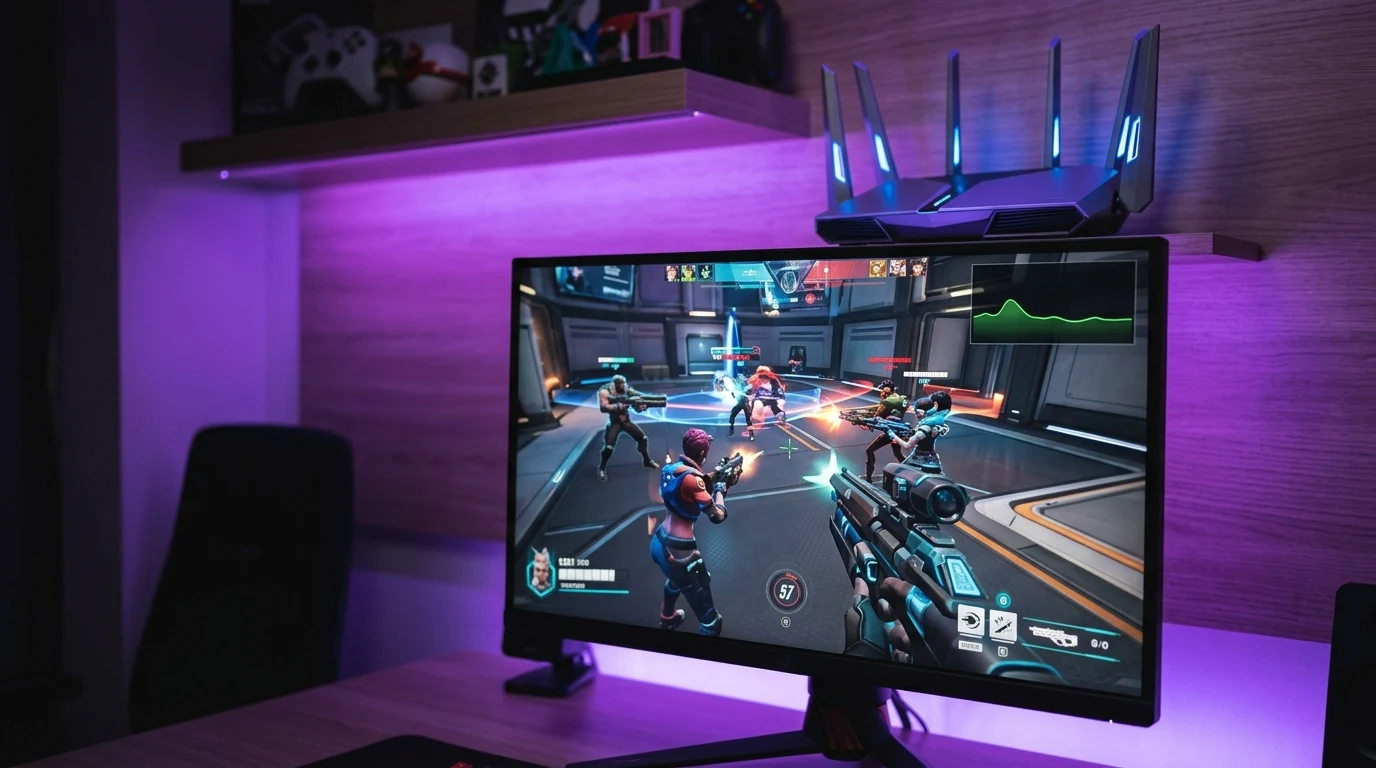
In Valve's competitive third-person MOBA shooter Deadlock, match outcomes hinge on millisecond execution: parrying a close-range melee attack, securing soul orbs with instant weapon fire, and dodging high-damage ultimate abilities in 6v6 teamfights around the Mid Boss. When playing over Wi-Fi, however, players frequently experience infuriating periodic ping spikes: the in-game latency graph suddenly jumps from 25ms to 180ms for two seconds, causing your hero to freeze and miss critical soul denies. Why does Wi-Fi behave this way, and how can you permanently stabilize your connection?
The #1 Culprit: Windows WLAN AutoConfig Background Scanning
If your ping spikes happen at regular, clockwork intervals (every 60 seconds exactly), the cause is almost never your internet provider. It is the built-in Windows WLAN AutoConfig service:
By default, Windows periodically orders your Wi-Fi card to detach from your current router frequency, listen across all 2.4 GHz and 5 GHz channels to find new SSID beacons, and build a local network list. During this 200-millisecond scanning window, outgoing Deadlock UDP packets are queued in local memory, causing a massive latency spike when the card reconnects.
The 1-Click Fix via CMD:
netsh wlan set autoconfig enabled=no interface="Wi-Fi"This disables background roaming scans, keeping your wireless adapter locked to your active connection with zero scanning interruptions.
Wi-Fi Router Tuning: Avoiding Radar DFS Channels
Many modern routers automatically select 5 GHz DFS (Dynamic Frequency Selection) channels (Channels 52 to 144). Under FCC and international telecommunications law, if a router on a DFS channel detects weather radar or airport radar pulses, it must immediately vacate the channel and silence radio transmissions for up to 60 seconds (Channel Availability Check).
In your router wireless settings, switch from 'Auto' to a dedicated Non-DFS channel:
- UNII-1 Band: Channel 36, 40, 44, or 48 (80 MHz width).
- UNII-3 Band: Channel 149, 153, 157, or 161.
Detailed Comparison: Wi-Fi vs Ethernet in Deadlock
| Network Connection Type | Average Baseline Ping | Packet Loss Rate | Periodic Ping Spike Frequency |
|---|---|---|---|
| Shielded Cat6 Ethernet Cable | 14 ms (Rock Solid) | 0.00% | 0 Spikes (100% Flat) |
| Wi-Fi 6 / 6E (Non-DFS Channel) | 18 ms | < 0.5% | Rare (Clean Airwaves) |
| Wi-Fi 5 / 6 (Auto DFS Channels) | 26 ms | 2% – 5% | Frequent (Radar Dropouts) |
| 2.4 GHz Legacy Wi-Fi | 48 ms | 5% – 12% | Constant Jitter Spikes |
Why Wi-Fi 6E & 7 (6 GHz Band) Eliminates Wireless Contention
If you cannot physically run an Ethernet cable through your home, upgrading to a Wi-Fi 6E or Wi-Fi 7 router (like the TP-Link Archer BE550) grants access to the uncrowded 6 GHz wireless spectrum. Unlike 2.4 GHz and 5 GHz, the 6 GHz band contains zero legacy Wi-Fi 4/5 devices and zero radar DFS channels, providing clean, uncontested radio channels with sub-millisecond wireless packet delivery.
Source 2 Network Command Tweaks in Deadlock Console
Press F7 in Deadlock to open the developer console and verify your networking parameters:
cl_updaterate 64
cl_interp 0.015
net_graph 1
This configures the Source 2 client to process server updates at maximum frequency with minimal interpolation buffer lag.
Summary Checklist: Fixing Deadlock Wireless Lag
- Disable Windows WLAN scanning via the
netshcommand above. - Lock your router's 5 GHz band to non-DFS Channel 36 or 149.
- Enable QoS priority for your gaming PC's MAC address in router settings.
- For 100% permanent tournament stability, hardwire with a Cat6 shielded cable.
Understanding Wi-Fi Airwave Contention in Apartment Buildings
In high-density apartment complexes, dozens of neighboring routers broadcast on overlapping 5 GHz channels. When neighboring access points transmit high-bandwidth video streams, your Wi-Fi card must wait for clear airwave slots (CSMA/CA protocol).
Using a Wi-Fi analyzer app (such as InSSIDer or WiFi Analyzer) to identify uncrowded channels, paired with non-DFS channel locking, ensures your Deadlock match packets are transmitted with minimum queuing delay.
Audit Your Real-Time Loaded Latency in Deadlock
Before queuing into high-MMR ranked Deadlock matches, run a quick network audit on our free DCSpeedTest Live Testing Engine to verify that your connection delivers clean 0.00% packet loss and flat loaded latency.
Why Powerline Ethernet Adapters Are Worse Than Modern Wi-Fi
Many gamers frustrated by Wi-Fi ping spikes purchase Powerline Ethernet adapters (HomePlug AV2) to run internet through electrical wiring. However, household electrical wiring is filled with electromagnetic noise from refrigerators, phone chargers, and LED light dimmers. Powerline adapters introduce severe packet delay jitter and CRC drops that are far worse than clean 5 GHz / 6 GHz Wi-Fi.
If you cannot drill holes for Ethernet, a certified MoCA 2.5 adapter (Ethernet over Coaxial cable) provides true gigabit speeds with a flat 0.2ms ping over existing TV cable jacks.
Summary: Eliminate Deadlock Ping Spikes Permanently
By disabling Windows WLAN AutoConfig background scanning, locking your router to non-DFS 5 GHz channels, and prioritizing game traffic via SQM QoS, Deadlock players can eliminate periodic wireless lag spikes and enjoy smooth, uninterrupted laning and teamfights.
Why 5 GHz Channel Width Matters for Gaming Latency
Many Wi-Fi routers default to 160 MHz channel width to advertise maximum theoretical download throughput. However, 160 MHz channels occupy almost the entire 5 GHz radio spectrum, making them extremely susceptible to radar pulses and neighbor interference. Setting your router's 5 GHz channel width to 80 MHz reduces spectrum exposure by 50%, eliminating random packet drops while still providing over 800 Mbps of real-world throughput — far more than Deadlock's 1.5 Mbps bandwidth requirement.
By eliminating wireless interference and setting optimized DNS, your Deadlock connection will maintain flat, tournament-ready 0.00% packet loss and responsive parry timing in every lane.
Testing Your Loaded Latency Before Ranked Deadlock Matches
Ensure your home network is delivering zero bufferbloat and flat sub-15ms loaded ping by running a quick pre-game audit on our free DCSpeedTest Live Testing Engine before queuing for competitive ranked matches.
Why Disabling Router Smart Connect Helps Gaming Stability
Many modern Wi-Fi routers include a feature called 'Smart Connect' or 'Band Steering' that merges 2.4 GHz and 5 GHz bands into a single Wi-Fi network name (SSID). During gaming, the router may mistakenly steer your PC to the slower 2.4 GHz band, triggering a massive ping spike. Splitting your Wi-Fi into separate 5 GHz and 2.4 GHz network names ensures your PC stays permanently locked to high-speed 5 GHz frequencies.