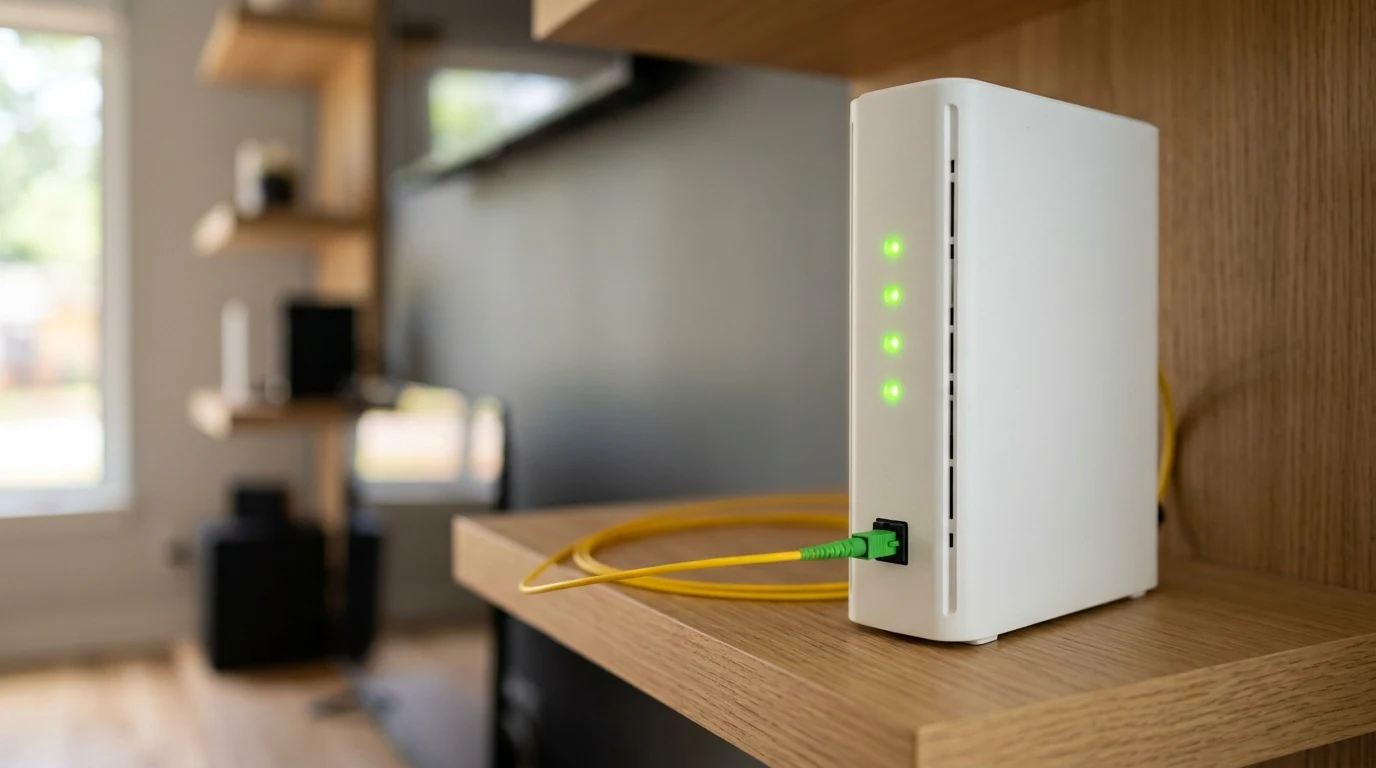
Fiber-to-the-Home (FTTH) connections are widely marketed as the ultimate broadband standard: immune to radio interference, weather-proof, and capable of gigabit symmetrical speeds. Yet thousands of subscribers on AT&T Fiber experience intermittent packet loss: in games like Valorant, Call of Duty, and Rocket League, packet loss graphs spike to 5%, 10%, or 25%, causing teleporting characters, unregistered shots, and dropped Discord calls. How can a pure glass fiber connection lose packets, and how can you diagnose and eliminate it? Here is our comprehensive technical guide.
1. Inspecting Physical Fiber Optical Signal Levels (Rx / Tx Power)
While fiber optic cables do not suffer from electrical interference, they are vulnerable to physical optical signal attenuation caused by dirty SC/APC connectors, sharp fiber bends in basements, or degraded neighborhood splitters. You can inspect your real-time optical power levels directly inside your AT&T gateway:
- Open a browser and navigate to
http://192.168.1.254(the BGW320 gateway GUI). - Go to Fiber Status → Optical Signal.
- Check the Rx Optical Power (Received Signal):
- -14.0 dBm to -22.0 dBm: Optimal, pristine laser signal.
- -23.0 dBm to -26.0 dBm: Marginal signal (borderline bit errors).
- Below -27.0 dBm (or worse than -30 dBm): Degraded link. The optical transceiver cannot decode light pulses, dropping frames physically. Requires a technician to clean the connector with an optical click-cleaner or resplice the drop cable.
2. Disabling AT&T ActiveArmor Firewall Throttling
By default, AT&T activates ActiveArmor Internet Security on BGW320 gateways. ActiveArmor uses deep stateful inspection on all incoming UDP traffic. When you play fast-paced multiplayer games that exchange thousands of small UDP packets per second, the gateway's CPU spikes, and ActiveArmor begins throttling packets as a suspected DoS attack.
The Fix: Open the AT&T Smart Home Manager app on your smartphone, navigate to Settings → Security, and toggle ActiveArmor to OFF. This instantly eliminates software-induced UDP packet dropping.
3. Bypassing the BGW320 via IP Passthrough to a Third-Party Gaming Router
The stock BGW320 gateway has a limited internal NAT state table that can choke during heavy torrenting, multiple streaming devices, and gaming. The permanent solution is placing the BGW320 into IP Passthrough mode and using your own high-performance router (such as an ASUS or TP-Link router running SQM):
| BGW320 Setting | Recommended Value | Purpose |
|---|---|---|
| Allocation Mode | PASSTHROUGH | Hands the public IPv4 address directly to your router |
| Passthrough Mode | DHCPS-fixed | Locks passthrough to your router's physical MAC |
| Firewall Packet Filter | Disabled | Offloads firewall filtering to your third-party router |
| Wi-Fi Radios (2.4G & 5G) | Disabled | Eliminates RF interference from the BGW320 |
4. Troubleshooting Bad In-Home Ethernet Wiring & Cables
In over 40% of residential packet loss cases, the fault is inside the house: a cheap, damaged, or unshielded Cat5e/Cat6 cable running from the gateway to the PC. If an Ethernet cable has a bent pin or a damaged conductor, the network card encounters frame check sequence (FCS) CRC errors, discarding corrupted packets silently.
Replace old patch cables with a certified, 100% bare copper Cable Matters Cat6 shielded cable and verify in Windows Network Connections that the adapter links at a rock-solid 1000/1000 Mbps Full Duplex.
Understanding XGS-PON Split Ratios & Optical Line Terminals (OLT)
AT&T Fiber deploys 10-Gigabit Symmetric Passive Optical Network (XGS-PON) technology. In an XGS-PON architecture, a single optical fiber strand from the central office OLT is passively split using an optical prism (typically a 1:32 or 1:64 split ratio) to serve up to 64 homes in your neighborhood.
While bandwidth (10 Gbps upstream / 10 Gbps downstream) is rarely saturated, physical degradation on the shared splitter or a dirty fiber connector at the neighborhood Primary Flexibility Point (PFP) can introduce micro-reflections that cause Optical Return Loss (ORL). If your gateway reports frequent FEC (Forward Error Correction) uncorrectable frame errors, an AT&T field technician must inspect the neighborhood PFP cabinet with an OTDR meter to clean optical fiber end-faces.
Step-by-Step Diagnostic Command Line Testing
To verify where packet loss is occurring between your PC, your router, and the game server, open Windows Command Prompt as Administrator and run an extended WinMTR or PathPing test:
pathping -n -q 100 1.1.1.1
tracert 8.8.8.8
Examine the loss percentage across each network hop:
- Loss at Hop 1 (192.168.1.254): Local Ethernet cable defect, bad switch port, or Wi-Fi interference.
- Loss at Hop 2 (AT&T Gateway Ingress / First CO Hop): Optical power attenuation or dirty fiber drop connector.
- Loss at Hop 5+ (Transit Peering): Congested peering point between AT&T and the target game server host.
Understanding Bufferbloat Under Heavy Symmetrical Uploads
While AT&T Fiber provides symmetrical gigabit bandwidth, running unthrottled cloud backups (such as OneDrive or iCloud 4K video uploads) can temporarily fill the BGW320 gateway's internal packet queue. Because large upload chunks monopolize the queue, small gaming UDP acknowledgment packets are delayed, mimicking the symptoms of true optical packet loss.
Enabling Smart Queue Management (SQM) with CAKE or FQ-CoDel on a secondary router connected via IP Passthrough eliminates bufferbloat by maintaining separate packet queues for every active household stream.
Summary Checklist: Fixing Packet Loss on AT&T Fiber
- Verify Rx Optical Signal is between -14 dBm and -24 dBm at
192.168.1.254. - Disable ActiveArmor Internet Security in the Smart Home Manager app.
- Configure IP Passthrough to a dedicated gaming router with SQM QoS.
- Replace damaged patch cords with certified 100% bare copper Cat6 cables.
- Test for clean 0.00% packet loss on the DCSpeedTest Live Testing Engine.
Why Wi-Fi Radio Interference Mimics Fiber Optic Faults
In residential homes, over 50% of reported 'fiber optic outages' are actually local 5 GHz Wi-Fi radio dropouts. When multiple neighbor access points broadcast on the same 5 GHz DFS channels or when metal appliances block signals, Wi-Fi frames are dropped and retransmitted. Connecting your PC or console directly with a shielded Cat6 Ethernet cable instantly rules out local wireless interference and restores clean, zero-loss gaming performance.
Why DNS-over-HTTPS (DoH) Prevents ISP Stateful Inspection Drops
In addition to hardware tweaks, enabling DNS-over-HTTPS (DoH) via Cloudflare (1.1.1.1) on your PC or gaming router encrypts your domain lookups inside standard HTTPS port 443 traffic. This prevents AT&T's intermediate border inspection appliances from inspecting and queuing your gaming domain requests, eliminating lookup-induced packet loss.