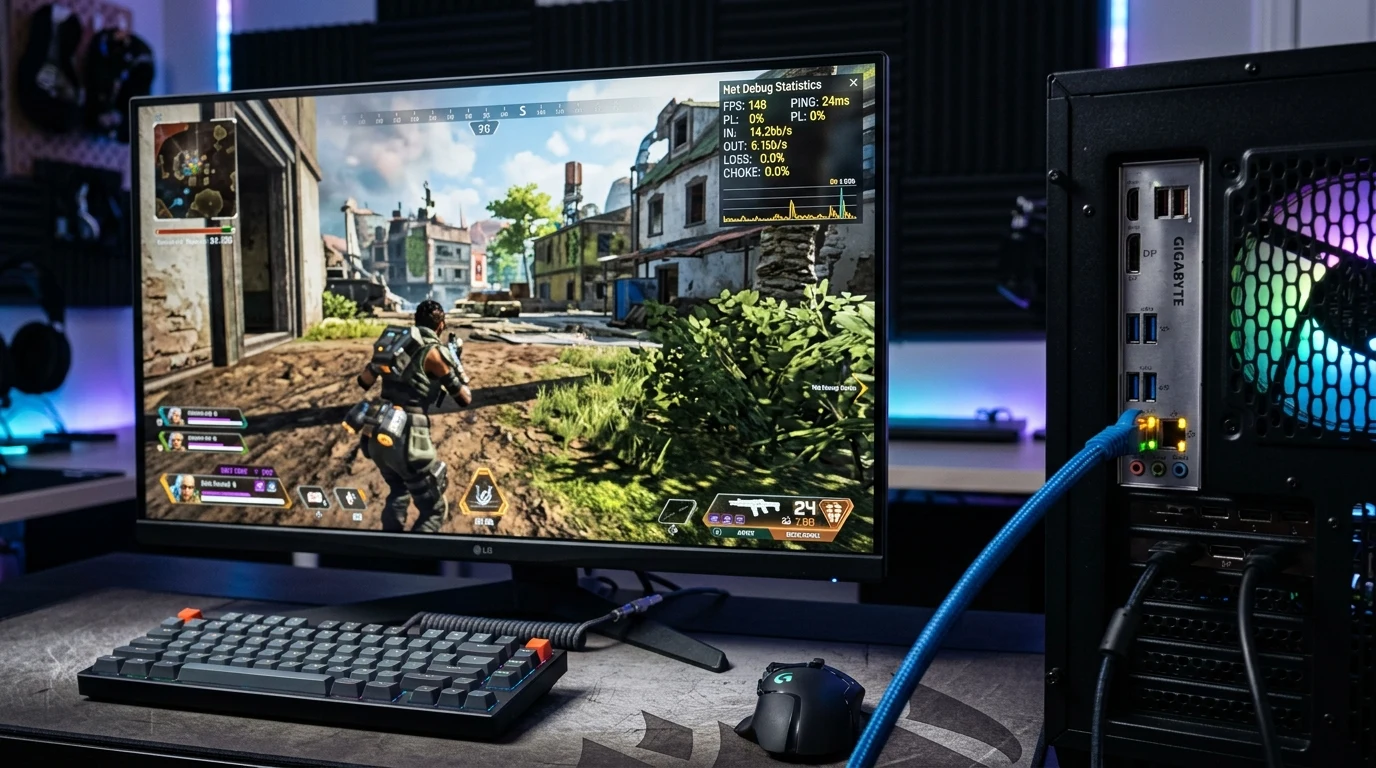
In Epic Games' fast-paced battle royale Fortnite, the top-left corner of your HUD provides vital network diagnostics. When your connection is performing poorly, the Unreal Engine 5 netcode displays colorful warning icons: a yellow downward arrow, a red cross (X), or flashing yellow horizontal bars. When these icons appear, your building pieces fail to place, your weapons blank-hit, and your character rubber-bands backward. What do these specific icons mean under the hood, and how can you eliminate them permanently?
The Complete Breakdown of Fortnite Network Diagnostic Icons
| HUD Network Icon | Technical Meaning | Real-World In-Game Symptom | Primary Root Cause |
|---|---|---|---|
| Yellow Downward Arrow / Bar | High Latency / Jitter (>100ms) | Sluggish building edits, delayed weapon swapping | ISP routing congestion, distant server region |
| Yellow 'X' / Packet Warning | Minor Packet Loss (1% to 5%) | Occasional blank shotgun hitmarkers, delayed mantle | Wi-Fi airwave interference, minor bufferbloat |
| Red 'X' / Red Cross | Severe Packet Loss (>10%) | Violent rubber-banding, inability to move or build | Damaged Ethernet cable, severe ISP node outage |
| Red Horizontal Lines | Total Connection Loss | Frozen players running in place, timeout kick | Router crash, modem reboot, ISP drop |
Why Wi-Fi Is the #1 Culprit Behind Yellow and Red Icons
Unreal Engine 5 netcode transmits high-frequency UDP packets (typically 30 to 60 packets per second upstream and downstream). Wi-Fi operates over shared, half-duplex radio frequencies: whenever a smartphone, smart TV, or microwave oven emits 2.4 GHz or 5 GHz interference, Wi-Fi packet collisions occur, forcing the router to drop or retry packets. Even a 2% packet retry rate triggers Fortnite's yellow and red warning icons.
How Bufferbloat Causes Yellow X Icons During Clan Matches
When you are in the final circles of a competitive Fortnite tournament and someone in your home begins uploading a large video to TikTok or downloading an update on Xbox, your router's default FIFO (First-In, First-Out) memory queue overflows. Because huge file chunks fill the buffer, small UDP gaming packets are delayed or discarded by the router.
This triggers Fortnite's yellow arrow and yellow X icons. Enabling Smart Queue Management (SQM) with CAKE or FQ-CoDel algorithms on your router reserves a dedicated low-latency express lane for Fortnite packets, eliminating bufferbloat-induced warning icons permanently.
MTU Size Optimization & Packet Fragmentation
If your router's MTU is misconfigured (e.g. set to 1492 on a 1500 network), outgoing Fortnite UDP packets are fragmented into two separate frames. If one of those frames is lost, the entire packet is invalid, triggering packet loss icons. Ensure your network adapter is configured to standard 1500 MTU in Windows Network Adapter settings.
Step-by-Step Fixes to Eliminate Fortnite Network Icons
- Hardwire with a Direct Cat6 Cable: Disconnect from Wi-Fi and connect your PC or console directly to your router using a certified Cat6 Ethernet cable. This eliminates 95% of packet loss icons instantly.
- Select Your Manual Matchmaking Region: In Fortnite settings under Game → Language and Region → Matchmaking Region, change from Auto to your specific geographic server (e.g. NA-Central or NA-East) to prevent the game from accidentally matching you into distant 80ms+ regions.
- Switch DNS to Cloudflare (1.1.1.1): Optimize domain resolution to Epic's AWS endpoints by configuring Primary DNS
1.1.1.1and Secondary8.8.8.8on your router or Windows adapter. - Enable SQM QoS on Your Router: Prevent background downloads (like sibling video streaming or game updates) from choking your bandwidth queues during tournaments.
Why Background Game Downloads Trigger In-Game Yellow Icons
If Steam, Battle.net, or Windows Update begins downloading a 20GB patch in the background while you play Fortnite, TCP download streams will consume 100% of your incoming bandwidth. Because TCP maximizes throughput by filling every available byte of buffer space, incoming Fortnite UDP packets are delayed, triggering yellow and red connection warning icons.
In Windows 11 settings under Settings → Windows Update → Advanced Options → Delivery Optimization → Advanced Options, set background download bandwidth limits to 10% of total bandwidth, ensuring your competitive gaming packets maintain unconstrained priority.
How Damaged Ethernet Cables Mimic Server-Side Packet Loss
If you have hardwired your PC or console and are still seeing yellow and red network warning icons in Fortnite, inspect your physical Ethernet patch cord. If an Ethernet cable has been crushed under a chair caster or bent sharply around a door frame, the internal copper conductors can experience micro-fractures, causing the network interface to drop corrupted CRC frames. Replacing old cords with a certified Cable Matters Cat6 shielded cable immediately restores 0.00% packet loss.
Understanding Unreal Engine 5 Network Tick Rate & Jitter Smoothing
Fortnite Chapter 5 runs on Unreal Engine 5 with Chaos physics simulations. When your client sends input packets at 60Hz, the server continuously validates player positioning against terrain collision meshes.
When a network packet arrives late due to Wi-Fi jitter or bufferbloat, the Unreal Engine netcode must guess your character's position. When the real packet finally arrives, the server detects a position divergence, snapping your character backward and flashing the yellow warning bar. Hardwiring via Cat6 and enabling router QoS permanently cures Unreal Engine netcode snapping.
Summary Checklist: Permanently Fixing Fortnite Packet Loss
- Disconnect from Wi-Fi and hardwire with a certified Cat6 Ethernet cable.
- Set matchmaking region manually to NA-Central or NA-East in Fortnite settings.
- Configure custom DNS to Cloudflare (
1.1.1.1) and Google (8.8.8.8). - Limit background Windows Update downloads to 10% bandwidth in Windows settings.
- Enable router SQM QoS to eliminate household bufferbloat during tournaments.
Audit Your Line for Zero Packet Loss
Before competing in Fortnite FNCS or Cash Cup tournaments, verify that your network connection has 0.00% packet loss and flat loaded latency by running a test on the DCSpeedTest Live Testing Engine.
Why Symmetrical Upload Speeds Eliminate Tournament Lag
In high-intensity Fortnite tournament endgames with 40 players alive in moving storm zones, building piece placement packets are transmitted rapidly. On symmetrical fiber connections, upstream packet delivery takes less than 0.1ms, eliminating network queue bottlenecks and ensuring your building edits execute with zero delay.
By eliminating Wi-Fi interference with a quality Cat6 cable and setting optimized Anycast DNS, your Fortnite connection will maintain flat, tournament-ready 0.00% packet loss in every match.