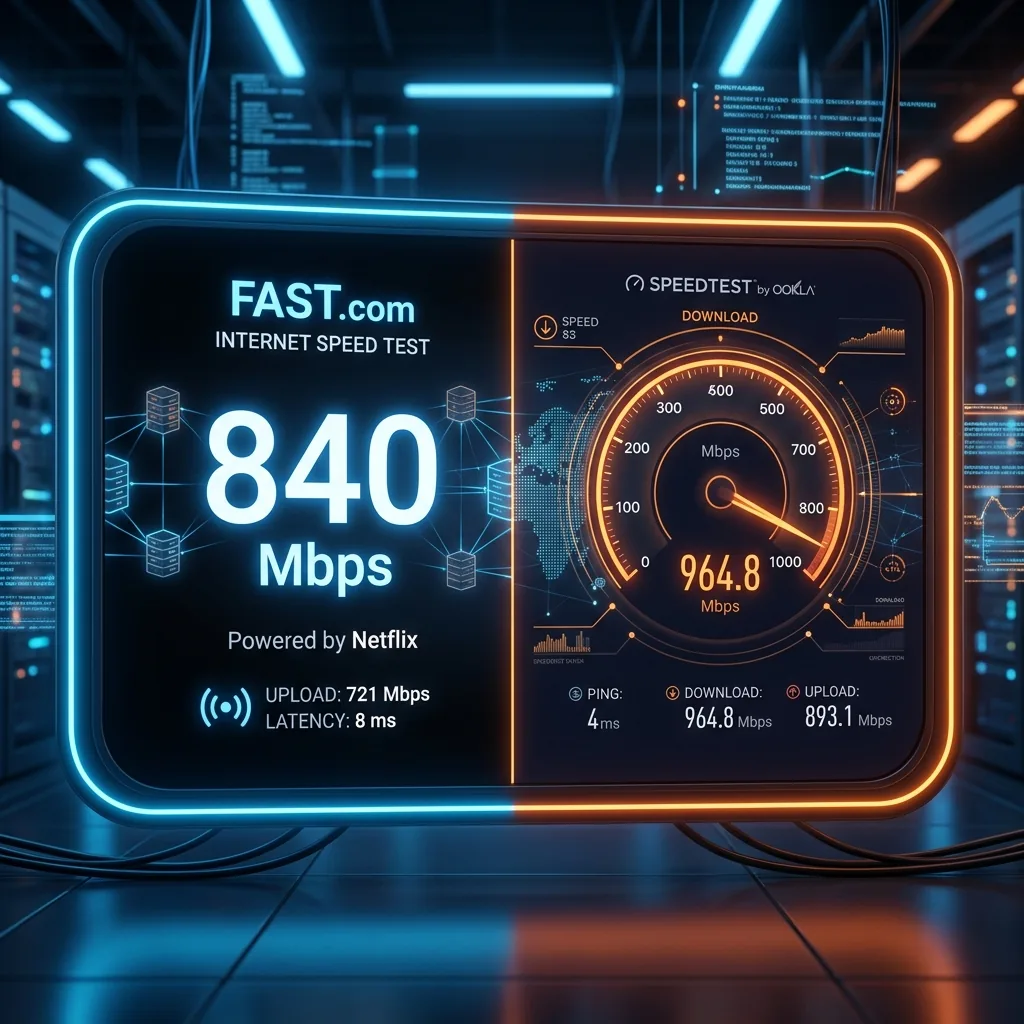
It is a common source of confusion: you suspect your internet is dragging, so you run a speed test on Ookla's Speedtest.net and get a blazing 250 Mbps. You immediately open Netflix's Fast.com, run a second test, and the counter displays a dismal 15 Mbps. How can two major speed testers running on the same device at the same time report numbers that are so wildly different? The answer has nothing to do with broken websites or glitches. It is a direct result of how ISPs handle video streaming traffic vs. standard web data. Here is the technical explanation.
The Technical Difference: Fast.com is Streaming Traffic
The fundamental difference between the two platforms lies in **where the testing files are hosted** and **which ports are used**:
1. Fast.com (Netflix)
Fast.com is owned and operated by Netflix. To run the test, Fast.com downloads dummy media files directly from **Netflix's global Open Connect CDNs** (Content Delivery Networks). To your ISP, the speed test traffic looks **exactly like a user streaming a Netflix movie in 4K**.
2. Speedtest.net (Ookla)
Ookla operates a federated network of over 10,000 localized speed test servers hosted by ISPs, telecom operators, and host providers. When you click test, it connects to a specialized speed test port at the closest server possible, broadcasting standard, non-video TCP packets.
Why the Numbers Diverge: ISP Video Throttling
Why does Fast.com often show much lower speeds than Ookla? The culprit is **ISP video throttling**.
High-resolution video streaming consumes massive amounts of ISP backbone bandwidth. To prevent their local nodes from saturating, many ISPs enforce a strict bandwidth limit on video traffic. Your ISP might sell you a "300 Mbps" plan, but silently enforce a **20 Mbps cap** on any connection routing to Netflix or YouTube servers.
When you run Ookla's Speedtest.net, your ISP detects standard speed test traffic and grants you the full, unthrottled 300 Mbps bandwidth (which keeps their customers happy). But when you run Fast.com, your ISP sees Netflix traffic, applies the video streaming cap, and the test displays 20 Mbps. **Fast.com is showing your real, throttled video streaming capacity, while Ookla is showing your maximum physical port speed.**
Which Speed Tester is More Accurate?
Neither is "wrong" — they are simply measuring two completely different aspects of your connection:
| Parameters | Fast.com (Netflix) | Speedtest.net (Ookla) |
|---|---|---|
| Host Servers | Netflix Open Connect CDNs | Distributed local ISP/host servers |
| Traffic Type | Encrypted video streaming (HTTPS) | Standard multi-thread TCP data packets |
| Core Purpose | Measure video streaming capability | Measure raw maximum physical line speed |
| detects Throttling | Yes (Excellent at revealing ISP caps) | No (Often whitelisted by ISPs) |
How to Expose and Bypass ISP Video Throttling
To verify if your ISP is actively throttling your streaming speed, run a simple diagnostic test:
- Open a browser, run a test on Fast.com, and write down the result (e.g., 15 Mbps).
- Turn on a reputable premium VPN (like NordVPN or ExpressVPN) and connect to a local server. A VPN fully encrypts your data packets, making it impossible for your ISP to detect which websites you are visiting.
- Run Fast.com again. If your speed jumps from 15 Mbps to **180 Mbps**, your ISP is definitely throttling video traffic on your account. Leaving the VPN active will bypass their filters and instantly restore full, buffer-free streaming speeds.
Conclusion
If you want to know the absolute physical limits of your fiber line, use Ookla's Speedtest.net. But if you want to know the real-world speed you will get when streaming movie files, downloading videos, or checking for secret provider video caps, use Netflix's Fast.com. Together, they form a powerful diagnostic toolkit to hold your ISP accountable.