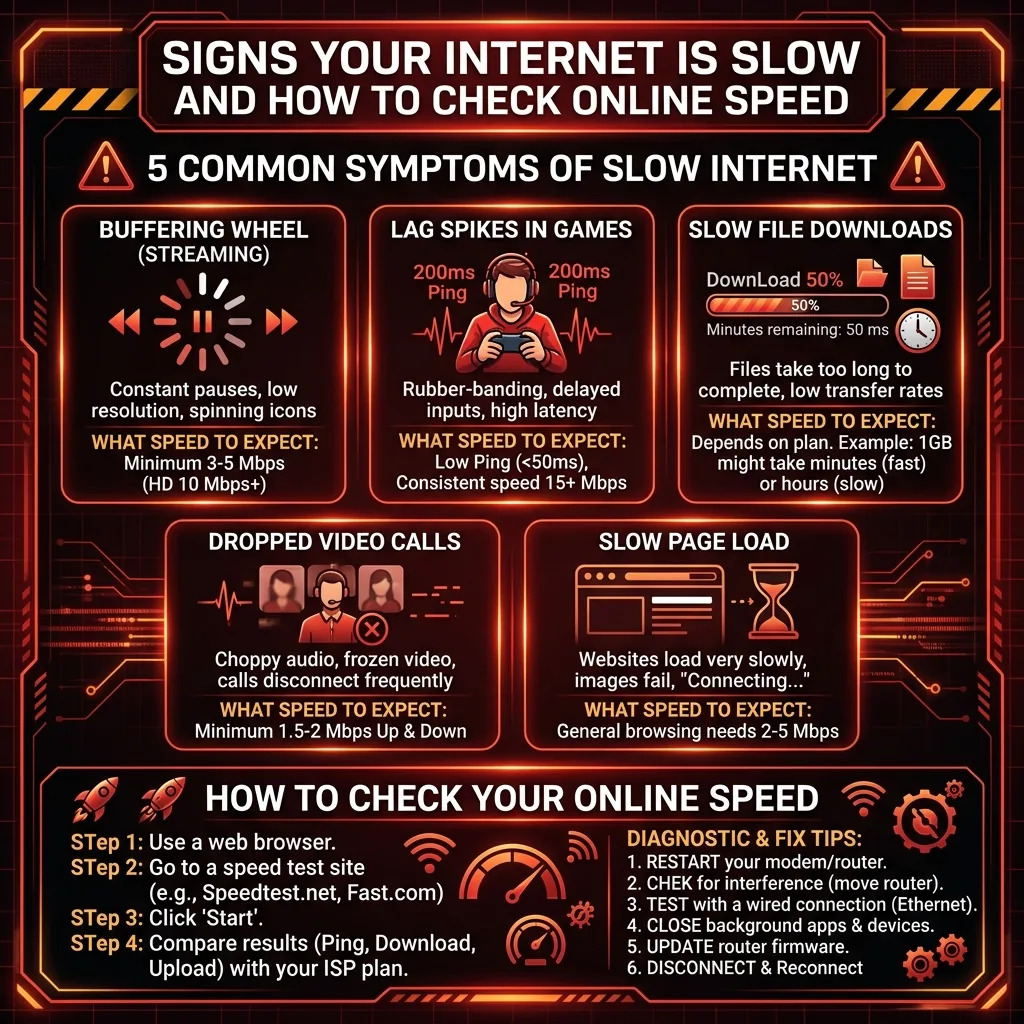
Stop Checking the Wrong Online Speed Metric
Here's the most common mistake people make when their internet feels slow: they check online speed, see a high Mbps download number, and conclude "my internet is fine — the problem must be something else." But they're often measuring the wrong metric for their specific symptom.
Different internet performance problems are caused by different, independent metrics. Zoom choppy audio is rarely caused by low download speed — it's caused by high jitter. Gaming lag is rarely caused by low Mbps — it's caused by high ping. Understanding which metric causes which symptom is the key to diagnosing and fixing the actual problem.
Open DCSpeedTest.com and note all four metrics: Download Mbps, Upload Mbps, Ping ms, and Jitter ms. Then find your symptom below to know which of those numbers you need to focus on.
Symptom → Metric Map: Check The Right Online Speed
Symptom: YouTube / Netflix / Streaming Buffers or Quality Drops
Check: Download Mbps
Streaming buffering is almost always a download speed issue. The streaming service can't pre-buffer video content fast enough before playback catches up.
| Streaming Platform | Required Download | Your Check Result Says |
|---|---|---|
| Netflix 4K HDR | 25 Mbps | Above 25 Mbps + still buffering? The issue is Netflix CDN load, not your connection |
| YouTube 4K | 20 Mbps | YouTube auto-selects quality — 1080p with 25 Mbps is normal conservative behavior |
| Twitch 1080p60 (watching) | 8 Mbps | Twitch quality varies with broadcaster's upload — not always your connection |
| Disney+ 4K | 25 Mbps | HEVC encoding means Disney+ shows less buffering than Netflix at same speeds |
| Spotify / Apple Music | 0.5 Mbps | Audio dropouts = always a ping/stability issue, never download Mbps |
Secondary check for streaming: Also look at your jitter reading. If download speed is sufficient but streaming still stutters, jitter above 20ms causes adaptive bitrate instability — the player keeps switching quality levels, creating perceived buffering even when Mbps is adequate.
Symptom: Zoom / Teams / Google Meet — Choppy Audio or Frozen Video
Check: Upload Mbps AND Jitter ms
Video call quality is determined almost entirely by upload speed and jitter — not download. Your download can be 500 Mbps and your Zoom call can still be choppy if your upload is 2 Mbps or your jitter is 30ms. Your voice travels outward via upload; the video signal stability depends on jitter consistency.
| Zoom Problem | Metric Causing It | What "Good" Looks Like |
|---|---|---|
| Others say your audio is choppy or robotic | Upload Mbps (too low) or Jitter ms (too high) | Upload above 5 Mbps + Jitter under 10ms |
| Your video of others freezes | Download Mbps too low | Download above 5 Mbps per call participant |
| Call drops or reconnects | Packet loss (use speed.cloudflare.com) or jitter above 25ms | Packet loss 0.0%; Jitter under 10ms |
| Occasional audio gap every few seconds | Jitter — connection instability | Jitter under 5ms for smooth calls |
| Video delays by 2-3 seconds | Ping too high (above 150ms) | Ping under 80ms for normal call feel |
Pro tip: If your upload is above 5 Mbps but Zoom is still choppy, check whether someone else on your network is uploading a large file or using cloud backup (Dropbox, OneDrive) during your call. Background upload activity steals bandwidth from Zoom's upload stream.
Symptom: Online Gaming — Lag, Rubber-Banding, or High Ping In-Game
Check: Ping ms AND Jitter ms
This surprises most gamers: gaming uses very little bandwidth (1-25 Mbps for most titles). Your 500 Mbps plan has no advantage over a 25 Mbps plan for gaming performance. Gaming lag is entirely a ping and jitter problem.
| Gaming Problem | Metric Causing It | Target Values |
|---|---|---|
| High in-game ping indicator (red/orange) | Ping ms in speed test is the root cause | Under 40ms for casual; under 20ms for competitive |
| Rubber-banding (character snapping backward) | Jitter — inconsistent packet delivery intervals | Jitter under 5ms for smooth action games |
| Shots not registering (desync) | Jitter causing out-of-order packet arrival | Jitter under 3ms for competitive FPS |
| Lag spikes every few minutes | Connection instability — check packet loss too | Packet loss 0.0%; stable jitter |
| Game downloads taking forever | Download Mbps (this is the only time download matters for gaming) | 50+ Mbps for reasonable game download times |
The key insight: If your online speed check shows 200 Mbps download but 65ms ping and 8ms jitter, your gaming will perform worse than a 25 Mbps connection with 12ms ping and 1ms jitter. Stop chasing Mbps for gaming — check ping and jitter.
Symptom: File Downloads Are Slow (Browser, Steam, uTorrent)
Check: Download Mbps (and divide by 8)
Download speed directly determines how fast files download. The conversion formula: your speed check result in Mbps ÷ 8 = MB/s actual file download speed.
| Speed Check Result | File Download Speed | 1 GB File Download Time |
|---|---|---|
| 25 Mbps | ~3.1 MB/s | ~5 minutes 25 seconds |
| 100 Mbps | ~12.5 MB/s | ~1 minute 22 seconds |
| 300 Mbps | ~37.5 MB/s | ~27 seconds |
| 500 Mbps | ~62.5 MB/s | ~16 seconds |
| 1 Gbps | ~125 MB/s | ~8 seconds |
Important: If your speed check shows 200 Mbps but Steam downloads at 2 MB/s, the bottleneck is the download server (Steam regional CDN), not your connection. Steam download speed is limited by Steam's server capacity — many Steam CDN servers become overloaded during major game releases. Try switching your Steam download region in Settings → Downloads → Download Region.
Symptom: Web Pages Load Slowly (Even on Fast Connection)
Check: Ping ms AND Check the Website Speed (PageSpeed Insights)
Slow web page loading is rarely a download speed problem for connections above 10 Mbps. A web page loads hundreds of small files — HTML, CSS, JavaScript, images, fonts. For small files, your ping (reaction time) matters more than download speed.
But slow web pages are also frequently caused by the website itself being poorly optimized. If speed.google.com shows your ping is under 30ms but one specific website loads slowly, that website has a performance problem — not your internet.
- Ping under 30ms + all sites slow: Check your DNS — try changing to Cloudflare 1.1.1.1 or Google 8.8.8.8. Factory ISP DNS resolvers are often slower.
- Ping under 30ms + one specific site slow: The problem is that website, not your connection. Run PageSpeed Insights (pagespeed.web.dev) on that URL.
- Ping above 100ms consistently: Your connection has latency issues — satellite, VPN, or routing problems. Check if you're using a VPN (adds 20-80ms).
Symptom: Spotify/Music Cuts Out or Voice Assistants Don't Respond
Check: Jitter ms AND Packet Loss (speed.cloudflare.com)
Audio streaming (Spotify, Apple Music, Pandora) only needs 0.5-1 Mbps — you will never have a speed problem with music. Audio dropouts mean connection instability. Voice assistants (Alexa, Google Home, Siri) failing to respond = network connection drops.
What to check:
- Jitter above 30ms causes audio buffers to empty during jitter spikes → music cuts out
- Packet loss of even 0.1% causes audio gaps as the receiver waits for missing packets
- Run speed.cloudflare.com to check packet loss (not shown in basic speed tests)
- If packet loss is above 0%, check Ethernet cable quality and router firmware update
Symptom: Cloud Backup / Google Drive / OneDrive Takes Forever
Check: Upload Mbps
Cloud backup, Google Drive sync, and OneDrive backup all use your upload bandwidth exclusively. If your online speed check shows 200 Mbps download but only 10 Mbps upload (typical for cable internet), your Google Drive sync is limited to 10 Mbps = 1.25 MB/s file upload rate. A 100 GB backup takes over 20 hours at this speed.
Solutions:
- Upgrade to fiber for symmetric upload speeds
- Schedule backup during off-peak hours when upload isn't competing with calls or streaming
- Set Google Drive/OneDrive bandwidth limits so backup doesn't consume all upload (leaving some for Zoom)
Check Online Speed: The Complete 4-Metric Normal Range Reference
| Metric | Excellent | Good | Acceptable | Problem |
|---|---|---|---|---|
| Download (Mbps) | Above 90% of plan | 70-90% of plan | 50-70% of plan | Below 50% of plan |
| Upload (Mbps) | 50+ Mbps (fiber) / 20+ Mbps (cable) | 10-20 Mbps | 5-10 Mbps | Below 5 Mbps |
| Ping (ms) | Under 15ms | 15-35ms | 35-80ms | Above 80ms |
| Jitter (ms) | Under 5ms | 5-10ms | 10-20ms | Above 20ms |
Frequently Asked Questions: Check Online Speed
How do I check my online speed?
Open DCSpeedTest.com in any browser and click Start Test. In 15 seconds, you'll see your complete online speed check: download Mbps, upload Mbps, ping ms, and jitter ms. Free, no account, no download, works on any device. For additional metrics like packet loss and DNS time, use speed.cloudflare.com.
What is a good online speed?
For most households (4 people, mixed streaming/browsing/calls): 100 Mbps download is comfortable. For gaming and video calls, the relevant "good" metrics are ping under 35ms and jitter under 10ms — not download Mbps. A 50 Mbps connection with 10ms ping and 2ms jitter delivers a better online experience than a 500 Mbps connection with 60ms ping and 20ms jitter.
Why does my online speed seem slow even though my speed check shows high Mbps?
Because different activities need different metrics. High Mbps doesn't guarantee a good online experience if: your ping is high (web pages feel sluggish, gaming lags), your jitter is high (Zoom is choppy, audio cuts out), or your upload is low (your Zoom audio sounds bad to others, cloud sync is slow). Check all four metrics — download, upload, ping, and jitter — and match each to the symptom you're experiencing using this guide.
What online speed do I need for smooth video calls?
Zoom, Teams, and Google Meet require 3-5 Mbps upload and 3-5 Mbps download per participant for HD video. But the most critical metric is jitter: under 10ms jitter ensures smooth audio without robotic artifacts. Under 5ms jitter gives studio-quality call audio. Most video call problems are jitter problems, not bandwidth problems — always check your jitter when diagnosing call quality.
How often should I check my online speed?
Check online speed when experiencing a specific problem — that's the most useful time. For ISP monitoring: check once in the morning and once in the evening for 3-5 consecutive days. This reveals whether speed drops at peak hours (evening) vs off-peak (morning). For baseline documentation before calling your ISP: run 3 consecutive tests via Ethernet and use the median result as your reported speed.
Check Your Online Speed for Your Specific Symptom Right Now
Open DCSpeedTest.com and run a full check — download, upload, ping, and jitter are measured in 15 seconds. Match all four numbers to your specific symptom using the guides above. Stop looking only at download Mbps — the metric that matters depends entirely on what you're doing online and what you're experiencing when it feels slow.