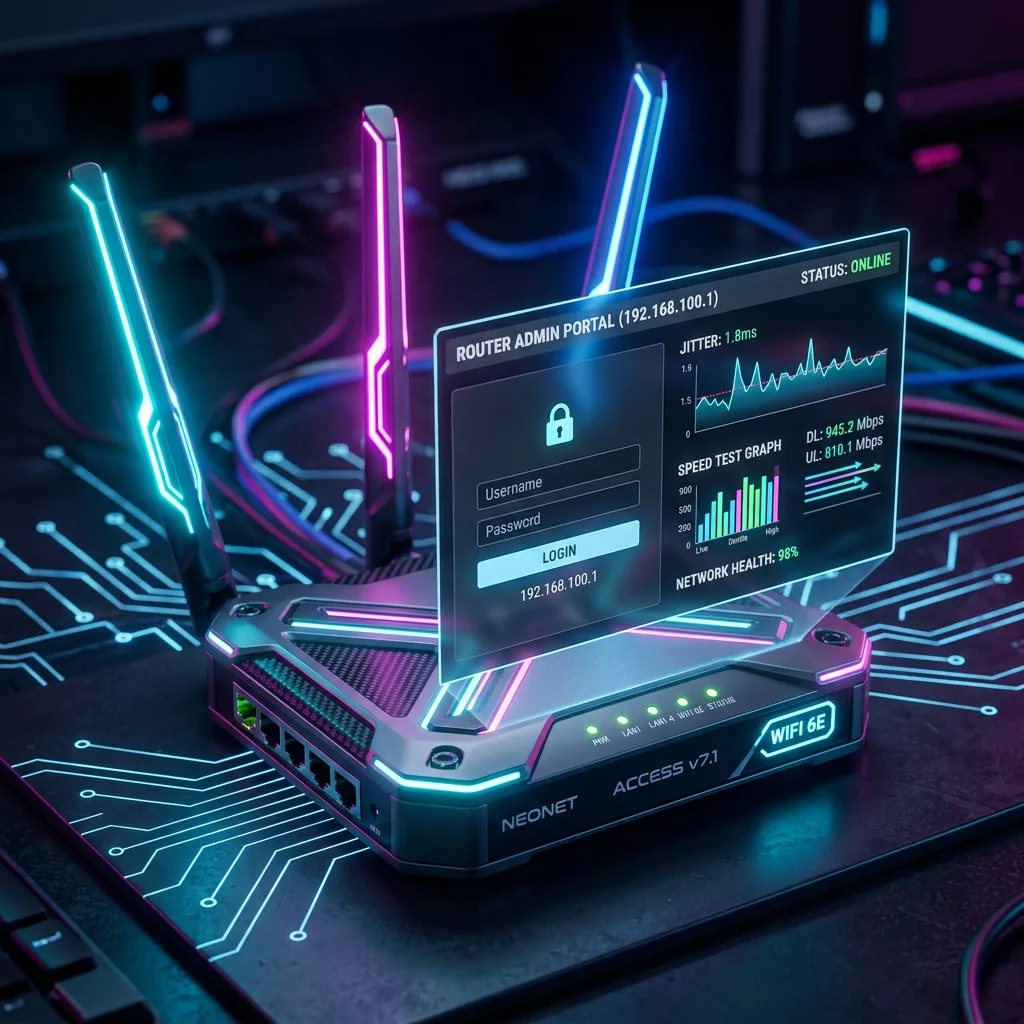
You pay for a 500 Mbps fiber plan. Yet, when you run an internet speed test from your living room sofa, the results barely reach 40 Mbps. Before you call your ISP to complain, you need to verify where the drop is happening. Most of the time, the problem is not your internet service; it is a bottleneck in your router's wireless configuration. By logging into your gateway console at 192.168.100.1, you can run a local LAN speed test to find the exact bottleneck. Here is the step-by-step diagnostic guide.
The LAN vs. WAN Speed Gap
Most internet users do not understand that their network consists of two completely separate connections:
- WAN (Wide Area Network): The connection from your router to the ISP's outdoor fiber/cable nodes. This is the speed you pay for.
- LAN (Local Area Network): The connection from your router to your computer, phone, or TV via Wi-Fi or Ethernet. This is the speed you are actually receiving in the room.
If your WAN speed is 500 Mbps but your LAN speed is only 40 Mbps, your internet will feel slow. Logging into 192.168.100.1 allows you to measure both and locate the precise speed leakage.
Step 1: How to Log Into 192.168.100.1
192.168.100.1 is the default gateway IP address used by millions of routers and modems (especially models from Huawei, Motorola, TP-Link, and Arris). Follow these steps to access it:
- Connect your device: Make sure you are connected to the router's network via Wi-Fi or, ideally, an Ethernet cable.
- Open your web browser: Type
http://192.168.100.1into the URL address bar (do not type it in the Google search bar) and press Enter. - Enter default credentials: Look at the sticker on the bottom of your physical router. Common default logins include:
- Username:
admin/ Password:admin - Username:
admin/ Password:password - Username:
root/ Password:admin
- Username:
Step 2: Diagnose Your Wi-Fi Speed Bottleneck
Once inside the admin portal, navigate to the **Wireless / WLAN** settings tab. Here are the three most common router-based speed killers and how to fix them inside the 192.168.100.1 console:
1. Saturated 2.4GHz Band
If your router has both 2.4GHz and 5GHz bands combined under the same name, your phone will often connect to 2.4GHz because its radio signal travels farther. But 2.4GHz is highly congested and caps out around 50 Mbps.
The Fix: Separate the SSID names inside the dashboard. Name them MyWiFi_2.4G and MyWiFi_5G. Connect all streaming, gaming, and working devices exclusively to the 5G network.
2. Too Narrow Channel Width
By default, routers set their 5GHz channel width to 20 MHz or 40 MHz to prevent interference. However, this severely limits maximum wireless bandwidth.
The Fix: Change the channel width inside your 192.168.100.1 dashboard to **80 MHz** or **160 MHz** (for Wi-Fi 6 routers). This widens the data lanes, instantly tripling your local Wi-Fi speeds.
3. Stale Router Cache
Routers are small computers with processors and RAM. Over time, routing tables, NAT mappings, and caches fill up, causing speed degradation and high jitter.
The Fix: Navigate to the **System Tools** page inside 192.168.100.1 and set up a weekly auto-reboot schedule. Reboots clear the memory, restoring your speed to peak performance.
Diagnostic Checklist: Router Settings vs. Performance
| Setting | Default Value | Optimal Value | Resulting Speed Boost |
|---|---|---|---|
| Wi-Fi Band | Combined SSID | SSIDs Separated (5G Active) | +200% to +400% speed increase |
| Channel Width (5GHz) | Auto / 40 MHz | 80 MHz or 160 MHz | Triples maximum wireless capacity |
| DNS Servers | ISP Auto DNS | 1.1.1.1 (Cloudflare) / 8.8.8.8 | 20-40% faster web page load time |
| Firmware | Outdated | Latest Available Version | Improves overall stability & security |
Conclusion
Before wasting money upgrading your ISP contract, log into 192.168.100.1 and check your router's parameters. By separating your Wi-Fi bands, maximizing your channel width, and switching to high-performance DNS servers, you can bridge the gap between your fiber line speed and your local Wi-Fi speeds — all without spending a single cent.