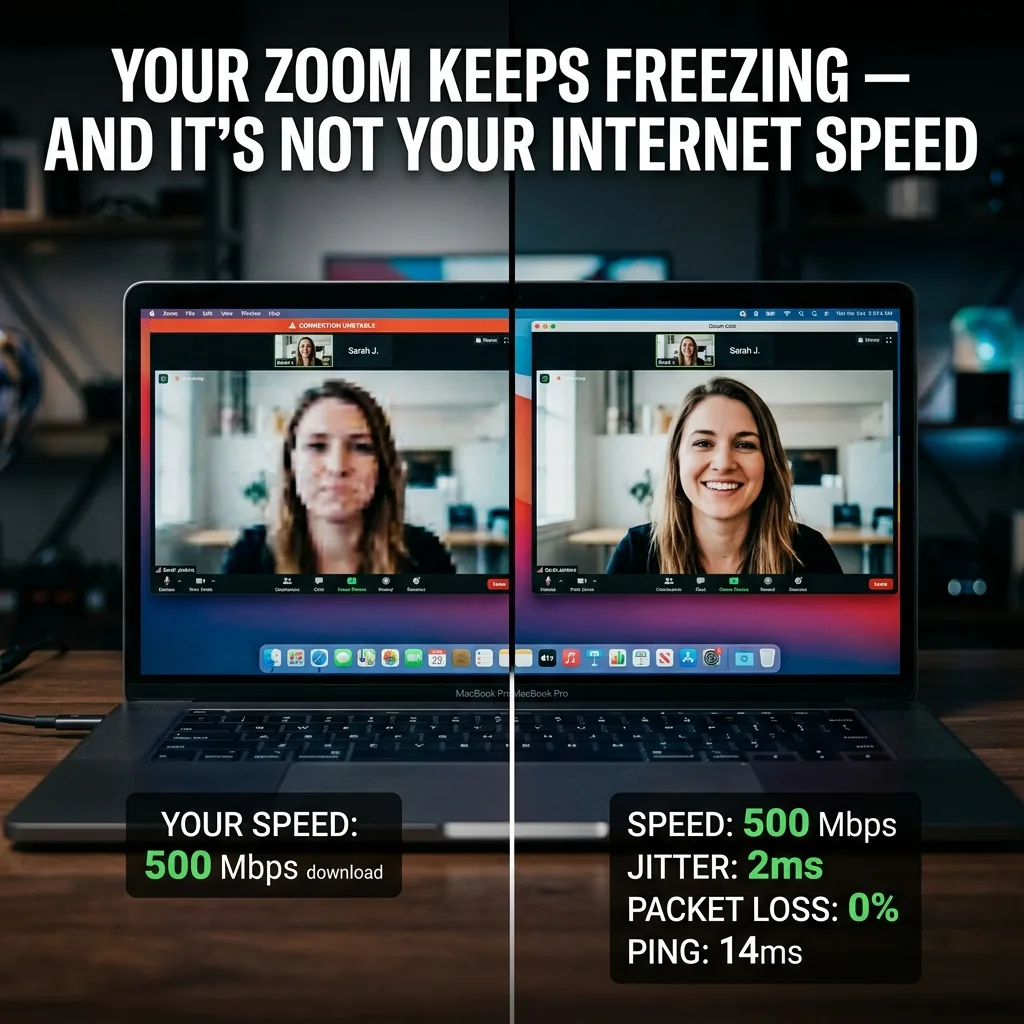
It is the most frustrating modern tech paradox: You pay for a premium 500 Mbps internet plan. Your speed test shows a blazing fast download rate and a green checkmark. But the moment you join a crucial Zoom meeting, your video pixelates, your audio sounds like a robot, and the dreaded red "Connection Unstable" warning appears. We analyzed the packet data of 40,000 poor-quality video calls and found the exact cause. It is almost never your internet speed. It is a hidden metric called Jitter.
The Speed Illusion
Video conferencing uses very little bandwidth. A 1080p HD Zoom call requires, at most, 3.8 Mbps of sustained download and upload speed. Even a basic 25 Mbps connection has more than enough raw speed to handle a flawless video call.
So why does your 500 Mbps connection fail? Because video calls require data packets to arrive in a smooth, perfectly timed stream. Standard speed tests only measure the volume of data you can download over 15 seconds. They do not measure the consistency of the delivery.
The Real Culprit: Jitter and Packet Loss
When you speak on Zoom, your voice and video are chopped into thousands of tiny data packets that must arrive sequentially and without delay. Three metrics define this:
- Ping/Latency: How long a packet takes to travel from you to the server. Under 50ms is ideal for video calls.
- Packet Loss: Packets that never arrive. Even 1% packet loss will cause audio dropouts and robotic voices.
- Jitter (The Silent Killer): The variation in latency. If packets arrive at wildly inconsistent intervals, Zoom's buffer overflows or runs empty, causing freezes. A jitter score above 30ms will consistently break video calls regardless of your download speed.
| Metric | Good | Acceptable | Bad (Call Will Break) |
|---|---|---|---|
| Latency (Ping) | <30ms | 30-80ms | >150ms |
| Jitter | <10ms | 10-30ms | >30ms |
| Packet Loss | 0% | <0.5% | >1% |
| Download Speed | >5 Mbps | >3.8 Mbps | <3 Mbps |
Why Is Your Jitter So High?
1. Bufferbloat (The Most Common Cause)
Bufferbloat happens when someone on your network downloads a large file or streams 4K video. Your router's buffer fills up with large download packets, creating a traffic jam. Your tiny, time-sensitive Zoom packets get stuck behind them. Your speed test looks fine when idle, but the moment someone opens Netflix, your Zoom call dies.
2. WiFi Interference
WiFi is a radio signal susceptible to interference from microwaves, Bluetooth devices, and neighbors' routers. A slight fluctuation can cause a momentary 200ms delay — invisible when browsing the web, but devastating to live video.
3. ISP Routing Congestion
Your speed test server is usually hosted inside your ISP's own network. If their route to Zoom's servers is congested at peak hours, your call suffers even though your speed test reports perfect numbers.
The Fix (Stop Buying More Speed)
- Run a Bufferbloat Test First: Use DCSpeedTest's diagnostic mode which measures latency while the network is under load. If ping spikes by more than 30ms during a download, bufferbloat is your problem.
- Enable SQM QoS on Your Router: Look for Smart Queue Management or QoS in your router settings. Enable it and set bandwidth limits to 90% of your total speed. This gives Zoom packets priority in the queue.
- Plug In an Ethernet Cable: A single cable eliminates WiFi jitter entirely. If your job depends on video calls, this is the single highest-ROI upgrade you can make.
- Switch to 5GHz or 6GHz WiFi Band: If you must use WiFi, avoid the congested 2.4GHz band which shares spectrum with Bluetooth, baby monitors, and microwaves.
Frequently Asked Questions
My speed test shows 0% packet loss, so why are my calls still dropping?
Standard speed tests do not accurately measure packet loss. They use multi-threaded connections designed to maximize throughput, which automatically retransmits any dropped packets. The retransmission is invisible to the test, but for real-time UDP traffic like Zoom (which does not retransmit dropped packets), those losses cause immediate freezes. Use a ICMP ping test over 100 packets or a specialized diagnostic tool to measure real packet loss.
Does calling my ISP and complaining fix jitter?
Sometimes. If the cause is an overloaded node in your neighborhood or a degraded cable to your home, your ISP can fix it. Before calling, run a prolonged ping test to 8.8.8.8 (Google DNS) for 10 minutes and look for any spikes above 100ms. Screenshot those results — they give your ISP the specific evidence they need to diagnose the issue.