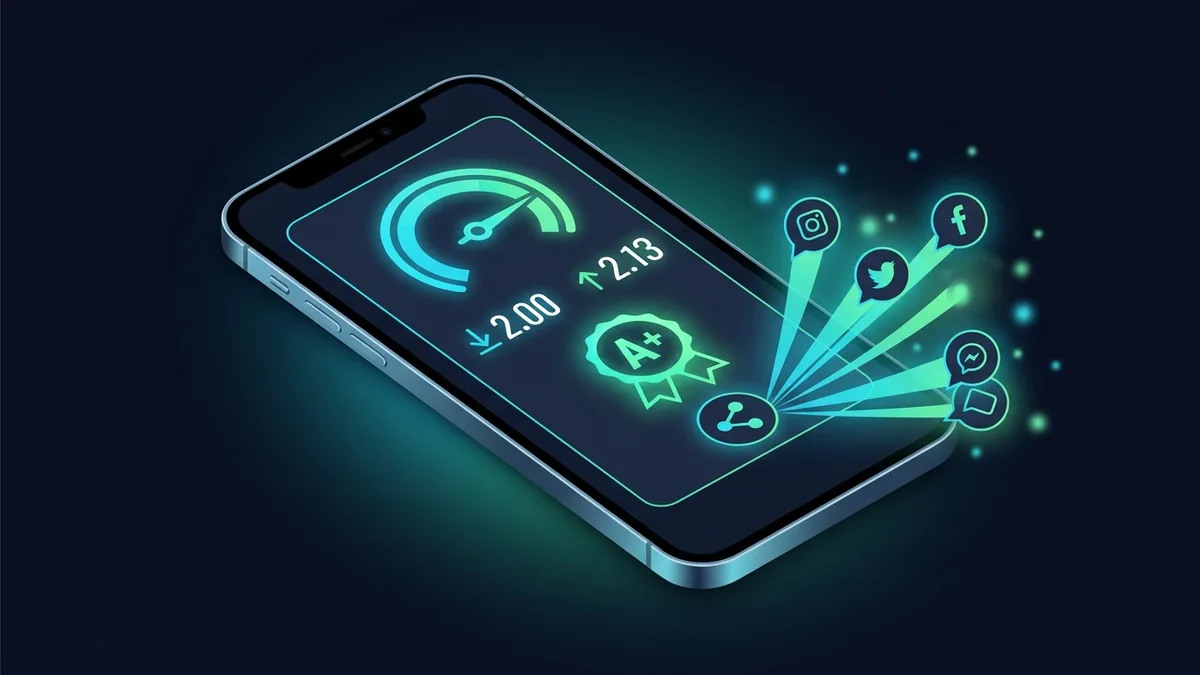
After you run a test on DCSpeedTest, you'll now see a "Share My Result" button appear alongside your numbers. It generates an actual image — download, upload, ping, jitter, and the date — built entirely in your browser, ready to post, message, or save. Here's what it does and why it exists.
What Gets Generated
The card is drawn client-side using the browser's Canvas API the moment you click share — nothing is rendered on a server, and no test data is stored anywhere to make it. It includes your four core numbers (download, upload, ping, jitter), the timestamp of the test, and your general region, formatted as a clean, readable image sized for sharing on social platforms or messaging apps.
On a device that supports the Web Share API (most current phones), tapping the button opens your device's native share sheet directly — the same one you'd get sharing a photo — so the image goes straight to whatever app you pick. On devices or browsers without that support, it downloads as a PNG file instead.
Why We Built This
Two real, unglamorous reasons. First: proving a slow result to an ISP, a roommate, or a landlord is usually a screenshot of a number nobody trusts, because screenshots are trivial to fake or misread out of context. A generated card with a timestamp is a small step toward "here's the actual test," even though — to be clear — it's not a substitute for the formal compliance report DCSpeedTest also offers for actual disputes, which is verified server-side against a paid Stripe transaction.
Second, more simply: people already share test results manually — a phone screenshot forwarded to a group chat, a comparison with a friend on a different ISP. Giving that an actual designed format, instead of a raw app screenshot, was a small, obvious feature to add once the diagnostic badges existed to put on it.
The Diagnostic Badges
Alongside the share card, results now get plain-language badges based on the actual numbers: "Ready for Competitive Gaming" appears when ping is under 20ms and jitter under 5ms; "Ready for 4K/8K Streaming" when download exceeds 100 Mbps with low jitter; "Ready for Live Streaming & Home Office" when upload and jitter both clear a reasonable bar. A separate warning badge appears specifically when jitter is high enough to cause visible video call problems, regardless of how fast the raw download number looks — because, as covered elsewhere on this site, a fast connection with unstable jitter often feels worse in practice than a slower, steadier one.
None of the thresholds are arbitrary marketing numbers — they're the same practical thresholds used throughout this site's gaming and streaming guides, just applied automatically to your specific result instead of requiring you to look them up separately.
Privacy Note
Because the card is generated entirely in your browser and never touches a server, DCSpeedTest has no record of what you shared, when, or to whom. The only network requests involved in a normal test are the ones measuring your actual speed — generating and sharing the card afterward is a purely local operation.
Frequently Asked Questions
Does sharing my result send any data to DCSpeedTest?
No. Card generation happens entirely client-side; nothing about the share action itself is transmitted or logged.
Can I edit the card before sharing it?
Not currently — it's a fixed format generated from your actual result. If your device falls back to a PNG download instead of the native share sheet, you can edit that file with any image editor before sending it.
Why didn't I get a badge on my result?
Badges only appear when a result clearly clears a specific threshold. A result that's solidly average across the board — not bad enough for a warning, not clearly excellent for gaming or streaming — may not trigger any badge, which is expected behavior, not a bug.
How It Fits With the Rest of the Test
The share card appears right after your test finishes, alongside the bufferbloat grade and diagnostic badges DCSpeedTest also generates from the same result. All three features pull from the same single test run — there's no separate step, no re-testing, no additional wait. The idea was to make the moment right after a test finishes useful beyond just reading four numbers off a screen: understanding what they mean (badges), understanding what they mean under real-world load (bufferbloat grade), and having something concrete to share or keep (the card).
A Practical Use Case
One place this has turned out to be genuinely useful: comparing results across a household or a group of remote-working friends on different ISPs, without everyone having to explain their setup from scratch. A card with the actual numbers, generated the same way for everyone who used it, is a faster comparison than five different people describing their connection in their own words. It's a small feature, but it removes a small piece of friction that existed before.