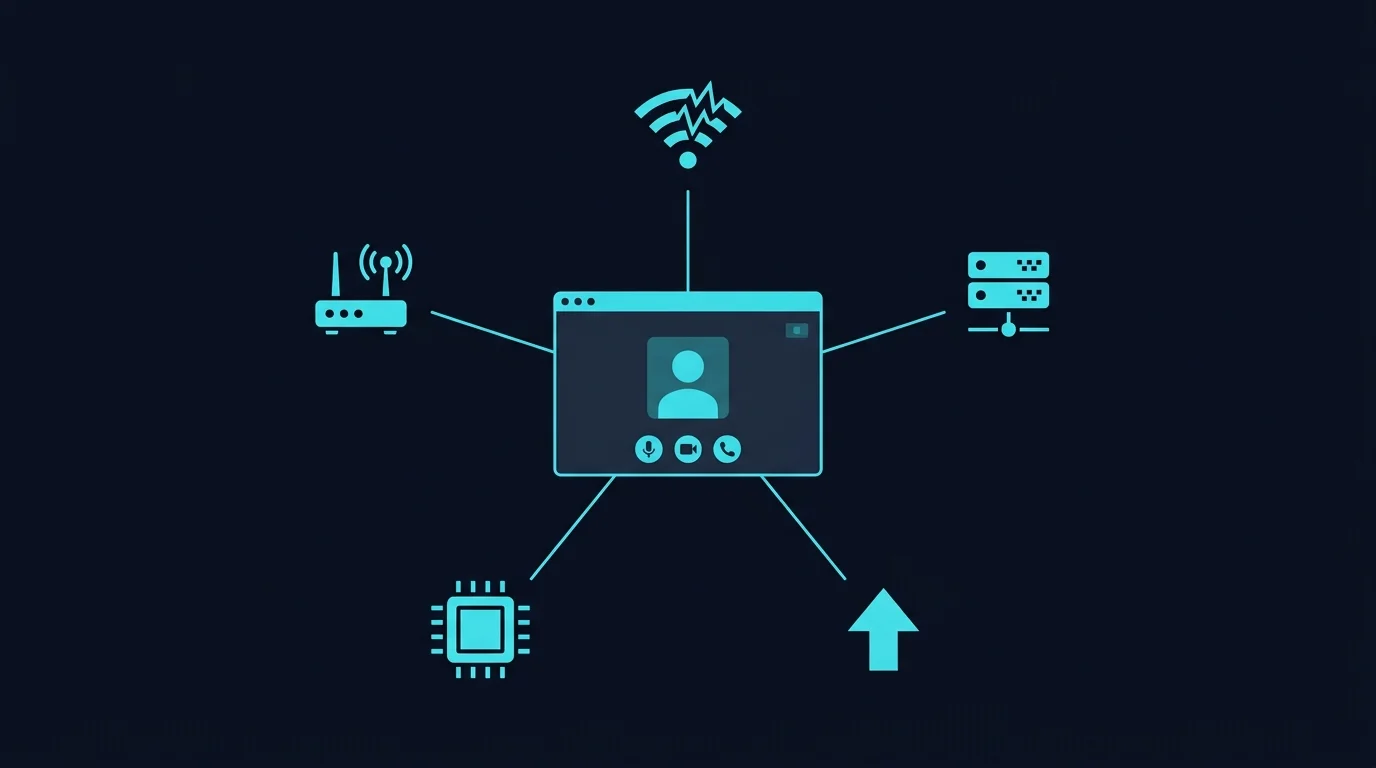
"Sorry, my internet is lagging" is one of the most common lines in remote work — and it's often true, but the underlying cause is rarely simple "slow internet" in the way people usually mean it. Understanding the real, specific causes is more useful than the generic explanation, because different causes need different fixes, and some aren't fixable mid-meeting at all.
Cause 1: Upload Congestion, Not Download
As covered in the related breakdown of why Zoom shows poor connection warnings, video calls are far more sensitive to upload bandwidth than download. A household with a fast download plan but a modest upload allocation can genuinely struggle the moment multiple people are on calls simultaneously or someone starts a large upload in the background — this is a real, verifiable technical cause, not an excuse.
Cause 2: Bufferbloat From Shared Household Load
If a call gets choppy specifically when someone else in the house starts streaming or a large download kicks off, that's a strong sign of bufferbloat — the router's buffer filling up and delaying real-time packets, the same mechanism explained in this related piece. This is genuinely fixable with SQM/CAKE configuration on a capable router, unlike a hard bandwidth ceiling.
Cause 3: WiFi Timing Variance
Even with plenty of raw bandwidth, WiFi's inherent jitter can cause brief audio dropouts and video freezing that has nothing to do with how much bandwidth is technically available — it's a timing-consistency problem, not a capacity problem. Moving closer to the router, switching to 5GHz, or using Ethernet for important calls addresses this directly.
Cause 4: The Meeting Platform's Own Server Load or Routing
Not every lag issue originates on the user's end. Video conferencing platforms route calls through their own server infrastructure, and during periods of unusually high global usage, or for calls routed through a distant or congested data center, the platform's own infrastructure can be the actual bottleneck — something entirely outside any individual participant's home network. This is harder to diagnose from a single participant's side, but worth knowing as a genuine possibility, especially if multiple participants on different networks all report issues at the same time.
Cause 5: Device Processing Load, Not Network at All
An older or heavily multitasking computer running many background applications can struggle to encode and decode video in real time, producing symptoms — frozen frames, delayed audio — that look identical to a network problem but have nothing to do with the connection at all. Closing unnecessary applications and checking CPU usage during a call is worth ruling out before assuming the network is at fault.
How to Tell Which One You're Actually Dealing With
- Run a speed test with jitter and packet loss shown right after a laggy call to check if the network genuinely showed a problem at that time.
- Check whether it correlates with household activity — lag that starts exactly when someone else's stream or download starts points toward bufferbloat specifically.
- Check your device's own resource usage during the call — high CPU usage with a clean network test points toward a device-side cause instead.
Frequently Asked Questions
Is it possible for everyone on a call to experience lag from the meeting platform itself?
Yes — if the platform's own infrastructure is under heavy load or routing calls through a congested region, it can affect all or most participants simultaneously regardless of their individual home connections.
Does turning off your camera actually help lag?
Often yes, since your own outgoing video is usually the single largest consumer of your limited upload bandwidth — reducing or disabling it frees that headroom for audio and the incoming stream.
Can a VPN cause call lag?
It can, if the VPN's routing path is less direct or more congested than your normal connection — worth temporarily disabling to test if a work VPN is suspected as the cause.
Why This Matters Beyond Just Explaining It to Coworkers
Knowing the actual cause changes what's worth fixing versus what to simply plan around. A genuinely upload-constrained plan is worth addressing with your ISP or a plan upgrade; a device-side CPU bottleneck is worth addressing with your computer, not your internet provider; and platform-side congestion during unusual global events isn't something any individual troubleshooting step will fix at all — recognizing which category you're in saves real time.
It's also worth checking whether the lag is one-directional — if your own video freezes for others but incoming video looks fine to you, that points specifically toward your upload path; if the reverse is true, the issue is more likely on the other participant's end or on the platform's delivery to you specifically, rather than your own connection at all.
A last practical note: if lag only ever happens on calls with one specific person or team, and never on calls with others, that pattern points strongly toward something on their end rather than yours — worth mentioning gently rather than assuming the problem is universal or automatically your own connection's fault.