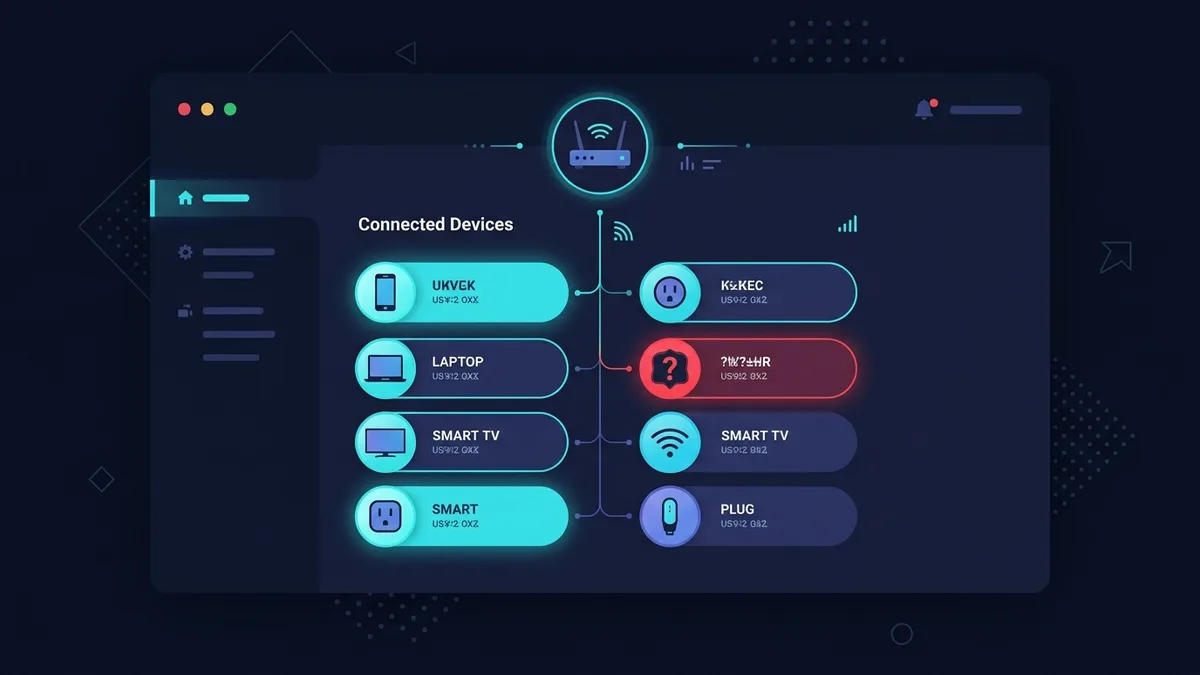
Before assuming a neighbor is on your WiFi, it's worth saying clearly: the most common cause of a slower-than-expected connection is your own household's devices — a phone backing up to the cloud overnight, a smart TV downloading an update, a game console patching in the background. That said, unauthorized access is a real, checkable thing, not a myth, and confirming it takes about five minutes.
How to Actually Check, Not Guess
Every router's admin panel has a page — usually labeled "Connected Devices," "Attached Devices," or "Client List" — that shows every device currently on the network, typically with a device name, IP address, and MAC address. Log into your router (usually via its IP address, commonly 192.168.1.1 or 192.168.0.1, printed on a label on the router itself) and go through this list line by line. Most devices will be self-explanatory once you actually count: phones, laptops, smart TV, streaming stick, thermostat, printer, any smart home devices. If the list contains an entry you genuinely can't account for after checking everything you own, that's a real finding worth acting on — not a guess.
Why This Is Easy to Get Wrong
Modern households often have more connected devices than people remember — smart plugs, doorbells, robot vacuums, game consoles, a second phone or old tablet still connected from years ago. It's common to look at a device list, see an unfamiliar-looking name, and jump to "someone's stealing my WiFi" when it's actually a forgotten smart device with an unhelpful auto-generated name. Before concluding anything, it's worth briefly disconnecting your own devices' WiFi one at a time (or checking each one's own network settings) to positively account for everything you actually own before flagging the remainder as unknown.
If You Do Find a Genuine Unknown Device
- Change your WiFi password immediately — this is the fastest, most complete fix, since it disconnects every device (including the unauthorized one) and requires the new password to reconnect.
- Check what encryption your network is using — WPA2 or, ideally, WPA3 should be enabled. Older WEP or open networks are far easier to access without permission and should be upgraded regardless of whether you've found an intruder.
- Disable WPS (WiFi Protected Setup) if you're not actively using it — it's a known, longstanding weak point in router security that's often overlooked in default settings.
Why a Strong Password Is the Real Fix, Not a Feature Toggle
Router manufacturers sometimes market a MAC address filtering feature as an access-control solution — restricting the network to a pre-approved list of device hardware addresses. In practice this is weak security: MAC addresses can be spoofed relatively easily by anyone with the technical intent to actually bypass it, and managing the allow-list is tedious for a normal household. A strong, unique WiFi password combined with WPA2/WPA3 encryption is the actual meaningful barrier; MAC filtering is, at best, a minor additional speed bump on top of that, not a substitute for it.
Frequently Asked Questions
Can someone slow down my internet without connecting to my WiFi at all?
No — to use your bandwidth, a device has to actually be connected to your network. If nothing unrecognized shows up in your connected-devices list, the slowdown has a different cause, most often congestion, an ISP-side issue, or your own household's background usage.
How often should I check my connected devices list?
Occasionally, as a routine check — a few times a year, or any time performance drops unexpectedly without an obvious cause, is a reasonable habit.
Is changing my WiFi name (SSID) enough to stop unauthorized access?
No — the name is just a label and doesn't affect security at all. The password and encryption type are what actually control access.
A Faster Alternative: Just Check Your Router's Bandwidth-Per-Device View
Many modern router admin panels go a step further than a simple device list and show real-time bandwidth usage per connected device. This is often more useful than the device list alone, since an unrecognized device using negligible bandwidth is a much lower concern than one actively consuming a large share of your connection — the usage pattern itself can help you decide how urgently to act.
It's also worth checking your router's own activity or security logs, if it has them — some routers log new-device connection events with a timestamp, which can help distinguish a device that's always been on your network (and simply has an unclear name) from one that joined recently and unexpectedly, which is a much stronger signal worth investigating further.
Finally, if your router is more than four or five years old, it's worth checking whether the manufacturer still provides security updates for it at all. An unsupported router with known, unpatched vulnerabilities is a more realistic access risk than a neighbor guessing a strong password, and no amount of device-list checking addresses that specific exposure — only a firmware update or a hardware replacement does.