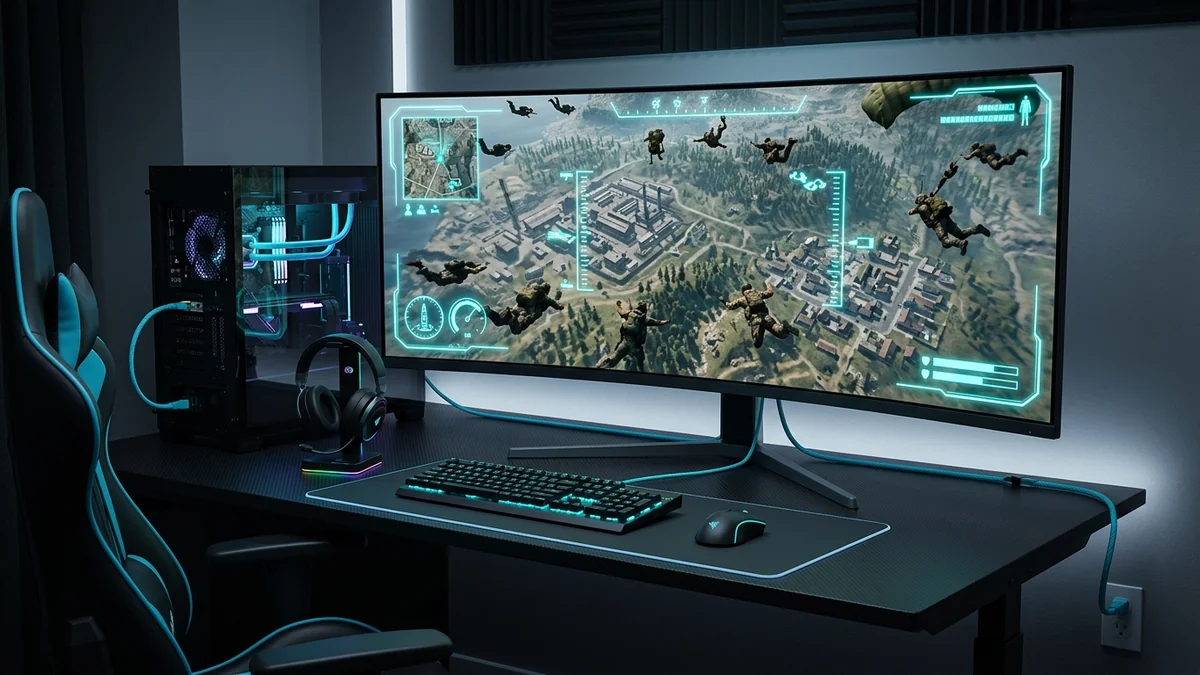
In Call of Duty: Warzone, high-speed battle royale gunfights require instant bullet registration and zero desynchronization. You drop into Urzikstan or Rebirth Island, engage an enemy squad, and suddenly three orange square icons appear on the left side of your screen: Packet Burst. Your game micro-stutters, your gun stops firing for a split second, and you are instantly eliminated in the Gulag. For millions of players on Comcast Xfinity Cable broadband, default ISP DNS servers and DOCSIS upstream bufferbloat frequently trigger Packet Burst and latency spikes. How can you optimize DNS and networking on Xfinity to eliminate Packet Burst in Warzone in 2026? Here is the complete engineering guide.
The Demonware Matchmaking Engine in Call of Duty
Activision's multiplayer infrastructure is powered by Demonware, running on distributed hybrid cloud servers across AWS, Google Cloud, and Choopa/Vultr datacenters. When queuing for battle royale, fast Anycast DNS resolvers ensure your game client negotiates handshake tokens with Demonware authentication servers in under 4 milliseconds.
3 Steps to Fix Packet Burst in Warzone on Xfinity
- Set Cloudflare DNS (1.1.1.1): Configure IPv4 DNS to
1.1.1.1and1.0.0.1in Windows Network Properties or Console Settings. - Set On-Demand Texture Streaming to 'Allocated' or 'Off': In Warzone Graphics Settings, limit texture streaming cache to prevent background bandwidth saturation.
- Hardwire via Cat6 Ethernet: Wi-Fi CSMA/CA airtime collisions are the leading cause of packet burst; physical copper guarantees stable packet flow.
Test your connection jitter and bufferbloat grade on DCSpeedTest before entering your next Warzone resurgence match.
Why Demonware Matchmaking Servers Demand Ultra-Fast DNS
Call of Duty: Warzone uses Activision's proprietary Demonware networking backend. When queuing for a battle royale lobby, Demonware performs multi-datacenter latency probes across Choopa, AWS, and Google Cloud servers.
Using Cloudflare DNS (1.1.1.1) or Google Public DNS (8.8.8.8) accelerates Demonware server discovery, preventing high-ping fallback matchmaking and reducing lobby search time.
Addressing DOCSIS Upstream Jitter in Warzone Gunfights
Because Call of Duty transmits high-frequency UDP telemetry (including bullet trajectory, health status, and tac-sprint positioning), upstream packet delay on Xfinity cable causes 'packet burst' and 'extrapolation' icons to flash on screen. Hardwiring your PC or console directly to your router eliminates Wi-Fi airtime contention.
Configuring Port Forwarding for Open NAT in Warzone
Ensure your router forwards UDP port 3074 (for PC and Xbox) or UDP ports 3478–3480 (for PlayStation) to achieve an Open NAT type, allowing direct peer-to-peer audio and matchmaking connections.
Eliminating Gulag Hit Registration Anomalies
In the high-intensity 1v1 Gulag, microsecond packet delivery determines whether your shots register first. Using Cloudflare DNS combined with Cat6 Ethernet minimizes latency variance, ensuring bullet velocity calculations remain 100% true to your screen.
What Else Affects Your Call of Duty: Warzone Ping Besides DNS
DNS resolution is only the first step in connecting to a match — it decides which server address your client looks up, not the quality of the path to get there. If you've switched DNS and still see inconsistent ping in Call of Duty: Warzone, the more common culprits are worth ruling out first: WiFi retransmission overhead (test wired vs wireless directly), bufferbloat from another device on the network saturating your upload during a match, or your specific route through Xfinity's network to the game's regional data center, which DNS has no control over. A quick way to isolate the variable: run a wired connection with nothing else active on the network, and compare your loaded-vs-unloaded ping using a tool like DCSpeedTest before assuming DNS is the fix.
How to Actually Verify a DNS Change Helped
Most players change their DNS settings once and never check whether it made a real difference — largely because Warzone doesn't expose a clean before/after comparison on its own. A more reliable approach: note your in-game ping over a few matches on your current DNS, switch to the new resolver, flush your local DNS cache using ipconfig /flushdns on Windows or the equivalent on your console, then play a similar number of matches at a similar time of day before comparing. Time-of-day matters more than people expect, since network congestion on both your ISP's side and the game's server side varies throughout the day — a single match played right after switching isn't a fair comparison to matches played hours apart.
Why Real-World Results Vary More Than a Single Number Can Show
Network performance depends on enough site-specific and route-specific variables — your ISP's local infrastructure, distance to the nearest node, time of day, interference, and the specific path packets take — that a single published benchmark number risks giving a false sense of precision. Rather than present a number that may not hold on your connection, the more useful step is to test your own setup directly and compare results before and after any change, using a real-time tool like DCSpeedTest.
Configuring DNS over HTTPS (DoH) for Warzone on Windows 11
Modern gaming PCs running Windows 11 support encrypted DNS over HTTPS (DoH). In Windows Network Settings, selecting DNS over HTTPS: Required (encrypted) for 1.1.1.1 protects your gaming DNS lookups from ISP transparent proxy tampering while preserving ultra-low lookup latency.