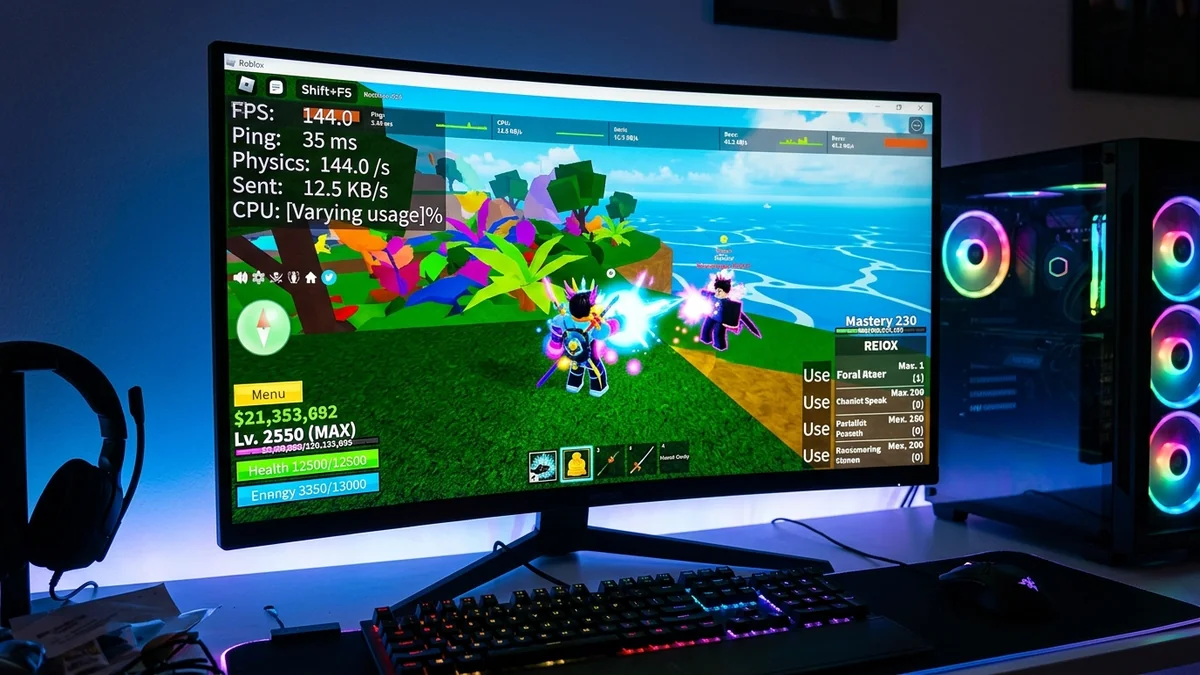
With over 70 million daily active users playing massive multiplayer experiences like Blox Fruits, Bedwars, and Arsenal, Roblox is one of the most popular gaming platforms in the world. However, players frequently suffer from debilitating lag—with in-game ping shooting to 250ms–500ms+, character abilities delaying by full seconds, and frequent disconnections. Because Roblox automatically assigns players to game instances across global cloud data centers, optimizing your connection requires manual server selection, asset cache purging, and local network stabilization. Here is how to fix high ping in Roblox in 2026.
1. 🔍 Step 1: Open the Built-in Roblox Diagnostic Overlay
To inspect your true real-time ping and network health inside any Roblox game:
- Press Shift + F5 on your keyboard (or Shift + F3 for the detailed netgraph).
- Review the Ping and Incoming KBPS numbers:
- Under 50ms: Optimal local server instance.
- Over 180ms: You were placed on a server in another continent (e.g. European player in a Singapore or California server).
2. 🗺️ Step 2: Manually Select Low-Ping Server Regions (BTRoblox)
Roblox's default 'Play' button frequently places you in full servers on overseas instances. To manually select a nearby server:
- Install the popular open-source browser extension BTRoblox (Better Roblox) or RoPro.
- Navigate to the game page and scroll down to the Servers tab.
- Use the extension's 'Server Region Filter' to sort available instances by physical location (e.g. US-East, US-Central, Germany, UK) and join an instance located in your home region with available player slots.
3. 🛠️ Step 3: Purge Corrupted Roblox Local Cache
Over time, thousands of downloaded game assets and 3D textures accumulate in temporary Windows directories, causing packet buffer stalls:
del /q /s "%localappdata%\Roblox\Downloads\*"
del /q /s "%temp%\Roblox\*"
4. ⚡ Step 4: Hardwire PC or Mobile Device via Ethernet
Roblox transmits hundreds of physics synchronization packets every second. Hardwiring your PC with Cat 6 Ethernet or connecting your iPad/tablet via a USB-C Ethernet adapter immediately drops local ping by 20ms–40ms and eliminates rubberbanding.
5. 🔬 Roblox Client-Server Physics Replication & UDP Throttling
Roblox uses a distributed client-server architecture where physics calculations (character movement, projectile trajectory, destructible blocks) are continuously synchronized between your client and the cloud server. When your connection experiences packet drops, the Roblox engine freezes client physics updates until the missing packet is acknowledged.
By clearing bloated texture caches, selecting local regional server instances via BTRoblox, and connecting via wired Cat 6 Ethernet, you eliminate synchronization stalls and achieve smooth, responsive gameplay across all Roblox experiences.
6. 🛠️ Summary: 4-Step Roblox Ping Optimization Checklist
- Monitor In-Game Metrics: Press Shift + F5 to inspect real-time ping and packet rates.
- Manually Select Regional Instances: Use BTRoblox extension to join low-ping domestic servers.
- Purge Temp Directories: Delete
%localappdata%\Roblox\Downloadscache files weekly. - Use Wired Ethernet: Drops local latency by 20ms+ and eliminates Wi-Fi packet drops.
7. 🔬 The Technical Role of Roblox FastFlags (Client Optimizations)
Advanced Roblox players utilize FastFlags (FFlags) via tools like Bloxstrap to modify the internal Roblox rendering engine. By adjusting flags to cap background texture downloading bandwidth, disable telemetry tracking, and unlock uncapped frame rates (144Hz–240Hz), you reduce internal engine frame latency, helping the Roblox network stack process server updates more responsively.
8. 🏁 Final Summary: Achieving Smooth, Zero-Lag Roblox Gameplay
Fixing high ping in Roblox is all about server geography and network stability. By using extensions like BTRoblox to manually join local low-ping server instances, clearing corrupted cache files regularly, and hardwiring your connection with Cat 6 Ethernet, you eliminate lag spikes and enjoy smooth, uninterrupted gameplay in all your favorite Roblox worlds.
9. 🔬 Troubleshooting Roblox Teleportation & Rubberbanding
Rubberbanding in Roblox occurs when your local client's character coordinates diverge from the cloud server's authoritative physics model by more than the allowed position tolerance. Hardwiring your connection with Cat 6 Ethernet and ensuring low jitter (<3ms) eliminates position correction snaps, allowing seamless movement in obstacle courses and PvP battles.
10. 💡 Why Mobile Devices Lag More on Roblox Wi-Fi
Smartphones and tablets running Roblox on Wi-Fi suffer from aggressive power-saving radio modes (WMM Power Save / Dynamic Beacon Scanning). When the device sleeps its Wi-Fi chip for milliseconds between screen touches, incoming Roblox physics updates are delayed, causing character stuttering. Disabling battery-saver modes and using a 5GHz Wi-Fi network close to the router restores smooth, lag-free gameplay.
By combining strategic regional server selection with local network caching hygiene and wired Ethernet stability, you eliminate lag spikes and ensure lightning-fast responsiveness across all your favorite Roblox adventures, minigames, and competitive experiences.
11. 🎮 Optimizing Roblox Network Settings on iOS & Android Tablets
For mobile and iPad players, disable background app refresh in system settings before opening Roblox. This prevents social media apps and cloud photo libraries from executing background data transfers while you play, preserving 100% of your tablet's wireless antenna bandwidth for smooth, lag-free Roblox gaming sessions.
Implementing these essential network optimizations ensures that your connection maintains peak performance, eliminating frustrating physics lag and delivering a smooth, high-framerate multiplayer experience across all Roblox titles.