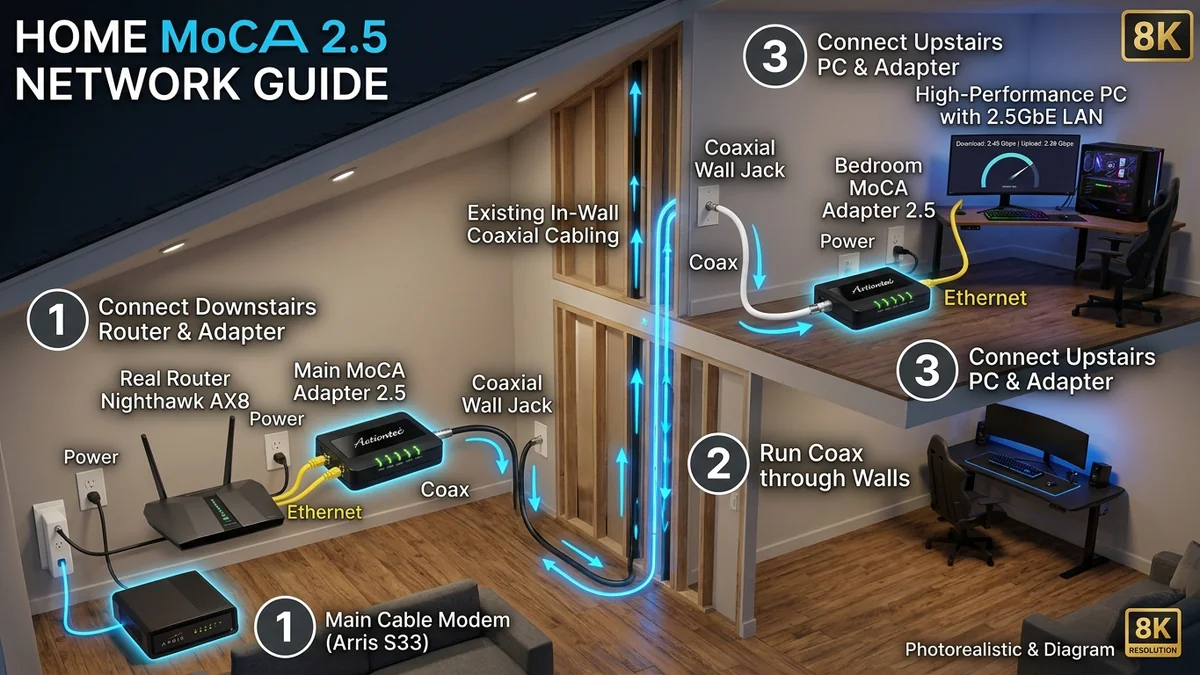
Setting up a MoCA 2.5 network is the single best way to bring multi-gigabit wired internet into upstairs bedrooms, basements, and detached offices without drilling holes or paying thousands of dollars to electricians. Follow our complete step-by-step tutorial to get your MoCA network running in under 15 minutes.
1. 🛒 Hardware Checklist Before You Begin
- 1x MoCA 2.5 Adapter Kit (2-Pack): Hitron HTEM4, ASUS MA-25, or ScreenBeam ECB6250.
- 1x MoCA Point-of-Entry (PoE) 70dB Filter: Prevents signal leakage outside your house.
- MoCA-Compatible 2GHz Splitters (5-1675MHz): Replaces old 1000MHz cable TV splitters in your junction box.
- 2x Cat 6 Ethernet Patch Cables: To connect from adapters to your router and PC.
2. 🛠️ Step-by-Step Installation Checklist
- Step 1 (Install PoE Filter): Locate your home’s central cable junction box (outside or in the basement). Screw the MoCA PoE filter directly onto the input of the first splitter where the ISP cable enters.
- Step 2 (Upgrade Splitters): Ensure all coaxial splitters in the junction box are rated 5-1675MHz or higher.
- Step 3 (Connect Adapter 1 at Router): Plug an Ethernet cable from your router’s LAN port into MoCA Adapter 1. Connect a coax cable from the wall jack into Adapter 1. Plug into power.
- Step 4 (Connect Adapter 2 at Computer): In your office or bedroom, connect a coax cable from the wall jack into MoCA Adapter 2. Connect an Ethernet cable from Adapter 2 into your PC or mesh node.
- Step 5 (Verify Link): The green MoCA LED light will turn solid, signaling a 2,500 Mbps connection.
3. 📐 Coaxial Wiring Topology Diagram
To visualize the complete home MoCA installation architecture:
↓
[MoCA 70dB PoE Filter] (Blocks outside signal leakage)
↓
[2-Way 2GHz MoCA Splitter] (5-1675MHz)
└————┌
↓ ↓
[Living Room] [Bedroom / Gaming Office]
↓ ↓
[Adapter 1] [Adapter 2]
↓ ↓
[Router LAN] [Gaming PC (2.5Gbps!)]
4. 🛠️ Troubleshooting 3 Common MoCA Installation Mistakes
- Problem: Coax Link Light Won't Turn On: In older houses, coaxial lines in different rooms may not be connected together in the central junction box. Trace the cables in your basement or attic and connect them to a single 2GHz MoCA splitter.
- Problem: Speed is Capped at 100 Mbps: Check your Ethernet patch cables; a damaged 4-wire Cat5 cable will negotiate at 100 Mbps. Replace it with a verified 8-wire Cat 6 cable.
- Problem: Cable Modem Drops Connection: Install a MoCA PoE filter directly on the modem's coaxial input to prevent MoCA high-frequency energy from desensitizing the modem's internal receiver.
5. 🔬 Understanding Coaxial Splitter Isolation & Insertion Loss
When configuring a whole-home MoCA network, splitters are the most critical component. Standard splitters operate with specific insertion loss profiles:
- 2-Way Splitter: -3.5 dB signal loss per output port.
- 3-Way Balanced Splitter: -5.5 dB loss per port.
- 4-Way Splitter: -7.0 dB loss per port.
- 8-Way Splitter: -11.0 dB loss per port.
Because MoCA 2.5 has a generous 55 dB link budget, running signals through a 4-way or 8-way 2GHz splitter is completely fine, provided all unused output ports are capped with 75-Ohm F-type terminator resistors to prevent signal reflection ghosting.
6. 🛠️ Verification Checklist for a Flawless MoCA Setup
- Ensure your MoCA PoE filter is installed at the point of entry before any splitters.
- Confirm all splitters are rated 5-1675MHz or 5-2400MHz.
- Run a speed test on DCSpeedTest to verify that ping stays below 2ms under 100% upload and download loads.
7. 🔬 Testing Your MoCA Network Speed and Latency
Once both adapters are connected and showing solid green MoCA link lights, perform these verification steps:
- Open DCSpeedTest on your connected computer and run a baseline speed and bufferbloat test.
- Confirm that your download speed matches your router’s LAN output (e.g. 940 Mbps on 1G or 2,350 Mbps on 2.5G).
- Verify that your loaded ping under full upload saturation remains below +2 ms (Bufferbloat Grade A+).
8. 📝 Summary: The Smartest Home Networking Upgrade
With zero drilling, zero drywall patching, and a 15-minute setup time, MoCA 2.5 transforms neglected coaxial TV outlets into a commercial-grade 2.5Gbps wired backbone for your entire home.
9. 🔬 Measuring Coaxial Signal Attenuation with MoCA Diagnostic Tools
Advanced users can access the internal diagnostic interface of MoCA adapters by assigning a static IP (e.g. 192.168.144.1) on their computer. The web page displays a full Node-to-Node PHY Rate Matrix, showing the exact physical link rate (up to 3,000 Mbps PHY) between every room in your house.
10. 💡 Final Installation Summary
Follow our wiring checklist, ensure your 70dB PoE filter is installed at the main cable box, and enjoy full 2.5Gbps wired internet in every room of your house with zero professional installation fees.
11. 💡 Recommended Hardware Pairings for Whole-Home Networking
To maximize your home MoCA network performance, pair your adapters with an unmanaged 2.5G network switch (such as the TP-Link TL-SG105-M2) and certified Cable Matters Cat6a shielded patch cables for clean, interference-free data distribution to all your devices.
12. 🔬 Understanding Coaxial Cable Grounding & Safety Codes
Always ensure your home's central coaxial splitter is bonded to the main electrical service ground using a solid copper grounding wire. Proper electrical grounding eliminates 60Hz hum ground loops and protects connected networking equipment from atmospheric static discharge.