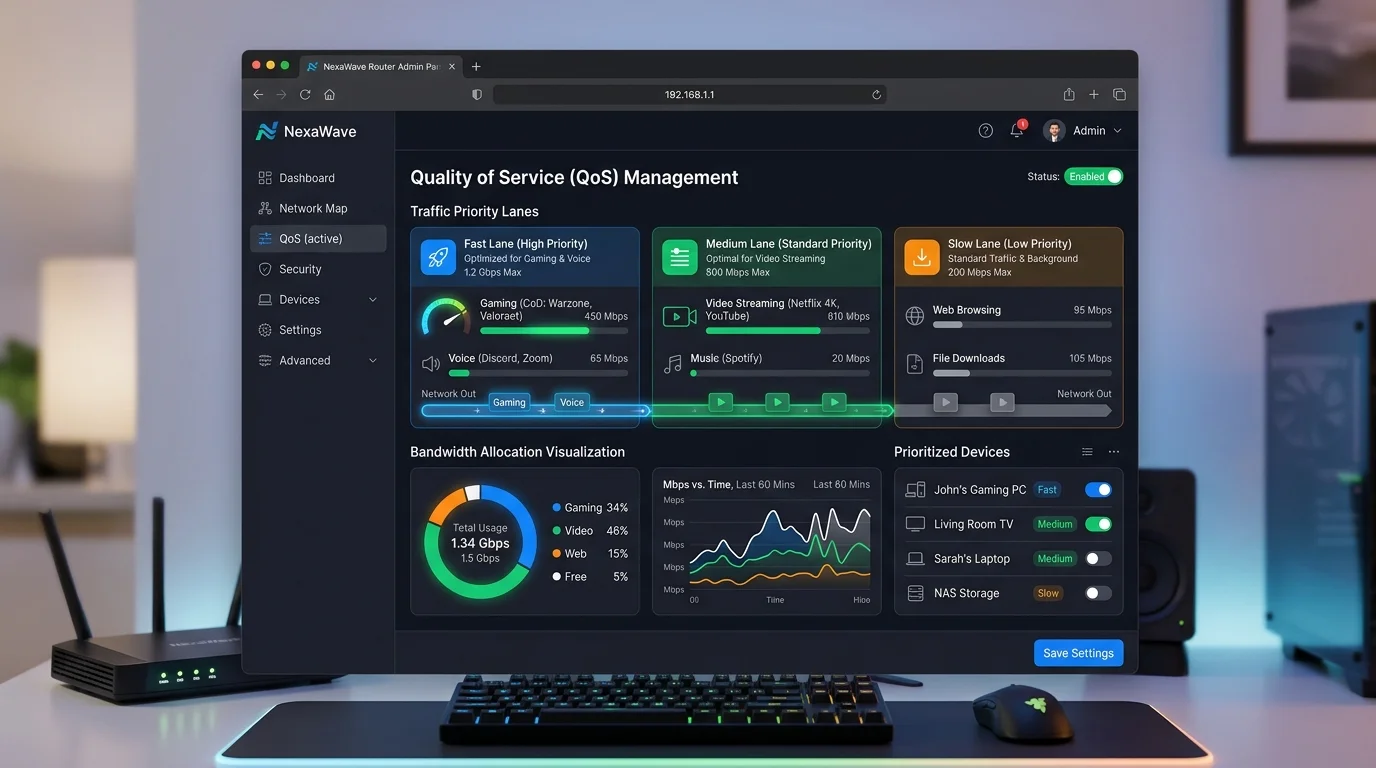
The Mistake 90% of Users Make With QoS
Quality of Service (QoS) is a router feature that prioritizes certain traffic (like gaming) over other traffic (like large downloads). When enabled correctly, it eliminates ping spikes entirely. When enabled incorrectly, it chokes your bandwidth to dial-up speeds.
The Mistake: Users enable QoS and type in the speeds their ISP advertises (e.g., 500 Mbps down / 20 Mbps up). In reality, their line only reliably delivers 420 Mbps down / 15 Mbps up. Because the router thinks it has 500 Mbps to work with, it doesn't start queuing packets until it's too late. Bufferbloat happens anyway.
The Mathematical Setup Guide
- Step 1 (The Baseline): Connect via Ethernet. Make sure no one is streaming. Run DCSpeedTest. Let's say you get 210 Mbps download and 18 Mbps upload.
- Step 2: Calculate your "safe caps". Multiply your actual results by 0.85 (85%).
Download formula: 210 * 0.85 = 178.5 Mbps
Upload formula: 18 * 0.85 = 15.3 Mbps - Step 3: Log into your router (usually 192.168.1.1). Navigate to the QoS or bandwidth control menu.
- Step 4: Enable QoS. When it asks for your ISP speeds, enter the calculated 85% numbers you found in Step 2. Not your advertised plan speeds.
- Step 5: If your router asks for traffic priority, set "Gaming" or "UDP" to Highest priority, and "File Transfer/P2P" to Lowest.
Why Leave 15% on the Table?
By artificially limiting your total bandwidth to 85% of its true capacity, you guarantee your modem's hardware buffers never fill up physically. The router handles the queuing entirely in software, allowing it to instantly push your small gaming packets to the front of the line.
You lose 15% of your max download speed, but you gain absolute latency stability, regardless of what anyone else in the house is doing. For competitive gamers, this tradeoff is a no-brainer.