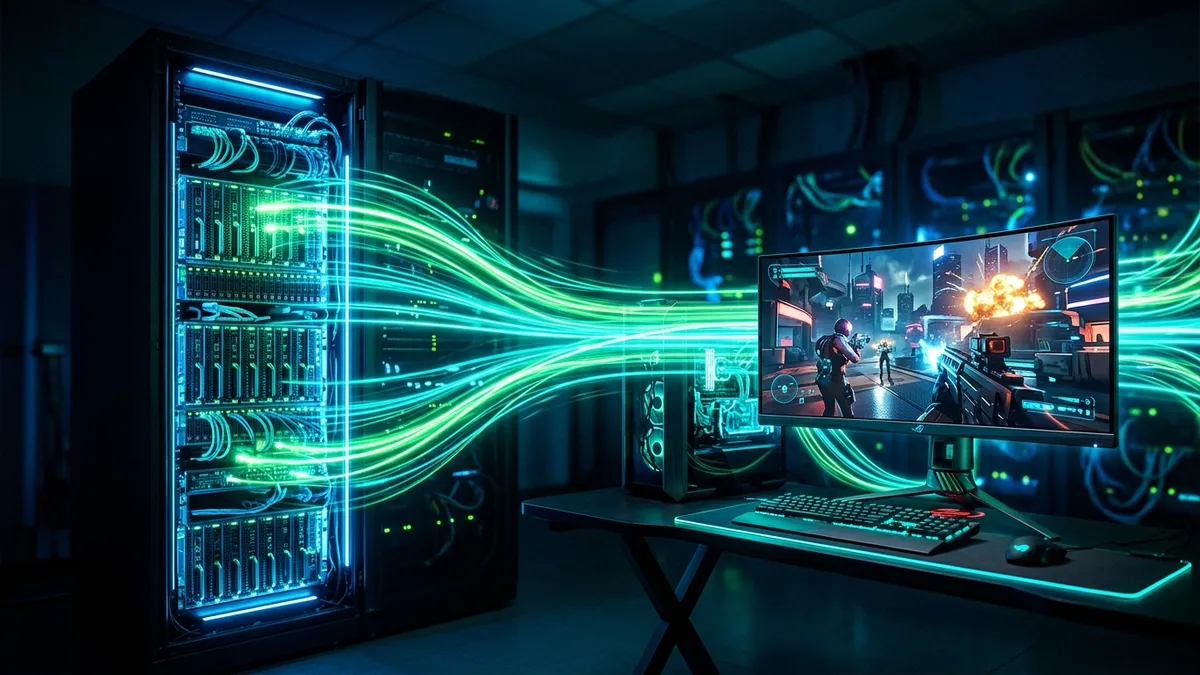
Cloud gaming with **NVIDIA GeForce NOW (GFN)** has revolutionized how we play AAA blockbusters like Cyberpunk 2077, Alan Wake 2, and Black Myth: Wukong without needing a $2,000 gaming rig. However, streaming an interactive, real-time 4K 120fps video feed rendered on remote RTX 4080/5080 server clusters places intense demands on your home network. What internet speed do you actually need for GeForce NOW in 2026, and why do packet loss and jitter matter far more than raw download speed?
1. Official Bandwidth Requirements by Resolution & Frame Rate
NVIDIA specifies minimum and recommended network bandwidth thresholds for each streaming tier:
| Resolution & Refresh Rate | Minimum Speed | Recommended Bandwidth | Hourly Data Usage |
|---|---|---|---|
| 720p at 60 FPS | 15 Mbps | 25 Mbps | ~4.5 GB / hour |
| 1080p at 60 FPS (Priority Tier) | 25 Mbps | 35 Mbps | ~7.0 GB / hour |
| 1440p at 120 FPS (Ultrawide) | 35 Mbps | 50 Mbps | ~12.0 GB / hour |
| 4K UHD at 120 FPS / 240 FPS (Ultimate Tier) | 45 Mbps | 75+ Mbps | ~18.0 - 22.0 GB / hour |
2. The Latency Hierarchy: Why Ping & Jitter Dictate Cloud Gaming
Unlike Netflix or YouTube, which can buffer 30 seconds of video in advance, cloud gaming is zero-buffer real-time streaming. Every video frame rendered in the datacenter must reach your display in under 16 milliseconds:
- Ping < 20ms: Indistinguishable from local PC gaming. Near-instant mouse response.
- Ping 20ms – 40ms: Excellent for single-player RPGs and casual multiplayer. Imperceptible controller input lag.
- Ping 40ms – 60ms: Playable, but slight mouse "floatiness" in fast competitive shooters.
- Ping > 80ms: Noticeable input delay; audio desync and image compression artifacts appear.
- Packet Loss > 0.5%: Triggers immediate frame stuttering, blocky pixelation, and dropped keystrokes.
3. 🚀 The AV1 & HEVC (H.265) Codec Advantage
GeForce NOW supports next-generation **AV1 video decoding** for users with modern GPUs (NVIDIA RTX 30/40/50 series, Intel 11th Gen+ / Arc, or AMD RX 7000+). AV1 provides 30% better visual fidelity at the exact same bitrate compared to older H.264 codecs, eliminating dark-scene banding and macroblocking while reducing required bandwidth for 4K streaming.
4. ⚡ How to Configure GeForce NOW for Zero Stutter
- Open the GeForce NOW App → go to Settings → Streaming Quality.
- Set Mode to Custom.
- Set Max Bitrate to 75 Mbps (for 4K) or 50 Mbps (for 1080p).
- Toggle Adjust for poor network conditions to OFF (this prevents GFN from dropping resolution during temporary micro-spikes).
- Enable DirectX 12 / Reflex for the lowest possible display input latency.
- Always use a wired 5GHz / 6GHz Wi-Fi or Ethernet connection to keep jitter below 1.5ms.
5. 🛡️ Router QoS & Port Forwarding for GeForce NOW
To prevent other household traffic from interrupting your cloud gaming stream, configure Quality of Service (QoS) on your router to prioritize UDP traffic on the official GeForce NOW network ports:
- UDP Ports:
49003,49004,49005,49006(Streaming Video & Audio Feeds) - TCP Ports:
443,14043(Authentication & Session Handshake)
6. ⚡ The Physics of Display Refresh Rates: 120Hz vs. 240Hz Cloud Streaming
One of the most remarkable engineering breakthroughs of the GeForce NOW Ultimate tier is 240Hz Cloud G-Sync streaming. Even if your network ping to the NVIDIA datacenter is 25ms, streaming at 240 frames per second cuts the frame delivery interval from 16.6ms (at 60Hz) down to just 4.1 milliseconds per frame.
This ultra-fast frame pacing means your local gaming monitor receives the latest rendered game state significantly faster, reducing total end-to-end click-to-pixel latency to levels comparable to a local mid-tier gaming PC (under 35ms total system latency). However, maintaining a steady 240Hz cloud stream requires a rock-solid, jitter-free connection with zero packet retransmissions.
7. 🖥️ Hardware Decoding Latency: CPU vs. iGPU vs. Dedicated GPU
When GeForce NOW streams a 4K 120fps video stream to your device, your local computer must decode each video frame in real time. If you are playing on an older laptop with an outdated integrated graphics chip, software video decoding can add 12ms to 25ms of local decode lag, completely wiping out your low network ping.
To verify your hardware decode performance, press Ctrl + N (or Cmd + N on macOS) while inside a GeForce NOW game to open the Advanced Telemetry Overlay. Ensure that Decode Latency is under 3.0 ms and that zero packet loss frames are registered in the stream statistics.
8. 🛰️ Starlink & Cellular 5G Cloud Gaming: Is Satellite Ready?
Many rural gamers wonder if Starlink Low-Earth Orbit (LEO) satellite internet or 5G Home Internet can support GeForce NOW. While Starlink provides sufficient download speeds (100 to 220 Mbps), satellite beam switching between orbital satellites creates micro-outages and latency jitter spikes of 15ms to 45ms every few minutes.
On GeForce NOW, these satellite beam handovers trigger momentary video stuttering and resolution drops. If Starlink is your only broadband option, enable Adjust for poor network conditions in GFN settings and cap your stream resolution to 1080p 60fps to allow the video encoder headroom to absorb satellite jitter.
⚡ Test Your Line for Cloud Gaming Readiness
Benchmark your bandwidth, jitter, and bufferbloat to see if your connection is GeForce NOW ready:
🚀 Run Cloud Gaming Speed Test →