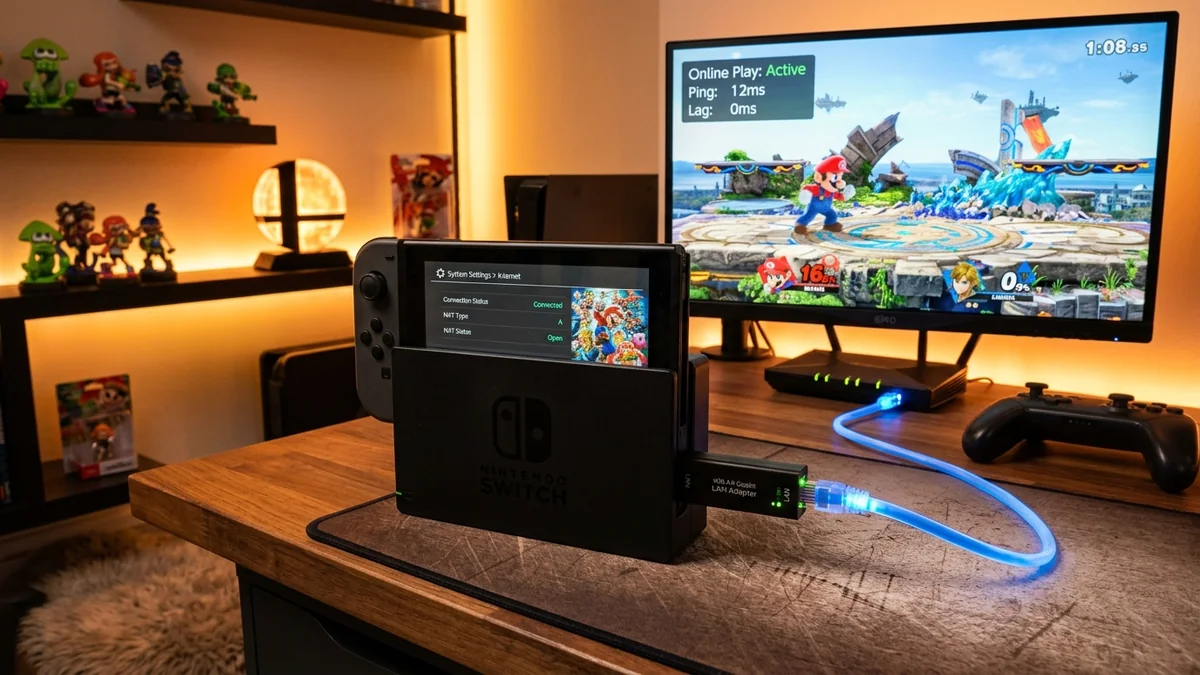
Online multiplayer on the Nintendo Switch (particularly in Super Smash Bros. Ultimate, Mario Kart 8 Deluxe, and Splatoon 3) is notoriously plagued by sudden frame drops, input delay, and communication errors. The primary culprit is architectural: unlike modern PC and console titles that use dedicated cloud servers, Nintendo games rely on synchronous Peer-to-Peer (P2P) delay-based netcode. In a P2P match, if even one player experiences Wi-Fi packet jitter, the entire game engine slows down to match the slowest connection. Here is how to optimize your Nintendo Switch for the lowest possible ping and rock-solid stability in 2026.
1. The Hardware Limitation: The Switch's Weak Internal Wi-Fi Antenna
The Nintendo Switch (both Original and OLED models in handheld/docked mode) houses a compact, low-power Wi-Fi chip with limited RF antenna gain. When docked behind a television or near metal electronics, signal attenuation causes 3% to 8% packet drops and high jitter variance.
2. 🛠️ 4 Steps to Optimize Your Nintendo Switch for Online Play
1. Use a Gigabit USB-to-LAN Ethernet Adapter (Docked Mode)
While the Switch OLED dock includes a built-in LAN port, original Switch owners should plug a USB 3.0 Gigabit LAN Adapter (ASIX AX88179 chipset) into the dock's USB port. Wired Ethernet drops local hop jitter to under 0.2ms, completely eliminating Wi-Fi packet drops.
2. Adjust MTU to 1500 in Internet Settings
By default, Nintendo Switch firmware sets the connection MTU to an arbitrary 1400 bytes. On standard fiber and cable connections, this forces unnecessary packet fragmentation. In Switch Settings > Internet > Internet Settings > [Your Connection] > Change Settings: set MTU to 1500.
3. Achieve NAT Type A via Port Forwarding or DMZ
Because Nintendo games use peer-to-peer hosting, having a Strict (NAT Type C/D) or Moderate (NAT Type B) restricts matchmaking pools. In your router settings, forward UDP ports 1 to 65535 (or place the Switch's static IP in your router's DMZ) to achieve NAT Type A.
4. Lock to 5GHz Wi-Fi When Playing Handheld
If playing in handheld mode, never connect to 2.4GHz. Connect to your router's 5GHz band set to 80MHz channel width on an interference-free UNII-3 channel (Channel 149–161).
5. 🔬 Delay-Based vs. Rollback Netcode in Nintendo Titles
To understand why online performance varies across Nintendo titles, look at the underlying netcode architecture. Legacy titles like Super Smash Bros. Ultimate use Delay-Based Netcode: the game delays your button inputs by a set number of frames to match the network latency to your opponent. If latency spikes from 30ms to 90ms, input lag triples mid-combo.
Modern titles like Splatoon 3 use hybrid synchronization models. By connecting your Switch via wired USB Ethernet and achieving an Open NAT Type A, you ensure your console establishes direct, low-jitter peer-to-peer UDP sockets with all match participants, minimizing input delay and matchmaking communication errors.
6. 📋 Nintendo Switch Network Optimization Summary
- Connection Medium: Wired USB 3.0 Gigabit LAN Adapter (ASIX AX88179 chipset) in Docked Mode.
- MTU Setting: Set to
1500(or1492for PPPoE) in Switch Internet Settings. - DNS Resolvers: Primary
1.1.1.1| Secondary1.0.0.1(Cloudflare Gaming Anycast). - NAT Type: Configure Router DMZ or Port Forwarding to achieve NAT Type A.
7. 🎮 Resolving Peer-to-Peer Nat Type Conflicts in Nintendo Switch
Because Nintendo Switch online multiplayer operates on direct peer-to-peer device communication without intermediate cloud server proxies, your console’s NAT Type rating directly dictates matchmaking success:
- NAT Type A (Open): Can host and join lobbies with all players (NAT Types A, B, C, and D). Essential for hosting Smash Bros tournaments and private Splatoon lobbies.
- NAT Type B (Moderate): Can connect with NAT Types A and B. Works for general casual play, but may experience matchmaking delays.
- NAT Type C / D (Strict): Fails to establish peer-to-peer UDP handshakes with other strict or moderate players, producing frequent 'Unable to connect to other console' error screens.
Configuring router UPnP, dedicated Port Forwarding, or assigning your Switch's static IP to the router DMZ guarantees a permanent NAT Type A status.
8. 🏁 Final Summary: The Definitive Nintendo Switch Online Setup
Achieving smooth, lag-free online matches in Super Smash Bros, Mario Kart, and Splatoon requires overcoming the Switch's hardware limitations. By using a certified Gigabit USB LAN adapter in docked mode, setting your MTU to 1500 to prevent packet fragmentation, configuring low-latency Cloudflare DNS, and opening ports to achieve NAT Type A, you eliminate input delay and guarantee the best possible peer-to-peer multiplayer experience on Nintendo Switch.
9. 🔬 Measuring Handheld 5GHz RSSI Signal Strength
When playing Nintendo Switch in handheld mode in your bedroom or patio, ensure your 5GHz wireless received signal strength (RSSI) is stronger than -65 dBm. If signal drops below -75 dBm, the Switch's low-power internal antenna will suffer from packet retransmissions, leading to sudden communication errors in online Mario Kart and Splatoon matches.
Implementing these simple network optimizations transforms your Nintendo Switch online gaming experience, delivering smooth, responsive, tournament-grade multiplayer matches in all your favorite Nintendo titles.