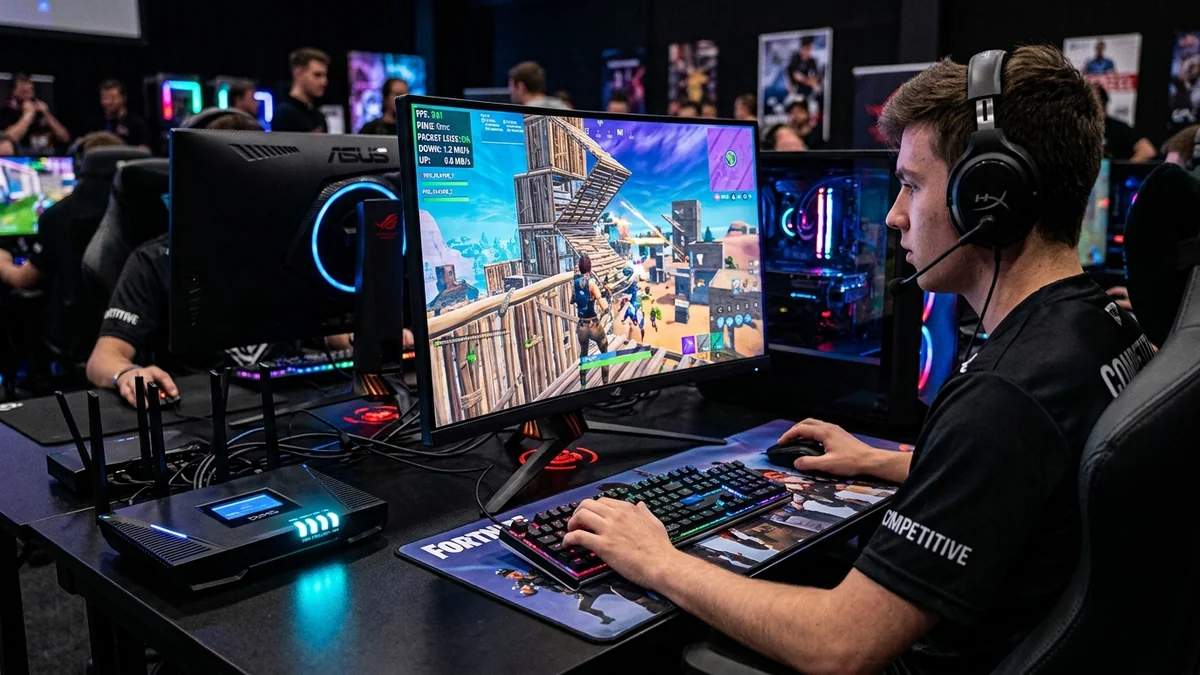
In competitive Fortnite, latency is the ultimate deciding factor between winning a box fight and being eliminated. With turbo building placing structures at 0.005-second intervals, a player with 15ms ping will consistently take walls, phase through ramps, and land shotgun hits before a player on 65ms ping can even render the build grid. If your game displays red network bars, yellow packet loss arrows, or unpredictable ping spikes, the culprit is a combination of matchmaking region routing, unmanaged home bufferbloat, and Windows network card power throttling. Here is the definitive guide to achieving the lowest possible ping in Fortnite in 2026.
1. Epic Games Server Architecture & Matchmaking Regions
Fortnite hosts its global multiplayer matches primarily on Amazon Web Services (AWS) and Google Cloud Platform (GCP) compute clusters. In North America, Epic operates three distinct regions:
- NA-East: Primary AWS data centers located in Northern Virginia (
us-east-1) and Ohio (us-east-2). - NA-West: Primary AWS data centers located in Oregon (
us-west-2) and Northern California (us-west-1). - NA-Central (Dallas, Texas): The official competitive tournament region for all North American Ranked and FNCS matches, hosted in AWS Dallas (
us-east-2/ local zones).
If you leave your in-game Matchmaking Region set to 'Auto', Fortnite may occasionally route you into a higher-latency coastal cluster rather than your optimal server.
2. 📊 Latency Impact on Fortnite Turbo Building Mechanics
| Ping Range (ms) | Wall Replace Success Rate | Shotgun Hit Registration | Competitive Viability |
|---|---|---|---|
| 0 ms – 15 ms (0 Ping) | 95% – 100% (Instant Wall Take) | Flawless (Zero Ghost Shots) | Tier-1 Pro / FNCS Ready |
| 16 ms – 35 ms | 60% – 75% (Coin Flip Dependent) | Crisp & Responsive | High Competitive Rank |
| 36 ms – 65 ms | 20% – 35% (Struggles vs 0 Ping) | Occasional Blank Damage | Casual Ranked Play |
| > 70 ms | < 5% (Walls Stolen Constantly) | Severe Ghost Markers | Unplayable in Box Fights |
3. 🛠️ 5 Proven Steps to Lower Fortnite Ping Permanently
1. Hardwire with Certified Cat 6 Ethernet
Wi-Fi introduces high jitter and micro-burst packet loss during chaotic build fights. A direct wired Cat 6 cable drops local LAN transit latency to 0.3ms, eliminating yellow network warning arrows completely.
2. Manually Lock Matchmaking Region in Settings
Navigate to Fortnite Settings > Game Tab > Language and Region > Matchmaking Region. Manually select the server region showing the lowest numerical millisecond latency rather than leaving it on 'Auto'.
3. Disable Windows Network Adapter Interrupt Moderation
In Windows Device Manager > Network Adapters > [Your Ethernet NIC] > Properties > Advanced:
- Interrupt Moderation: Set to Disabled (Forces CPU to process game packets instantaneously without buffering).
- Energy Efficient Ethernet / Green Ethernet: Set to Disabled.
- Receive Side Scaling (RSS): Set to Enabled.
4. Deploy Smart Queue Management (SQM CAKE) on Your Router
Prevent household family downloads and 4K streams from filling router buffers, keeping loaded ping locked under 20ms during tournament end-games.
4. 🔬 The Technical Netcode Behind Epic Games' 'Coin-Flip' Wall Takes
In competitive Fortnite, the mechanism for claiming an enemy player's wall is governed by Epic's Wall Replace Coin-Flip Algorithm. When two players attempt to place a wall in the exact same grid space within a 150-millisecond server tick window, the server rolls a 50/50 randomized coin-flip to decide ownership.
However, if your ping is higher than 35ms, your building placement packet arrives after the 150ms window has closed. The server immediately awards the wall to the 0-ping player with zero coin-flip opportunity. Lowering your network jitter and round-trip time below 20ms ensures your build inputs consistently register inside the authoritative server window.
5. ⚡ Advanced Windows Registry Network Latency Tweaks
For dedicated PC esports competitors, configure Windows TCP ACK frequency in the Registry:
- Press Win + R, type
regedit, and navigate to:HKEY_LOCAL_MACHINE\SYSTEM\CurrentControlSet\Services\Tcpip\Parameters\Interfaces\[Your Network Adapter GUID] - Create two new DWORD (32-bit) values:
TcpAckFrequency=1(Disables Nagle's algorithm delayed ACK timer, sending TCP packets instantly).TCPNoDelay=1.
- Reboot your PC to apply zero-delay packet transmission.
6. 🛠️ Complete Hardware & In-Game Latency Optimization Checklist
| Optimization Area | Recommended Setting | Expected Latency Benefit |
|---|---|---|
| Physical Connection | Cat 6 Pure Copper Ethernet | Drops local hop ping to <0.5ms; eliminates packet loss |
| Matchmaking Region | Manually Locked (NA-Central/East/West) | Prevents sub-optimal automated server matchmaking |
| Router QoS | CAKE Smart Queue Management | Zero ping spikes during household 4K streaming |
| NIC Power Savings | Energy Efficient Ethernet Disabled | Eliminates microsecond packet processing delays |
7. 🏁 Final Summary: The Complete Esports Latency Pipeline
Achieving consistent sub-20ms ping in competitive Fortnite requires eliminating every source of local jitter. By replacing unstable Wi-Fi with a certified Cat 6 Ethernet cable, locking your in-game matchmaking server region, configuring Smart Queue Management (SQM CAKE) to prevent bufferbloat, and tuning Windows network adapter settings to disable energy-saving packet throttling, you guarantee instant building placement and maximum hit registration precision in every tournament match.
8. 🔬 Real-Time Diagnostic Test on DCSpeedTest
Before launching Fortnite, open DCSpeedTest and run a full loaded ping benchmark. Verify that your Unloaded Ping is under 20ms and your Loaded Ping under full upload/download load remains within +5ms of baseline. Achieving an A+ Bufferbloat score guarantees that your in-game building latency will remain completely flat and responsive throughout high-intensity end-game circles.