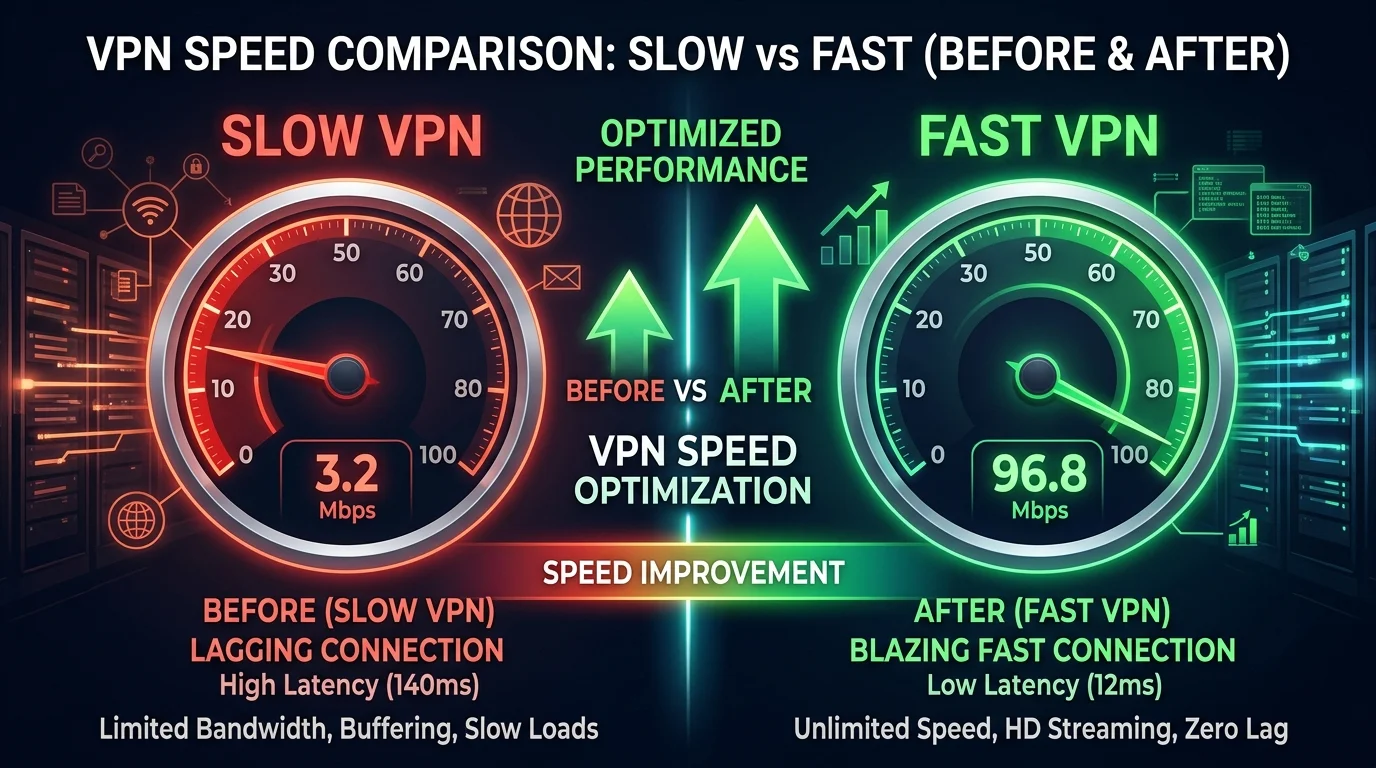
You activated your new VPN expecting pristine security, but instead, your download speeds plummeted by 50%, your online games started lagging constantly, and simple web pages took ages to buffer. While encryption always adds a tiny fraction of processing overhead, a premium VPN like NordVPN or Surfshark should never ruin your connection. If your VPN is slowing down your internet, follow my expert network technician guide to apply 5 simple tweaks and restore your full gigabit speeds, similar to the techniques shown in our NordVPN split tunneling troubleshooting guide.
Why Does a VPN Slow Down Your Connection?
To fix the bottleneck, we have to look at the three primary reasons why VPN tunnels degrade throughput:
- 1. Cryptographic Overhead: Encrypting every single packet before it leaves your device requires CPU processing cycles. Standard, bulky protocols like OpenVPN can severely limit high-speed fiber connections.
- 2. Physical Server Distance: If your packets have to travel hundreds of miles out of the way to reach a VPN server before routing to their final destination, physical latency (ping) and packet loss will spike.
- 3. MTU Size Mismatches (Packet Fragmentation): VPN encryption wrappers add size to your packets. If the total packet size exceeds your network's Maximum Transmission Unit (MTU) limit, routers have to split each packet into two, doubling transit loads and slowing down speeds.
5 Steps to Maximize Your VPN Connection Speed
1. Switch to a Modern Protocol (WireGuard / NordLynx)
If your VPN app is set to OpenVPN or IKEv2, this is likely your biggest speed bottleneck. OpenVPN is secure but bulky. **WireGuard** is a modern, lightweight protocol with a tiny code footprint that runs seamlessly across multi-threaded processors.
Go to your VPN settings, find **Protocol**, and set it to **WireGuard** (or **NordLynx** if you are using NordVPN). This tweak alone can increase your download speeds by **over 100%** on high-speed lines!
2. Manually Otimize Your MTU Size
If your MTU is too high, packet fragmentation will ruin your speeds. For standard connections, the default MTU is 1500 bytes. When using a VPN, you should adjust it to account for encryption headers:
- For WireGuard connections, set your MTU size to **1420 bytes**.
- For OpenVPN connections, set your MTU size to **1450 bytes**.
This simple adjustment prevents packet fragmentation, stabilizing your ping and throughput immediately.
3. Choose a Server Close to Your Target Destination
If you are trying to lower gaming ping, connect to a VPN server that is physically closest to the game's hosting center (e.g., Chicago or Virginia), rather than just your local city. This forces your data onto the VPN's premium, high-speed fiber backhaul instead of congested ISP transit lanes.
4. Disable Strict Security Scans (Threat Protection Settings)
If you have high-security anti-malware features active inside your VPN app, they will scan every packet in real-time, which can act as a local CPU bottleneck. If you need maximum raw throughput for heavy game updates or large downloads, temporarily disable real-time file scanning.
5. Upgrade to a Premium Provider
If you have applied these tweaks and your speed is still slow, **the bottleneck is your VPN provider's server infrastructure**. Free or budget VPNs host their networks on cheap, congested VPS hosting gateways. You need to upgrade to a premium provider with a massive, high-speed server infrastructure.
🥇 Reclaim Full Speeds with NordVPN
Defeat lag with the ultra-lightweight NordLynx protocol, offering the fastest connection retention on the market today.
👉 Upgrade to NordVPN — 67% OFF🥈 High Speed Budget Option: Surfshark
Stream 4K lag-free across unlimited devices with premium WireGuard protocol speeds at 82% off.
👉 Upgrade to Surfshark — 82% OFFConclusion
A VPN should be a tool that secures and optimizes your connection, not one that ruins your speeds. By switching your protocol to WireGuard, optimizing your MTU to prevent packet fragmentation, and selecting the right servers, you can eliminate routing bottlenecks and restore your full internet throughput today.