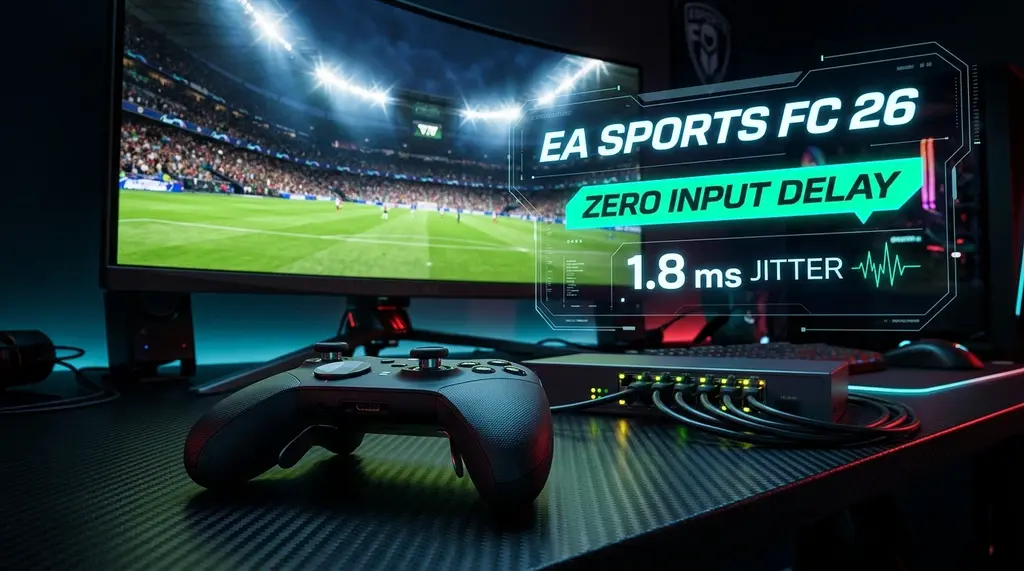
Cure the dreaded heavy gameplay, input lag, and unresponsive players in EA Sports FC 26. We diagnose EA Game Data Centers, UDP bufferbloat, MTU optimization, QoS settings, and monitor refresh synchronization.
⚡ Quick Answer
"Heavy gameplay" or "muddy players" in EA Sports FC 26 (Champions, Rivals, and Clubs) occurs when client-side input timestamps fall out of synchronization with EA Game Data Centers (GDC) due to upstream bufferbloat, packet jitter, and sub-optimal MTU packet fragmentation. To resolve it: 1) Set up a wired Cat6 connection and configure your router MTU to precisely 1500 (or 1492 for PPPoE) with an MSS clamp of 1452; 2) Enable Smart Queue Management (SQM CAKE) on your router to guarantee that bursty upstream inputs (Skill Moves, Passing) are never delayed behind background uploads; 3) On PC/Console, turn off Cross-Play matchmaking during peak weekend league hours if your regional ISP has high peering latency to other platforms; and 4) On PC, lock frame rates to your monitor refresh rate (-2 FPS) using NVIDIA G-Sync / AMD FreeSync with V-Sync On in control panel and Off in-game to eliminate rendering pipeline queuing.
⚡ GL.iNet Flint 2 (GL-MT6000) Wi-Fi 6 Gaming Router
Equipped with dual 2.5GbE ports, OpenWrt v23, and hardware-accelerated SQM CAKE. Flattens loaded bufferbloat down to 0ms under heavy household bandwidth, restoring instant player responsiveness in EA Sports FC 26.
Every competitive football player knows the sensation: on Tuesday night your players turn like agile ballerinas, execute first-time driven passes crisply, and respond instantly to left-stick dribbling. On Saturday afternoon during Ultimate Team Weekend League, your 95-Pace winger suddenly feels like he is running in knee-deep mud, taking two seconds to pass the ball while opponent defenders glide effortlessly. This infamous heavy gameplay phenomenon in EA Sports FC 26 is not an imaginary script—it is a measurable network synchronization failure between EA's Game Data Centers (GDC) and your local network pipeline.
1. The EA Connection Quality Metrics Decoded
EA provides an official Connection Quality Report tool and in-game connection monitoring HUD (Settings → Visual → Connection Monitoring → Input & Indicators). The three core metrics operate as follows:
- Ping: Measures raw round-trip latency to the nearest EA GDC. While a ping under 30ms is considered "Great", raw ping is deceptive; a player with a stable 40ms ping will experience far crisper gameplay than someone with a 15ms ping that fluctuates wildly.
- Packet Loss: The percentage of packets that fail to complete the round trip. In EA FC 26, losing an input packet causes the server to ignore your pass command, forcing your player to take an extra touch into an oncoming defender.
- Jitter: The variance in ping over time. Jitter is the primary cause of heavy gameplay. If your ping fluctuates between 16ms and 38ms, EA's server interpolation engine continuously alters the input buffer size dynamically. This variation makes your timing unpredictable and sluggish.
| EA Quality Score | Ping Threshold | Jitter Threshold | Gameplay Sensation |
|---|---|---|---|
| 98 – 100 (Flawless) | < 15 ms | < 1.0 ms | Instant responsive dribbling, clean first-time passes |
| 90 – 97 (Great) | 15 – 30 ms | 1.0 – 3.0 ms | Crisp gameplay, rare micro-delays on complex skill moves |
| 75 – 89 (Fair) | 30 – 55 ms | 3.0 – 8.0 ms | Muddy players, extra touch before passing, missed tackles |
| < 75 (Poor) | > 55 ms | > 8.0 ms | Severe input delay, speed-up lag, unplayable defense |
2. Upstream Bufferbloat: Why Fast Internet Feels Sluggish
Experiencing packet loss, jitter spikes, or evening ISP throttling? Connect directly to dedicated gaming routes or bypass traffic shaping:
Many gamers assume their 1,000 Mbps gigabit internet guarantees zero lag. However, EA FC 26 requires tiny upstream UDP packets transmitting controller inputs every few milliseconds. If your home network experiences upstream bufferbloat from smartphones uploading photos, smart TVs streaming, or Windows background updates, your controller inputs get queued behind large TCP packets in your modem's buffer.
The Fix: Implement CAKE SQM on a capable gaming router. By setting strict bandwidth limits at 90% of your line rate, your router maintains an empty buffer at all times, ensuring your Left-Stick skill inputs jump straight to the head of the queue.
3. MTU Size & Packet Fragmentation Audit
If your router's Maximum Transmission Unit (MTU) is misconfigured, gaming packets get fragmented into two smaller packets, doubling the transmission overhead and increasing server processing lag:
- For Standard Fiber / Cable (DHCP / Static IP): Set MTU to 1500.
- For DSL / PPPoE Connections: Set MTU to 1492 (and clamp MSS to 1452).
- On PS5 and Xbox Series X, verify your MTU setting in Network Settings matches your router precisely. Never set MTU to arbitrary numbers like 1400 unless specifically required by your ISP.
4. Display & Render Synchronization (PC & Console)
Do not confuse network input delay with render pipeline latency. To ensure input delay is purely network-limited:
- PC Players: Set In-Game Refresh Rate to your native monitor frequency. Set In-Game V-Sync to Off. In NVIDIA Control Panel, enable G-Sync, set Low Latency Mode to Ultra, and set Max Frame Rate to Monitor Hz minus 3 FPS (e.g., 141 FPS on a 144Hz monitor).
- Console Players: Connect your PS5 or Xbox Series X to an HDMI 2.1 port, enable Auto Low Latency Mode (ALLM), and enable 120Hz Output in the EA FC 26 Video Settings if supported by your TV/monitor.
5. Port Forwarding for EA Sports FC 26
If your ISP delivers high speeds but your connection drops or suffers from bufferbloat during multi-device use, upgrading these verified components eliminates the bottleneck:
Ensure your router forwards the official EA FC 26 ports to avoid NAT traversal delays:
- PlayStation: UDP: 3074, 3478-3479, 3659, 6000; TCP: 1935, 3478-3480, 3659, 10000-10099.
- Xbox: UDP: 88, 500, 3074, 3544, 4500; TCP: 3074, 53, 80.
- PC: UDP: 3659, 9000-9999; TCP: 3569, 9946, 9988, 10000-19999, 42124.
Summary
Transforming your EA FC 26 experience from sluggish to surgical requires a wired Cat6 connection, MTU synchronization, and router-level SQM to eliminate upstream bufferbloat. Apply these fixes to dominate Weekend League with lightning-fast responsiveness.