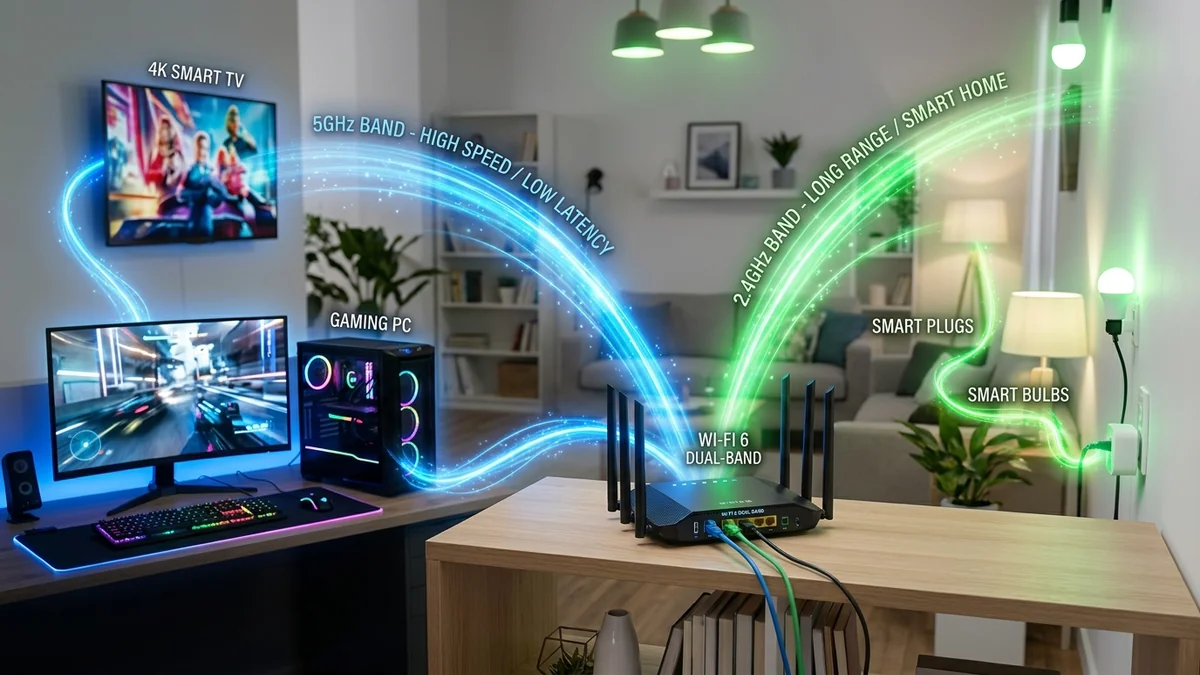
Modern Wi-Fi routers ship with a default feature called Band Steering (or Smart Connect). Under Band Steering, the router merges the 2.4GHz and 5GHz (and 6GHz) radio bands under a single unified Wi-Fi network name (SSID), claiming to automatically steer devices to the best frequency. In reality, Band Steering is notoriously buggy: smart home IoT devices (smart plugs, bulbs, robot vacuums) fail to pair because they only support 2.4GHz, while high-speed gaming laptops get mistakenly dumped onto slow, congested 2.4GHz channels. Splitting your Wi-Fi into two distinct SSIDs permanently resolves pairing errors and guarantees maximum speed. Here is the step-by-step guide for 2026.
1. Why Splitting Wi-Fi Bands Is Essential
- Guaranteed Smart Home IoT Pairing: 90% of smart home gadgets (Tuya, Sonoff, TP-Link Kasa, Broadlink) operate exclusively on 2.4GHz. When smartphones try to set them up on a combined SSID, pairing times out because the phone is on 5GHz while the smart plug searches on 2.4GHz.
- Preventing Speed Downgrades on PCs and Consoles: Aggressive router band-steering algorithms frequently steer devices from 5GHz (800 Mbps) to 2.4GHz (45 Mbps) if signal strength drops slightly, causing sudden lag spikes in games and video calls.
- Clean Airtime Partitioning: Isolates slow, beacon-heavy IoT sensors on 2.4GHz, leaving 100% of 5GHz airtime free for high-bandwidth streaming and competitive gaming.
2. ⚙️ Step-by-Step Instructions by Router Brand
| Router Brand / ISP Gateway | Settings Navigation Path | Configuration Action |
|---|---|---|
| ASUS (Asuswrt / Merlin) | Wireless > General > Smart Connect | Toggle 'Enable Smart Connect' to OFF. Name 5GHz differently. |
| TP-Link (Archer Series) | Advanced > Wireless > Wireless Settings | Uncheck Smart Connect. Add _5G to 5GHz SSID name. |
| Netgear (Nighthawk) | Wireless > Smart Connect | Uncheck 'Enable Smart Connect'. Assign unique SSIDs. |
| Comcast Xfinity (xFi Gateway) | Xfinity App > WiFi > Edit WiFi | Check 'Split Bands' > Assign distinct names & passwords. |
3. 🏷️ Recommended Naming Convention
- 2.4GHz Network Name:
HomeNetwork_2.4G(Connect smart plugs, bulbs, robot vacuums, printers, outdoor cameras). - 5GHz Network Name:
HomeNetwork_5G(Connect gaming PCs, PS5, Apple TV, smartphones, work laptops). - 6GHz Network Name (Wi-Fi 6E/7):
HomeNetwork_6G(Connect VR headsets and Wi-Fi 7 devices).
4. 🔬 The Technical Flaws of IEEE 802.11k/v/r Band Steering
While enterprise access points implement sophisticated 802.11k (Neighbor Reports) and 802.11v (BSS Transition Management) protocols to gracefully suggest band transitions to mobile clients, consumer-grade ISP routers use crude, proprietary signal thresholds (e.g. 'If RSSI < -68 dBm, drop the client and force reconnect to 2.4GHz').
This crude thresholding causes Wi-Fi Sticky Client Stalls: your smartphone or gaming laptop gets kicked off 5GHz, undergoes a 2-second DHCP reconnection delay, and becomes trapped on 2.4GHz indefinitely even after you walk back into the living room. Splitting your SSIDs gives you 100% manual control, ensuring your high-performance devices stay locked on 5GHz.
5. 🛠️ Complete Post-Split Connection Guide
- Connect all mobile devices (iPhones, Androids, MacBooks, Windows PCs) to
HomeNetwork_5Gand check 'Connect Automatically'. - Connect all smart home IoT gadgets to
HomeNetwork_2.4G. - On your PC and phone, open the Wi-Fi known networks list and 'Forget' the 2.4GHz network name. This permanently prevents your computer from ever accidentally downgrading to 2.4GHz.
6. 🔬 Security Implications of IoT Devices on 2.4GHz Networks
Smart home IoT devices (smart plugs, light bulbs, robot vacuums, and security cameras) are notoriously prone to security vulnerabilities and rarely receive firmware updates. By separating your Wi-Fi into distinct bands and moving all IoT gadgets onto HomeNetwork_2.4G, you take the first critical step toward network micro-segmentation.
For maximum security, combine band splitting with an Isolated Guest Network or VLAN, ensuring that even if an IoT device is compromised by automated botnets, it is completely blocked from accessing your primary laptops, personal files, and network storage drives.
7. 🏁 Summary: Why Manual Band Control Is Always Superior
While automated Band Steering sounds convenient in theory, real-world execution frequently creates connection dropouts, pairing failures, and speed bottlenecks. Splitting your router's 2.4GHz and 5GHz bands gives you full control over your wireless airspace, ensuring smart gadgets connect reliably while high-performance devices enjoy uninterrupted gigabit speeds.
8. 📱 Troubleshooting Smart Devices That Refuse to Pair
If a legacy 2.4GHz smart plug or security camera still refuses to pair during setup:
- Temporarily disable 5GHz in your router's wireless menu during the initial 3-minute pairing window.
- Ensure your 2.4GHz channel width is locked to 20MHz (not 40MHz or Auto), as many budget IoT Wi-Fi microcontrollers cannot decode 40MHz channels.
- Once the smart device successfully registers with its cloud server, re-enable 5GHz: the smart plug will maintain its stable 2.4GHz connection permanently.
9. 💡 Optimizing 2.4GHz Wi-Fi Channel Selection Post-Split
Once you have separated your 2.4GHz and 5GHz SSIDs, ensure your 2.4GHz network is configured to an interference-free non-overlapping channel: Channel 1, Channel 6, or Channel 11 with 20MHz bandwidth. Never use in-between channels (like Channel 2, 3, 4, 8, or 9), which overlap across multiple frequencies and create severe adjacent-channel interference with neighboring networks.