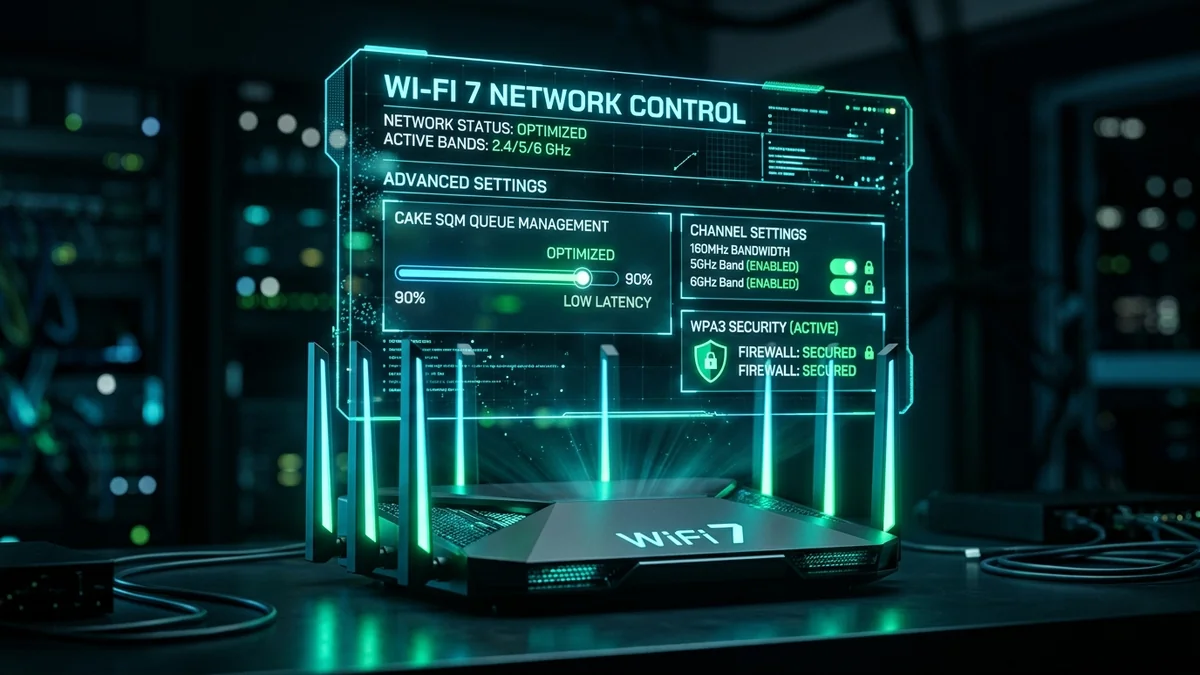
When your internet provider installs their standard combo modem-router gateway in your living room, it is not configured for maximum performance or privacy. It is configured for minimum support calls and maximum ISP control. By default, most ISP gateways enable carrier telemetry backdoors, restrict Wi-Fi channel widths, and utilize bloated buffer queues that degrade your latency. Here are the 7 critical hidden router settings you should adjust immediately to unlock the full potential of your broadband connection in 2026.
1. The 7 Hidden Settings in Modern Router Firmware
1. Disable ISP Remote Management Protocol (TR-069 / CWMP / TR-369)
Almost all carrier-supplied routers run a background daemon called TR-069 (CWMP) or its successor TR-369 (USP). This protocol allows your provider to push silent firmware updates, remotely reboot your device, and inspect connected hostnames without your explicit consent. Disabling remote WAN management locks out third-party configuration changes and preserves your custom settings.
2. Change Channel Width from 20MHz to 80MHz/160MHz on 5GHz
To avoid interference complaints in dense apartment complexes, ISP routers frequently ship with the 5GHz Wi-Fi band locked to 20MHz or 40MHz channel width. This cuts your potential local wireless throughput by up to 75%. Navigating to Wireless > Advanced > Channel Bandwidth and selecting 80 MHz (or 160 MHz on Wi-Fi 6/7) immediately quadruples local transfer rates.
3. Enable Smart Queue Management (SQM: CAKE / FQ-CoDel)
Stock router firmware handles traffic on a primitive First-In, First-Out (FIFO) queue. When a smartphone backs up photos to iCloud, the router fills up its hardware memory buffer, adding 200ms–500ms of artificial latency (Bufferbloat) to online gaming and video calls. Enabling SQM with the CAKE algorithm enforces microsecond packet pacing, keeping ping under 15ms even under 100% upload load.
4. Disable SIP ALG (Application Layer Gateway)
Originally designed to assist VoIP routing across NAT firewalls, SIP ALG is notoriously buggy in modern routers. It frequently modifies SIP packet headers incorrectly, causing dropped Zoom calls, mute audio glitches, and broken Discord voice channels. Disabling SIP ALG under NAT Filtering / Advanced WAN instantly stabilizes VoIP and WebRTC connections.
2. ⚙️ Optimal Router Settings Comparison Matrix
| Router Feature | ISP Default State | Recommended State | Performance / Privacy Benefit |
|---|---|---|---|
| 5GHz Channel Width | 20 / 40 MHz (Capped) | 80 MHz / 160 MHz | +200% to +400% Wi-Fi speed boost |
| DNS Resolvers | ISP Default (Unencrypted) | 1.1.1.1 / 9.9.9.9 (DoH) | Faster lookup, blocks ISP ad-tracking |
| UPnP (Universal Plug & Play) | Enabled (Security Risk) | Disabled (Manual Forwarding) | Blocks malware from opening firewall ports |
| SIP ALG | Enabled | Disabled | Fixes Discord robot voice & dropped calls |
| Queue Management | Standard FIFO (Bloated) | SQM (CAKE / FQ-CoDel) | Zero lag spikes during household downloads |
3. Step-by-Step: How to Access Your Router's Secret Admin Portal
To apply these configurations, access your router's administrative GUI:
- Open a browser and navigate to your gateway's IP address: usually
192.168.1.1,192.168.0.1, or10.0.0.1. - Log in with administrative credentials (check the physical label under the router or use your custom password).
- Navigate to Advanced Settings > LAN / WAN Configuration to adjust MTU, DNS, and queue rules.
- Run a before-and-after benchmark on DCSpeedTest to verify latency reduction and bufferbloat score improvements.
4. 🔐 Advanced Security Settings to Lock Down Your Home Network
Beyond throughput and latency optimizations, stock ISP firmware exposes your household to unnecessary surveillance and remote exploits. By taking control of your router's security architecture, you prevent unauthorized carrier telemetry and harden your perimeter against external automated botnet scanners:
- Disable WPS (Wi-Fi Protected Setup): While marketed as a convenient one-button pairing tool, the legacy WPS PIN authentication mechanism suffers from critical design vulnerabilities. Brute-force tools (such as Reaver and Bully) can crack an eight-digit WPS PIN in under four hours, granting full access to your WPA2/WPA3 network passphrase. Disabling WPS permanently eliminates this attack vector.
- Enforce WPA3-Personal (or WPA2/WPA3 Mixed Mode): WPA3 introduces Simultaneous Authentication of Equals (SAE), which protects your Wi-Fi password against offline dictionary attacks even if an attacker captures the initial cryptographic handshake.
- Segment Smart Home IoT Devices onto an Isolated VLAN: Smart bulbs, robot vacuums, and cheap security cameras rarely receive security firmware updates, making them prime targets for automated Mirai botnet exploits. Creating an isolated Guest Network / IoT VLAN prevents a compromised smart device from pivoting across your network to access private laptops or Network-Attached Storage (NAS) drives.
5. 🚀 IPv6 Native Configuration & MTU Clamping
Many ISP routers either ship with IPv6 disabled or misconfigured in a high-latency 6to4 tunneling mode. Enabling Native IPv6 with DHCPv6 Prefix Delegation (/56 or /64) eliminates Network Address Translation (NAT) entirely for modern gaming and video call services, allowing direct end-to-end routing to cloud servers.
Additionally, adjust your router’s MSS Clamping (Maximum Segment Size). If your connection utilizes PPPoE encapsulation (common on DSL and some fiber providers), set the MSS clamping value to 1452 bytes (MTU 1492 minus 40 bytes for TCP/IP headers). This prevents packet fragmentation and silent connection hangs when browsing modern SSL/TLS encrypted websites.
6. 🛠️ Step-by-Step DNS Benchmark Script
To identify the absolute fastest DNS resolver for your specific geographic location and ISP routing, run this automated PowerShell benchmark:
$resolvers = @("1.1.1.1", "8.8.8.8", "9.9.9.9", "208.67.222.222")
foreach ($dns in $resolvers) {
$sw = [System.Diagnostics.Stopwatch]::StartNew()
$null = [System.Net.Dns]::GetHostAddresses("cloudflare.com")
$sw.Stop()
Write-Host "$dns Response Time: $($sw.ElapsedMilliseconds) ms"
}