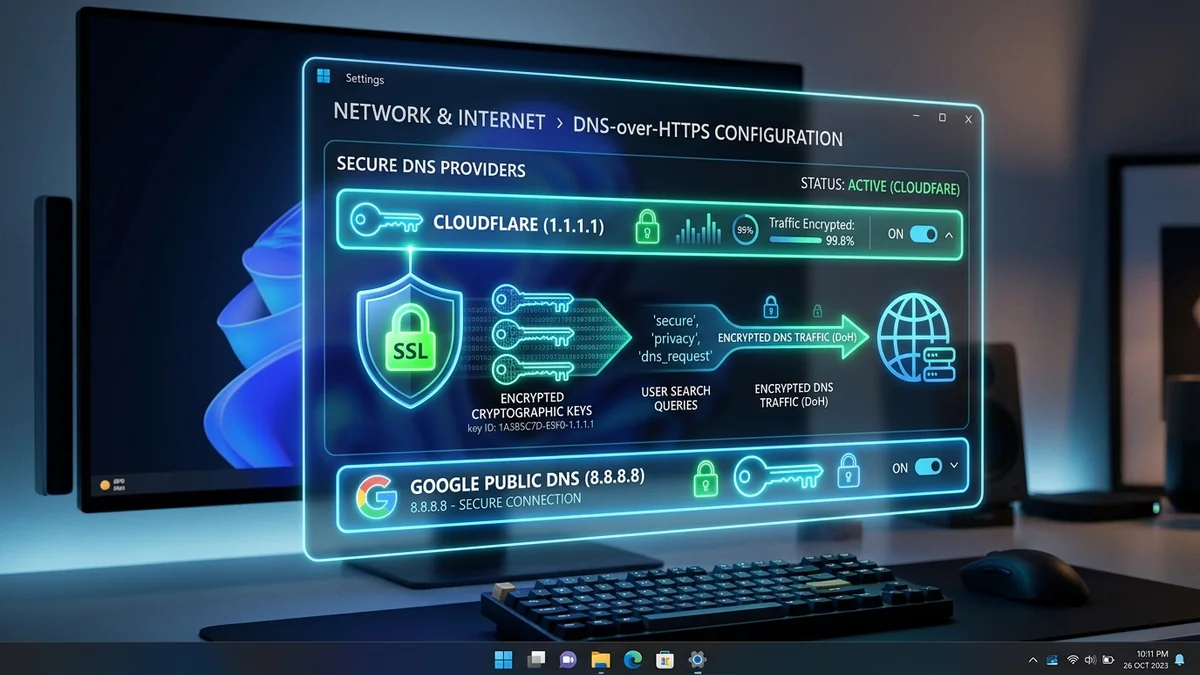
The Domain Name System (DNS) is the address book of the internet, translating human-friendly domain names (like dcspeedtest.com) into numerical IP addresses (like 104.21.45.12). By default, Windows 11 uses your Internet Service Provider's unencrypted DNS resolver. ISP resolvers are notoriously slow, prone to logging your browsing history, and frequently experience resolution lag during peak hours. Switching to a secure, modern DNS-over-HTTPS (DoH) provider immediately speeds up web page response times and encrypts domain queries against ISP surveillance. Here is the step-by-step guide for Windows 11 in 2026.
1. 🏆 Top High-Performance DNS Resolvers Benchmarked
| Provider | Primary IPv4 / IPv6 | Secondary IPv4 / IPv6 | Key Feature Focus |
|---|---|---|---|
| Cloudflare (1.1.1.1) | 1.1.1.1 2606:4700:4700::1111 |
1.0.0.1 2606:4700:4700::1001 |
Fastest Global Anycast RTT (Lowest Gaming Ping) |
| Quad9 (9.9.9.9) | 9.9.9.9 2620:fe::fe |
149.112.112.112 2620:fe::9 |
Swiss Non-Profit Privacy + Automatic Malware Blocking |
| Google Public DNS | 8.8.8.8 2001:4860:4860::8888 |
8.8.4.4 2001:4860:4860::8844 |
Massive Global Infrastructure & CDN Cache Synchronization |
2. 🖱️ Method 1: Change DNS with Native Encryption (Settings GUI)
- Press Win + I to open Settings, then navigate to Network & internet.
- Click on Ethernet (if wired) or Wi-Fi > [Your Network Name] Properties.
- Next to DNS server assignment, click Edit and switch the dropdown from Automatic (DHCP) to Manual.
- Toggle on IPv4:
- Preferred DNS:
1.1.1.1| DNS encryption: Encrypted only (DNS over HTTPS) - Alternate DNS:
1.0.0.1| DNS encryption: Encrypted only (DNS over HTTPS)
- Preferred DNS:
- Click Save. Windows 11 will automatically establish a TLS encrypted tunnel for all domain lookups.
3. ⚡ Method 2: Fast PowerShell Automated Setup (1-Click)
Open PowerShell as Administrator and execute this command to instantly configure Cloudflare DNS across your active network adapter and flush your resolver cache:
Set-DnsClientServerAddress -InterfaceAlias (Get-NetAdapter | Where-Object Status -eq 'Up').InterfaceAlias -ServerAddresses ('1.1.1.1', '1.0.0.1')
ipconfig /flushdns
Write-Host "✅ DNS Successfully Updated & Cache Flushed!" -ForegroundColor Green
4. 🔬 The Technical Performance Impact of DNS Lookup Latency
When you browse a modern web page (like an e-commerce site or news portal), loading that single page requires your browser to resolve 30 to 80 distinct domain names for tracking scripts, image CDNs, fonts, analytics, and third-party APIs. If your ISP’s unoptimized DNS resolver requires 65ms per lookup, DNS resolution alone adds nearly 2 to 4 seconds of initial page load delay.
By switching to an ultra-fast global Anycast resolver like Cloudflare (1.1.1.1) or Google (8.8.8.8) with sub-8ms response times, and enabling native Windows 11 DNS caching, every subsequent page asset resolves in microseconds, making web browsing feel instantaneous.
5. 🔐 Advanced DNS Security: DNSSEC & Malware Filtering
Beyond speed, secure DNS resolvers implement DNSSEC (Domain Name System Security Extensions). DNSSEC uses cryptographic digital signatures to verify that the IP address returned by the resolver is authentic, protecting your PC against DNS Poisoning and Cache Spoofing attacks that redirect users to fraudulent phishing clones of banking websites.
If you want automated protection against malware, phishing, and adult content at the network layer, configure specialized security DNS profiles:
- Cloudflare Security Only (Blocks Malware): Primary
1.1.1.2| Secondary1.0.0.2 - Cloudflare Family (Blocks Malware + Adult Content): Primary
1.1.1.3| Secondary1.0.0.3 - Quad9 Threat Blocking & Privacy: Primary
9.9.9.9| Secondary149.112.112.112
6. 🛠️ Command-Line Verification & DNS Latency Benchmark
Verify that your DNS encryption is active by executing this Command Prompt test:
nslookup -type=txt -class=chaos id.server 1.1.1.1
ping 1.1.1.1 -n 10
7. 🛠️ How to Configure Encrypted DNS Directly on Your Home Router
While changing DNS on your Windows 11 PC protects that individual computer, configuring encrypted DNS (DoH/DoT) directly on your home router protects every smartphone, smart TV, gaming console, and tablet in your household automatically without per-device setup:
- Log into your router's administrative GUI at
192.168.1.1. - Navigate to WAN / Internet Settings > DNS Server.
- Disable 'Connect to DNS Server Automatically' and manually input Cloudflare (
1.1.1.1and1.0.0.1) or Quad9 (9.9.9.9). - If your router supports DNS-over-TLS (DoT) (such as Asuswrt-Merlin, Keenetic, or OpenWrt), enable TLS profile validation to enforce 100% end-to-end encryption across all connected LAN clients.
8. ⚡ How to Flush and Reset TCP/IP Stack & DNS Resolver Cache
If you encounter DNS resolution timeouts or 'DNS Server Not Responding' error prompts after altering your configuration, perform a complete TCP/IP stack and Winsock catalog reset via Command Prompt (Administrator):
netsh winsock reset
netsh int ip reset
ipconfig /release
ipconfig /renew
ipconfig /flushdns
Performing this sequence purges corrupted local routing entries, flushes outdated domain-to-IP resolution caches, and forces your network interface controller to establish a clean, low-latency socket pipeline with your newly selected Anycast DNS servers.