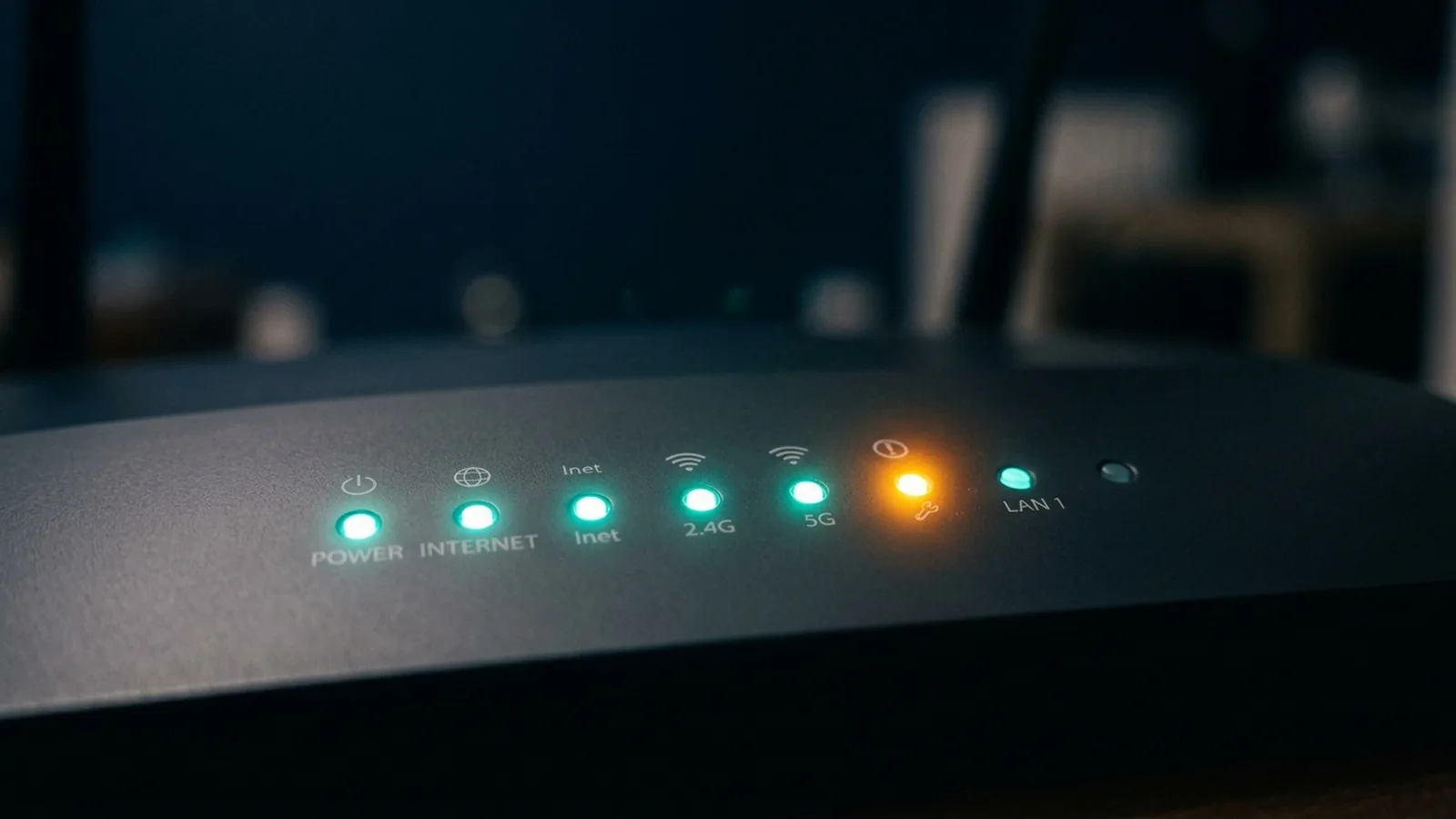
Most people reboot their router the moment something feels off, without ever glancing at the lights on the front — which is a shame, because those lights are a genuine diagnostic tool, not just decoration, and reading them correctly can tell you exactly where a problem sits before you touch anything.
The General Pattern Almost Every Router Follows
Exact colors and layouts vary meaningfully between brands and models — always worth checking your specific router's manual for its exact legend — but a consistent general pattern holds across most consumer routers: solid/steady light = working normally, off = no power or no connection at that stage, and blinking means one of two very different things depending on context — either normal activity (data flowing) or an active problem, which is exactly why the label next to the light matters as much as its behavior.
Power Light
Should be solid whenever the router is on. Off means no power reaching the device — check the outlet and cable before assuming anything more complex is wrong. A power light that's blinking on its own (not the internet or Wi-Fi light) usually indicates the router is in a boot or firmware-update process, or in some cases signals an internal hardware fault — worth checking your model's manual if it persists beyond a normal restart window.
Internet / WAN Light
This is the light that actually tells you whether the problem is your router or something upstream (your modem or your ISP). Solid usually means an active internet connection is confirmed. Off or a distinct warning color (commonly red or amber, though this varies by brand) generally means the router isn't detecting an internet signal at all — which points the problem toward your modem, your ISP, or the cable between them, not your router's Wi-Fi settings. This distinction matters: if this light shows a problem, resetting your Wi-Fi password or router settings won't fix anything, because the issue is upstream of where your router's own settings can help.
Wi-Fi Light(s)
Indicates whether the wireless radio itself is broadcasting — separate from whether internet is actually reaching the router. It's genuinely possible to have a solid Wi-Fi light and no working internet at the same time, which is exactly the WAN-light distinction above in action: your local wireless network can be fine while the actual internet feed to the router is down.
LAN / Ethernet Port Lights
Usually one small light per physical port, active only when something is actually plugged into that specific port. Useful for a fast physical check — if a wired device isn't connecting and its port's light isn't lit at all, that points to a cable or port issue rather than a software/configuration problem.
When the Pattern Actually Tells You Something Is Genuinely Wrong
The most useful signal across almost every brand: if the Internet/WAN light specifically is off or showing a warning color while the Power and Wi-Fi lights look normal, the problem is very likely upstream of your router — your modem, the physical line, or your ISP — not something a router restart or setting change is likely to fix.
Our Take
A thirty-second glance at your router's lights, understood correctly, tells you more about where a problem actually sits than most people get from a full reboot-and-hope cycle. It's a genuinely underused diagnostic tool sitting in plain sight on every router already.
Modern Mesh Systems Sometimes Use a Single Status Indicator Instead
Newer mesh Wi-Fi systems increasingly simplify this into a single multi-color LED or ring light rather than separate lights per function — commonly a solid color for "everything normal," a pulsing or different color for "setting up or updating," and a distinct warning color (often red or amber) for "something needs attention," with the specific problem details pushed to a companion app instead of encoded in the light itself. The general logic still applies (steady = fine, active problem color = check the app for specifics), just consolidated into fewer indicators.
A Practical Habit Worth Building
Before reaching for a reboot the next time something feels off, a quick glance at which specific light is showing a problem — rather than assuming and restarting everything — takes seconds and often tells you immediately whether it's worth troubleshooting your Wi-Fi settings at all, or whether the real issue is upstream and no amount of router fiddling will help.
What to Do With What You've Learned
Once you know which light is signaling a problem, the next step follows naturally: a WAN/Internet light problem means contacting your ISP or checking your modem, not digging through router Wi-Fi settings. A Wi-Fi light problem with a working WAN light points toward the router's wireless settings or interference specifically. And a single dead LAN port light, with everything else normal, usually means a bad cable or a failed port rather than anything affecting your wireless network at all. Matching the fix to the specific light saves real troubleshooting time.