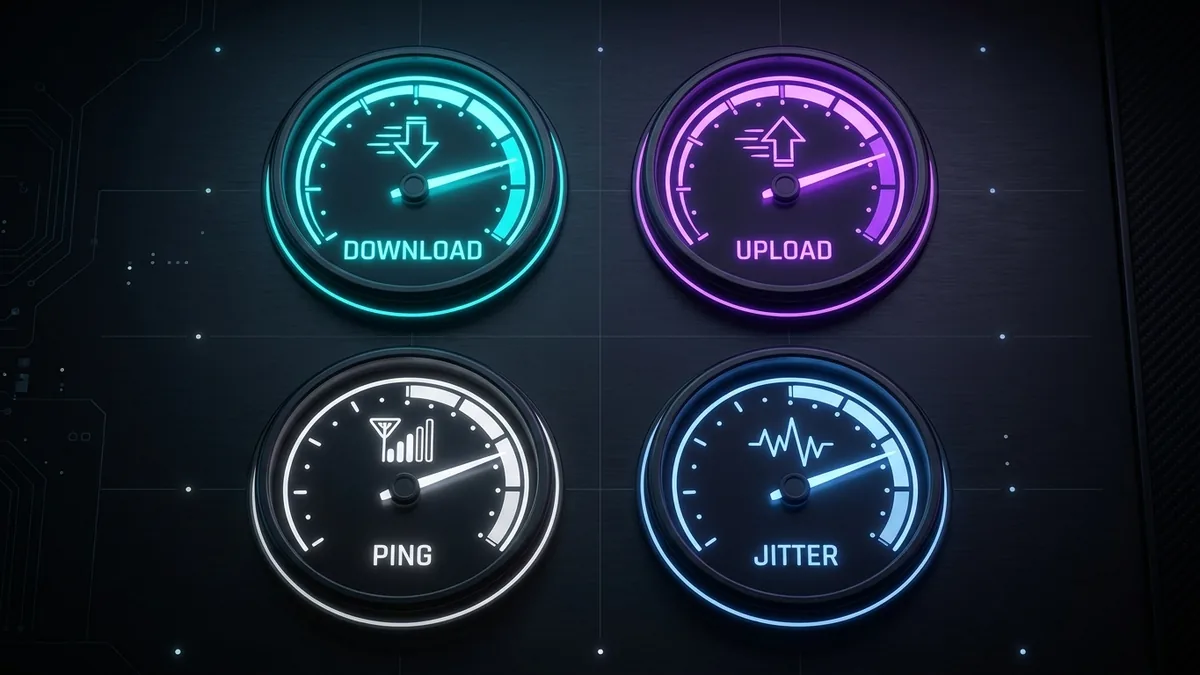
Running a broadband speed checker takes ten seconds, but understanding what the resulting numbers actually mean for your daily internet experience is where most people stop short. A single download speed figure tells you far less than the complete picture of download, upload, ping, and jitter together.
Running a Proper Test: The Basics
Close other applications and pause downloads on other devices before testing, connect via Ethernet when possible for the most accurate baseline, and run the test a few times at different points during the day rather than relying on a single result, since network conditions genuinely vary by time of day.
Understanding Download Speed
Download speed measures how quickly data travels from the internet to your device, affecting how fast web pages load, videos buffer, and files download. For most households, 25-100 Mbps comfortably supports multiple simultaneous streaming devices, while gaming and video calls depend more on other metrics than raw download speed alone.
Understanding Upload Speed
Upload speed measures data traveling from your device to the internet, mattering for video calls, live streaming, cloud backups, and online gaming. Many home internet plans, especially cable and DSL, offer upload speeds far lower than download, which is worth checking specifically if you work from home or create content regularly.
Understanding Ping (Latency)
Ping measures the round-trip time for a data packet to reach a server and return, expressed in milliseconds. Lower is better, especially for gaming and video calls: under 20ms is excellent for competitive gaming, 20-50ms is good for most purposes, and above 100ms starts to introduce noticeable delay in real-time interactions.
Understanding Jitter
Jitter measures how consistent your ping is over time, rather than the ping value itself. A connection with low average ping but high jitter can still feel unstable for gaming and calls, since the inconsistency itself causes noticeable stutter even when the average number looks fine.
Interpreting Your Results Against Your Plan
| Metric | What "Good" Looks Like |
|---|---|
| Download | Within 80-90% of your plan's advertised speed on wired connection |
| Upload | Consistent with your plan's stated upload tier |
| Ping | Under 50ms to nearby servers for most purposes |
| Jitter | Under 10ms for stable gaming and calls |
Common Misinterpretations to Avoid
A common mistake is judging an entire connection purely on download speed while ignoring ping and jitter, which matter more for real-time activities like gaming and video calls than raw download throughput ever will, especially once you're above the modest bandwidth these activities actually require.
WiFi vs Wired Results: Why They Differ
A WiFi test result meaningfully lower than a wired test on the same connection points to router placement, interference, or device WiFi standard limitations rather than your actual internet plan underperforming, an important distinction when deciding whether to contact your ISP or address something on your end instead.
When Your Results Genuinely Indicate a Problem
If your wired speed test consistently falls well below your plan's advertised figure across multiple tests and times of day, or shows unusually high packet loss or jitter regardless of activity, that's a legitimate basis for contacting your ISP rather than something explainable by normal variation or local network factors within your control.
Testing Multiple Devices for a Complete Picture
Running your speed checker on several different devices — a phone, a laptop, a smart TV — reveals whether a disappointing result is specific to one device's WiFi chipset and drivers or reflects your actual connection more broadly, since older devices with outdated WiFi hardware can underperform newer ones on the identical network without indicating any problem with your internet plan itself.
Why Server Selection Matters for Accurate Results
Most speed checkers automatically select a nearby test server, but manually choosing a server significantly farther away will show artificially worse results that reflect distance and internet backbone routing rather than your actual local connection quality, so sticking with the automatically selected nearest server generally gives the most representative reading of your real service.
Building a Habit of Periodic Testing
Testing your connection every few weeks, and specifically after any change like a router firmware update, a new device joining your network, or a change in your household's usage patterns, helps you catch a gradually developing issue early rather than only noticing a problem once it's become severe enough to disrupt daily use noticeably and frustrate everyone relying on the connection.
Putting the Full Picture Together
A broadband speed checker is most valuable when you read all four core metrics together rather than fixating on download speed alone, use a wired connection for your baseline test, and repeat the test consistently over time rather than drawing conclusions from a single snapshot that may not represent your typical experience across a normal day or week of usage. Treat your first test as a baseline, not a final verdict, and let a pattern across several tests over time tell you the real story of how your connection actually performs.