The WiFi Problem That Was Quietly Ruining My Workday
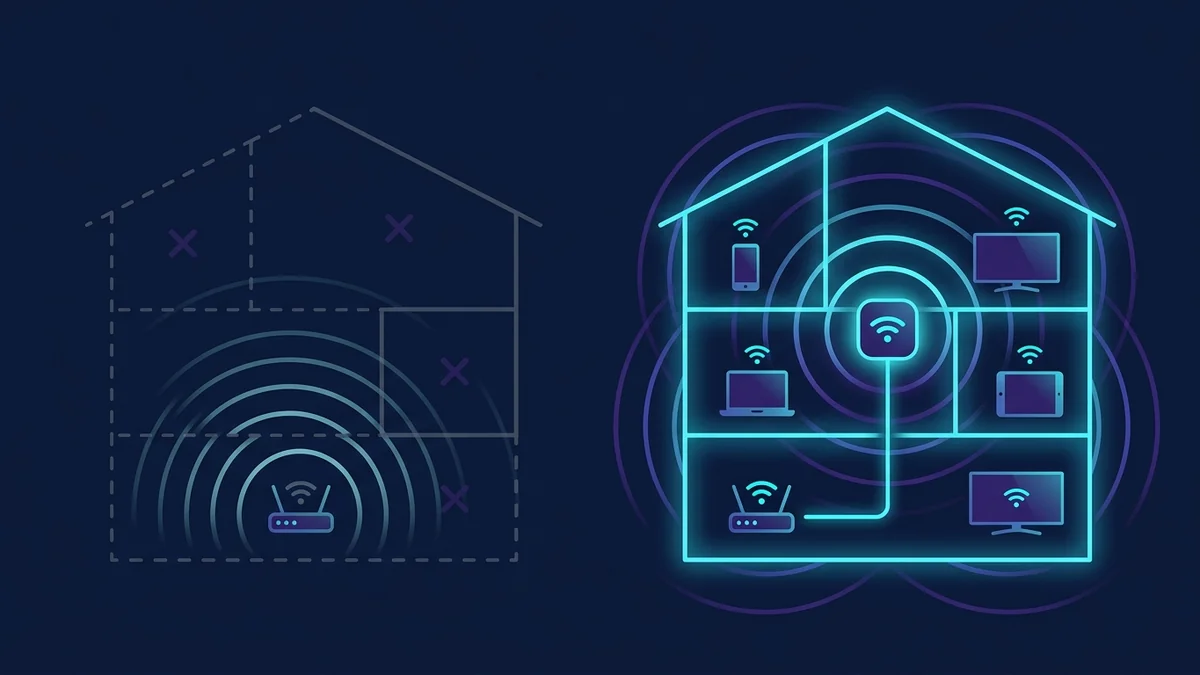
My cable outlet is in the worst possible location. It's in the far corner of my living room — which sounds fine until you realize my home office is on the opposite end of the house, through a hallway, past two walls with what I can only assume is industrial-grade WiFi-absorbing insulation. For two years I worked with speeds in that office that I'd be embarrassed to admit. When I finally ran a proper test using DCSpeedTest, my download speed in the office was 14 Mbps. The same test from my couch, ten feet from the router, showed 410 Mbps. Same ISP, same plan, same house.
14 Mbps isn't just slow for 2026 — it's the kind of speed that makes video calls pixelate, makes file uploads to Google Drive feel like you're using dial-up, and makes you question whether your ISP is somehow personally targeting you. I'd been blaming my ISP for two years when the problem was entirely in my own walls.
Everything I Tried Before Mesh (And Why It Failed)
Attempt 1: Moving the Router Closer to the Office
The cable technician had placed my router at the wall outlet — logical, but useless for my layout. I asked about running a cable through the house to a more central location. The quote I got involved cutting drywall in three rooms. Hard pass.
Attempt 2: WiFi Range Extenders
I bought a mid-range WiFi 6 extender for about $65. It worked technically — there was now a second network available near my office. The problem: it was a completely separate network with its own name. My laptop, phone, and work computer all kept clinging to the main router's weak signal rather than switching to the extender's stronger one. Every time I walked from one end of the house to the other, I had to manually reconnect. Sometimes I'd be in a video call and not notice until the pixelation started.
I spent two weeks trying to configure "band steering" and "roaming thresholds" — features that are supposed to help devices switch automatically. After reading forum threads that went nowhere, I returned the extender.
Attempt 3: Powerline Network Adapters
The pitch for powerline adapters sounds perfect: plug one adapter into an outlet near your router, plug another near where you need coverage, and your home's electrical wiring does the rest. No drilling, no cables through walls, no WiFi limitations.
My house was built in the 1980s. The electrical wiring had other ideas. I got 35 Mbps through the powerline connection — worse than the weak WiFi signal I was trying to replace, and with noticeably higher latency. I boxed those up within a week.
Why Mesh Systems Are Fundamentally Different
Here's the thing nobody explained to me clearly until I did my own research: a WiFi extender creates a second, separate network. Your devices don't know the two networks are related. They pick whichever one they connected to first and hold onto it stubbornly — even as that signal gets weaker and weaker as you move away from it.
Mesh systems work on a completely different principle. Every node in the mesh — whether it's the main router or a satellite unit across the house — broadcasts the same network name. The system itself manages which node handles which device at any given moment. As you move through your home, your device gets handed off seamlessly. You don't do anything. You don't even notice it happening.
Most mesh systems also have a dedicated communication channel between nodes called the backhaul. This is separate from the band your devices use, which means your streaming, calls, and downloads aren't competing with the traffic the nodes use to talk to each other. It's the piece that extenders are missing — and it makes a real difference at longer distances.
The System That Fixed My Office
After a lot of reading and honestly more YouTube reviews than I care to admit, I went with the NETGEAR Orbi RBK752 — a WiFi 6 mesh system with a main router and one satellite, rated to cover up to 5,000 sq ft. My house is around 2,400 sq ft, so I wasn't pushing the limits, which I appreciated.
Setup took about 25 minutes. The app walks you through everything step by step, though I'll admit the satellite placement guidance could be more specific — "place it between areas you want to cover" isn't exactly granular advice. I eventually put it in the hallway connecting the living room to the bedroom and office wing, which turned out to be close to ideal.
The morning after setup, I ran DCSpeedTest from my home office. 308 Mbps download. I ran it again to make sure. 312 Mbps. I'd gone from 14 Mbps to over 300 without touching my ISP plan, without running a single cable, and without losing access to any of my old devices — they all reconnected to the new mesh network automatically.
My Zoom calls stopped freezing. Downloads that used to take fifteen minutes started finishing in under two. I actually tested my connection during a particularly heavy file upload and the speeds held steady the entire time — something that never happened with the old single-router setup.
A Few Honest Things Worth Knowing First
I don't want this to read like a press release, so let me be straight about a few things before you pull the trigger:
- These units are large. The Orbi router and satellite are white cylinders about a foot tall. They're not ugly, exactly, but they're not subtle either. My partner called them "the alien obelisks" and the nickname stuck.
- NETGEAR pushes a subscription. The system includes something called NETGEAR Armor — a Bitdefender-powered security suite. It's free for the first 30 days, then roughly $100/year. The WiFi itself works perfectly without ever paying for it. The app will remind you, repeatedly, that you're not subscribed. It's mildly annoying.
- The price is real. At around $479 for the two-pack, this is not an impulse purchase. If your dead zone problem is smaller than mine or your space is under 1,500 sq ft, there are cheaper mesh options that would serve you just as well.
If you want the complete breakdown — my room-by-room speed test results, how I compared it against the Eero Pro 6E, and whether I think it's worth the price — I put all of that in my full review: NETGEAR Orbi RBK752 Review: My 4-Week Real-World Test.
Frequently Asked Questions
Do WiFi extenders actually work, or are they a waste of money?
They extend range, technically. The frustration is that most devices don't switch to the extender's signal automatically — they hold onto the main router's weaker signal until you manually reconnect. If your dead zone is in a spot where you always sit still (like a fixed desk), an extender can work. For anywhere you move around, mesh is the more practical solution.
How many mesh nodes do I need for my home?
A rough starting point: one node per 1,500 to 2,000 sq ft, adjusted for how many walls and floors the signal has to pass through. The Orbi RBK752's two-node setup handled my 2,400 sq ft house with coverage to spare. If you have concrete walls or more than two floors, err toward adding another node.
Is mesh WiFi worth it if I already have a fast internet plan?
That's exactly the situation I was in. A fast plan doesn't help you if the signal can't reach where you're actually sitting. Mesh doesn't increase your max speed — it delivers your existing speed consistently throughout your home instead of only near the router.
Can I use the Orbi without the NETGEAR Armor subscription?
Yes, completely. The subscription unlocks advanced security scanning and some parental control features, but the core WiFi functionality — coverage, speed, device management — works fine without it. Don't let the subscription upsell pressure you into a decision before you're ready.