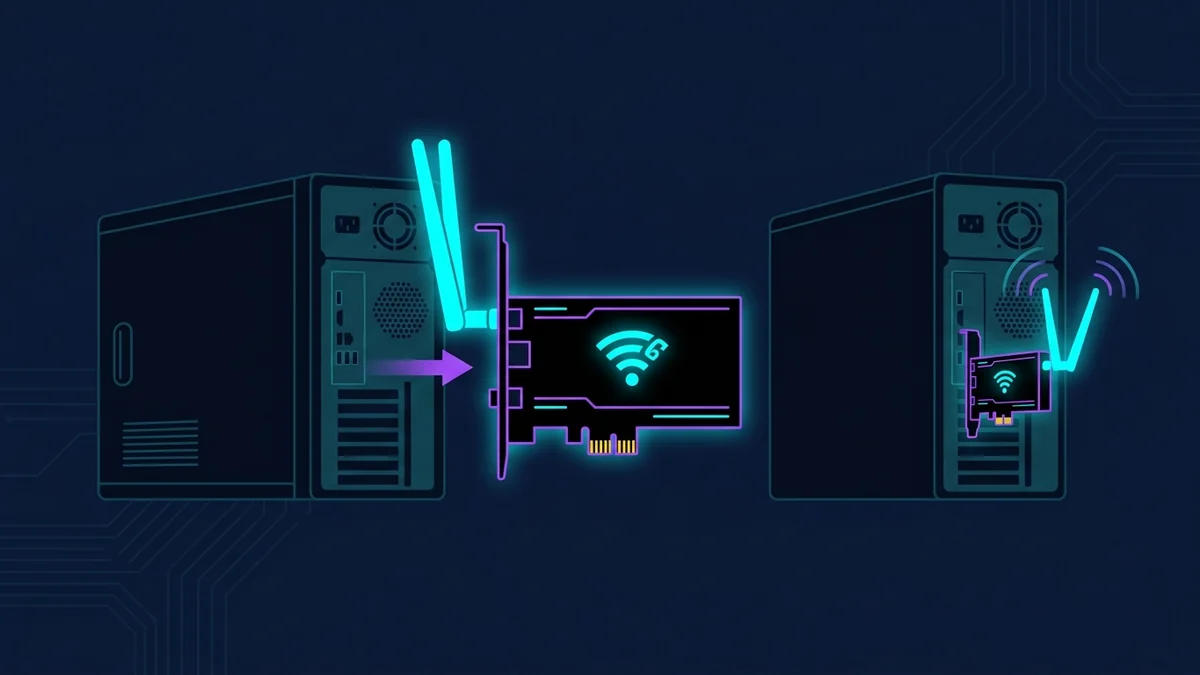
The Two Real Options for Adding WiFi to a Desktop
When your desktop doesn't have built-in WiFi — or has an old adapter running 802.11n (WiFi 4) or 802.11ac (WiFi 5) — you have two practical paths: a USB adapter or a PCIe card. Both work. The right choice depends on your situation, not on which is objectively better.
USB WiFi Adapter
A USB WiFi adapter plugs into any available USB port. No tools, no opening the case, no compatibility concerns. Takes 3 minutes including driver installation. Works on any desktop, laptop, or even some smart TVs. Portable — take it to another machine if needed.
The limitations: USB adapters share bandwidth with other USB devices on the same controller. Under heavy simultaneous use (USB hub with multiple devices active), you may see slightly degraded performance. External placement matters — plugging into a rear port on a tower behind a metal case hurts signal. Use the front USB ports or a short extension cable to position the adapter away from the case.
Best for: People who don't want to open their PC, renters or students who move the setup frequently, or anyone who needs WiFi on a laptop that already has built-in WiFi but it's slow (USB adapter takes over).
PCIe WiFi Card
A PCIe card installs in an available PCIe x1 slot on the motherboard. Dedicated bandwidth — no USB bus sharing. Typically includes external magnetic antenna mounts that sit outside the case (better placement, better range). More permanent installation.
The limitations: Requires opening the case. Needs an available PCIe slot (most mid-tower desktops have them, but small form factor cases may not). Not portable. Installation takes 20–30 minutes for someone unfamiliar with PC internals.
Best for: A desktop that will stay in one place permanently, users comfortable with PC hardware, anyone prioritizing maximum sustained performance over convenience.
Which Performs Better?
In my testing, a quality PCIe WiFi 6 card (e.g., Intel Wi-Fi 6 AX200, ~$25) delivers about 10–15% better sustained throughput compared to a USB WiFi 6 adapter at the same distance. Under typical home network conditions — browsing, streaming, occasional file downloads — this difference is imperceptible. For sustained large transfers (moving 50GB to a NAS over WiFi), the PCIe card has a measurable advantage. For gaming, the latency profiles are essentially identical.
If you're on the fence: the USB adapter is the right starting point. It's zero-risk — if it doesn't perform well enough, you can still buy the PCIe card later. The reverse (buy PCIe, realize USB would have been fine) wastes the installation effort.
What to Look For in a USB WiFi 6 Adapter
- WiFi 6 (AX): Look for AX in the model name — AX1800, AX3000, etc. This means 802.11ax, the WiFi 6 standard. Avoid adapters labeled only "AC" (WiFi 5) or "N" (WiFi 4) — these are outdated standards.
- Dual-band: 2.4 GHz + 5 GHz. 2.4 GHz has longer range, 5 GHz has more speed. A dual-band adapter picks the best automatically.
- External antenna: Foldable or swiveling external antennas significantly outperform adapters with internal antennas. The antenna is the single biggest factor in range and signal quality for USB adapters.
- USB 3.0: WiFi 6 can theoretically exceed USB 2.0's bandwidth ceiling. A USB 3.0 adapter connected to a USB 3.0 port ensures the USB connection isn't the bottleneck.
- Driver support: Check before buying whether your OS is supported. Most quality adapters support Windows 10/11. macOS and Linux support is inconsistent — check specifically.
What WiFi 6 Actually Gains Over WiFi 5 on a USB Adapter
The main practical gains from WiFi 6 on a USB adapter, measured in my home office setup (35 ft, 1 wall, WiFi 6 router):
| Metric | WiFi 5 USB Adapter | WiFi 6 USB Adapter (TX20U Plus) |
|---|---|---|
| Download (35 ft) | 156 Mbps | 389 Mbps |
| Under load (multiple devices active) | 98 Mbps | 312 Mbps |
| Ping | 24 ms | 14 ms |
| Jitter (idle) | 9–16 ms | 3–6 ms |
The "under load" row is the most relevant for households. WiFi 6's OFDMA feature lets the router serve multiple devices simultaneously without making each wait its turn. When someone's streaming 4K while you're working, WiFi 5's performance tanks significantly more than WiFi 6's.
The $20 Reality Check
The TP-Link Archer TX20U Plus starts at $20.18. For a desktop that currently has no WiFi or WiFi 4/5, this is the most cost-efficient networking upgrade available. 389 Mbps at 35 feet for $20 is a different era of performance than what most older desktops have. Before spending $200+ on a new router to improve speeds, check if the adapter is the bottleneck — it often is.