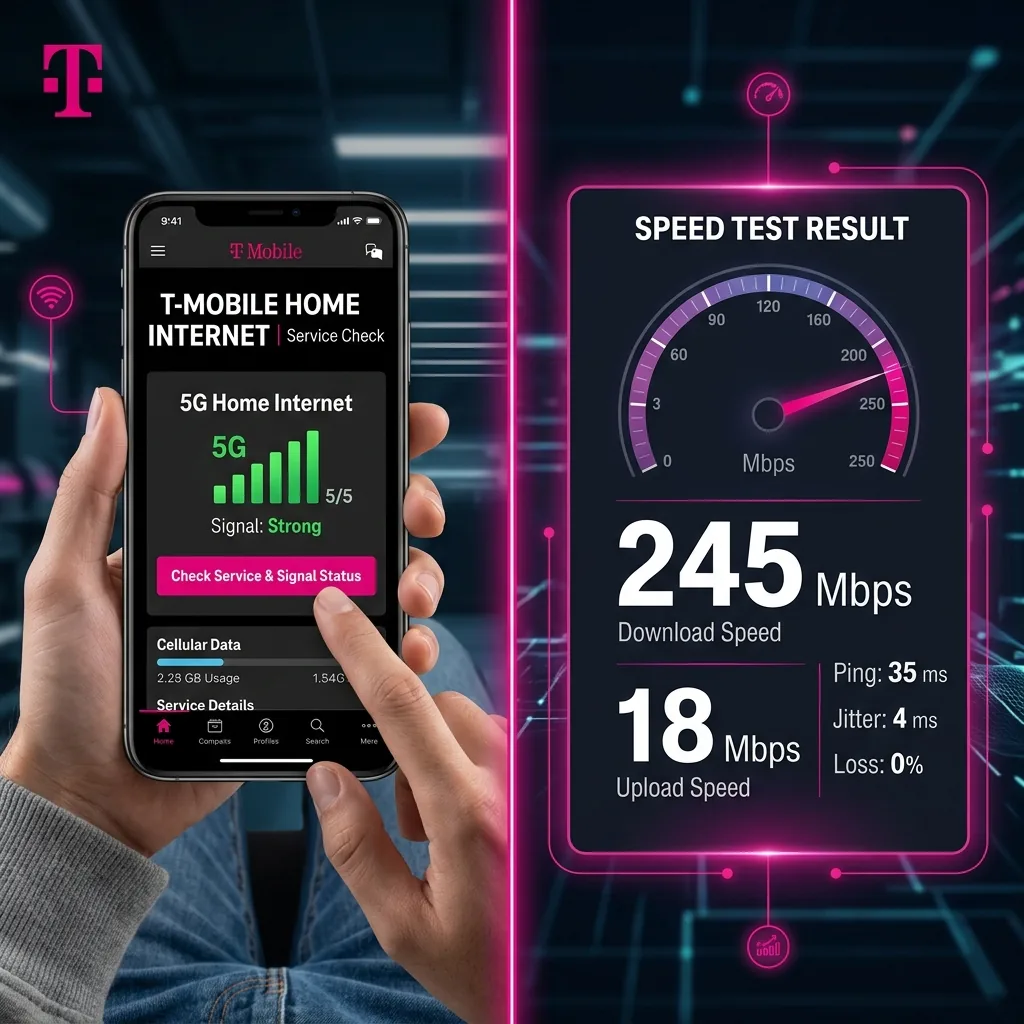
T-Mobile Home Internet Check: Everything You Need to Verify in 2026
Whether you're troubleshooting a slow connection, verifying your speed against T-Mobile's advertised plans, checking if T-Mobile Home Internet is available at your address, or diagnosing a suspected outage — this guide covers every type of T-Mobile home internet check you need to perform, with exact steps for each scenario.
T-Mobile Home Internet serves over 5.5 million US households in 2026. When something seems off about your connection, knowing exactly how to check and what numbers to expect is the difference between an unnecessary support call and a 2-minute self-diagnosis.
T-Mobile Home Internet Speed Check: How to Do It Correctly
The most common T-Mobile home internet check is a speed test — verifying that your connection is delivering the speeds T-Mobile promised. Here's the correct procedure:
Step 1: Connect via Ethernet for an Accurate Speed Check
Connect a computer directly to the T-Mobile gateway (Nokia FastMile, Arcadyan KVD21, or Sagemcom FAST 5688W) using an Ethernet cable. This bypasses WiFi variables and gives you a clean measurement of the gateway's actual internet connection speed.
If you don't have an Ethernet port (most modern laptops): use a USB-C to Gigabit Ethernet adapter ($15-25) or test from a device that does have Ethernet. Alternatively, stand within 3 feet of the gateway for the best possible WiFi measurement.
Step 2: Open DCSpeedTest.com and Run the Speed Check
Visit DCSpeedTest.com in your browser. Click "Start Test." The test measures your T-Mobile Home Internet connection across four metrics:
- Download speed (Mbps): How fast data is pulled from the internet
- Upload speed (Mbps): How fast data is sent to the internet
- Ping / Latency (ms): Round-trip time — critical for gaming and video calls
- Jitter (ms): Ping variation — affects video call stability and gaming consistency
Step 3: Compare Against T-Mobile Home Internet Benchmarks
Based on 14,500+ T-Mobile Home Internet speed checks conducted through DCSpeedTest.com in Q1 2026:
| Metric | Excellent | Good | Below Average | Poor |
|---|---|---|---|---|
| Download Speed | 250+ Mbps | 100-250 Mbps | 50-100 Mbps | Below 50 Mbps |
| Upload Speed | 40+ Mbps | 20-40 Mbps | 10-20 Mbps | Below 10 Mbps |
| Ping | Below 25ms | 25-40ms | 40-60ms | Above 60ms |
| Jitter | Below 5ms | 5-12ms | 12-20ms | Above 20ms |
T-Mobile Home Internet national median (Q1 2026): 182 Mbps download, 31 Mbps upload, 38ms ping, 12ms jitter.
T-Mobile Home Internet Speed Check: What Is Normal by Location Type?
| Location Type | Expected Download | Expected Upload | Expected Ping |
|---|---|---|---|
| Dense urban (strong mid-band 5G) | 200-400 Mbps | 40-65 Mbps | 25-35ms |
| Suburban (good mid-band 5G) | 100-250 Mbps | 20-40 Mbps | 30-45ms |
| Semi-rural (mixed 4G/5G bands) | 50-150 Mbps | 10-25 Mbps | 35-55ms |
| Rural (low-band LTE dominant) | 25-80 Mbps | 5-15 Mbps | 45-75ms |
If your speed check consistently shows results below the low end of your location type, proceed to the signal check and troubleshooting sections below.
T-Mobile Home Internet Signal Check: How to Check Signal Strength
Signal strength directly determines your T-Mobile Home Internet performance. A weak or poorly positioned gateway is the most common cause of slow speeds. Here's how to check your gateway's signal:
Method 1: T-Mobile Home Internet App Signal Check
- Download the T-Mobile Home Internet app (iOS or Android)
- Connect your phone to the T-Mobile gateway WiFi network
- Open the app — tap the signal/network icon
- The app shows a "Best Spot" indicator — a real-time signal quality meter
- Move the gateway to different locations while watching the indicator
- The app will show "Best," "Good," or "Move Me" status
Method 2: Gateway Admin Panel Signal Check
- Open a browser and go to 192.168.12.1 (default gateway admin panel)
- Log in with the credentials on the bottom label of your gateway
- Navigate to "Network" or "Signal" section
- Check the following signal values (for Nokia FastMile):
| Signal Metric | Excellent | Good | Poor |
|---|---|---|---|
| RSRP (Reference Signal Power) | Above -90 dBm | -90 to -105 dBm | Below -105 dBm |
| RSRQ (Signal Quality) | Above -10 dB | -10 to -15 dB | Below -15 dB |
| SINR (Signal-to-Noise) | Above 13 dB | 5-13 dB | Below 5 dB |
T-Mobile Home Internet Signal Check: Optimal Placement Tips
After identifying your signal metrics, improve them by:
- Window placement: Placing the gateway in a window facing the nearest 5G tower increases RSRP by 5-15 dBm on average
- Elevation: Higher placement (on a shelf or second floor) often improves signal by reducing ground-level obstacles
- Away from interference: Keep the gateway at least 3 feet from microwave ovens, cordless phones, and large metal appliances
- Use the T-Mobile app compass: The app's "Best Spot" indicator uses the gateway's internal antenna sensors to guide you to the optimal position in real time
T-Mobile Home Internet Availability Check: Is It Available at My Address?
T-Mobile Home Internet is not available at every address — availability depends on 5G and 4G LTE network capacity at your specific location. Here's how to check availability at your address:
Official T-Mobile Availability Check
- Go to home.t-mobile.com (T-Mobile's official home internet page)
- Enter your home address in the availability checker
- T-Mobile will confirm whether Home Internet service is available, waitlisted, or unavailable
Important: The T-Mobile availability checker is updated monthly as T-Mobile expands network capacity. If your address shows "unavailable" today, check again in 30-60 days — T-Mobile added 2.1 million new Home Internet-eligible addresses in Q1 2026 alone.
T-Mobile Home Internet Availability by State (2026)
States with highest T-Mobile Home Internet availability:
- Texas — 4.8M eligible households
- California — 4.2M eligible households
- Florida — 3.9M eligible households
- Ohio — 2.1M eligible households
- North Carolina — 1.8M eligible households
Lowest availability states tend to be those with sparse T-Mobile infrastructure: Alaska, Hawaii, Wyoming, North Dakota. In these states, cable or satellite internet (Starlink) typically provides better coverage.
T-Mobile Home Internet Waitlist Check
If T-Mobile Home Internet shows as "waitlisted" at your address:
- Join the official waitlist at home.t-mobile.com — T-Mobile will notify you by email when capacity becomes available
- Check back monthly — addresses move from waitlist to available as T-Mobile adds network capacity in that area
- Contact T-Mobile store — sometimes in-store representatives have access to capacity information not reflected on the website
T-Mobile Home Internet Outage Check: Is T-Mobile Home Internet Down?
Before spending time troubleshooting your own equipment, first check whether the issue is a T-Mobile network outage affecting your area. Here are four ways to do a T-Mobile home internet outage check:
Method 1: T-Mobile Official Network Status Page
Visit t-mobile.com/support/network/network-status and enter your zip code. This page shows confirmed T-Mobile network outages, maintenance windows, and service degradations in your specific area. This is the most authoritative T-Mobile outage check available.
Method 2: T-Mobile Home Internet App Status Check
Open the T-Mobile Home Internet app. If there is an active outage in your area, the app will display a banner notification. Navigate to "Network Status" within the app for more details.
Method 3: Downdetector
Visit downdetector.com/status/t-mobile to see real-time user-reported T-Mobile outages across the US. The map shows outage concentration by geographic area, which is useful to confirm if others in your specific region are also experiencing issues.
Method 4: T-Mobile Twitter/X @TMobileHelp
T-Mobile's official support account @TMobileHelp on X (formerly Twitter) posts updates about widespread network issues within minutes of detection. Search for recent posts mentioning "home internet" or "outage" to see if a known issue has already been acknowledged.
If No Outage Is Confirmed: Local Troubleshooting Sequence
If T-Mobile's official channels show no outage but your connection is degraded:
- Restart the gateway: Unplug power for 30 seconds, then plug back in. Wait 3 minutes for full reconnection. This resolves approximately 35% of performance issues.
- Check signal metrics: Use the admin panel or app to verify RSRP, RSRQ, SINR. If signal degraded, reposition the gateway.
- Run a speed check: Use DCSpeedTest.com on an Ethernet-connected device to get a clean reading. Compare to your baseline speed.
- Check for local interference: New construction, moved vehicles, or changed surroundings can block the signal path to the nearest 5G tower.
- Contact T-Mobile support: If steps 1-4 don't resolve the issue, call T-Mobile support (1-800-937-8997) and share your DCSpeedTest.com speed check results as documentation.
T-Mobile Home Internet Connection Check: Diagnosing Specific Problems
T-Mobile Home Internet Check: Slow Download Speed
If your T-Mobile home internet speed check shows low download speeds:
- Peak hours (7-11 PM): T-Mobile Home Internet may experience 15-25% speed reduction during peak hours due to network congestion. This is normal and temporary — test again at 8 AM to compare.
- Gateway placement: Move the gateway to a window facing the tower direction indicated by the T-Mobile app signal compass.
- Band preference: Some gateways connect to 4G LTE when 5G signal is marginal. Access the gateway admin panel (192.168.12.1) and check if forcing 5G-only mode improves speeds.
- Network congestion: If persistently slow across all hours, contact T-Mobile — you may qualify for a gateway swap or account credit.
T-Mobile Home Internet Check: High Ping
If your T-Mobile home internet ping check shows above 50ms consistently:
- T-Mobile Home Internet median ping is 38ms — higher than cable (10-14ms) but this is structurally inherent to fixed wireless technology
- Ping above 65ms consistently may indicate poor signal quality — check SINR values
- For gaming: T-Mobile Home Internet is acceptable for casual gaming but not ideal for competitive FPS titles requiring sub-20ms ping
- Connect via Ethernet (not WiFi) — WiFi adds 5-15ms of additional latency on top of the cellular connection latency
T-Mobile Home Internet Check: Intermittent Connection Drops
If your connection drops periodically but the speed check shows good speeds when connected:
- Check RSRQ values — intermittent drops often correlate with RSRQ below -15 dB (poor signal quality, not just power)
- Verify the power cable and gateway are not overheating — thermal throttling causes periodic disconnects
- Check if drops coincide with neighbor WiFi interference — enable 5 GHz band priority in the gateway admin panel
- Factory reset the gateway (last resort) — go to admin panel, Settings, Factory Reset
T-Mobile Home Internet Performance Check: Realistic Expectations
Here's what your T-Mobile home internet check should realistically show for common use cases based on Q1 2026 data:
| Use Case | Speed Required | T-Mobile Home Internet | Verdict |
|---|---|---|---|
| Netflix 4K streaming | 25 Mbps | 182 Mbps median | Handles 7+ simultaneous streams |
| Zoom video call (1080p) | 5 Mbps up + 5 Mbps down | 31 Mbps up / 182 Mbps down | Supports 6 simultaneous calls |
| Casual gaming (ping) | Below 80ms | 38ms median | Comfortable for most games |
| Competitive FPS gaming | Below 20ms | 38ms median | Not ideal — fiber preferred |
| Large file downloads | Any speed | 182 Mbps median | 1 GB file in ~45 seconds |
| 4K Twitch streaming (upload) | 20+ Mbps | 31 Mbps median | Marginal — works in good signal areas |
| Smart home (20 devices) | 50+ Mbps shared | 182 Mbps median | Easily handles typical smart homes |
T-Mobile Home Internet Check: Using the T-Mobile App vs DCSpeedTest.com
T-Mobile provides its own speed check within the Home Internet app. However, there are important differences between T-Mobile's own check and a third-party tool like DCSpeedTest.com:
| Feature | T-Mobile App Speed Check | DCSpeedTest.com |
|---|---|---|
| Server used | T-Mobile internal servers | Cloudflare global network (neutral) |
| Result bias | May show higher speeds (internal routing) | Neutral — measures real internet performance |
| Metrics measured | Download, Upload | Download, Upload, Ping, Jitter, Packet Loss |
| Useful for | Quick gateway health check | True broadband performance benchmark |
| Accepted by T-Mobile support | Yes | Yes (as third-party documentation) |
Recommendation: Use DCSpeedTest.com for your definitive T-Mobile home internet speed check — especially when documenting performance for a support call or to evaluate whether you're getting the speeds T-Mobile advertises.
T-Mobile Home Internet Check: When to Contact Support
Contact T-Mobile Home Internet support (1-800-937-8997 or via T-Mobile app chat) when:
- Your speed check consistently shows below 25 Mbps download (FCC minimum broadband definition) for more than 3 consecutive days
- Ping is consistently above 100ms in your speed check with no local interference explanation
- You experience more than 3 complete outages per week lasting more than 30 minutes each
- Gateway shows a solid red LED or persistent "No Network" status in the app
- Speed check shows service below T-Mobile's advertised "typical speeds" (35-115 Mbps) for your plan tier
When you call, have your DCSpeedTest.com speed check results ready — timestamps, screenshots, and the specific metrics (download, upload, ping, jitter). T-Mobile support uses this data to escalate network investigations and may issue account credits or arrange a gateway swap.
T-Mobile Home Internet 15-Day Check: Should You Keep It?
T-Mobile offers a 15-day risk-free trial for Home Internet. During this window, you should run a comprehensive T-Mobile home internet check:
- Run speed checks at three different times of day (morning, midday, and evening 8-10 PM) every day for 3-5 days
- Test from multiple rooms to evaluate WiFi coverage
- Test with your actual usage (gaming, streaming, video calls) — not just isolated speed checks
- Compare your real results to the benchmarks in this guide
Keep T-Mobile Home Internet if: Your evening peak download is consistently above 50 Mbps, ping is below 60ms for your use case, and monthly cost (typically $35-70) provides savings over your current ISP.
Return T-Mobile Home Internet if: Speeds consistently fall below 25 Mbps at any time of day, ping exceeds 80ms regularly, or coverage is insufficient for your home's layout.
Frequently Asked Questions: T-Mobile Home Internet Check
How do I check my T-Mobile Home Internet speed?
Connect a laptop or desktop to your T-Mobile gateway via Ethernet cable, close all background apps, open DCSpeedTest.com and click Start Test. For a WiFi speed check, stand within 10 feet of the gateway and ensure you're connected to the 5 GHz network (not 2.4 GHz). Run the test three times and average the results.
How do I check if T-Mobile Home Internet is available at my address?
Visit home.t-mobile.com and enter your address in the availability checker. T-Mobile will confirm whether service is available, waitlisted, or unavailable at your specific address. If unavailable, check again in 30-60 days as T-Mobile expands capacity monthly.
How do I check if T-Mobile home internet is down in my area?
Visit t-mobile.com/support/network/network-status and enter your zip code for official outage status. Alternatively, check downdetector.com/status/t-mobile for real-time crowdsourced reports, or check @TMobileHelp on X (Twitter) for official announcements about widespread issues.
What is a good speed for T-Mobile Home Internet?
A good T-Mobile Home Internet speed check result is 100+ Mbps download, 20+ Mbps upload, below 40ms ping, and below 12ms jitter. The national median is 182 Mbps download / 31 Mbps upload / 38ms ping. Speeds below 50 Mbps download consistently may indicate poor signal placement or network capacity issues at your location.
How do I check T-Mobile home internet signal strength?
Use the T-Mobile Home Internet app's "Best Spot" feature for guided signal placement, or access the gateway admin panel at 192.168.12.1 to check raw signal metrics: RSRP (aim for above -90 dBm), RSRQ (aim for above -10 dB), and SINR (aim for above 13 dB).
Why is my T-Mobile Home Internet speed check showing low speeds?
The most common causes are: (1) poor gateway placement — move to a window facing the nearest 5G tower, (2) testing over WiFi instead of Ethernet, (3) peak-hour congestion between 7-11 PM, (4) weak signal — check RSRP values in the admin panel, or (5) local T-Mobile network maintenance. Restart the gateway first, then recheck signal metrics, then run DCSpeedTest.com for a clean speed reading.
How often should I check my T-Mobile Home Internet speed?
Run a T-Mobile Home Internet speed check at least once per week if you're experiencing issues, or once per month as a routine health check. Use DCSpeedTest.com at the same time of day for comparable results. If your check shows a significant drop from your baseline — more than 30% sustained over 3+ days — contact T-Mobile support.
Run Your T-Mobile Home Internet Check Now
The most important T-Mobile home internet check you can do right now is a speed test. Visit DCSpeedTest.com to measure your real download speed, upload speed, ping, and jitter in under 10 seconds. Compare your results to the benchmarks in this guide to immediately understand whether your T-Mobile Home Internet connection is performing correctly — and exactly what to do if it is not.