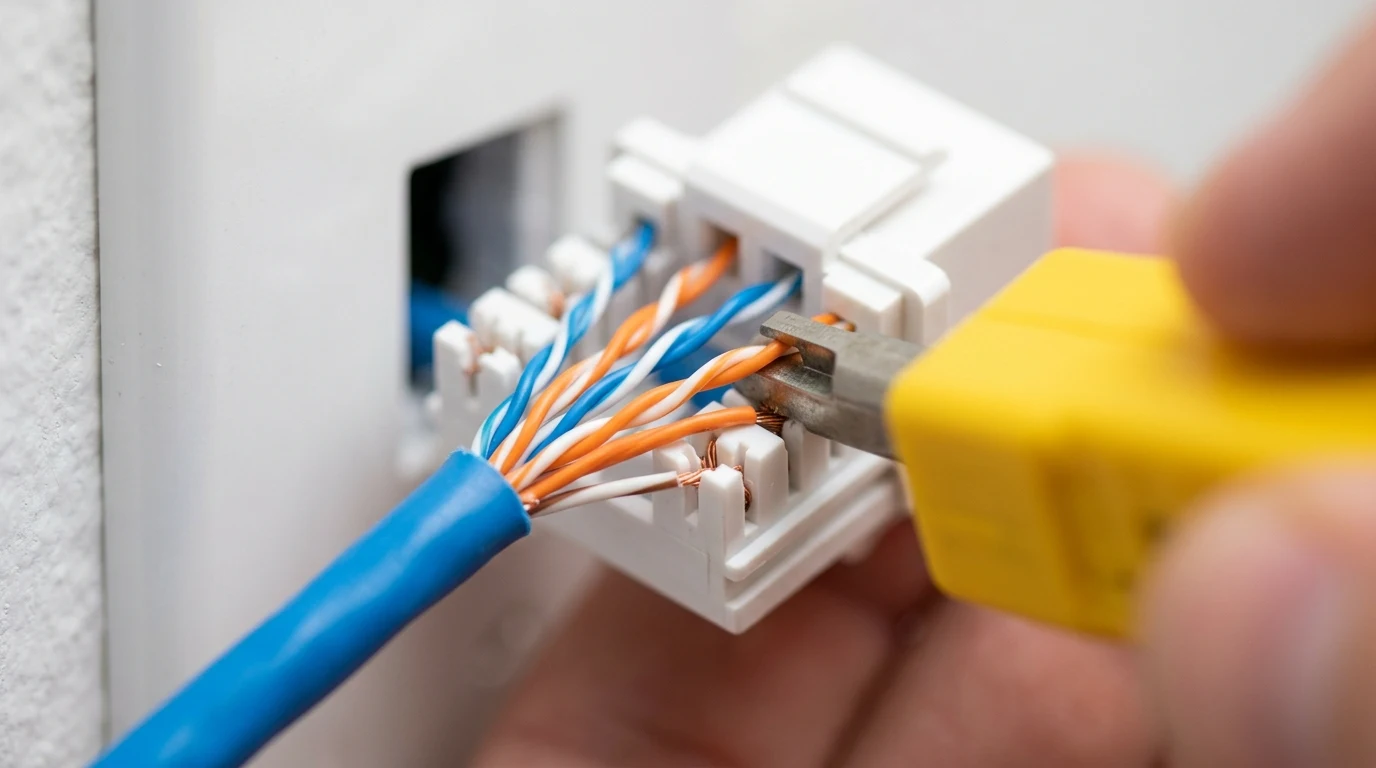
A cable category and a bufferbloat grade describe different things. Check physical-link behavior separately from latency that appears when traffic builds up.
Inspect the local link first
Look at the negotiated link speed in the operating system or router. Check for damaged connectors and compare with a known-working cable if one is available. Do not infer the negotiated speed from a browser throughput result alone. Keep the device and port unchanged when isolating a cable issue.
A repeatable procedure
- Record the link information and run a wired baseline.
- Change only the cable or port being investigated, then repeat.
- If the physical link is stable but loaded latency still rises, investigate traffic and queue management separately.
Avoid a universal cable prescription
Changing cable category does not guarantee lower internet ping or eliminate queueing elsewhere. Use supported equipment and manufacturer guidance. Keep the relevant measurements and settings with a support request, and do not treat one successful run as a permanent guarantee.
Use the result without overstating it
Start with the DC SPEED connection test, choose the same mode for comparable runs and label the connection conditions yourself. The result panel separates idle latency from latency during download and upload. Its before-and-after view reports differences between compatible runs; it does not identify the cause automatically. History and CSV export let you keep a record without creating an account.
For a problem in a specific game, use the gaming diagnostic guide and the game own network statistics. Read the measurement methodology before comparing this tool with another service. These instructions are a troubleshooting workflow, not a report of laboratory experiments performed by the author.