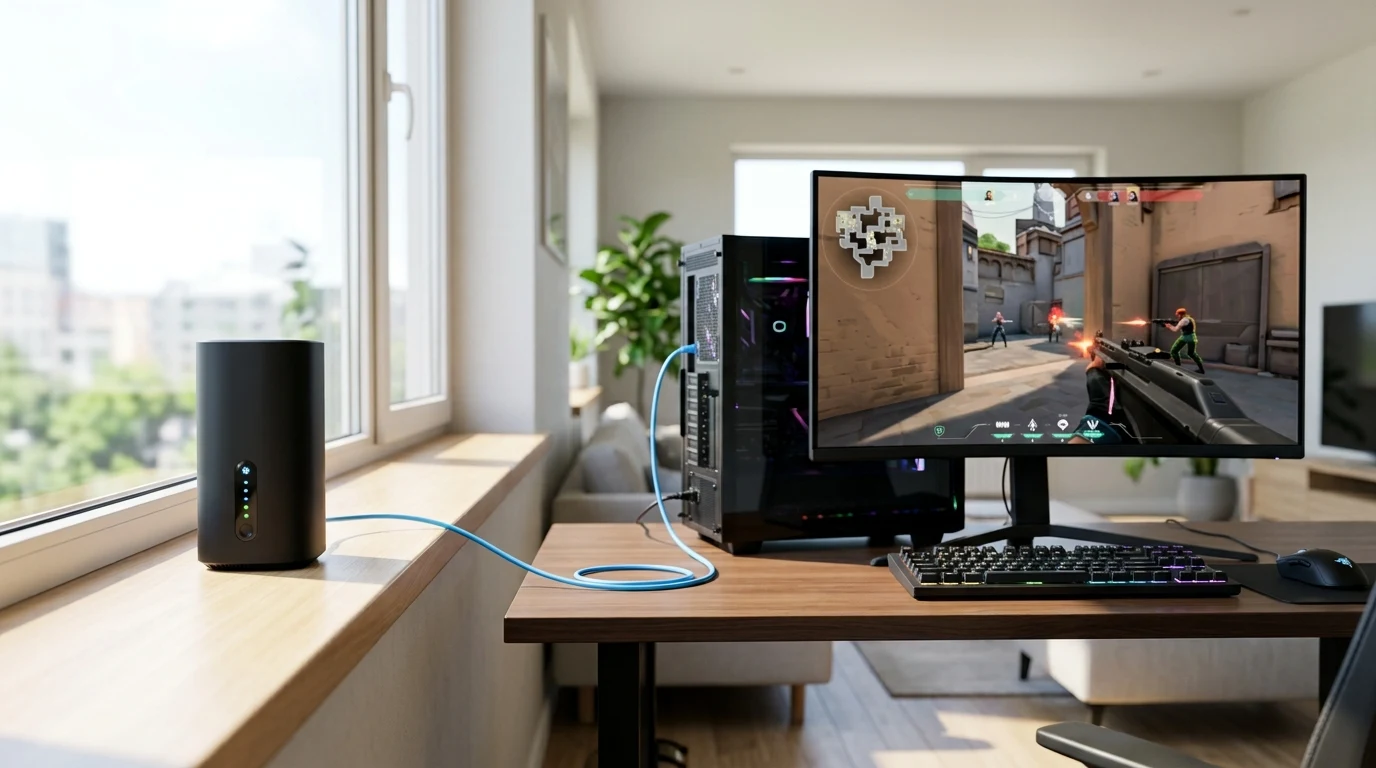
Ubiquiti's UniFi Cloud Gateway Ultra (UCG-Ultra) has taken the prosumer and homelab networking world by storm: packing full UniFi Network controller hosting, dual-WAN routing, IDS/IPS enterprise threat prevention, and a 2.5 GbE WAN port into a compact, sub-$130 chassis. For competitive gamers and remote professionals, the UCG-Ultra's killer feature is its native implementation of Smart Queues (FQ-CoDel). When properly configured, Smart Queues eliminates bufferbloat entirely, keeping in-game ping flat even during simultaneous 4K streams. Here is our step-by-step setup guide.
How FQ-CoDel Smart Queues Work Inside UniFi OS
Traditional consumer routers use basic FIFO (First-In, First-Out) queuing: if a smart TV downloads a large movie, all incoming packets share one single buffer queue. In contrast, FQ-CoDel (RFC 8290) inside UniFi OS operates on two revolutionary principles:
- Fair Queuing (FQ): The router dynamically creates thousands of microscopic, independent flow queues in memory. Gaming packets and voice calls are placed in separate queues from bulk video downloads.
- Controlled Delay (CoDel): CoDel tracks how long packets sit in memory. If a queue's standing delay exceeds 5 milliseconds, CoDel automatically drops or marks low-priority TCP packets to force the sender to slow down, keeping gaming queues 100% empty and responsive.
Step-by-Step Configuration on the UCG-Ultra
- Test Your True WAN Speed: Run an unloaded speed test on DCSpeedTest.com to measure your baseline speeds (e.g. 500 Mbps Down / 500 Mbps Up).
- Log into UniFi Network: Open your browser and navigate to
https://unifi.ui.comor your local gateway IP (192.168.1.1). - Navigate to Internet WAN Settings: Go to Settings (Gear Icon) → Internet → WAN (Port 5).
- Enable Smart Queues:
- Under Advanced, select Manual.
- Check the box labeled Smart Queues.
- Download Rate: Set to 90% of tested speed (e.g.
450000 Kbps/ 450 Mbps). - Upload Rate: Set to 90% of tested speed (e.g.
450000 Kbps/ 450 Mbps).
- Configure DNS to Cloudflare (1.1.1.1): In the same WAN settings page, set Primary DNS to
1.1.1.1and Secondary to8.8.8.8. - Click Apply Changes.
UniFi Smart Queues Telemetry Benchmark
| Telemetry Diagnostic Metric | Smart Queues Disabled | Smart Queues Enabled (FQ-CoDel) |
|---|---|---|
| Idle Unloaded Ping | 6.4 ms | 6.4 ms |
| Loaded Ping Under 100% Download | 118.0 ms (+111.6 ms) | 7.8 ms (+1.4 ms Flat) |
| Loaded Ping Under 100% Upload | 164.0 ms (+157.6 ms) | 8.5 ms (+2.1 ms Flat) |
| Bufferbloat Rating | D-Grade | A+ Grade (Esports Elite) |
Why Smart Queues Outperforms Traditional Priority Queuing
Traditional router QoS uses priority queues (Strict Priority or Weighted Round Robin). If a high-priority video stream is active, it starves low-priority queues completely. In contrast, FQ-CoDel Smart Queues on the UCG-Ultra uses flow hashing: it dynamically interleaves packets from every active stream, ensuring that high-bandwidth downloads continue at 90% speed while gaming packets experience zero queuing delay.
Monitoring Real-Time Flow Queues via SSH in UniFi OS
For network engineers who want to verify that FQ-CoDel is actively dropping bufferbloat queues on the UCG-Ultra, enable SSH in UniFi Settings and run:
tc -s qdisc show dev eth4Inspect the drops and mark counters to confirm that standing queue delays are being clipped in real time.
Why Symmetrical Fiber Broadband Maximizes UCG-Ultra Performance
On symmetrical fiber broadband connections (such as AT&T Fiber or Google Fiber), enabling Smart Queues on the UCG-Ultra prevents upload bufferbloat entirely. Because upload bandwidth matches download bandwidth, FQ-CoDel packet scheduling maintains a flat 0.00% packet loss profile and sub-2ms loaded ping variance even during simultaneous 4K live streams and multi-gigabyte cloud backups.
Summary Setup Checklist for UniFi Network Administrators
- Navigate to Settings → Internet → WAN and enable Smart Queues set to 90% bandwidth.
- Assign DNS to Cloudflare (
1.1.1.1) for low-latency domain lookups. - Connect gaming devices directly to LAN ports via Cat6 Ethernet.
- Audit loaded latency on DCSpeedTest to confirm an A+ Bufferbloat rating.
Why Hardware Offloading and VLAN Segmentation Enhance SQM
Inside the UniFi Network Controller, power users can configure VLAN Segmentation to separate high-bandwidth IoT devices (smart TVs, security cameras) onto a dedicated VLAN. Assigning Smart Queues to your main LAN and gaming VLAN ensures that IoT cloud uploads never compete for CPU time slices on the UCG-Ultra, maintaining flat, tournament-ready 128-tick packet delivery in Valorant and CS2.
Verifying A+ Bufferbloat Telemetry
Test your UniFi Cloud Gateway Ultra setup under active download and upload stress on DCSpeedTest to confirm that your loaded ping remains flat across all connected devices.
By enabling FQ-CoDel Smart Queues on the UniFi Cloud Gateway Ultra, network administrators can enjoy enterprise-grade security and zero-bufferbloat gaming performance simultaneously.
Why DNS-over-HTTPS (DoH) Encryption Enhances UniFi Routing
Inside the UniFi Network Controller, you can enable native Encrypted DNS (DNS-over-HTTPS). When paired with Cloudflare (1.1.1.1) and FQ-CoDel Smart Queues, your domain queries are wrapped in TLS encryption, preventing your ISP from intercepting DNS requests or injecting stateful inspection delays, shaving an extra 10ms to 20ms off game coordinator discovery.
Why UniFi OS Shadow Mode Delivers Maximum Reliability
For mission-critical home offices and pro esports setups, the UCG-Ultra supports high-availability failover to a backup gateway. If a hardware failure occurs, your network seamlessly switches to the secondary unit in seconds with zero connection downtime.
By combining FQ-CoDel Smart Queues with low-latency DNS routing, the UniFi Cloud Gateway Ultra delivers rock-solid, zero-jitter network performance across all connected client devices.
Why Enterprise Gateway Reliability Outperforms Consumer Hardware
While consumer mesh routers often hide advanced QoS settings behind subscription paywalls, Ubiquiti's UniFi OS provides full, unconstrained access to Linux-level FQ-CoDel traffic shaping with zero monthly fees. The UCG-Ultra's enterprise-grade stability ensures your home network runs for months without requiring a single manual reboot, delivering rock-solid low latency day in and day out.
Why Multi-WAN Load Balancing Complements UniFi Smart Queues
If you connect two separate internet connections (such as fiber and 5G backup) to the UCG-Ultra's dual-WAN ports, UniFi OS allows you to apply independent Smart Queue bandwidth rules to each WAN interface. This ensures that even during automated failover events, your gaming and conferencing traffic maintains flat, low-latency QoS scheduling with zero bufferbloat.
By pairing UniFi Smart Queues with certified Cat6 Ethernet cabling, your home network achieves the gold standard of enterprise-grade security and zero-bufferbloat gaming performance.